> ## Documentation Index
> Fetch the complete documentation index at: https://www.truefoundry.com/llms.txt
> Use this file to discover all available pages before exploring further.
# Claude Desktop & Cowork
> Connect Claude Desktop (Cowork on third-party inference) to the TrueFoundry AI Gateway.
[Claude Desktop](https://claude.com/download) can run in **Cowork on third-party (3P)** mode: the app routes inference to a gateway that implements the Anthropic [Messages API](https://docs.claude.com/en/api/messages) instead of signing in to claude.ai. The TrueFoundry AI Gateway is compatible with this mode.
For more details, see Anthropic’s [Installation and setup](https://claude.com/docs/cowork/3p/installation), [Configuration reference](https://claude.com/docs/cowork/3p/configuration), [Using an LLM gateway](https://claude.com/docs/cowork/3p/gateway), and the Help Center article [Install and configure Claude Cowork with third-party platforms](https://support.claude.com/en/articles/14680741-install-and-configure-claude-cowork-with-third-party-platforms).
There are two ways to point Claude Desktop at the AI Gateway. The **per-user UI** below (Developer Mode → Configure third-party inference) is best for a single machine or a quick trial — but each user configures it and can change or remove it. To enforce it across a fleet, use **[MDM managed preferences](#enforce-fleet-wide-via-mdm-managed-preferences)**, which push the AI Gateway configuration into the `com.anthropic.claudefordesktop` domain and lock it down — the Claude Desktop equivalent of pushing `managed-settings.json` for [Claude Code](/docs/ai-gateway/claude-code).
## Prerequisites
Before you configure Claude Desktop, ensure you have:
1. **TrueFoundry account** — Create a [TrueFoundry account](https://www.truefoundry.com/register) and follow [Gateway quick start](/docs/ai-gateway/quick-start). You need your gateway base URL (see [Gateway base URL](/docs/ai-gateway/quick-start#gateway-base-url)) and a TrueFoundry API key.
2. **Models on the AI Gateway** — Add the Claude models you plan to use via TrueFoundry (Anthropic direct, Bedrock, or Vertex). See [Anthropic model integration](/docs/ai-gateway/anthropic). For Cowork, include **Opus**, **Sonnet**, and **Haiku** so primary chats and sub-agents can resolve cleanly (details below).
3. **Claude Desktop** — Install from [claude.com/download](https://claude.com/download). For manual setup, launch the app but **do not** sign in until you have opened the configuration window (Anthropic recommends staying on the login screen).
## Enable Developer Mode
The third-party inference UI is behind Developer Mode.
**macOS:** Menu bar → **Help** → **Troubleshooting** → **Enable Developer Mode**.
**Windows:** Application menu (top-left on the login screen) → **Help** → **Troubleshooting** → **Enable Developer Mode**.
## Open the configuration window
**Developer** → **Configure third-party inference**.
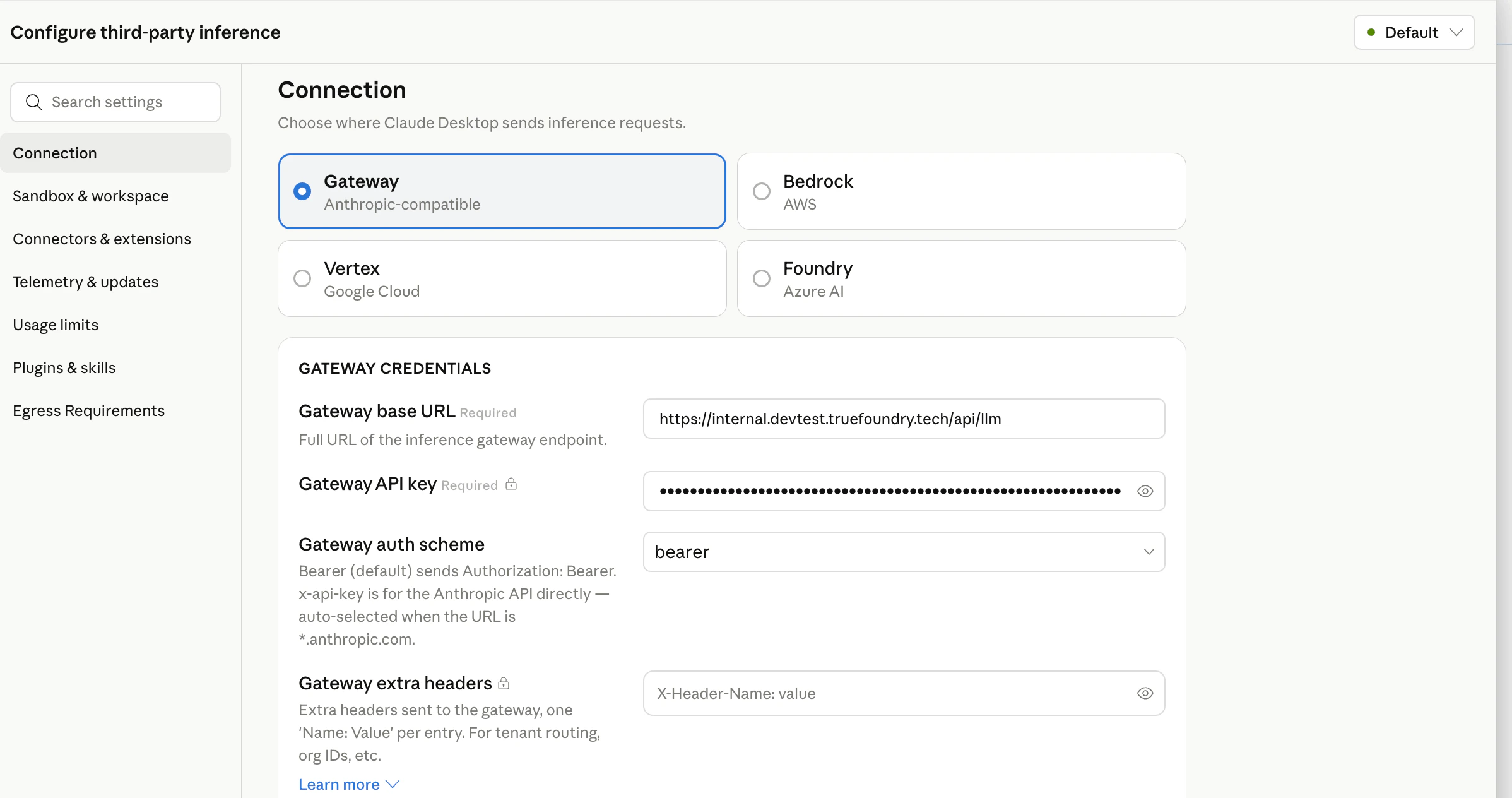
You should see a sidebar with sections such as **Connection**, **Sandbox & workspace**, **Connectors & extensions**, and others. Work through **Connection** first, then **Identity & Models** as needed.
## Connection — point Claude Desktop at TrueFoundry
1. Under **Connection**, choose **Gateway** (Anthropic-compatible).
2. Set **Gateway base URL** to your TrueFoundry AI Gateway URL.
3. Set **Gateway API key** to your TrueFoundry API key.
4. Set **Gateway auth scheme** to **`bearer`** (sends `Authorization: Bearer `). Use **`x-api-key`** only if your deployment expects that header instead.
5. **Gateway extra headers** (optional) — one `Name: Value` per line for tenant routing or metadata, for example `X-TFY-METADATA: {"team":"platform"}`.
 ## Identity & Models
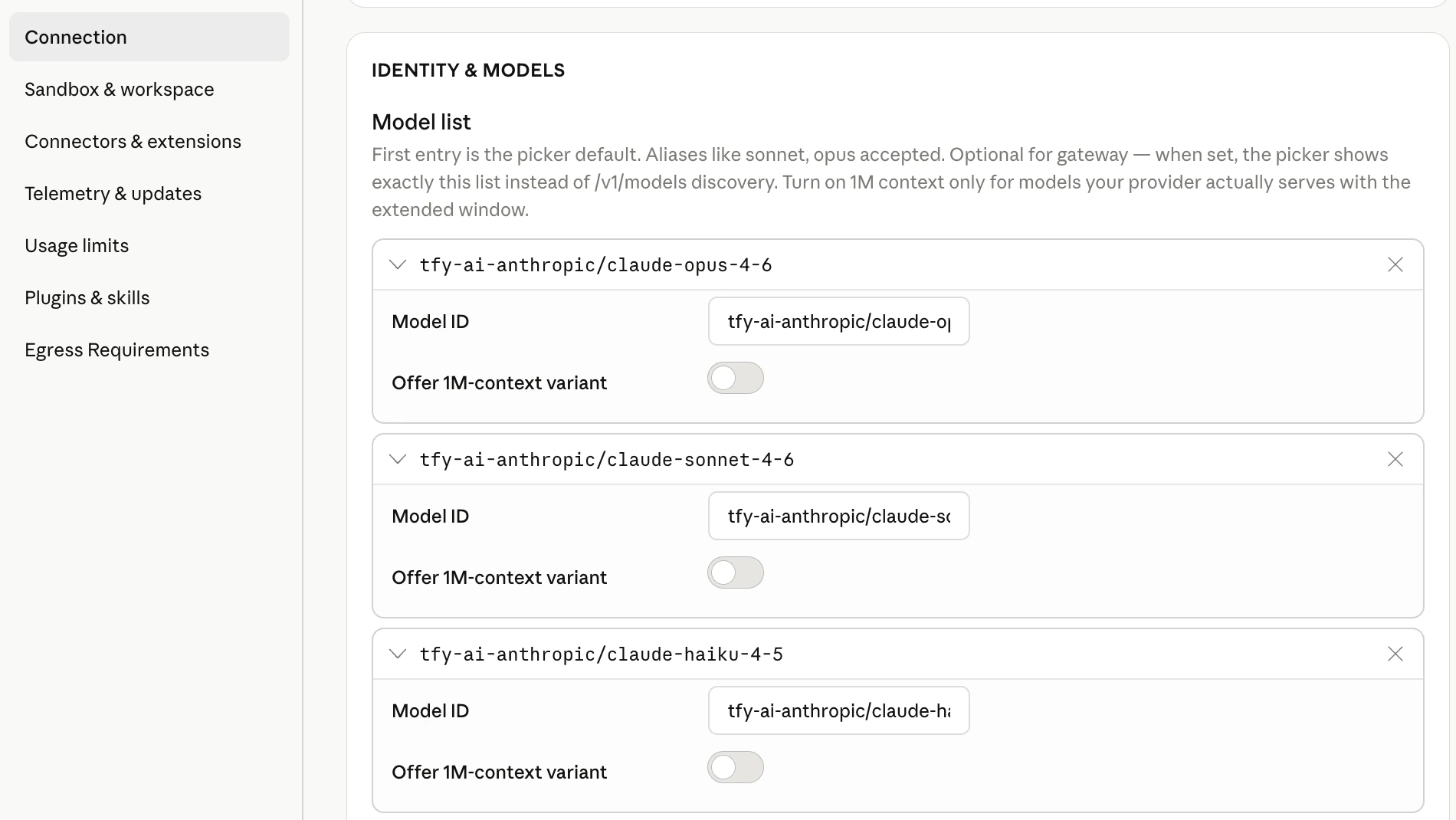
Per Anthropic’s configuration docs, the model list for **`gateway`** inference is **optional**: when you leave it empty, Cowork calls the AI Gateway’s **`GET /v1/models`** endpoint and builds the picker from the response. The TrueFoundry AI Gateway exposes this endpoint, so you can rely on auto-discovery.
**It is still recommended to set the model list explicitly.** When you configure it, the picker shows **exactly** the models you list instead of everything `/v1/models` returns. That helps you:
* **Pin Haiku** — Cowork’s built-in [Explore sub-agent](https://docs.claude.com/en/docs/claude-code/sub-agents) is configured to use Haiku for fast, read-only work. User-dispatched sub-agents in Cowork have also been observed to route through Haiku ([anthropics/claude-code#47488](https://github.com/anthropics/claude-code/issues/47488)). If discovery returns **no** Haiku id or **several** ambiguous Haiku variants, sub-agent calls can fail or behave unpredictably. Listing `your-account/claude-haiku-4-5` (or your org’s equivalent) removes that ambiguity.
* **Shorten the picker when discovery is noisy** — `/v1/models` may list many ids. An explicit list is optional but handy when you want Cowork users to see only the models you intend for this deployment.
Add each model as `provider-account/model-id` (same strings you use in the TrueFoundry playground). Example (replace `tfy-ai-anthropic` with your Anthropic model account name in TrueFoundry):
```json theme={"dark"}
[
"tfy-ai-anthropic/claude-opus-4-6",
"tfy-ai-anthropic/claude-sonnet-4-6",
"tfy-ai-anthropic/claude-haiku-4-5"
]
```
The **first** entry is the default in the model picker.
## Identity & Models
Per Anthropic’s configuration docs, the model list for **`gateway`** inference is **optional**: when you leave it empty, Cowork calls the AI Gateway’s **`GET /v1/models`** endpoint and builds the picker from the response. The TrueFoundry AI Gateway exposes this endpoint, so you can rely on auto-discovery.
**It is still recommended to set the model list explicitly.** When you configure it, the picker shows **exactly** the models you list instead of everything `/v1/models` returns. That helps you:
* **Pin Haiku** — Cowork’s built-in [Explore sub-agent](https://docs.claude.com/en/docs/claude-code/sub-agents) is configured to use Haiku for fast, read-only work. User-dispatched sub-agents in Cowork have also been observed to route through Haiku ([anthropics/claude-code#47488](https://github.com/anthropics/claude-code/issues/47488)). If discovery returns **no** Haiku id or **several** ambiguous Haiku variants, sub-agent calls can fail or behave unpredictably. Listing `your-account/claude-haiku-4-5` (or your org’s equivalent) removes that ambiguity.
* **Shorten the picker when discovery is noisy** — `/v1/models` may list many ids. An explicit list is optional but handy when you want Cowork users to see only the models you intend for this deployment.
Add each model as `provider-account/model-id` (same strings you use in the TrueFoundry playground). Example (replace `tfy-ai-anthropic` with your Anthropic model account name in TrueFoundry):
```json theme={"dark"}
[
"tfy-ai-anthropic/claude-opus-4-6",
"tfy-ai-anthropic/claude-sonnet-4-6",
"tfy-ai-anthropic/claude-haiku-4-5"
]
```
The **first** entry is the default in the model picker.
 ## Apply locally and relaunch
Click **Apply locally**. Claude Desktop writes the configuration and relaunches. On the sign-in screen you should see the option to start in **Cowork on 3P** using the profile you just built.
## Enforce fleet-wide via MDM (managed preferences)
The per-user UI above is convenient but not enforceable. For managed fleets, Claude Desktop reads **Cowork on 3P** configuration from OS-native **managed preferences** in the `com.anthropic.claudefordesktop` domain — the same class of control as pushing `managed-settings.json` for Claude Code. Push these keys via your MDM (Jamf, Kandji, Mosyle, Intune, Group Policy) or write and lock them with a script.
**Config locations**
| OS | Path |
| ------- | -------------------------------------------------------------------------- |
| macOS | `/Library/Managed Preferences//com.anthropic.claudefordesktop.plist` |
| Windows | `HKLM\SOFTWARE\Policies\Claude` |
| Linux | Not supported (Claude Desktop 3P does not run on Linux) |
**Keys** — every value is stored as a **string**; arrays and objects are **JSON-encoded strings** (see Anthropic's [Configuration reference](https://claude.com/docs/cowork/3p/configuration)).
| Key | Value |
| ---------------------------- | --------------------------------------------------------------------------------------------------------------------------------------- |
| `inferenceProvider` | `gateway` — activates third-party gateway mode |
| `inferenceGatewayBaseUrl` | Your TrueFoundry AI Gateway base URL |
| `inferenceGatewayAuthScheme` | `bearer` (sends `Authorization: Bearer …`) or `x-api-key` |
| `inferenceGatewayApiKey` | Your TrueFoundry API key / token |
| `inferenceCustomHeaders` | JSON object of **extra headers** on every request — e.g. tenant/metadata routing, or carrying the token in a custom header |
| `modelDiscoveryEnabled` | `false` to pin the picker to `inferenceModels` and stop the app calling the AI Gateway's `GET /v1/models` |
| `inferenceModels` | JSON array pinning the model picker (recommended). Set `modelDiscoveryEnabled` to `false` alongside it so only these models are offered |
**Custom headers.** `inferenceCustomHeaders` is a JSON object attached to every inference request — use it for tenant routing or metadata (for example `X-TFY-METADATA`), or to carry the credential in a custom header such as `X-TFY-API-KEY` (the same header Claude Code sends via `ANTHROPIC_CUSTOM_HEADERS`). Any header emitted by a credential helper merges over these.
Example macOS plist:
```xml theme={"dark"}
inferenceProvider
gateway
inferenceGatewayBaseUrl
https://gateway.example.truefoundry.com/api/llm
inferenceGatewayAuthScheme
bearer
inferenceGatewayApiKey
YOUR_TFY_API_KEY
inferenceCustomHeaders
{"X-TFY-METADATA":"{\"team\":\"platform\"}"}
modelDiscoveryEnabled
false
inferenceModels
[{"name":"tfy-ai-anthropic/claude-opus-4-6","anthropicFamilyTier":"opus","isFamilyDefault":true}]
```
Claude Desktop loads managed preferences **at launch**, so restart the app after the profile lands. Confirm what it picked up with **Help → Troubleshooting → Copy Managed Configuration Report** (secrets redacted).
TrueFoundry ships **[`tfy-local-ai-setup`](https://github.com/truefoundry/tfy-local-ai-setup)** to automate this end-to-end: it runs the device-login flow as the signed-in user, writes the managed preferences above (with the token in the `X-TFY-API-KEY` header), immutably locks the file, and refreshes on a schedule. Run it with `--claude-desktop` (and `--desktop-header 'Name: Value'` for extra custom headers). The same binary also manages Claude Code and Codex — see [Govern all AI traffic through the AI Gateway](/docs/ai-gateway/govern-traffic-through-ai-gateway). It only configures tools that are actually installed: an explicit flag for a tool that isn't present is skipped with a warning, and a machine with none of the three is a clean no-op (no login prompt) — so you can safely push all flags to your whole fleet.
## Web search
Claude Desktop's **Web Search** is a *server-side* tool — the app doesn't run the search itself, it asks the inference endpoint to. When Claude Desktop points at the TrueFoundry AI Gateway, there are two ways to satisfy it, and you can use both:
* **Provider-native passthrough** — the AI Gateway forwards Anthropic's `web_search` server tool to whichever provider serves the model. Available for every provider that supports it.
* **MCP web search** *(recommended for consistency across providers)* — search runs through an MCP server instead of the model provider, so it behaves the same no matter which model the request lands on.
### Provider-native passthrough
Claude Desktop emits Anthropic's `web_search_20250305` server tool. The AI Gateway passes it straight through to the model's provider (the request tool and the `web_search_tool_result` blocks in the response, plus the `num_search_queries` usage counter for billing) — there's **nothing extra to configure in Claude Desktop** beyond pointing it at the gateway.
The catch is that it only works when the routed model's provider actually executes the Anthropic web-search server tool (for example, the Anthropic API). A model whose provider doesn't run it will simply not return search results. Because that varies by provider, use the MCP option below when you want web search to work uniformly across every model in your picker.
### MCP web search (consistent across providers)
Add a web-search MCP server to Claude Desktop's [`managedMcpServers`](https://claude.com/docs/third-party/claude-desktop/configuration). Because the search executes at the MCP server rather than the model provider, it works on **every** model routed through the AI Gateway.
Point a remote `managedMcpServers` entry at a web-search MCP server running behind the [TrueFoundry MCP Gateway](/docs/ai-gateway/mcp/mcp-overview) — for example [Tavily](/docs/ai-gateway/mcp/tavily-mcp-server) or [Exa](/docs/ai-gateway/mcp/exa-mcp-server). This keeps the search key and tool access **server-side and centrally governed** (auth, allow-listing, and audit through TrueFoundry) instead of shipping a vendor key to every device:
```json theme={"dark"}
{
"managedMcpServers": [
{
"name": "web-search",
"transport": "http",
"url": "https:////mcp//server",
"headers": { "Authorization": "Bearer YOUR_TFY_API_KEY" },
"toolPolicy": { "*": "allow" }
}
]
}
```
Replace `` with the slug of the server you registered on the gateway (for example `tavily` or `exa`); `name` is just the local label Claude Desktop shows. You can reuse the **same TrueFoundry token you use for inference** in `headers` — or point `headersHelper` at a script that prints it to keep the token out of the config file. `toolPolicy` auto-approves the server's tools so users aren't prompted per query. See [Connect an MCP server from your IDE / client](/docs/ai-gateway/mcp/connect-mcp-from-ide) for the "Sign in with TrueFoundry" OAuth flow and the gateway MCP URL format.
Web Search returns links; **Web Fetch** (retrieving a page's contents) runs on the device and is gated by the `coworkEgressAllowedHosts` allowlist. If you want Claude to open the pages it finds, add those hosts to `coworkEgressAllowedHosts` (or set it to `["*"]`). See Anthropic's [Web search and web fetch](https://claude.com/docs/third-party/claude-desktop/web-tools) reference.
To enforce web search fleet-wide, push the same `managedMcpServers` value through [MDM managed preferences](#enforce-fleet-wide-via-mdm-managed-preferences) as a JSON-encoded string, alongside the connection keys above.
### Disabling web search
To turn off Claude Desktop's built-in web search — for example to block model-side web access, or to allow only the governed MCP server above — add `WebSearch` to `disabledBuiltinTools`:
```json theme={"dark"}
{
"disabledBuiltinTools": ["WebSearch"]
}
```
Add `"WebFetch"` to the same array to also block Claude from fetching page contents. In an MDM managed-preferences profile this value is stored as a **JSON-encoded string** (like the other array keys above), for example `"[\"WebSearch\"]"`.
## Verify the integration
1. Start a Cowork session and send a short test message.
2. In TrueFoundry, open **AI Gateway** → **Analytics** (see [Analytics overview](/docs/ai-gateway/analytics-overview)) and confirm requests appear for your API key and chosen model.
3. For configuration diagnostics, use **Help** → **Troubleshooting** → **Copy Managed Configuration Report** — it summarizes detected keys and whether gateway credentials validated (secrets redacted).
## Code tab and Claude Code CLI
The **Code** tab inside Claude Desktop uses **Claude Code** on the host. Some Cowork settings do not yet mirror one-to-one into Code-tab sessions. For terminal or VS Code workflows with environment variables and `settings.json`, follow [Claude Code](/docs/ai-gateway/claude-code) and [Claude Code Max](/docs/ai-gateway/claude-code-max).
## References
* [Cowork on 3P — Installation and setup](https://claude.com/docs/cowork/3p/installation)
* [Cowork on 3P — Configuration reference](https://claude.com/docs/cowork/3p/configuration)
* [Cowork on 3P — Using an LLM gateway](https://claude.com/docs/cowork/3p/gateway)
* [Cowork on 3P — Web search and web fetch](https://claude.com/docs/third-party/claude-desktop/web-tools)
* [Install and configure Claude Cowork with third-party platforms](https://support.claude.com/en/articles/14680741-install-and-configure-claude-cowork-with-third-party-platforms)
## Apply locally and relaunch
Click **Apply locally**. Claude Desktop writes the configuration and relaunches. On the sign-in screen you should see the option to start in **Cowork on 3P** using the profile you just built.
## Enforce fleet-wide via MDM (managed preferences)
The per-user UI above is convenient but not enforceable. For managed fleets, Claude Desktop reads **Cowork on 3P** configuration from OS-native **managed preferences** in the `com.anthropic.claudefordesktop` domain — the same class of control as pushing `managed-settings.json` for Claude Code. Push these keys via your MDM (Jamf, Kandji, Mosyle, Intune, Group Policy) or write and lock them with a script.
**Config locations**
| OS | Path |
| ------- | -------------------------------------------------------------------------- |
| macOS | `/Library/Managed Preferences//com.anthropic.claudefordesktop.plist` |
| Windows | `HKLM\SOFTWARE\Policies\Claude` |
| Linux | Not supported (Claude Desktop 3P does not run on Linux) |
**Keys** — every value is stored as a **string**; arrays and objects are **JSON-encoded strings** (see Anthropic's [Configuration reference](https://claude.com/docs/cowork/3p/configuration)).
| Key | Value |
| ---------------------------- | --------------------------------------------------------------------------------------------------------------------------------------- |
| `inferenceProvider` | `gateway` — activates third-party gateway mode |
| `inferenceGatewayBaseUrl` | Your TrueFoundry AI Gateway base URL |
| `inferenceGatewayAuthScheme` | `bearer` (sends `Authorization: Bearer …`) or `x-api-key` |
| `inferenceGatewayApiKey` | Your TrueFoundry API key / token |
| `inferenceCustomHeaders` | JSON object of **extra headers** on every request — e.g. tenant/metadata routing, or carrying the token in a custom header |
| `modelDiscoveryEnabled` | `false` to pin the picker to `inferenceModels` and stop the app calling the AI Gateway's `GET /v1/models` |
| `inferenceModels` | JSON array pinning the model picker (recommended). Set `modelDiscoveryEnabled` to `false` alongside it so only these models are offered |
**Custom headers.** `inferenceCustomHeaders` is a JSON object attached to every inference request — use it for tenant routing or metadata (for example `X-TFY-METADATA`), or to carry the credential in a custom header such as `X-TFY-API-KEY` (the same header Claude Code sends via `ANTHROPIC_CUSTOM_HEADERS`). Any header emitted by a credential helper merges over these.
Example macOS plist:
```xml theme={"dark"}
inferenceProvider
gateway
inferenceGatewayBaseUrl
https://gateway.example.truefoundry.com/api/llm
inferenceGatewayAuthScheme
bearer
inferenceGatewayApiKey
YOUR_TFY_API_KEY
inferenceCustomHeaders
{"X-TFY-METADATA":"{\"team\":\"platform\"}"}
modelDiscoveryEnabled
false
inferenceModels
[{"name":"tfy-ai-anthropic/claude-opus-4-6","anthropicFamilyTier":"opus","isFamilyDefault":true}]
```
Claude Desktop loads managed preferences **at launch**, so restart the app after the profile lands. Confirm what it picked up with **Help → Troubleshooting → Copy Managed Configuration Report** (secrets redacted).
TrueFoundry ships **[`tfy-local-ai-setup`](https://github.com/truefoundry/tfy-local-ai-setup)** to automate this end-to-end: it runs the device-login flow as the signed-in user, writes the managed preferences above (with the token in the `X-TFY-API-KEY` header), immutably locks the file, and refreshes on a schedule. Run it with `--claude-desktop` (and `--desktop-header 'Name: Value'` for extra custom headers). The same binary also manages Claude Code and Codex — see [Govern all AI traffic through the AI Gateway](/docs/ai-gateway/govern-traffic-through-ai-gateway). It only configures tools that are actually installed: an explicit flag for a tool that isn't present is skipped with a warning, and a machine with none of the three is a clean no-op (no login prompt) — so you can safely push all flags to your whole fleet.
## Web search
Claude Desktop's **Web Search** is a *server-side* tool — the app doesn't run the search itself, it asks the inference endpoint to. When Claude Desktop points at the TrueFoundry AI Gateway, there are two ways to satisfy it, and you can use both:
* **Provider-native passthrough** — the AI Gateway forwards Anthropic's `web_search` server tool to whichever provider serves the model. Available for every provider that supports it.
* **MCP web search** *(recommended for consistency across providers)* — search runs through an MCP server instead of the model provider, so it behaves the same no matter which model the request lands on.
### Provider-native passthrough
Claude Desktop emits Anthropic's `web_search_20250305` server tool. The AI Gateway passes it straight through to the model's provider (the request tool and the `web_search_tool_result` blocks in the response, plus the `num_search_queries` usage counter for billing) — there's **nothing extra to configure in Claude Desktop** beyond pointing it at the gateway.
The catch is that it only works when the routed model's provider actually executes the Anthropic web-search server tool (for example, the Anthropic API). A model whose provider doesn't run it will simply not return search results. Because that varies by provider, use the MCP option below when you want web search to work uniformly across every model in your picker.
### MCP web search (consistent across providers)
Add a web-search MCP server to Claude Desktop's [`managedMcpServers`](https://claude.com/docs/third-party/claude-desktop/configuration). Because the search executes at the MCP server rather than the model provider, it works on **every** model routed through the AI Gateway.
Point a remote `managedMcpServers` entry at a web-search MCP server running behind the [TrueFoundry MCP Gateway](/docs/ai-gateway/mcp/mcp-overview) — for example [Tavily](/docs/ai-gateway/mcp/tavily-mcp-server) or [Exa](/docs/ai-gateway/mcp/exa-mcp-server). This keeps the search key and tool access **server-side and centrally governed** (auth, allow-listing, and audit through TrueFoundry) instead of shipping a vendor key to every device:
```json theme={"dark"}
{
"managedMcpServers": [
{
"name": "web-search",
"transport": "http",
"url": "https:////mcp//server",
"headers": { "Authorization": "Bearer YOUR_TFY_API_KEY" },
"toolPolicy": { "*": "allow" }
}
]
}
```
Replace `` with the slug of the server you registered on the gateway (for example `tavily` or `exa`); `name` is just the local label Claude Desktop shows. You can reuse the **same TrueFoundry token you use for inference** in `headers` — or point `headersHelper` at a script that prints it to keep the token out of the config file. `toolPolicy` auto-approves the server's tools so users aren't prompted per query. See [Connect an MCP server from your IDE / client](/docs/ai-gateway/mcp/connect-mcp-from-ide) for the "Sign in with TrueFoundry" OAuth flow and the gateway MCP URL format.
Web Search returns links; **Web Fetch** (retrieving a page's contents) runs on the device and is gated by the `coworkEgressAllowedHosts` allowlist. If you want Claude to open the pages it finds, add those hosts to `coworkEgressAllowedHosts` (or set it to `["*"]`). See Anthropic's [Web search and web fetch](https://claude.com/docs/third-party/claude-desktop/web-tools) reference.
To enforce web search fleet-wide, push the same `managedMcpServers` value through [MDM managed preferences](#enforce-fleet-wide-via-mdm-managed-preferences) as a JSON-encoded string, alongside the connection keys above.
### Disabling web search
To turn off Claude Desktop's built-in web search — for example to block model-side web access, or to allow only the governed MCP server above — add `WebSearch` to `disabledBuiltinTools`:
```json theme={"dark"}
{
"disabledBuiltinTools": ["WebSearch"]
}
```
Add `"WebFetch"` to the same array to also block Claude from fetching page contents. In an MDM managed-preferences profile this value is stored as a **JSON-encoded string** (like the other array keys above), for example `"[\"WebSearch\"]"`.
## Verify the integration
1. Start a Cowork session and send a short test message.
2. In TrueFoundry, open **AI Gateway** → **Analytics** (see [Analytics overview](/docs/ai-gateway/analytics-overview)) and confirm requests appear for your API key and chosen model.
3. For configuration diagnostics, use **Help** → **Troubleshooting** → **Copy Managed Configuration Report** — it summarizes detected keys and whether gateway credentials validated (secrets redacted).
## Code tab and Claude Code CLI
The **Code** tab inside Claude Desktop uses **Claude Code** on the host. Some Cowork settings do not yet mirror one-to-one into Code-tab sessions. For terminal or VS Code workflows with environment variables and `settings.json`, follow [Claude Code](/docs/ai-gateway/claude-code) and [Claude Code Max](/docs/ai-gateway/claude-code-max).
## References
* [Cowork on 3P — Installation and setup](https://claude.com/docs/cowork/3p/installation)
* [Cowork on 3P — Configuration reference](https://claude.com/docs/cowork/3p/configuration)
* [Cowork on 3P — Using an LLM gateway](https://claude.com/docs/cowork/3p/gateway)
* [Cowork on 3P — Web search and web fetch](https://claude.com/docs/third-party/claude-desktop/web-tools)
* [Install and configure Claude Cowork with third-party platforms](https://support.claude.com/en/articles/14680741-install-and-configure-claude-cowork-with-third-party-platforms)