> ## Documentation Index
> Fetch the complete documentation index at: https://www.truefoundry.com/llms.txt
> Use this file to discover all available pages before exploring further.
# Connect Private Models and MCP Servers
> Connect models and MCP servers running in your private network to the TrueFoundry SAAS Gateway without exposing them to the public internet.
When your models or MCP servers run inside a private network — a VPC, on-prem cluster, or any environment unreachable from the public internet — the SAAS gateway needs a network path to reach them. This page describes the supported ways to set up that path, along with the trade-offs of each.
## Choose an approach
| Option | What it does | Best for | Plan |
| ----------------------------------------------------------- | ------------------------------------------------------------------------------------------------------------------------ | ---------------------------------------------------------------------- | ---------- |
| [Reverse Tunnel Agent](#option-1-reverse-tunnel-agent) | A small agent inside your network opens an outbound-only tunnel that the AI Gateway uses to reach your private services. | Fast to set up. Works in any environment that can make outbound HTTPS. | Enterprise |
| [Self-Host the AI Gateway](#option-2-self-host-the-gateway) | Run the AI Gateway plane inside your own infrastructure so it has direct network access to your services. | Zero cross-network traffic and full data residency control. | Enterprise |
## Option 1: Reverse Tunnel Agent
Instead of exposing your model or MCP server publicly, you run a `cloudflared` agent inside your network. The agent opens an outbound-only tunnel to a TrueFoundry-managed domain dedicated to your tenant. The AI Gateway then reaches your private services through that tunnel — no inbound firewall ports need to be opened.
This option is available on enterprise plans. Contact the TrueFoundry team to enable it for your tenant.
### How it works
Two components run inside your network:
* **cloudflared agent** — The tunnel client. It initiates outbound-only connections to Cloudflare's edge and carries encrypted traffic from the AI Gateway back to your private services.
* **Caddy internal router** — TrueFoundry's routing component. It receives traffic arriving through the tunnel and forwards each request to the correct upstream service based on the URL.
Once the tunnel is active, any private service in your network is reachable at:
```
https://.private-endpoints.truefoundry.ai/default/
```
For example, an MCP server running at `http://my-mcp-server.internal:8080/sse` inside your VPC becomes reachable at:
```
https://acme.private-endpoints.truefoundry.ai/default/my-mcp-server.internal:8080/sse
```
### Request flow
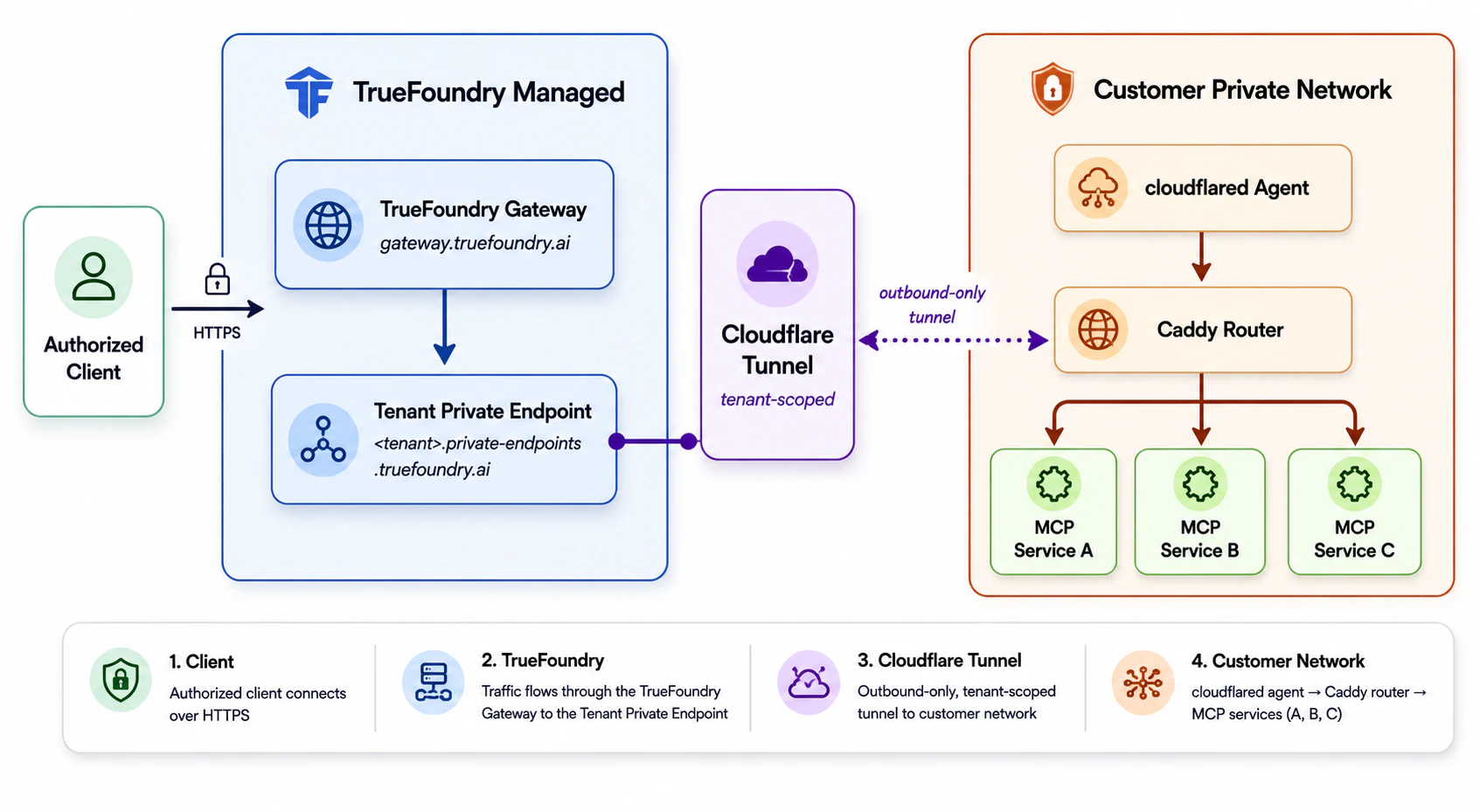 ### Resource specs
The tunnel stack has a small compute footprint. The Helm chart applies these per-replica requests and limits by default:
| Component | CPU request | Memory request | CPU limit | Memory limit |
| ----------- | ----------- | -------------- | --------- | ------------ |
| cloudflared | 100m | 128Mi | 200m | 256Mi |
| Caddy | 300m | 256Mi | 500m | 512Mi |
The chart also deploys 2 replicas of each component by default.
`cloudflared` can run on any Linux distribution and any instance type. There are no special OS or hardware requirements beyond the resource specs above.
### Setup
Contact the TrueFoundry team to provision a new tunnel for your tenant. You will receive:
* `public_domain` — Your tenant's public domain, e.g., `.private-endpoints.truefoundry.ai`.
* `auth_token` — The token used to run `cloudflared` in your environment.
Run `cloudflared` and the Caddy internal router inside your network using the `auth_token`.
```bash theme={"dark"}
helm repo add truefoundry https://truefoundry.github.io/infra-charts/
helm repo update
helm install tfy-cloudflared truefoundry/tfy-cloudflared \
--set tunnel.token= \
-n tfy-cloudflared --create-namespace
```
Confirm the pods are running:
```bash theme={"dark"}
kubectl get pods -n tfy-cloudflared
```
Run `cloudflared` and the Caddy router so that `cloudflared` can reach Caddy over the network. The example below runs both on one host for convenience, but they don't have to be co-located.
Caddy listens on port `8080` in the config below. To use a different port, change the `:8080` address in the Caddyfile (and the published port). Share the router's address with the TrueFoundry team so the provisioned tunnel origin points to it.
Write the following to `./Caddyfile`. It receives traffic from the tunnel and routes each request to the correct upstream service based on the URL.
```caddyfile Caddyfile theme={"dark"}
{
admin 0.0.0.0:2019
log {
output stdout
format json
level INFO
}
}
:8080 {
encode zstd gzip
log {
output stdout
format json
}
respond /healthz 200
@direct_url_http path_regexp direct_url_http ^/[^/]+/http:/{1,2}([^/]+):([0-9]+)(?:/(.*))?$
handle @direct_url_http {
rewrite * /{re.direct_url_http.3}
reverse_proxy {re.direct_url_http.1}:{re.direct_url_http.2} {
header_up Host {re.direct_url_http.1}
header_up X-Forwarded-Host {host}
header_up X-Original-URI {uri}
lb_try_duration 5s
lb_try_interval 250ms
fail_duration 10s
max_fails 2
transport http {
dial_timeout 3s
response_header_timeout 30s
read_timeout 5m
write_timeout 5m
}
}
}
@direct_url_https path_regexp direct_url_https ^/[^/]+/https:/{1,2}([^/]+):([0-9]+)(?:/(.*))?$
handle @direct_url_https {
rewrite * /{re.direct_url_https.3}
reverse_proxy {re.direct_url_https.1}:{re.direct_url_https.2} {
header_up Host {re.direct_url_https.1}
header_up X-Forwarded-Host {host}
header_up X-Original-URI {uri}
lb_try_duration 5s
lb_try_interval 250ms
fail_duration 10s
max_fails 2
transport http {
tls
tls_server_name {re.direct_url_https.1}
dial_timeout 3s
response_header_timeout 30s
read_timeout 5m
write_timeout 5m
}
}
}
@direct_https path_regexp direct_https ^/[^/]+/https/([^/]+):([0-9]+)(?:/(.*))?$
handle @direct_https {
rewrite * /{re.direct_https.3}
reverse_proxy {re.direct_https.1}:{re.direct_https.2} {
header_up Host {re.direct_https.1}
header_up X-Forwarded-Host {host}
header_up X-Original-URI {uri}
lb_try_duration 5s
lb_try_interval 250ms
fail_duration 10s
max_fails 2
transport http {
tls
tls_server_name {re.direct_https.1}
dial_timeout 3s
response_header_timeout 30s
read_timeout 5m
write_timeout 5m
}
}
}
@direct_http path_regexp direct_http ^/[^/]+/([^/]+):([0-9]+)(?:/(.*))?$
handle @direct_http {
rewrite * /{re.direct_http.3}
reverse_proxy {re.direct_http.1}:{re.direct_http.2} {
header_up Host {re.direct_http.1}
header_up X-Forwarded-Host {host}
header_up X-Original-URI {uri}
lb_try_duration 5s
lb_try_interval 250ms
fail_duration 10s
max_fails 2
transport http {
dial_timeout 3s
response_header_timeout 30s
read_timeout 5m
write_timeout 5m
}
}
}
respond 404
}
```
This mirrors the Caddy config that the `tfy-cloudflared` Helm chart deploys. The canonical version lives at [`charts/tfy-cloudflared/templates/caddy/configmap.yaml`](https://github.com/truefoundry/infra-charts/blob/main/charts/tfy-cloudflared/templates/caddy/configmap.yaml) — refer to it if you need the latest routing rules.
Save the following as `docker-compose.yml` next to your `Caddyfile`, then start both containers.
```yaml docker-compose.yml theme={"dark"}
services:
caddy:
image: public.ecr.aws/docker/library/caddy:2.6.3
restart: unless-stopped
ports:
- "8080:8080"
volumes:
- ./Caddyfile:/etc/caddy/Caddyfile:ro
cloudflared:
image: cloudflare/cloudflared:latest
restart: unless-stopped
command: tunnel --no-autoupdate run --token ${TUNNEL_TOKEN}
network_mode: host # so cloudflared reaches Caddy at localhost:8080
```
```bash theme={"dark"}
TUNNEL_TOKEN= docker compose up -d
```
Confirm Caddy is up:
```bash theme={"dark"}
curl -s -o /dev/null -w "%{http_code}\n" http://localhost:8080/healthz
```
A `200` response means the router is running. Check `docker compose logs cloudflared` to confirm the tunnel registered successfully.
Once the tunnel is active, your private services are reachable at:
```
https://.private-endpoints.truefoundry.ai/default/
```
Use this URL as the endpoint when registering the model or MCP server in the AI Gateway. For MCP servers, see [Getting started with MCP servers](/docs/ai-gateway/mcp/mcp-server-getting-started).
### Security
* **No inbound exposure.** All traffic from the AI Gateway to your services travels over the encrypted outbound tunnel. No inbound ports are opened on your network.
* **Gateway-only access to the tunnel.** Each tenant's tunnel endpoint is locked down to the TrueFoundry gateway's IP addresses, so requests from any other source are rejected — even if they know the private endpoint URL.
* **Tenant isolation.** MCP server URLs can only be registered if they begin with your tenant's private endpoint domain (`.private-endpoints.truefoundry.ai`), which prevents cross-tenant SSRF. Access is further restricted by a tenant-specific secret token.
* **Protect the `auth_token`.** Treat it as a high-value secret — store it in Kubernetes Secrets or a dedicated secrets manager. If an attacker obtains it, they can impersonate your tunnel. Contact the TrueFoundry team immediately if you suspect it has been compromised.
## Option 2: Self-Host the AI Gateway
If neither of the above options meets your requirements, you can self-host the TrueFoundry gateway plane inside your own infrastructure. In this setup, the AI Gateway runs in the same network as your models and MCP servers and reaches them directly — no public exposure or cross-network connectivity is required.
See [Deploy the AI Gateway Plane](/docs/platform/deployment-overview#option2-gateway-plane-only) for installation details.
### Resource specs
The tunnel stack has a small compute footprint. The Helm chart applies these per-replica requests and limits by default:
| Component | CPU request | Memory request | CPU limit | Memory limit |
| ----------- | ----------- | -------------- | --------- | ------------ |
| cloudflared | 100m | 128Mi | 200m | 256Mi |
| Caddy | 300m | 256Mi | 500m | 512Mi |
The chart also deploys 2 replicas of each component by default.
`cloudflared` can run on any Linux distribution and any instance type. There are no special OS or hardware requirements beyond the resource specs above.
### Setup
Contact the TrueFoundry team to provision a new tunnel for your tenant. You will receive:
* `public_domain` — Your tenant's public domain, e.g., `.private-endpoints.truefoundry.ai`.
* `auth_token` — The token used to run `cloudflared` in your environment.
Run `cloudflared` and the Caddy internal router inside your network using the `auth_token`.
```bash theme={"dark"}
helm repo add truefoundry https://truefoundry.github.io/infra-charts/
helm repo update
helm install tfy-cloudflared truefoundry/tfy-cloudflared \
--set tunnel.token= \
-n tfy-cloudflared --create-namespace
```
Confirm the pods are running:
```bash theme={"dark"}
kubectl get pods -n tfy-cloudflared
```
Run `cloudflared` and the Caddy router so that `cloudflared` can reach Caddy over the network. The example below runs both on one host for convenience, but they don't have to be co-located.
Caddy listens on port `8080` in the config below. To use a different port, change the `:8080` address in the Caddyfile (and the published port). Share the router's address with the TrueFoundry team so the provisioned tunnel origin points to it.
Write the following to `./Caddyfile`. It receives traffic from the tunnel and routes each request to the correct upstream service based on the URL.
```caddyfile Caddyfile theme={"dark"}
{
admin 0.0.0.0:2019
log {
output stdout
format json
level INFO
}
}
:8080 {
encode zstd gzip
log {
output stdout
format json
}
respond /healthz 200
@direct_url_http path_regexp direct_url_http ^/[^/]+/http:/{1,2}([^/]+):([0-9]+)(?:/(.*))?$
handle @direct_url_http {
rewrite * /{re.direct_url_http.3}
reverse_proxy {re.direct_url_http.1}:{re.direct_url_http.2} {
header_up Host {re.direct_url_http.1}
header_up X-Forwarded-Host {host}
header_up X-Original-URI {uri}
lb_try_duration 5s
lb_try_interval 250ms
fail_duration 10s
max_fails 2
transport http {
dial_timeout 3s
response_header_timeout 30s
read_timeout 5m
write_timeout 5m
}
}
}
@direct_url_https path_regexp direct_url_https ^/[^/]+/https:/{1,2}([^/]+):([0-9]+)(?:/(.*))?$
handle @direct_url_https {
rewrite * /{re.direct_url_https.3}
reverse_proxy {re.direct_url_https.1}:{re.direct_url_https.2} {
header_up Host {re.direct_url_https.1}
header_up X-Forwarded-Host {host}
header_up X-Original-URI {uri}
lb_try_duration 5s
lb_try_interval 250ms
fail_duration 10s
max_fails 2
transport http {
tls
tls_server_name {re.direct_url_https.1}
dial_timeout 3s
response_header_timeout 30s
read_timeout 5m
write_timeout 5m
}
}
}
@direct_https path_regexp direct_https ^/[^/]+/https/([^/]+):([0-9]+)(?:/(.*))?$
handle @direct_https {
rewrite * /{re.direct_https.3}
reverse_proxy {re.direct_https.1}:{re.direct_https.2} {
header_up Host {re.direct_https.1}
header_up X-Forwarded-Host {host}
header_up X-Original-URI {uri}
lb_try_duration 5s
lb_try_interval 250ms
fail_duration 10s
max_fails 2
transport http {
tls
tls_server_name {re.direct_https.1}
dial_timeout 3s
response_header_timeout 30s
read_timeout 5m
write_timeout 5m
}
}
}
@direct_http path_regexp direct_http ^/[^/]+/([^/]+):([0-9]+)(?:/(.*))?$
handle @direct_http {
rewrite * /{re.direct_http.3}
reverse_proxy {re.direct_http.1}:{re.direct_http.2} {
header_up Host {re.direct_http.1}
header_up X-Forwarded-Host {host}
header_up X-Original-URI {uri}
lb_try_duration 5s
lb_try_interval 250ms
fail_duration 10s
max_fails 2
transport http {
dial_timeout 3s
response_header_timeout 30s
read_timeout 5m
write_timeout 5m
}
}
}
respond 404
}
```
This mirrors the Caddy config that the `tfy-cloudflared` Helm chart deploys. The canonical version lives at [`charts/tfy-cloudflared/templates/caddy/configmap.yaml`](https://github.com/truefoundry/infra-charts/blob/main/charts/tfy-cloudflared/templates/caddy/configmap.yaml) — refer to it if you need the latest routing rules.
Save the following as `docker-compose.yml` next to your `Caddyfile`, then start both containers.
```yaml docker-compose.yml theme={"dark"}
services:
caddy:
image: public.ecr.aws/docker/library/caddy:2.6.3
restart: unless-stopped
ports:
- "8080:8080"
volumes:
- ./Caddyfile:/etc/caddy/Caddyfile:ro
cloudflared:
image: cloudflare/cloudflared:latest
restart: unless-stopped
command: tunnel --no-autoupdate run --token ${TUNNEL_TOKEN}
network_mode: host # so cloudflared reaches Caddy at localhost:8080
```
```bash theme={"dark"}
TUNNEL_TOKEN= docker compose up -d
```
Confirm Caddy is up:
```bash theme={"dark"}
curl -s -o /dev/null -w "%{http_code}\n" http://localhost:8080/healthz
```
A `200` response means the router is running. Check `docker compose logs cloudflared` to confirm the tunnel registered successfully.
Once the tunnel is active, your private services are reachable at:
```
https://.private-endpoints.truefoundry.ai/default/
```
Use this URL as the endpoint when registering the model or MCP server in the AI Gateway. For MCP servers, see [Getting started with MCP servers](/docs/ai-gateway/mcp/mcp-server-getting-started).
### Security
* **No inbound exposure.** All traffic from the AI Gateway to your services travels over the encrypted outbound tunnel. No inbound ports are opened on your network.
* **Gateway-only access to the tunnel.** Each tenant's tunnel endpoint is locked down to the TrueFoundry gateway's IP addresses, so requests from any other source are rejected — even if they know the private endpoint URL.
* **Tenant isolation.** MCP server URLs can only be registered if they begin with your tenant's private endpoint domain (`.private-endpoints.truefoundry.ai`), which prevents cross-tenant SSRF. Access is further restricted by a tenant-specific secret token.
* **Protect the `auth_token`.** Treat it as a high-value secret — store it in Kubernetes Secrets or a dedicated secrets manager. If an attacker obtains it, they can impersonate your tunnel. Contact the TrueFoundry team immediately if you suspect it has been compromised.
## Option 2: Self-Host the AI Gateway
If neither of the above options meets your requirements, you can self-host the TrueFoundry gateway plane inside your own infrastructure. In this setup, the AI Gateway runs in the same network as your models and MCP servers and reaches them directly — no public exposure or cross-network connectivity is required.
See [Deploy the AI Gateway Plane](/docs/platform/deployment-overview#option2-gateway-plane-only) for installation details.