> ## Documentation Index
> Fetch the complete documentation index at: https://www.truefoundry.com/llms.txt
> Use this file to discover all available pages before exploring further.
# External SSO (OIDC/SAML)
> Deploy the TrueFoundry Control Plane without TrueFoundry Auth Server using any external OIDC or SAML identity providers for authentication.
**This is a TrueFoundry High-tier Enterprise plan feature.**
By default, the control plane uses the TrueFoundry Auth Server to authenticate users. However, you can deploy the control plane using your own external OIDC or SAML compliant identity provider instead.
## Prerequisites
Before deploying the control plane with external OAuth/SAML:
* Ensure you have an OIDC or SAML-compliant identity provider configured
* Obtain the necessary credentials (Client ID, Client Secret, Issuer URL, etc.)
* Contact TrueFoundry team to obtain the `INTERNAL_JWT_JWKS` value required for secure token signing
* Verify network connectivity between your identity provider, user browsers, control plane, and AI Gateway servers
You need to add your OIDC application details under `servicefoundryServer.env` in the `values.yaml` file of `truefoundry` helm installation.
```yaml lines theme={"dark"}
servicefoundryServer:
env:
OAUTH_PROVIDER_TYPE: "EXTERNAL"
EXTERNAL_OAUTH_ISSUER: ""
EXTERNAL_OAUTH_CLIENT_ID: ""
EXTERNAL_OAUTH_CLIENT_SECRET: ""
INCLUDE_TRUEFOUNDRY_MANAGED_JWKS: "false"
INTERNAL_JWT_SERVICE_ENABLED: "true"
INTERNAL_JWT_JWKS: "" # Contact TrueFoundry support to obtain this value - required for secure token signing
tfy-llm-gateway:
env:
ENABLE_EXTERNAL_OAUTH: "true"
```
Store sensitive values like `EXTERNAL_OAUTH_CLIENT_SECRET` and
`INTERNAL_JWT_JWKS` securely using Kubernetes secrets rather than plain text
in values.yaml. Consider using a secrets management solution like HashiCorp
Vault or sealed-secrets.
### Optional Configuration Fields
Use these fields only if your identity provider returns user information with non-standard claim names:
```yaml lines theme={"dark"}
servicefoundryServer:
env:
## Optional: Customize if your IdP uses non-standard claim names
# USE_ID_TOKEN_AS_ACCESS_TOKEN: boolean (default: false) - Set to true if your IdP doesn't provide separate access tokens
# EXTERNAL_OAUTH_USER_INFO_EMAIL_KEY_NAME: string (default: "email") - Customize if email is not in the "email" field
# EXTERNAL_OAUTH_USER_INFO_ID_KEY_NAME: string (default: "id")
# EXTERNAL_OAUTH_USER_INFO_NAME_KEY_NAME: string (default: "name")
# EXTERNAL_OAUTH_USER_INFO_FIRST_NAME_KEY_NAME: string (default: "firstName")
# EXTERNAL_OAUTH_USER_INFO_LAST_NAME_KEY_NAME: string (default: "lastName")
# EXTERNAL_OAUTH_USER_INFO_IMAGE_URI_KEY_NAME: string (default: "picture")
# EXTERNAL_OAUTH_TOKEN_EMAIL_CLAIM_KEY_NAME: string (default: "email")
# EXTERNAL_OAUTH_TOKEN_USERNAME_CLAIM_KEY_NAME: string (default: "username")
# EXTERNAL_OAUTH_TOKEN_ID_CLAIM_KEY_NAME: string (default: "sub") - Customize if user ID is not in the "sub" claim
# EXTERNAL_OAUTH_USER_INFO_USERNAME_KEY_NAME: string (default: "username")
# AUTH_DEFAULT_OAUTH_SCOPES: string (default: "openid email profile offline_access")
```
**Example:** If your Okta setup returns user ID in a field called `userId` instead of `sub`, set:
```yaml theme={"dark"}
EXTERNAL_OAUTH_TOKEN_ID_CLAIM_KEY_NAME: "userId"
```
Here we are assuming the identity provider is OIDC compliant and satisfies the following:
1. OpenID configuration is available at `/.well-known/openid-configuration`.
2. Scopes configured should include `openid`, `email`, `profile` and `offline_access`.
3. Allowed Redirect URI should be set to `/auth/callback`.
4. OIDC issuer servers must be accessible (network connectivity with no firewall blocks) from user's browser, TrueFoundry control plane servers, and all multi-zone AI Gateway servers.
You need to add your SAML application details under `servicefoundryServer.env` in the `values.yaml` file of `truefoundry` helm installation.
```yaml lines theme={"dark"}
servicefoundryServer:
env:
OAUTH_PROVIDER_TYPE: "EXTERNAL_SAML"
EXTERNAL_SAML_IDP_ENDPOINT: "" # (eg: https://example.idp.com/app/my-app/sso/saml)
EXTERNAL_SAML_CERTIFICATE: ""
INCLUDE_TRUEFOUNDRY_MANAGED_JWKS: "false"
INTERNAL_JWT_SERVICE_ENABLED: "true"
INTERNAL_JWT_JWKS: "" # Contact TrueFoundry support to obtain this value - required for secure token signing
tfy-llm-gateway:
env:
ENABLE_EXTERNAL_OAUTH: "true"
```
Store sensitive values like `EXTERNAL_SAML_CERTIFICATE` and
`INTERNAL_JWT_JWKS` securely using Kubernetes secrets rather than plain text
in values.yaml. Consider using a secrets management solution like HashiCorp
Vault or sealed-secrets.
### Optional Configuration Fields
Use these fields to customize SAML claim mappings:
```yaml lines theme={"dark"}
servicefoundryServer:
env:
## Optional: Customize SAML claim mappings if your IdP uses non-standard attributes
# EXTERNAL_SAML_EMAIL_CLAIM: string (default: "email") - Customize if email is not in the "email" attribute
# EXTERNAL_SAML_UNIQUE_ID_CLAIM: string (default: "sub") - Customize if user ID is not in the "sub" attribute
# EXTERNAL_SAML_LOGOUT_ENDPOINT: string (optional) - Single Logout URL for your IdP
# EXTERNAL_SAML_ACCESS_TOKEN_EXPIRY_SECONDS: string (default: "3600")
# EXTERNAL_SAML_GROUPS_CLAIM: string (default: not set) - Attribute name for group memberships
# EXTERNAL_SAML_ROLE_MAPPING_TENANT_ADMIN_GROUPS: string (default: not set) - Comma-separated list of groups for tenant admin role
# EXTERNAL_SAML_NAME_ID_FORMAT: string (default: urn:oasis:names:tc:SAML:1.1:nameid-format:emailAddress)
```
Here we are assuming the identity provider is SAML compliant and satisfies the following:
1. Single Sign On URL/ACS URL is set as `/api/svc/v1/saml/acs`.
2. Default Relay State is set as ``.
## Logout
By default, logging out of TrueFoundry only clears the local TrueFoundry session — the user stays signed in at your identity provider, so clicking **Login** again signs them straight back in without a prompt. To also end the session at your IdP (so the next login asks for credentials), configure **Single Logout** as shown below.
With OIDC, TrueFoundry uses **RP-Initiated Logout**: on logout it clears the local session and redirects the user's browser to your IdP's logout endpoint (`end_session_endpoint`) to end the IdP session too.
**Step 1 — (Recommended) enable ID-token-based logout**
```yaml lines theme={"dark"}
servicefoundryServer:
env:
USE_ID_TOKEN_AS_ACCESS_TOKEN: "true"
```
This lets TrueFoundry send the ID token to your IdP as `id_token_hint`, which is the most reliable way to identify and end the exact session. If it is not set, TrueFoundry falls back to sending `client_id` (still works, but less precise).
**Step 2 — Register the post-logout redirect URI in your IdP**
In your IdP application settings, add `` as an allowed **Sign-out redirect URI** (also called *post-logout redirect URI*).
Your IdP will reject logout with an **HTTP 400** error if this URI is not registered. It must exactly match ``.
TrueFoundry automatically discovers the logout endpoint from your IdP's `/.well-known/openid-configuration` (the `end_session_endpoint` field) — no extra environment variable is needed. If your IdP does not expose an `end_session_endpoint`, logout will clear only the local TrueFoundry session.
With SAML, TrueFoundry uses **Single Logout (SLO)**: on logout it clears the local session, builds a **signed** `` (containing the user's `NameID` and `SessionIndex` captured at login), and redirects the browser to your IdP's SLO endpoint. The IdP ends its session and redirects back to TrueFoundry.
**Step 1 — Generate an SP signing key pair**
The `` must be signed, so you need a key pair. Run this once:
```bash theme={"dark"}
openssl req -x509 -newkey rsa:2048 -keyout sp-private-key.pem -out sp-certificate.pem -days 3650 -nodes -subj "/CN=truefoundry-saml-sp"
```
This produces two files:
* `sp-private-key.pem` — the **private key** TrueFoundry signs with (keep secret).
* `sp-certificate.pem` — the matching **public certificate** you upload to your IdP.
**Step 2 — Add the logout environment variables**
```yaml lines theme={"dark"}
servicefoundryServer:
env:
EXTERNAL_SAML_LOGOUT_ENDPOINT: "" # (eg: https://example.idp.com/app/my-app/slo/saml)
EXTERNAL_SAML_SP_PRIVATE_KEY: ""
```
Base64-encode the private key with:
```bash theme={"dark"}
base64 -w 0 sp-private-key.pem # Linux
base64 -i sp-private-key.pem # macOS
```
**Step 3 — Configure your IdP application**
* **Single Logout URL (SLS):** set it to `/api/svc/v1/saml/slo`
* **Signature Certificate:** upload `sp-certificate.pem` (it must be the public pair of `EXTERNAL_SAML_SP_PRIVATE_KEY`).
* **SP Entity ID / Audience URI:** set it to `` (it must match TrueFoundry's issuer).
Store `EXTERNAL_SAML_SP_PRIVATE_KEY` securely using Kubernetes secrets rather than plain text in values.yaml.
Two common mistakes cause the IdP to reject logout:
* The uploaded certificate is **not** the public pair of `EXTERNAL_SAML_SP_PRIVATE_KEY` → error **"Invalid Signature"**.
* The **SP Entity ID / Audience URI** in the IdP does not match `` → error **"Issuer does not match"**.
If `EXTERNAL_SAML_LOGOUT_ENDPOINT` or `EXTERNAL_SAML_SP_PRIVATE_KEY` is not set, logout will clear only the local TrueFoundry session (the IdP session is left intact).
### SCIM Provisioning
You can now enable SCIM provisioning by adding following env:
```yaml lines theme={"dark"}
servicefoundryServer:
env:
SCIM_ENABLED: bool (default: false)
```
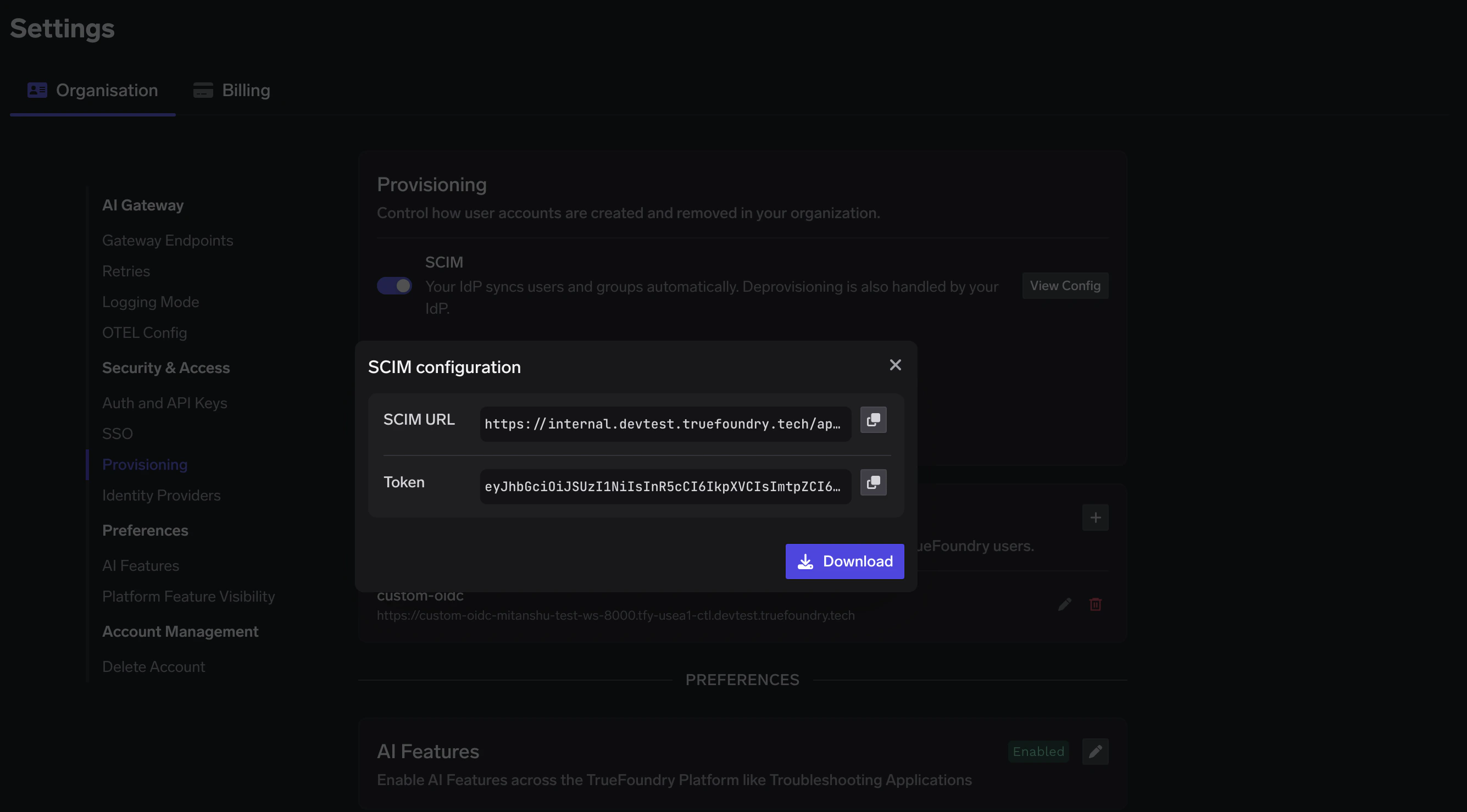
Once SCIM is enabled, you can find the SCIM endpoint and bearer token in the TrueFoundry UI under `Settings > Provisioning` after the initial deployment completes.