> ## Documentation Index
> Fetch the complete documentation index at: https://www.truefoundry.com/llms.txt
> Use this file to discover all available pages before exploring further.
# Launch Notebook with Spark
> Launch a JupyterLab notebook with a dedicated Spark Connect cluster for interactive big data workloads.
TrueFoundry Spark Notebooks provide a JupyterLab environment with a dedicated [Spark Connect](https://spark.apache.org/docs/latest/spark-connect-overview.html) server running alongside it. This gives you an interactive PySpark and Scala environment backed by a fully managed Spark cluster on Kubernetes — with no external infrastructure to set up.
Use Spark Notebooks when you need to:
* Explore and transform large datasets interactively
* Prototype Spark ETL pipelines before productionizing them
* Run distributed computations without managing Spark infrastructure
## Getting Started
To launch a Spark Notebook, select **Jupyter Notebook with Spark** as the workbench type in the deployment form and configure the Spark cluster settings.
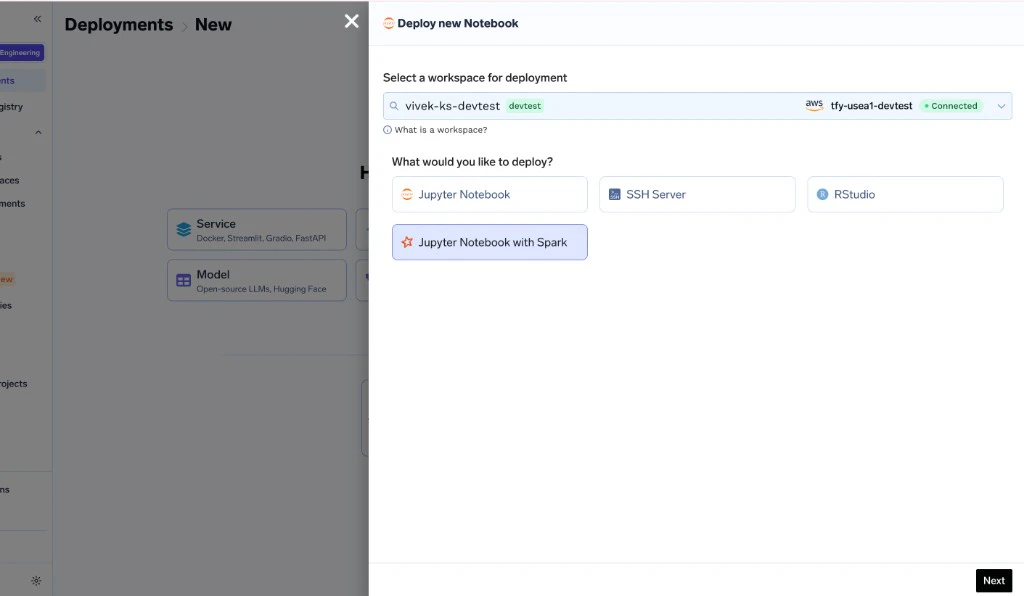 Navigate to your workspace and click **New Notebook**. Select the **Jupyter Notebook with Spark** type.
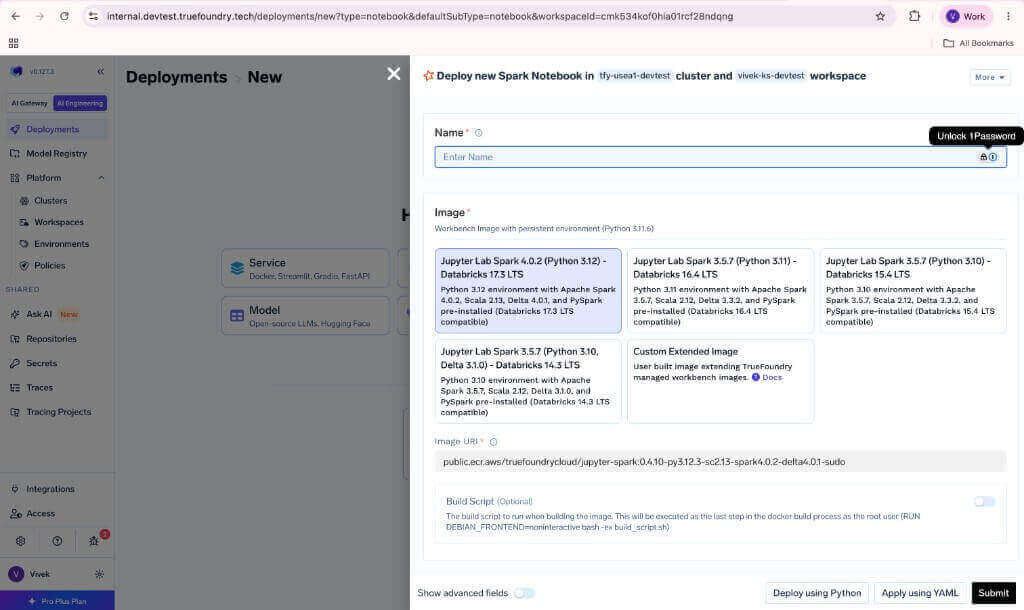
Select the pre-built Spark image or provide a custom extended image.
Navigate to your workspace and click **New Notebook**. Select the **Jupyter Notebook with Spark** type.
Select the pre-built Spark image or provide a custom extended image.
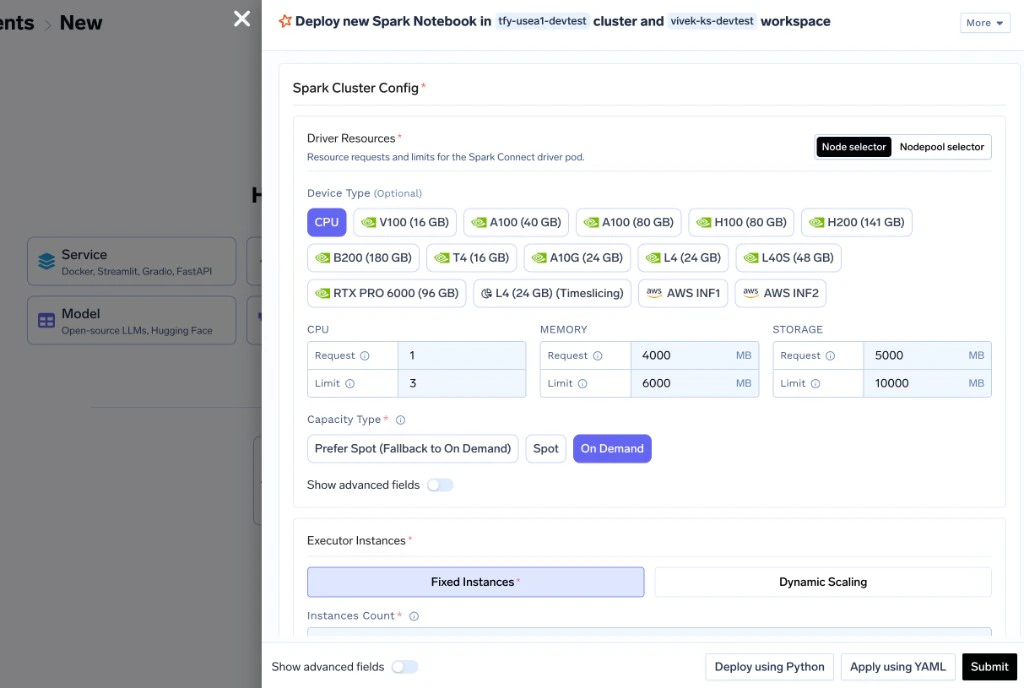
 Set the driver resources, executor count (or dynamic scaling), and executor resources.
 Click deploy. The notebook and Spark Connect server will start together. A `SparkSession` is automatically available in every Python and Scala notebook cell.
## Pre-built Images
Multiple pre-built images are available, each aligned to a Databricks LTS runtime version:
| Image | Spark | Python | Scala | Delta Lake | Databricks LTS |
| ------------------------------------------------------------------ | ----- | ------ | ----- | ---------- | -------------- |
| `jupyter-spark:0.4.10-py3.12.3-sc2.13-spark4.0.2-delta4.0.1-sudo` | 4.0.2 | 3.12 | 2.13 | 4.0.1 | 17.3 |
| `jupyter-spark:0.4.10-py3.11.14-sc2.12-spark3.5.7-delta3.3.2-sudo` | 3.5.7 | 3.11 | 2.12 | 3.3.2 | 16.4 |
| `jupyter-spark:0.4.10-py3.10.16-sc2.12-spark3.5.7-delta3.3.2-sudo` | 3.5.7 | 3.10 | 2.12 | 3.3.2 | 15.4 |
| `jupyter-spark:0.4.10-py3.10.16-sc2.12-spark3.5.7-delta3.1.0-sudo` | 3.5.7 | 3.10 | 2.12 | 3.1.0 | 14.3 |
All images are hosted under `public.ecr.aws/truefoundrycloud/`. For example, the full URI for the Databricks 17.3 LTS image is `public.ecr.aws/truefoundrycloud/jupyter-spark:0.4.10-py3.12.3-sc2.13-spark4.0.2-delta4.0.1-sudo`.
All Jupyter Spark images are available at [https://gallery.ecr.aws/truefoundrycloud/jupyter-spark](https://gallery.ecr.aws/truefoundrycloud/jupyter-spark)
The image includes:
* **PySpark** with Spark Connect client
* **Delta Lake** for ACID table operations
* **Scala kernel** (Almond) pre-configured with Spark Connect JARs
* **Conda** for managing multiple Python environments
## Using Spark in the Notebook
Spark is preconfigured in the notebook and available via the `spark` variable.
```python Python theme={"dark"}
# `spark` is already available — no setup needed
df = spark.range(1000000).toDF("id")
df.filter(df.id % 2 == 0).count()
```
```scala Scala theme={"dark"}
// SparkSession is pre-initialized in the Scala kernel
val df = spark.range(1000000).toDF("id")
df.filter($"id" % 2 === 0).count()
```
The notebook connects to the Spark Connect server via the `SPARK_CONNECT_URL` environment variable, which is automatically set to point to the co-located Spark Connect server.
The startup script retries the connection up to 5 times (configurable via `SPARK_INIT_RETRIES`). If the Spark Connect server hasn't started yet, the session will be created once it becomes available.
### Using Delta Lake
Delta Lake is pre-installed, enabling ACID transactions on your data lake:
```python theme={"dark"}
df.write.format("delta").mode("overwrite").save("s3a://my-bucket/delta-table/")
delta_df = spark.read.format("delta").load("s3a://my-bucket/delta-table/")
delta_df.show()
```
## Spark Cluster Configuration
The Spark cluster is configured through the **Spark Cluster Config** section in the deployment form.
### Driver Resources
The Spark Connect server (driver) runs as a separate pod. Configure its resources based on the complexity of your query plans and the volume of data collected to the driver.
Minimum CPU cores for the driver.
Maximum CPU cores for the driver.
Minimum memory in MB for the driver.
Maximum memory in MB for the driver.
### Executor Instances
Choose between **Fixed** and **Dynamic** executor scaling:
A fixed number of executor pods are launched when the Spark cluster starts.
| Parameter | Default | Description |
| --------- | ------- | -------------------------------- |
| `count` | 2 | Number of executor pods to start |
Executors scale up and down based on workload. Idle executors are removed and new ones are added when tasks are queued.
| Parameter | Default | Description |
| --------- | ------- | --------------------------- |
| `min` | 1 | Minimum number of executors |
| `max` | 4 | Maximum number of executors |
### Executor Resources
Each executor pod gets its own resource allocation:
CPU cores per executor.
Memory in MB per executor.
Ephemeral disk in MB per executor (used for shuffle data).
### Spark Configuration Properties
Pass additional Spark configuration as key-value pairs. These are applied to the Spark Connect server and executors.
```
spark.sql.adaptive.enabled = true
spark.sql.shuffle.partitions = 200
spark.jars.packages = io.delta:delta-spark_2.12:3.3.2
```
Some internal configuration (e.g., `spark.jars.ivy`, connection timeouts, `spark.connect` packages) is managed automatically. User-supplied `spark.jars.packages` values are merged with the internal ones.
### Spark Image
By default, the Spark Connect server and executors use the `apache/spark:4.0.2` image.
You can override this with a custom Spark image in the **Advanced** section of the Spark Cluster Config. The image must have Spark pre-installed and be compatible with the Kubernetes executor model.
## Environment Variables
The following environment variables are automatically set or can be overridden:
| Variable | Default | Description |
| ------------------------ | -------------- | --------------------------------------- |
| `SPARK_CONNECT_URL` | Auto-generated | gRPC URL of the Spark Connect server |
| `SPARK_INIT_RETRIES` | `5` | Number of connection retries at startup |
| `SPARK_INIT_RETRY_DELAY` | `3` | Seconds between retries |
You can also add custom environment variables (plain text or secret references) in the deployment form for your application code.
## Service Account
If your Spark jobs need to access cloud storage (S3, GCS, ADLS) or other cloud services, assign a Kubernetes service account with the appropriate IAM role to the notebook. The Spark Connect server and executors inherit this service account for cloud access.
Configure the service account in the **Advanced** section of the deployment form.
* AWS: [Authenticate to AWS services using IAM service account](/docs/use-aws-services-using-iam-serviceaccount)
* GCP: [Authenticate to GCP using IAM serviceaccount](/docs/authenticate-to-gcp-using-iam-serviceaccount)
## Custom Images
You can build custom Spark notebook images by extending the pre-built base images:
```dockerfile Dockerfile theme={"dark"}
FROM public.ecr.aws/truefoundrycloud/jupyter-spark:0.4.10-py3.11.14-sc2.12-spark3.5.7-delta3.3.2-sudo
# Install additional pip packages
RUN python3 -m pip install --no-cache-dir \
koalas \
mlflow \
scikit-learn
# Install apt packages
USER root
RUN DEBIAN_FRONTEND=noninteractive apt-get update && \
apt-get install -y --no-install-recommends graphviz && \
apt-get clean && rm -rf /var/lib/apt/lists/*
USER jovyan
```
Do not overwrite the ENTRYPOINT or CMD instructions. These are built into the base images and are critical for correct operation.
Build and push the image to a registry integrated with TrueFoundry, then select it as a custom image when creating the notebook.
## AI Coding Agents
Spark notebook images include AI coding agents (OpenCode and Claude Code) via Jupyter AI v3. These agents can help with Spark code, debug notebook errors, and interact with both Python and Scala kernels.
To enable AI agents, set environment variables on your Spark notebook deployment. See the [AI Coding Agents in Notebooks](/docs/launch-notebooks#ai-coding-agents-in-notebooks) section in the Jupyter Notebook guide for setup instructions.
Click deploy. The notebook and Spark Connect server will start together. A `SparkSession` is automatically available in every Python and Scala notebook cell.
## Pre-built Images
Multiple pre-built images are available, each aligned to a Databricks LTS runtime version:
| Image | Spark | Python | Scala | Delta Lake | Databricks LTS |
| ------------------------------------------------------------------ | ----- | ------ | ----- | ---------- | -------------- |
| `jupyter-spark:0.4.10-py3.12.3-sc2.13-spark4.0.2-delta4.0.1-sudo` | 4.0.2 | 3.12 | 2.13 | 4.0.1 | 17.3 |
| `jupyter-spark:0.4.10-py3.11.14-sc2.12-spark3.5.7-delta3.3.2-sudo` | 3.5.7 | 3.11 | 2.12 | 3.3.2 | 16.4 |
| `jupyter-spark:0.4.10-py3.10.16-sc2.12-spark3.5.7-delta3.3.2-sudo` | 3.5.7 | 3.10 | 2.12 | 3.3.2 | 15.4 |
| `jupyter-spark:0.4.10-py3.10.16-sc2.12-spark3.5.7-delta3.1.0-sudo` | 3.5.7 | 3.10 | 2.12 | 3.1.0 | 14.3 |
All images are hosted under `public.ecr.aws/truefoundrycloud/`. For example, the full URI for the Databricks 17.3 LTS image is `public.ecr.aws/truefoundrycloud/jupyter-spark:0.4.10-py3.12.3-sc2.13-spark4.0.2-delta4.0.1-sudo`.
All Jupyter Spark images are available at [https://gallery.ecr.aws/truefoundrycloud/jupyter-spark](https://gallery.ecr.aws/truefoundrycloud/jupyter-spark)
The image includes:
* **PySpark** with Spark Connect client
* **Delta Lake** for ACID table operations
* **Scala kernel** (Almond) pre-configured with Spark Connect JARs
* **Conda** for managing multiple Python environments
## Using Spark in the Notebook
Spark is preconfigured in the notebook and available via the `spark` variable.
```python Python theme={"dark"}
# `spark` is already available — no setup needed
df = spark.range(1000000).toDF("id")
df.filter(df.id % 2 == 0).count()
```
```scala Scala theme={"dark"}
// SparkSession is pre-initialized in the Scala kernel
val df = spark.range(1000000).toDF("id")
df.filter($"id" % 2 === 0).count()
```
The notebook connects to the Spark Connect server via the `SPARK_CONNECT_URL` environment variable, which is automatically set to point to the co-located Spark Connect server.
The startup script retries the connection up to 5 times (configurable via `SPARK_INIT_RETRIES`). If the Spark Connect server hasn't started yet, the session will be created once it becomes available.
### Using Delta Lake
Delta Lake is pre-installed, enabling ACID transactions on your data lake:
```python theme={"dark"}
df.write.format("delta").mode("overwrite").save("s3a://my-bucket/delta-table/")
delta_df = spark.read.format("delta").load("s3a://my-bucket/delta-table/")
delta_df.show()
```
## Spark Cluster Configuration
The Spark cluster is configured through the **Spark Cluster Config** section in the deployment form.
### Driver Resources
The Spark Connect server (driver) runs as a separate pod. Configure its resources based on the complexity of your query plans and the volume of data collected to the driver.
Minimum CPU cores for the driver.
Maximum CPU cores for the driver.
Minimum memory in MB for the driver.
Maximum memory in MB for the driver.
### Executor Instances
Choose between **Fixed** and **Dynamic** executor scaling:
A fixed number of executor pods are launched when the Spark cluster starts.
| Parameter | Default | Description |
| --------- | ------- | -------------------------------- |
| `count` | 2 | Number of executor pods to start |
Executors scale up and down based on workload. Idle executors are removed and new ones are added when tasks are queued.
| Parameter | Default | Description |
| --------- | ------- | --------------------------- |
| `min` | 1 | Minimum number of executors |
| `max` | 4 | Maximum number of executors |
### Executor Resources
Each executor pod gets its own resource allocation:
CPU cores per executor.
Memory in MB per executor.
Ephemeral disk in MB per executor (used for shuffle data).
### Spark Configuration Properties
Pass additional Spark configuration as key-value pairs. These are applied to the Spark Connect server and executors.
```
spark.sql.adaptive.enabled = true
spark.sql.shuffle.partitions = 200
spark.jars.packages = io.delta:delta-spark_2.12:3.3.2
```
Some internal configuration (e.g., `spark.jars.ivy`, connection timeouts, `spark.connect` packages) is managed automatically. User-supplied `spark.jars.packages` values are merged with the internal ones.
### Spark Image
By default, the Spark Connect server and executors use the `apache/spark:4.0.2` image.
You can override this with a custom Spark image in the **Advanced** section of the Spark Cluster Config. The image must have Spark pre-installed and be compatible with the Kubernetes executor model.
## Environment Variables
The following environment variables are automatically set or can be overridden:
| Variable | Default | Description |
| ------------------------ | -------------- | --------------------------------------- |
| `SPARK_CONNECT_URL` | Auto-generated | gRPC URL of the Spark Connect server |
| `SPARK_INIT_RETRIES` | `5` | Number of connection retries at startup |
| `SPARK_INIT_RETRY_DELAY` | `3` | Seconds between retries |
You can also add custom environment variables (plain text or secret references) in the deployment form for your application code.
## Service Account
If your Spark jobs need to access cloud storage (S3, GCS, ADLS) or other cloud services, assign a Kubernetes service account with the appropriate IAM role to the notebook. The Spark Connect server and executors inherit this service account for cloud access.
Configure the service account in the **Advanced** section of the deployment form.
* AWS: [Authenticate to AWS services using IAM service account](/docs/use-aws-services-using-iam-serviceaccount)
* GCP: [Authenticate to GCP using IAM serviceaccount](/docs/authenticate-to-gcp-using-iam-serviceaccount)
## Custom Images
You can build custom Spark notebook images by extending the pre-built base images:
```dockerfile Dockerfile theme={"dark"}
FROM public.ecr.aws/truefoundrycloud/jupyter-spark:0.4.10-py3.11.14-sc2.12-spark3.5.7-delta3.3.2-sudo
# Install additional pip packages
RUN python3 -m pip install --no-cache-dir \
koalas \
mlflow \
scikit-learn
# Install apt packages
USER root
RUN DEBIAN_FRONTEND=noninteractive apt-get update && \
apt-get install -y --no-install-recommends graphviz && \
apt-get clean && rm -rf /var/lib/apt/lists/*
USER jovyan
```
Do not overwrite the ENTRYPOINT or CMD instructions. These are built into the base images and are critical for correct operation.
Build and push the image to a registry integrated with TrueFoundry, then select it as a custom image when creating the notebook.
## AI Coding Agents
Spark notebook images include AI coding agents (OpenCode and Claude Code) via Jupyter AI v3. These agents can help with Spark code, debug notebook errors, and interact with both Python and Scala kernels.
To enable AI agents, set environment variables on your Spark notebook deployment. See the [AI Coding Agents in Notebooks](/docs/launch-notebooks#ai-coding-agents-in-notebooks) section in the Jupyter Notebook guide for setup instructions.