> ## Documentation Index
> Fetch the complete documentation index at: https://www.truefoundry.com/llms.txt
> Use this file to discover all available pages before exploring further.
# SSO: Okta OIN
> Configure OpenID Connect SSO between TrueFoundry and Okta using the Okta Integration Network.
Connect your Okta organization to TrueFoundry with OpenID Connect by adding TrueFoundry from the [Okta Integration Network (OIN)](https://www.okta.com/integrations/). Copy the OIDC credentials into TrueFoundry SSO settings and assign users — no custom app creation required.
For a manually created OIDC app instead, see [SSO via OIDC](/docs/platform/sso/okta/oidc).
## Supported features
| Feature | Supported |
| - | - |
| OIDC SSO — SP-initiated | Yes |
| OIDC SSO — IdP-initiated (Okta dashboard tile) | No |
| Just-in-time (JIT) user provisioning | Yes |
| Grant type | Authorization Code |
| Scopes | `openid email` (add `profile` for first and last name) |
## Prerequisites
* A TrueFoundry tenant with **Admin** access to **Settings → Security & Access → SSO**.
* An Okta Workforce Identity Cloud tenant with permission to add applications (Super Admin or App Admin).
* Your Okta tenant domain (for example, `https://your-org.okta.com`).
## Configuration
### 1. Add TrueFoundry from the Okta catalog
In the Okta Admin Console, go to **Applications → Applications → Browse App Catalog**, search for **TrueFoundry**, and click **Add Integration**. Keep the default settings and finish adding the app.
### 2. Get your OIDC credentials
Open the TrueFoundry app you just added. On the **Sign On** tab, under **Sign on methods → OpenID Connect**, copy the **Client ID** and **Client secret**. Your issuer is your Okta domain — for example, `https://your-org.okta.com`.
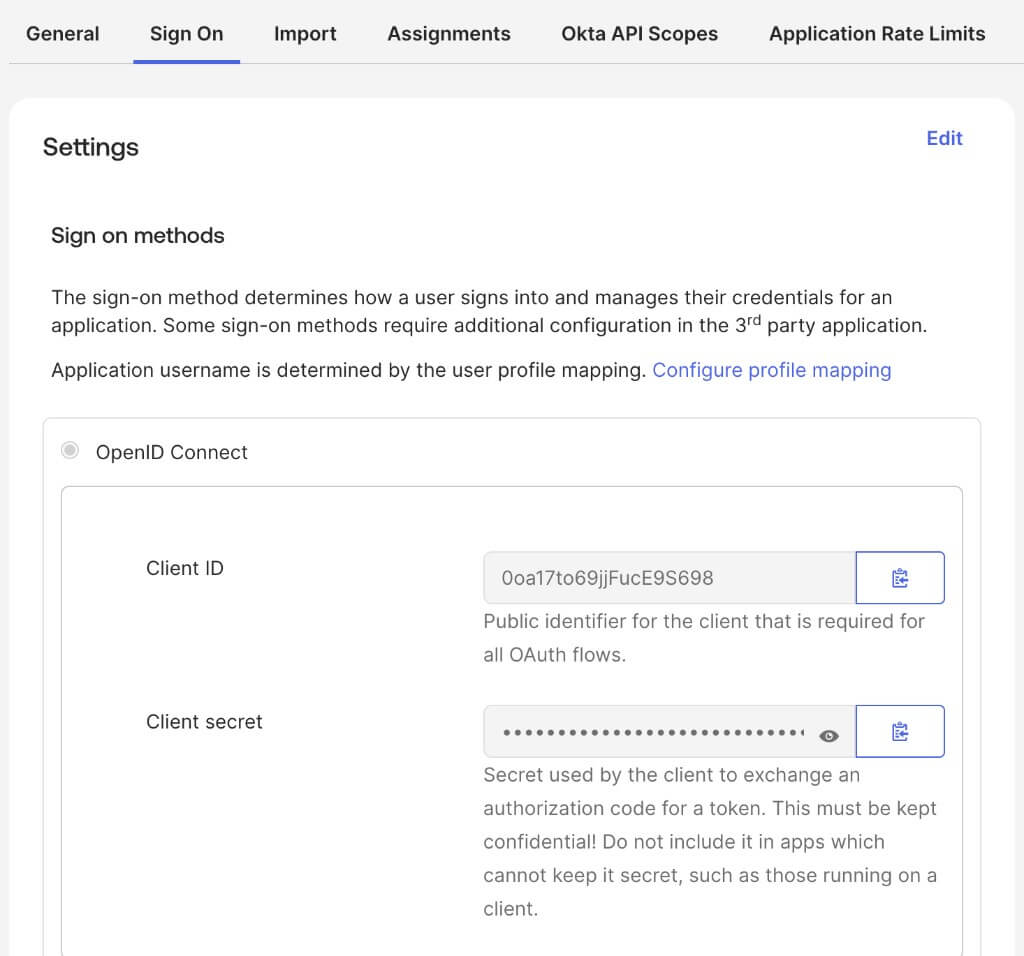 The Sign-in redirect URI ships with the OIN integration as `https://login.truefoundry.com/oauth2/callback`. Confirm it is present under the app's **General → Sign-in redirect URIs** — you do not need to add it manually.
### 3. Complete the connection in TrueFoundry
In TrueFoundry, go to **Settings → Security & Access → SSO**, add an Okta OIDC configuration, and paste:
* **Issuer URL**: your Okta domain (for example, `https://your-org.okta.com`)
* **Client ID**: the Client ID from step 2
* **Client Secret**: the Client secret from step 2
Save the configuration.
### 4. Assign users
On the TrueFoundry app's **Assignments** tab in Okta, assign the users or groups that should have access. Only assigned users can sign in.
### 5. Test
Sign out, return to your TrueFoundry login page, and click **Login with Okta**. You are redirected to Okta; on success you land in the TrueFoundry dashboard.
## Provisioning
TrueFoundry provisions users just-in-time. On a user's first successful SSO sign-in, TrueFoundry creates their account when [JIT provisioning](/docs/platform/user-management#user-provisioning) is enabled. No SCIM or pre-sync is required for SSO alone; access follows your Okta app assignment — an unassigned user can no longer sign in.
For automatic user and group sync with SCIM, see [SCIM with Okta](/docs/platform/sso/okta/scim).
## Sign-in flows
**SP-initiated:** users go to the TrueFoundry login page, click **Login with Okta**, and are redirected to Okta.
**IdP-initiated:** not supported. Users cannot sign in by clicking the TrueFoundry tile on the Okta dashboard. Use the TrueFoundry login page instead. Okta recommends hiding the app icon for end users when only SP-initiated SSO is supported.
## Reference
| Setting | Value |
| - | - |
| Protocol | OpenID Connect |
| Grant type | Authorization Code |
| Scopes | `openid email` (optional `profile`) |
| Sign-in redirect URI | `https://login.truefoundry.com/oauth2/callback` |
## Troubleshoot
* **"Invalid issuer" when saving in TrueFoundry** — Confirm the Issuer URL is exactly your Okta tenant URL (for example, `https://acme.okta.com`) with no trailing slash and no `/oauth2/default` suffix.
* **"You are not assigned to the client application"** — Assign the user (or their group) to the TrueFoundry app under **Assignments** in Okta.
This documentation is built and hosted on [Mintlify](https://mintlify.com), a developer documentation platform.
The Sign-in redirect URI ships with the OIN integration as `https://login.truefoundry.com/oauth2/callback`. Confirm it is present under the app's **General → Sign-in redirect URIs** — you do not need to add it manually.
### 3. Complete the connection in TrueFoundry
In TrueFoundry, go to **Settings → Security & Access → SSO**, add an Okta OIDC configuration, and paste:
* **Issuer URL**: your Okta domain (for example, `https://your-org.okta.com`)
* **Client ID**: the Client ID from step 2
* **Client Secret**: the Client secret from step 2
Save the configuration.
### 4. Assign users
On the TrueFoundry app's **Assignments** tab in Okta, assign the users or groups that should have access. Only assigned users can sign in.
### 5. Test
Sign out, return to your TrueFoundry login page, and click **Login with Okta**. You are redirected to Okta; on success you land in the TrueFoundry dashboard.
## Provisioning
TrueFoundry provisions users just-in-time. On a user's first successful SSO sign-in, TrueFoundry creates their account when [JIT provisioning](/docs/platform/user-management#user-provisioning) is enabled. No SCIM or pre-sync is required for SSO alone; access follows your Okta app assignment — an unassigned user can no longer sign in.
For automatic user and group sync with SCIM, see [SCIM with Okta](/docs/platform/sso/okta/scim).
## Sign-in flows
**SP-initiated:** users go to the TrueFoundry login page, click **Login with Okta**, and are redirected to Okta.
**IdP-initiated:** not supported. Users cannot sign in by clicking the TrueFoundry tile on the Okta dashboard. Use the TrueFoundry login page instead. Okta recommends hiding the app icon for end users when only SP-initiated SSO is supported.
## Reference
| Setting | Value |
| - | - |
| Protocol | OpenID Connect |
| Grant type | Authorization Code |
| Scopes | `openid email` (optional `profile`) |
| Sign-in redirect URI | `https://login.truefoundry.com/oauth2/callback` |
## Troubleshoot
* **"Invalid issuer" when saving in TrueFoundry** — Confirm the Issuer URL is exactly your Okta tenant URL (for example, `https://acme.okta.com`) with no trailing slash and no `/oauth2/default` suffix.
* **"You are not assigned to the client application"** — Assign the user (or their group) to the TrueFoundry app under **Assignments** in Okta.
This documentation is built and hosted on [Mintlify](https://mintlify.com), a developer documentation platform.