How to reach the TrueFoundry support team — Ask TFY, Slack/Teams, and the in-product Support Portal — and how tickets are tracked and prioritised.
TrueFoundry tracks every customer issue, bug, and feature request in a single Support Portal so nothing gets lost in chat history. You can reach us through any of the channels below — each one creates or mirrors a ticket in the Support Portal, so you get the same tracking, SLAs, and history no matter where you start. You can also visit truefoundry.com/service-level-agreements for an overview of our SLAs.
The fastest way to get help — instant answers to product, configuration, and usage questions right inside the portal. It can open a ticket for you if it can’t resolve the issue.
Slack or Microsoft Teams
Customers with a shared channel
Reach us in the conversation thread your team already uses — including bugs and feature requests.
Support Portal
All customers
A structured form for long descriptions, logs, and screenshots — and to browse or filter your full ticket history.
You no longer pick a P0–P3 priority. Instead, the ticket form asks what environment is impacted and whether you have a workaround, and TrueFoundry sets the priority from your answers and your SLA — so the clearer you are about what’s blocked and who’s affected, the faster we can triage. For a genuine production emergency, switch on the P0 toggle: it pages the on-call engineer immediately, including nights and weekends, so please use it only when production is down or severely degraded. The priority we assign is always visible on the ticket.
Priority
What it means
P0
Blocking production / major outage — pages on-call immediately
Ask TFY is an AI assistant built into the TrueFoundry portal for SaaS customers. Ask it product, configuration, or usage questions in natural language and get an answer instantly — and if it can’t resolve your issue, it can raise a support ticket on your behalf. This is the fastest way to get help, so start here.
1
Open Ask TFY
In your TrueFoundry tenant, click Ask TFY in the left sidebar (under Shared) and type your question in the chat box.
Ask TFY in the TrueFoundry portal sidebar
2
Confirm before a ticket is raised
If Ask TFY can’t fully answer your question, it offers to open a support ticket for you. It always asks you to confirm first — nothing is filed without your go-ahead. Once confirmed, the ticket appears in the Support Portal like any other, with the same tracking and SLAs.
Ask TFY is available to SaaS customers only for now — support for on-prem versions is coming soon.
If TrueFoundry has set up a shared Slack or Microsoft Teams channel with your organisation, you can reach us there without leaving the conversation thread your team is already using — the integration mirrors the message into the Support Portal so it gets the same tracking and SLAs.
1
Tag the TrueFoundry team in your shared channel
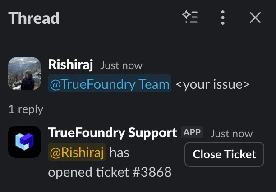
In the shared Slack or Teams channel, start a thread describing your issue and tag @TrueFoundry Team. The bot replies in-thread to confirm a ticket has been opened and shares the ticket ID.
Tag @TrueFoundry Team in Slack to open a ticket
2
Fill in the triage form
The bot follows up in the same thread with a short form. Fill in What environment is impacted? and Is there a workaround? — both required — and click Submit. You don’t choose a priority; TrueFoundry sets it from these answers. Switch on the optional P0 toggle only for a genuine production emergency — it pages the on-call engineer immediately, including nights and weekends.
Slack/Teams triage form: environment, workaround, and the optional P0 escalation
3
Track the ticket in the Support Portal
The ticket is now visible in the Support Portal alongside any tickets you raised through the UI. You can keep replying in the Slack/Teams thread — every message is mirrored to the portal automatically.
If you do not see the “Support” button in the left navigation, the portal may not be enabled for your tenant or your control plane could be on an older version. Reach out to your TrueFoundry Customer Success contact to enable it.
Support entry point in the TrueFoundry sidebar
1
Open the Support Portal
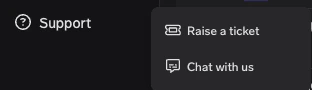
Sign in to TrueFoundry, click Support in the left sidebar (under Help & Support), and choose Raise a ticket. You’ll be redirected to the Support Portal in a new tab.
Support menu expanded from the bottom-left of the TrueFoundry UI
2
Click Create Ticket and pick the ticket type
In the portal, click Create Ticket and choose:
Incident / Support Ticket — something is not working as expected, or you need help or guidance.
Feature / Improvement Request — you’d like something added or changed.
Create Ticket in the Support Portal, with the ticket type options
3
Fill in the ticket details
Your Name and Email are filled in automatically. Complete the rest of the form:
Field
What to put
Subject
Short, specific title. e.g. “Service deployment failing in prod cluster”
Description
What you expected, what actually happened, reproduction steps (for bugs), relevant timestamps, error messages or log snippets. Links to logs/dashboards help us debug faster.
What environment is impacted?
The environment affected — prod, staging, or dev.
Is there a workaround?
Whether you have a temporary workaround. Together with the environment, this is how we set the ticket’s priority.
You don’t choose a priority. For a genuine production emergency, switch on the P0 toggle — it pages the on-call engineer immediately (including nights and weekends), so use it only when production is down or severely degraded.
Incident / Support Ticket form: Subject, Description, the P0 toggle, environment, and workaround
Click Submit when you’re done.
4
Track ticket status and history
The ticket appears immediately in the portal. Returning to the portal at any time shows you:
Issue ID
Who raised it
Priority (assigned by TrueFoundry)
Created time
Current status and the latest updates from the TrueFoundry team
Environment — prod, staging, or dev (and which cluster/workspace).
Impact and workaround — who is blocked, what is failing, how many users are affected, and whether you have a workaround. This is what we use to set the ticket’s priority, so be specific.
Logs and screenshots — links to logs in your observability stack are even better than pasted snippets.
Reproduction steps — for bugs, the minimum sequence we need to follow to see the same failure.
What changed recently — recent deployments, config changes, version upgrades, or new integrations are usually where bugs live.
No — start with Ask TFY (SaaS customers) for quick questions, or keep small, quick questions in your shared Slack/Teams channel without tagging @TrueFoundry Team. Open a ticket when the issue needs tracking, has business impact, or is anything that affects production.
Can I choose the priority of my ticket?
Not directly. Instead of picking a P0–P3 level, you tell us what environment is impacted and whether you have a workaround, and TrueFoundry sets the priority from those answers and your SLA. This keeps prioritisation consistent across customers. For a genuine production emergency you can switch on the P0 toggle, which pages the on-call engineer immediately (including nights and weekends). The assigned priority is always shown on the ticket — if you think it’s wrong, say so in the thread or ticket and we’ll re-evaluate.
I raised something on Slack/Teams — will it actually be tracked?
Yes, as long as you tag @TrueFoundry Team in the thread. The integration creates a portal ticket and links the conversation to it. If you forgot to tag, just edit the message or post a follow-up that tags us.
Does Ask TFY raise tickets automatically?
No — Ask TFY always asks you to confirm before it creates a ticket. It first tries to answer your question directly, and only offers to open a ticket if it can’t resolve the issue. Ask TFY is available to SaaS customers only for now, with on-prem support coming soon.
Can I switch from Slack/Teams to the portal mid-conversation?
Yes. Every Slack/Teams ticket has a portal ticket ID; you can open that ticket in the Support Portal at any point to attach files, reply with a longer description, or hand off the issue to a teammate.
What if my organisation does not have a shared Slack or Teams channel with TrueFoundry?
Use the in-product Support Portal for all tickets. If you’d like a shared channel set up, ask your TrueFoundry Customer Success contact.