

What is Cline?
Cline is an AI coding assistant that integrates directly into your VS Code environment, providing autonomous coding capabilities. It enhances your development workflow by offering intelligent code assistance, automated file creation, and interactive debugging support.Key Features of Cline
- VS Code Integration: Seamlessly integrates into your VS Code environment as an extension, providing AI-powered coding assistance directly within your familiar development interface
- Autonomous Code Generation: Creates files, functions, and code blocks autonomously based on natural language descriptions, accelerating development with intelligent code synthesis
- Interactive Development Support: Provides real-time assistance for code modifications, explanations, debugging, and error resolution through conversational AI interaction
Prerequisites
Before integrating Cline with TrueFoundry, ensure you have:- TrueFoundry Account: Create a TrueFoundry account and follow the instructions in our Gateway Quick Start
- VS Code: Install Cline or in whichever IDE you prefer
- Cline Extension: Install the Cline extension from the VS Code marketplace
Setup Process
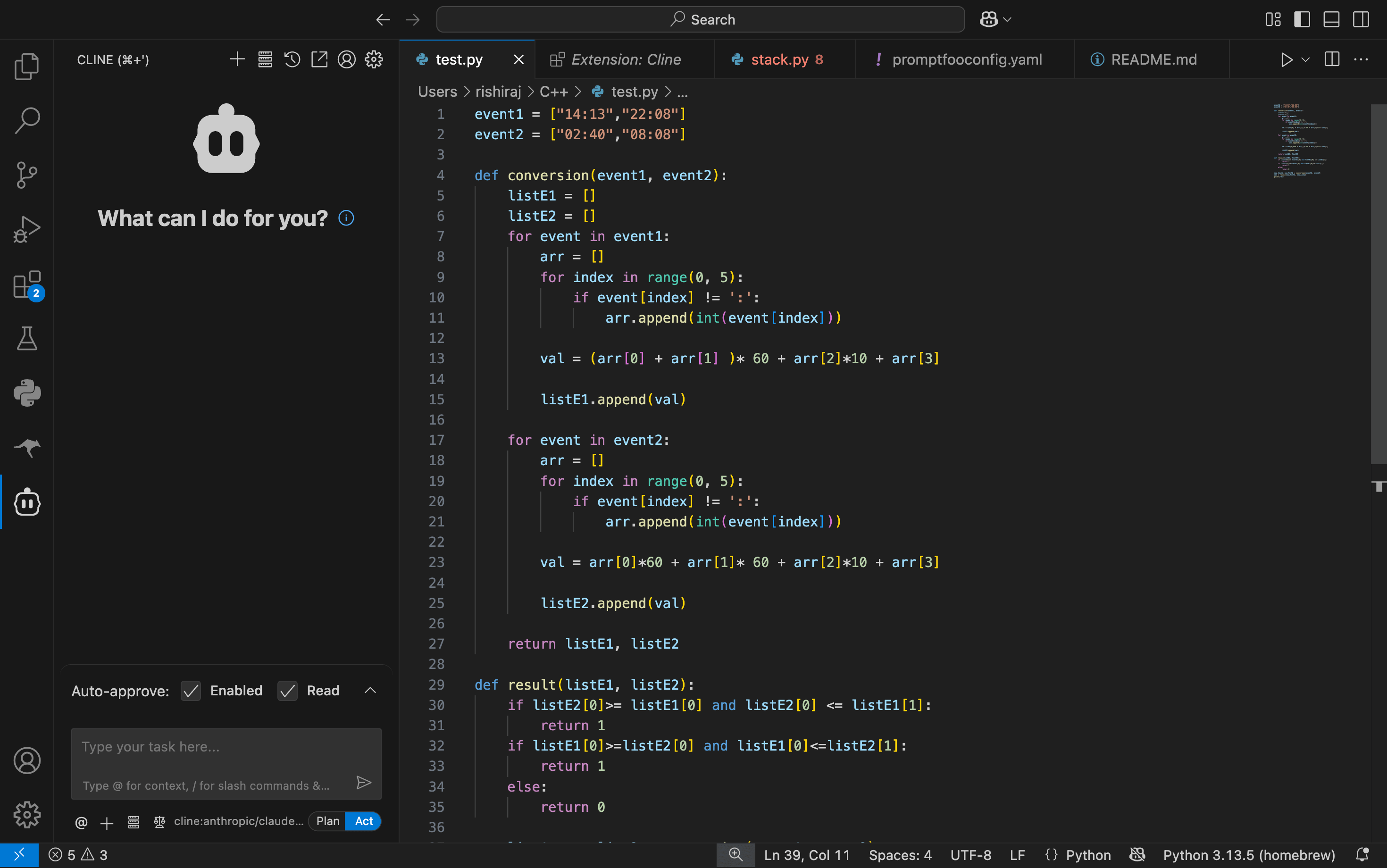
1. Configure Cline Settings
Open Cline settings in VS Code:- Open VS Code with Cline installed
- Press
Cmd/Ctrl + Shift + Pto open the command palette - Search for
Cline: Open in new tab - Click on the settings gear icon ⚙️ in the Cline tab
2. Configure API Settings
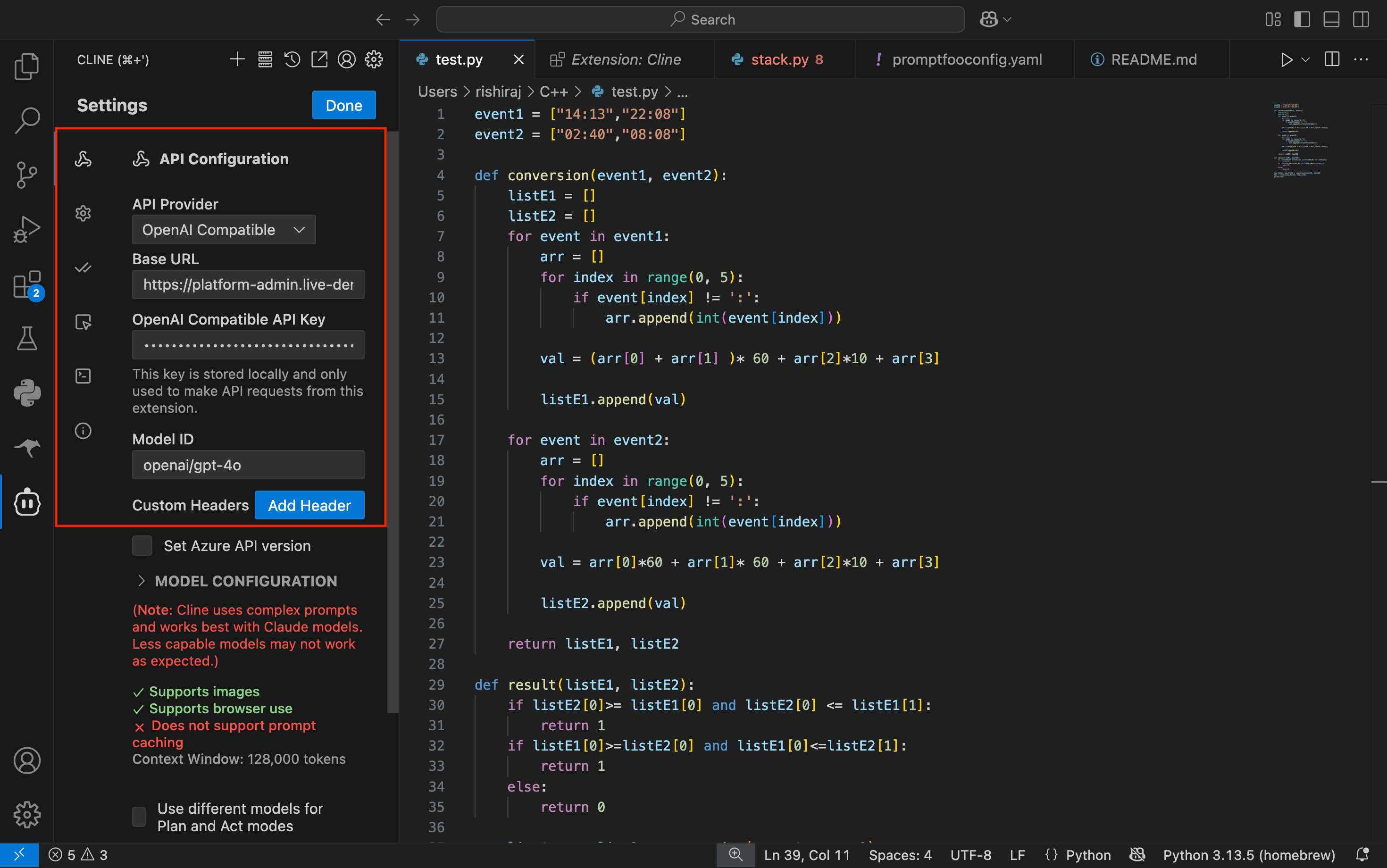
In the Cline settings, configure the API connection: Set the following values:- API Provider: Select
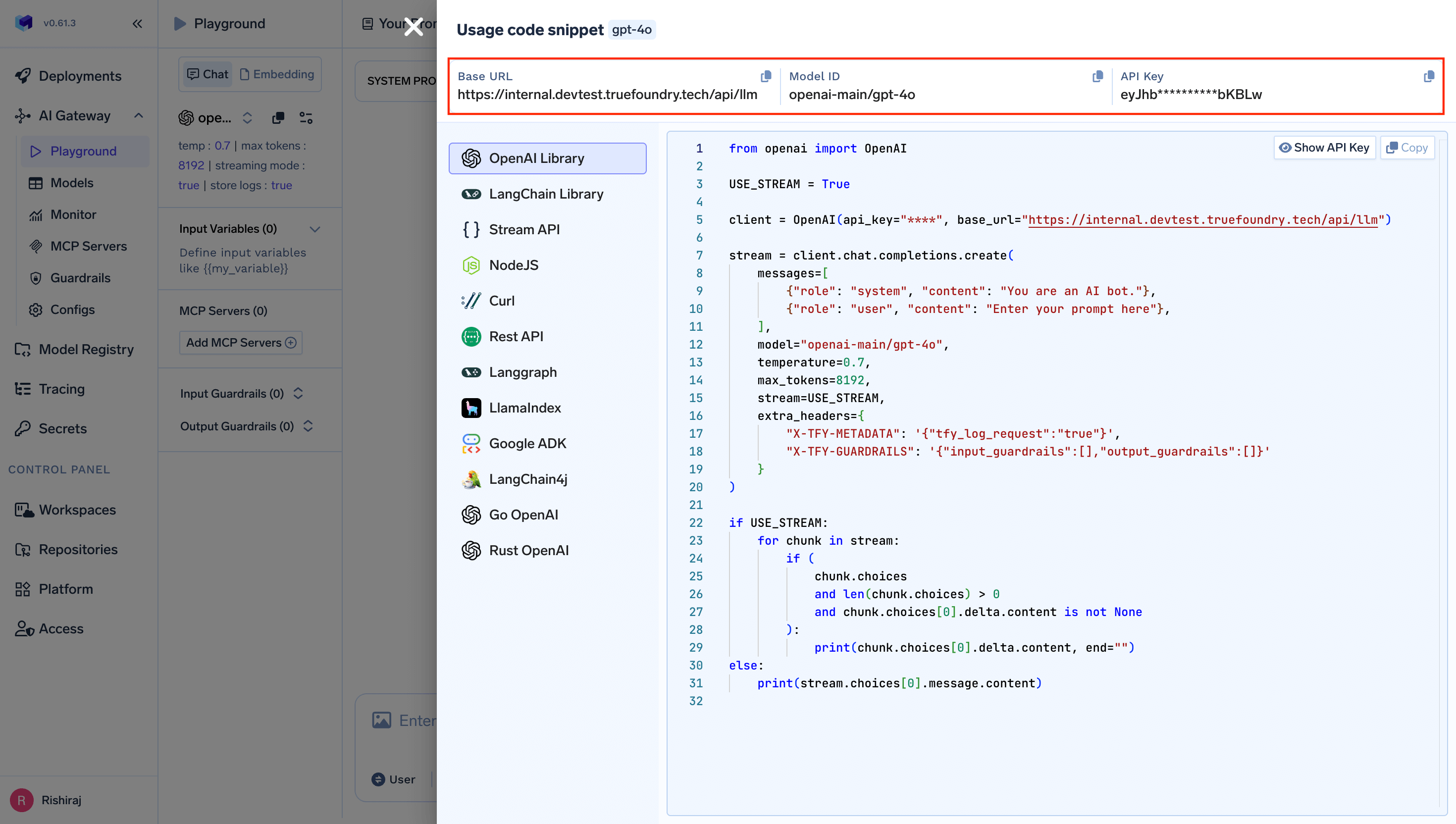
OpenAI Compatible - Base URL:
your-truefoundry-gateway-url - API Key: ‘your-truefoundry-api-key’
- Model ID:
openai-main/gpt-4o(or your preferred TrueFoundry model)
- Ask Cline to create a new file: “Create a Python function to calculate Fibonacci numbers”
- Request code modifications: “Add error handling to this function”
- Get explanations: “Explain what this code does”
- Debug assistance: “Help me fix this error”
Fleet-wide enforcement
Gateway config: enforceable with Cline Enterprise, extension only. In the Cline admin console (app.cline.bot → remote configuration) an admin sets the provider to OpenAI Compatible with the gateway base URL, a TrueFoundry key, and custom headers; users of the VS Code and JetBrains extensions then can’t select another provider. The policy is not applied to Cline CLI or Cline Desktop, where the setting stays per user. Without Cline Enterprise, the base URL is a per-user extension setting. See Cline’s OpenAI-compatible admin configuration. MCP servers: enforceable with Cline Enterprise, extension only. Cline supports remote servers over Streamable HTTP or SSE, configured from MCP Servers → Configure (orcline_mcp_settings.json for the CLI); point url at the MCP Gateway. The enterprise policy adds remoteMCPServers to push servers fleet-wide, allowedMCPServers to allowlist by name, mcpMarketplaceEnabled: false to block marketplace installs, and blockPersonalRemoteMCPServers: true to stop users adding their own. See Cline’s MCP server controls.