

GPT-5.3-Codex is now available! You can access GPT-5.3-Codex through TrueFoundry AI Gateway. Follow the setup steps below to get started.
What is Codex?
Codex is the official command-line interface (CLI) tool for OpenAI, providing a streamlined way to interact with OpenAI’s language models directly from your terminal. With TrueFoundry LLM Gateway integration, you can route your Codex requests via Gateway.Key Features of OpenAI Codex CLI
- Terminal-Native AI Interactions: Chat with AI models directly from your terminal without switching contexts
- Intelligent Code Generation: Generate code snippets, functions, and programs across multiple programming languages using natural language prompts
- Streaming and Interactive Sessions: Real-time streaming responses enable dynamic, conversation-like interactions for code development
Prerequisites
Before integrating Codex with TrueFoundry, ensure you have:- TrueFoundry Account: Create a TrueFoundry account with at least one model provider and generate a Personal Access Token by following the instructions in Generating Tokens. For a quick setup guide, see our Gateway Quick Start
- Codex Installation: Install the Codex CLI on your system
- Virtual Model: Create a Virtual Model for each Codex model you want to use (see Create a Virtual Model below)
Why You Need a Virtual Model
Codex has internal logic that sends thinking tokens to certain models during processing. This works correctly with standard OpenAI-style model names (likegpt-5), but causes compatibility issues with TrueFoundry’s fully qualified model names (like openai-main/gpt-5 or azure-openai/gpt-5). When Codex sees a fully qualified name directly, it can send thinking tokens incorrectly, which leads to unexpected behavior.
Virtual Models fix this by letting you:
- Use a slug as the model name in Codex (e.g.
gpt-5orgpt-5.2-codex) so thinking tokens work as intended. - Have the TrueFoundry AI Gateway map that slug to the fully qualified target (e.g.
openai-main/gpt-5) and route requests there.
Setup Process
1. Configure Codex
TrueFoundry supports both ways of authenticating Codex to OpenAI: a usage-based API key and sign in with your ChatGPT account (Personal, Business, or Enterprise subscription).
~/.codex/config.toml. Create this file (and the ~/.codex directory if needed) if it does not exist. Choose the tab that matches how you authenticate to OpenAI:
- API key — Authenticate to the AI Gateway with a TrueFoundry API key (usage-based OpenAI access).
- ChatGPT Business/Enterprise — Sign in with your ChatGPT subscription. Codex sends its ChatGPT credentials, which the AI Gateway forwards to OpenAI, while TrueFoundry authenticates you separately with
x-tfy-api-key.
- API key
- ChatGPT Business/Personal
Configure Codex with the following Replace
~/.codex/config.toml:{GATEWAY_BASE_URL} with your TrueFoundry AI Gateway Base URL (how to find it) and TFY_API_KEY with your TrueFoundry API key from Generating Tokens.model— The Virtual Model slug you create in step 2 (for examplegpt-5.2-codex). It must match that slug.model_provider— Must match the[model_providers.<name>]section name (truefoundryin this example).wire_api = "responses"— Use this forgpt-5.x-codexmodels so Codex uses the Responses API and thinking tokens behave correctly. For other models, usewire_api = "chat"(Chat Completions).[model_providers.truefoundry.http_headers]— SendsAuthorization: Bearer ...on every request using your TrueFoundry API key. Addx-tfy-reset-thinking-on-switch = "true"if you switch virtual models mid-session.
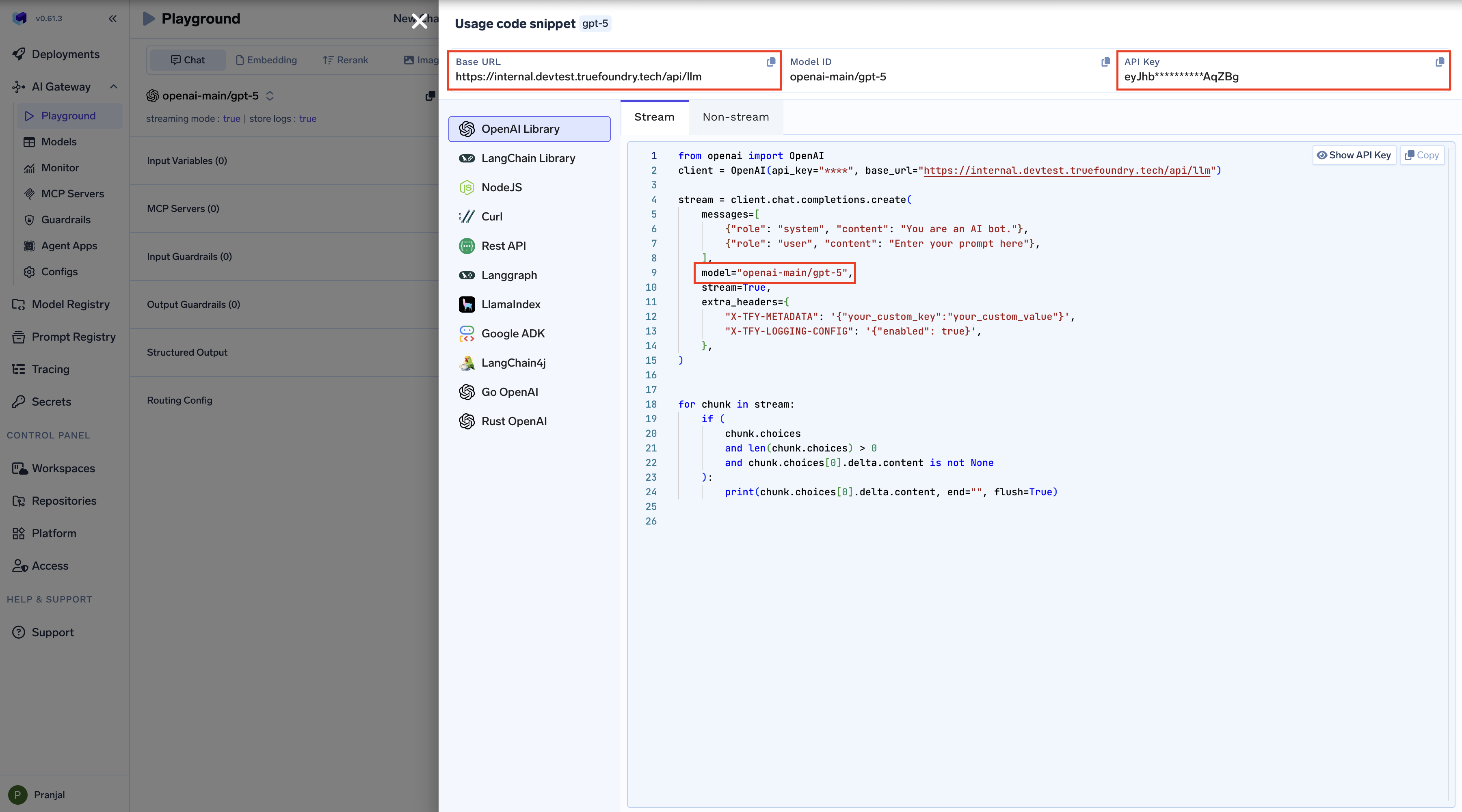
Get Base URL and Model Name from Unified Code Snippet
2. Create a Virtual Model
Create a Virtual Model so Codex can use a simple model name that the AI Gateway maps to your provider. Follow these steps:- Open the Virtual Model / Routing page in the TrueFoundry AI Gateway dashboard
-
Create a new Virtual Model and add a Slug. This slug is the name you will use in Codex (e.g.
gpt-5.2-codexorgpt-5).Use a slug that matches the actual model ID (e.g.gpt-5.2-codexfor GPT-5.2-Codex). Codex recognizes these IDs and enables the right features (e.g. thinking tokens) -
Set the target to the fully qualified model name (e.g.
openai-main/gpt-5.2-codex). You can use one target at 100% weight or add multiple targets with weights for load balancing.
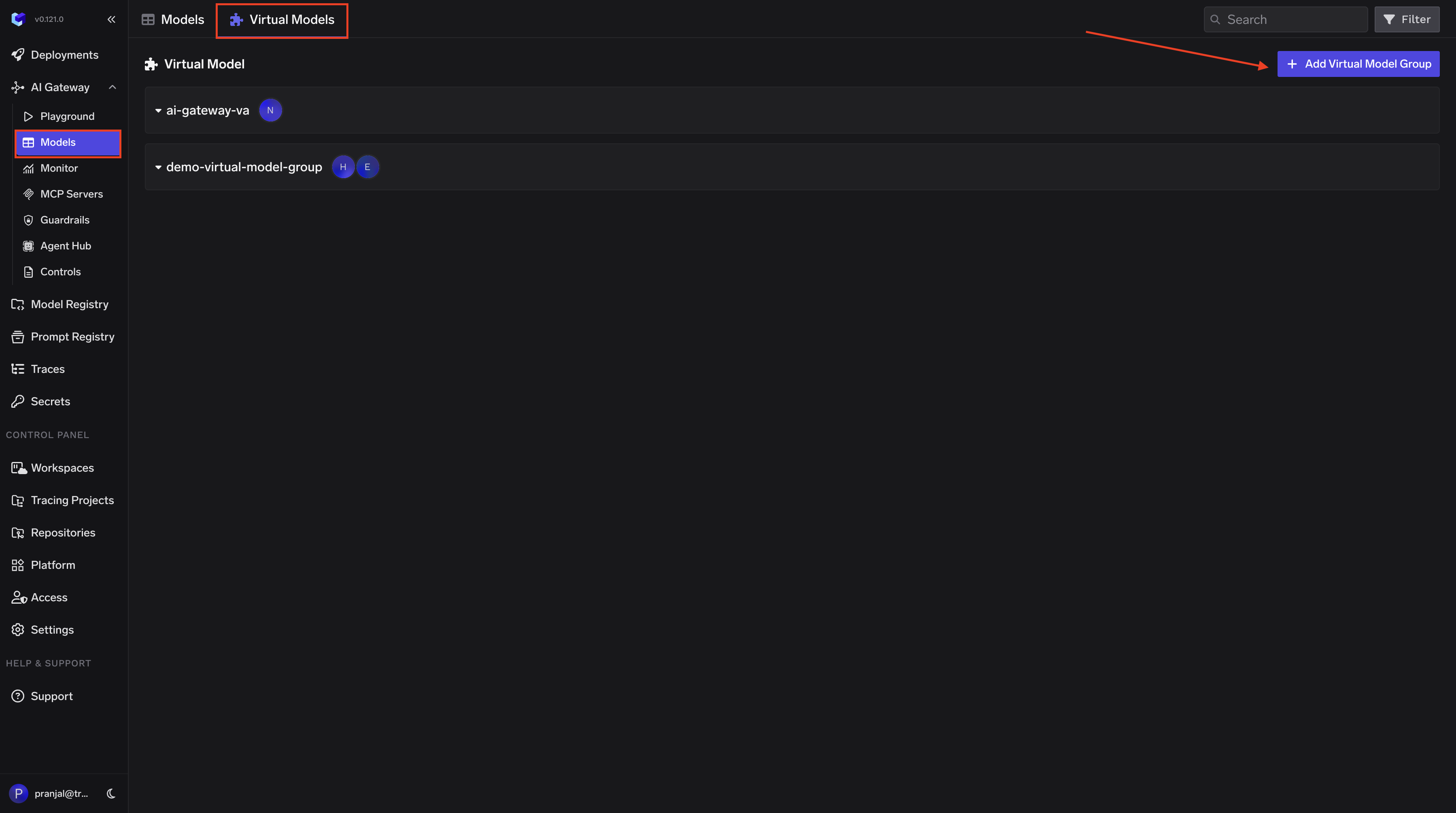
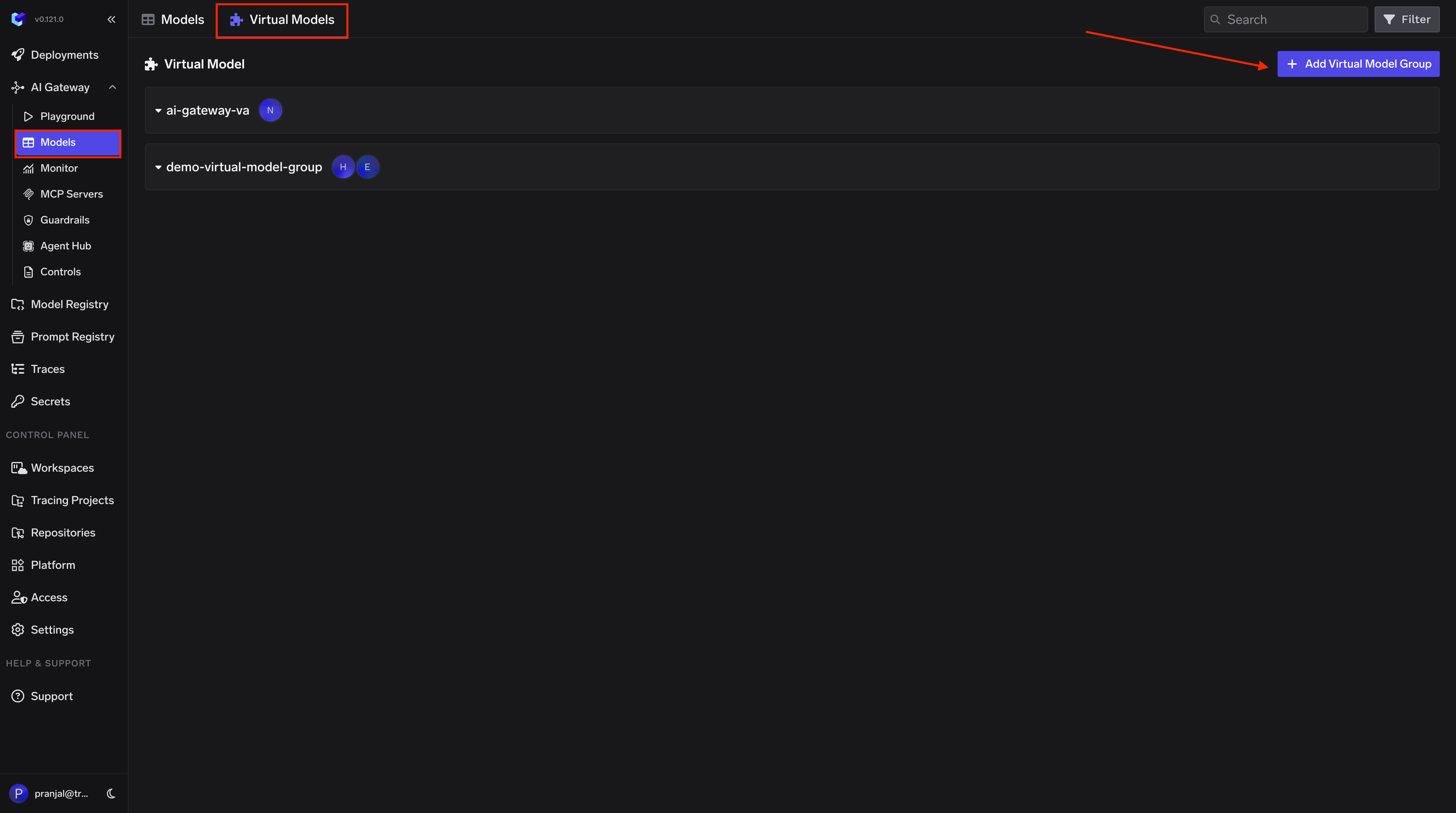
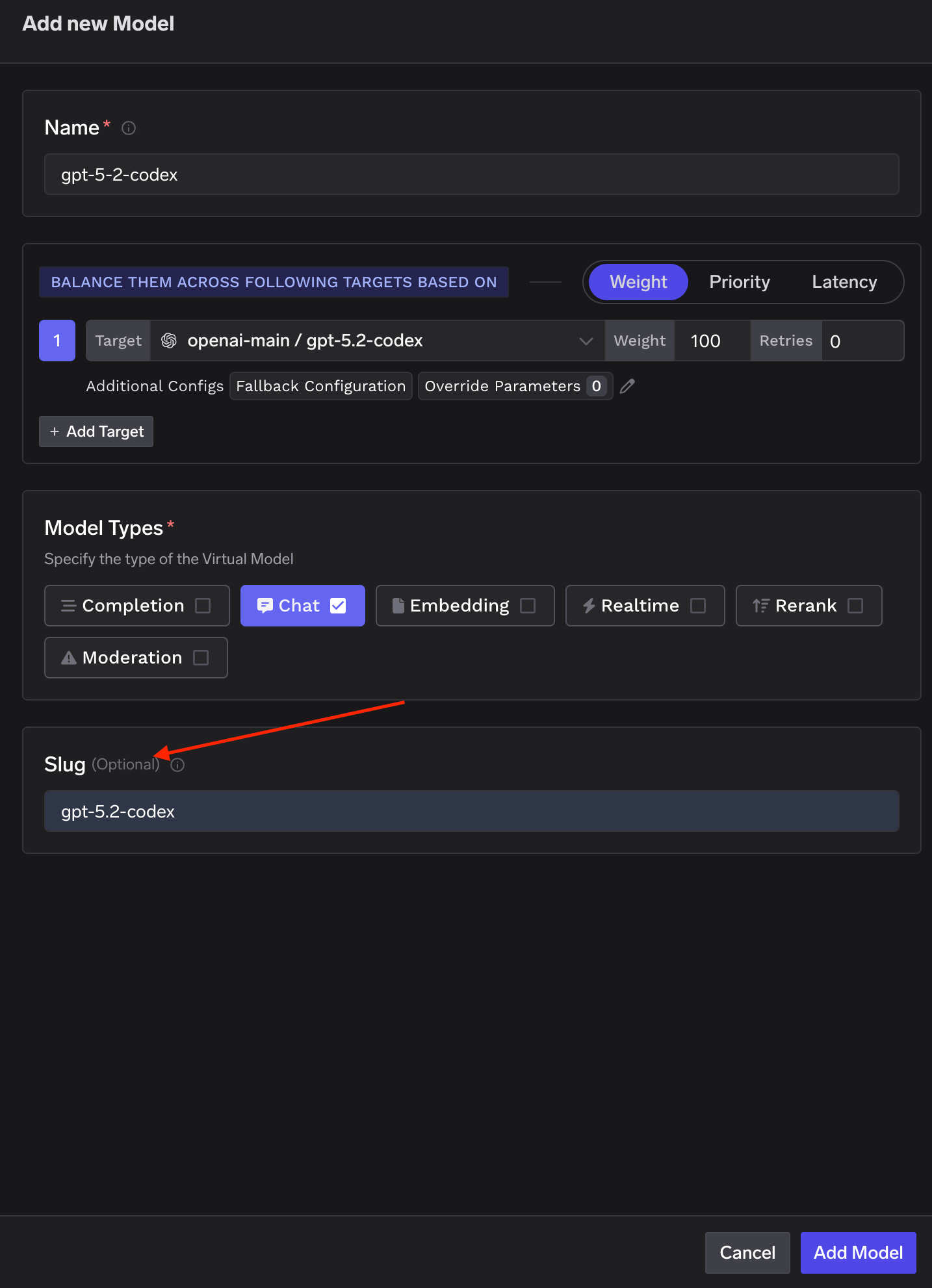
gpt-5.2-codex and the target is openai-main/gpt-5.2-codex at 100% weight, then when you run codex chat --model gpt-5.2-codex, the AI Gateway routes that request to openai-main/gpt-5.2-codex.
Use the slug as the model name in Codex (e.g.
--model gpt-5.2-codex). Do not use the fully qualified name (e.g. openai-main/gpt-5.2-codex) in Codex; that can break thinking tokens and other behavior.Usage Examples
Use the virtual model slug you created (e.g.gpt-5.2-codex or gpt-5) with the --model flag so requests go through the TrueFoundry AI Gateway.
Basic usage
With options
gpt-5.2-codex with whatever slug you set in your Virtual Model.
Web search
Codex can use two types of web search through the AI Gateway:- Provider-hosted search — works when Codex sends the Responses API
web_searchtool and the routed provider and model support it. This includes supported models on AWS Bedrock Mantle. - MCP web search — works independently of the selected model provider and is the recommended option when you need consistent behavior across providers.
~/.codex/config.toml as a streamable-HTTP MCP server:
<mcp-server-name> with the slug of the server you registered on the gateway (for example tavily or exa); the table name (web-search) is just the local alias Codex uses. Codex authenticates each MCP server independently of the model provider, but you can reuse the same TrueFoundry token you use for inference — pass it in http_headers exactly like the [model_providers.truefoundry.http_headers] block above. To keep the token out of the config file, use bearer_token_env_var = "TFY_API_KEY" instead, which reads it from that environment variable at runtime. See Connect an MCP server from your IDE / client for the gateway MCP URL format and auth.
Disabling web search
To disable Codex’s provider-hosted web search, set the following in~/.codex/config.toml:
[mcp_servers.<name>] block to disable MCP search.
Switching virtual models mid-session
Codex withwire_api = "responses" often runs with store: false and replays encrypted thinking on later turns. The AI Gateway stamps which backend produced that thinking. If you change the virtual model slug mid-thread (for example via the model picker) to a slug whose targets no longer include that backend, the next turn returns 409 by default.
To continue the thread after such a switch, add this header under [model_providers.truefoundry.http_headers]:
thinking_blocks) and continues without the pin. Sub-agent history such as agent_message is kept. Encoded previous_response_id pins still return 409 — those need the original backend. See x-tfy-reset-thinking-on-switch.
Understanding Virtual Model Routing
When you use--model <your-slug>, the AI Gateway routes the request according to that Virtual Model’s targets. With a single target at 100% weight, all traffic goes to that model.
You can also add multiple targets with weights in the Virtual Model (e.g. 70% to one provider, 30% to another). Example:
Fleet-wide enforcement
Gateway config: enforceable. TrueFoundry’stfy-local-ai-setup --codex writes and locks the managed config and refreshes the per-user token hourly: /etc/codex/managed_config.toml on macOS and Linux; on Windows (Codex ≥ v0.156) the enforced file is C:\ProgramData\OpenAI\Codex\requirements.toml with config.toml for defaults, since managed_config.toml is no longer read there. On any platform, requirements.toml can pin model_provider and the provider’s base_url so user config can’t override them. Full scripts and token lifecycle: Securing Codex with TrueFoundry.
MCP servers: enforceable. Remote servers are [mcp_servers.<name>] with url, bearer_token_env_var or http_headers, or auth = "oauth"; point url at the MCP Gateway. requirements.toml allowlists servers by identity, [mcp_servers.<id>] identity = { url = "https://<gateway>/..." } with exact, prefix, or regex matching; any configured server not on the list is disabled, and an empty mcp_servers table disables MCP entirely. The TrueFoundry binary doesn’t write this file, so push it with your MDM alongside. See OpenAI’s managed configuration doc.