This section is applicable only if you are self-hosting the control plane. If TrueFoundry is hosting the control plane, monitoring is fully managed and no setup is required on your end.
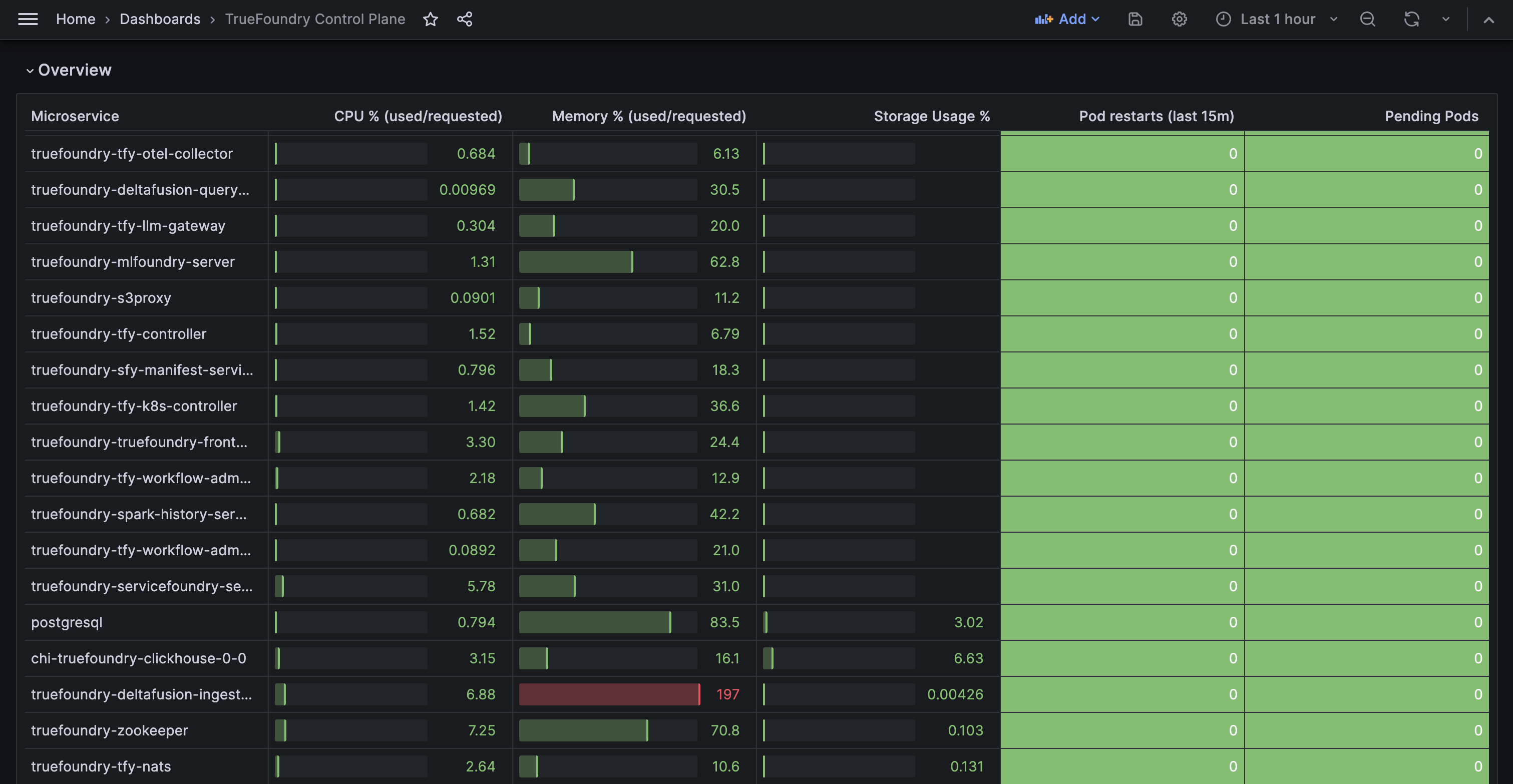
The TrueFoundry control plane exposes metrics for all its microservices and components. These can be scraped by Prometheus or any other monitoring tool such as Datadog, New Relic, etc. By default, the truefoundry Helm chart includes basic monitoring — critical metrics are exposed via Prometheus ServiceMonitors and PodMonitors, and a Grafana dashboard is available to visualize them.

Enabling Control Plane Monitoring

To enable the built-in monitoring stack, set truefoundryMonitoring.enabled to true in your truefoundry-values.yaml:
truefoundry-values.yaml
truefoundryMonitoring:
  enabled: true
This deploys the monitoring components alongside your control plane. The following subsections describe the available configuration options.

Using an Existing Prometheus or VictoriaLogs

If you already have Prometheus or VictoriaLogs running in your cluster, point the monitoring stack to them using externalServices:
truefoundry-values.yaml
truefoundryMonitoring:
  enabled: true
  externalServices:
    prometheus:
      url: "http://prometheus.monitoring.svc:9090"
    victoriaLogs:
      url: "http://victoria-logs.monitoring.svc:9428"

Installing a Dedicated Prometheus or VictoriaLogs

If you do not have an existing Prometheus or VictoriaLogs instance, the Helm chart can install them for you:
truefoundry-values.yaml
truefoundryMonitoring:
  enabled: true
  prometheus:
    enabled: true
  logs:
    enabled: true
Only enable the prometheus and logs subcharts if you do not already have these services in your cluster. Running duplicate instances can cause resource conflicts and increased costs.

Configuring Grafana

When monitoring is enabled, a Grafana instance is deployed with pre-built control plane dashboards. Configure JWT authentication so that platform admins can access Grafana seamlessly at https://<your-domain>/admin/grafana/:
truefoundry-values.yaml
truefoundryMonitoring:
  enabled: true
  grafana:
    grafana.ini:
      auth.jwt:
        jwk_set_url: >-
          https://<your-truefoundry-control-plane-url>/api/svc/v1/keys/<tenant-name>/jwks
ParameterDescription
grafana.grafana.ini.auth.jwt.jwk_set_urlJWKS endpoint on your control plane used to verify admin JWT tokens. Replace <your-truefoundry-control-plane-url> with your actual control plane domain and <tenant-name> with your TrueFoundry tenant name.
After applying the configuration, upgrade the Helm release:
helm upgrade --install truefoundry oci://tfy.jfrog.io/tfy-helm/truefoundry \
  -n truefoundry --create-namespace \
  -f truefoundry-values.yaml

Complete Example

Here is a full truefoundryMonitoring configuration that installs a dedicated Prometheus, VictoriaLogs, and Grafana:
truefoundry-values.yaml
truefoundryMonitoring:
  enabled: true
  prometheus:
    enabled: true
  logs:
    enabled: true
  grafana:
    grafana.ini:
      auth.jwt:
        jwk_set_url: >-
          https://app.example.com/api/svc/v1/keys/<tenant-name>/jwks

Accessing the Grafana Dashboard

Once monitoring is enabled and the Helm release is upgraded, platform admins can access the Grafana dashboard at:
https://<your-truefoundry-control-plane-url>/admin/grafana/
  • Only users with the admin role in TrueFoundry can access this endpoint.
  • Make sure to include the trailing / at the end of the URL.
The pre-built dashboard is available at Dashboards > General > TrueFoundry Control Plane:

Using Your Own Grafana

If you prefer to use an existing Grafana instance instead of the one managed by TrueFoundry:
1

Install Grafana via the platform UI

Navigate to Platform > Clusters, click on the control plane cluster, and install Grafana from the Add-Ons tab.
2

Or import the dashboard manually

Download the dashboard JSON from here and import it into your Grafana instance.

Alerting

In most cases, when you install the control plane, TrueFoundry sets up alerting to notify the TrueFoundry team of any incidents. You can add your own alert channels alongside this.

Enabling Alerts

Enable alerting by setting monitoring.enabled to true and providing the API URL supplied by the TrueFoundry team:
truefoundry-values.yaml
monitoring:
  enabled: true
  alertManager:
    enabled: true
    slackConfigs:
      enabled: true
      channel: "#customer-cp-alerts"
      apiURL:
        name: tfy-control-plane-alert-manager-secret
        key: API_URL
    secret:
      create: true
      name: tfy-control-plane-alert-manager-secret
      data:
        API_URL: "<api-url-provided-by-truefoundry>"

Disabling TrueFoundry Team Alerts

To stop sending alerts to the TrueFoundry team:
truefoundry-values.yaml
monitoring:
  alertManager:
    slackConfigs:
      enabled: false

Adding Your Own Slack Channel

To send alerts to your own Slack channel, update the channel and apiURL fields:
truefoundry-values.yaml
monitoring:
  alertManager:
    slackConfigs:
      enabled: true
      channel: "#your-ops-channel"
    secret:
      create: true
      name: tfy-control-plane-alert-manager-secret
      data:
        API_URL: "https://hooks.slack.com/services/YOUR/WEBHOOK/URL"

Multiple Alert Channels

To send alerts to both the TrueFoundry team and your own channels, use the additionalReceivers field:
truefoundry-values.yaml
monitoring:
  alertManager:
    slackConfigs:
      enabled: true
    additionalReceivers: []
You can configure any receiver supported by Prometheus Alertmanager. See the full list of receiver integration settings.

Full Alerting Configuration Reference

truefoundry-values.yaml
monitoring:
  enabled: false
  tenantNameOverride: ""
  commonLabels: {}
  commonAnnotations: {}
  alertManager:
    enabled: true
    name: tfy-control-plane-alert-manager
    labels: {}
    annotations: {}
    slackConfigs:
      enabled: true
      channel: "#customer-cp-alerts"
      apiURL:
        name: tfy-control-plane-alert-manager-secret
        key: API_URL
      additionalSlackConfigs: []
    additionalReceivers: []
    secret:
      create: false
      name: tfy-control-plane-alert-manager-secret
      data:
        API_URL: ""
  alertRules:
    enabled: true
    name: tfy-control-plane-alert-rules
    labels: {}
    annotations: {}