

Slack Bot Notification Integration
To add a Slack Bot notification integration:- Go to the Integrations page in the TrueFoundry UI.
- Click on ‘Add Integration Provider’.
- Select ‘Slack’ as the provider type.
- Choose ‘Slack Bot Token Integration’ in the integrations section.
- Fill out the form fields as shown below:
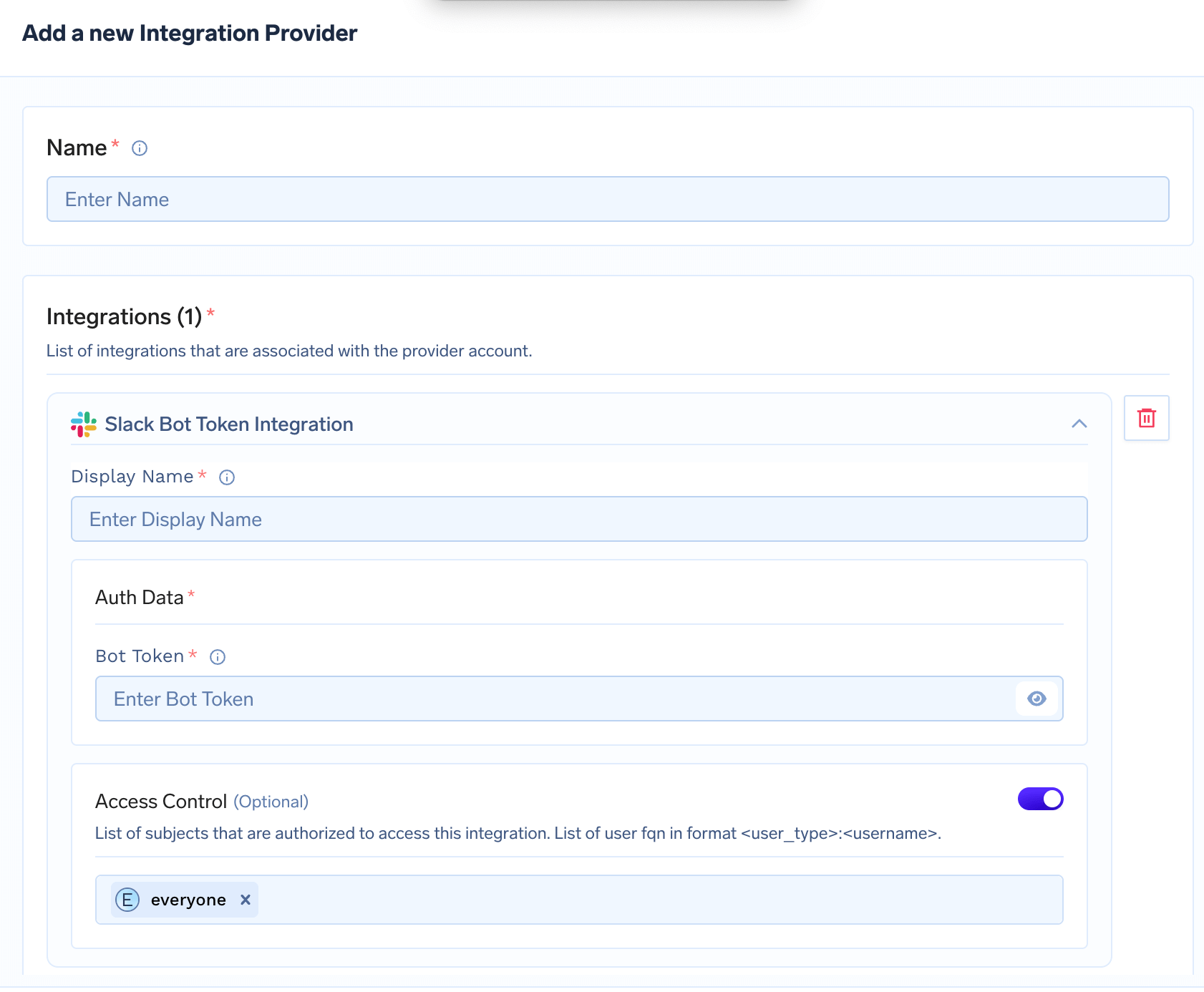
Field Descriptions
- Name: A unique name for this integration provider (e.g., “Slack Alerts Bot”).
- Display Name: The display name for this Slack bot integration (e.g., “Critical Alerts Bot”).
- Bot Token: The OAuth token for your Slack bot. This is required for the bot to send messages to channels.
- Access Control (Optional): List of users or groups allowed to use this integration. By default, set to
everyone.
How to create a Slack Bot Token:
- Go to the Slack API: Your Apps page.
- Click “Create New App” and follow the prompts.
- Add the
chat:writeandchat:write.publicscopes under “OAuth & Permissions”. To send direct messages, also addusers:read.email(Slack grants it alongsideusers:read).- Install the app to your workspace and copy the Bot User OAuth Token (starts with
xoxb-).- For more details, see the Slack Bot User OAuth Access Tokens documentation.
Sending direct messages
A Slack Bot integration can direct-message individual users as well as post to channels — for example, notifying the user who breached a per-user budget. TrueFoundry looks the user up by their email address, which requires theusers:read.email scope.
Integrations created before direct messages were supported only have the two posting scopes. To enable DMs on an existing integration, add
users:read.email and users:read to your Slack app, reinstall it to your workspace, and update the Bot Token on the integration with the new xoxb- token.The email must match the one on the user’s Slack account. If a user’s TrueFoundry email differs from their Slack email, the lookup finds no one and that message is skipped — messages to channels and other users are unaffected.Final Steps
- After filling all required fields, click Add Integration Provider to save your integration.
- You can now use these integrations as notification channels when setting up alerts for your applications.
With these integrations in place, you can receive real-time alerts via Slack for all your TrueFoundry applications!