

- Support for multiple repository types: TrueFoundry allows deploying a Helm chart from public/private helm repository, OCI registry, and or your own Git repository.
- Support for Kustomize patches and additional manifests: TrueFoundry allows you to add Kustomize patches and additional manifests to the Helm chart deployment. This is specially useful in case the helm chart doesn’t allow you to customize the values you need.
- Support for secrets management: While installing helm charts, we often need to create kubernetes secrets manually and then refer to them in the helm chart. TrueFoundry makes this process secure by allowing you to create the secrets in TrueFoundry(on your secret manager) and then add a kubernetes secret manifest via Kustomize to the helm chart deployment. You can read more on this in the steps below.
- Validation for cluster-scoped objects: Helm-charts downloaded from the internet can have malicious code in them, which can impact the security of your cluster. TrueFoundry validates the helm chart by checking for any cluster-scoped objects in the helm chart.
Cluster-scoped objects (like ClusterRole, ClusterRoleBinding, or non-namespace scoped resources) cannot be applied when deploying Helm charts unless you have cluster admin privileges. This restriction prevents workspace users from creating cluster-level resources that could impact other workloads.
- Pause Helm Chart: TrueFoundry allows you to pause the helm chart deployment. This is useful in case you want to stop the deployment and resume it later to save cost. Pausing the helm chart will scale all the pods in the helm chart to 0.
Step-by-Step Deployment Guide
Navigate to Deployments

Select Helm
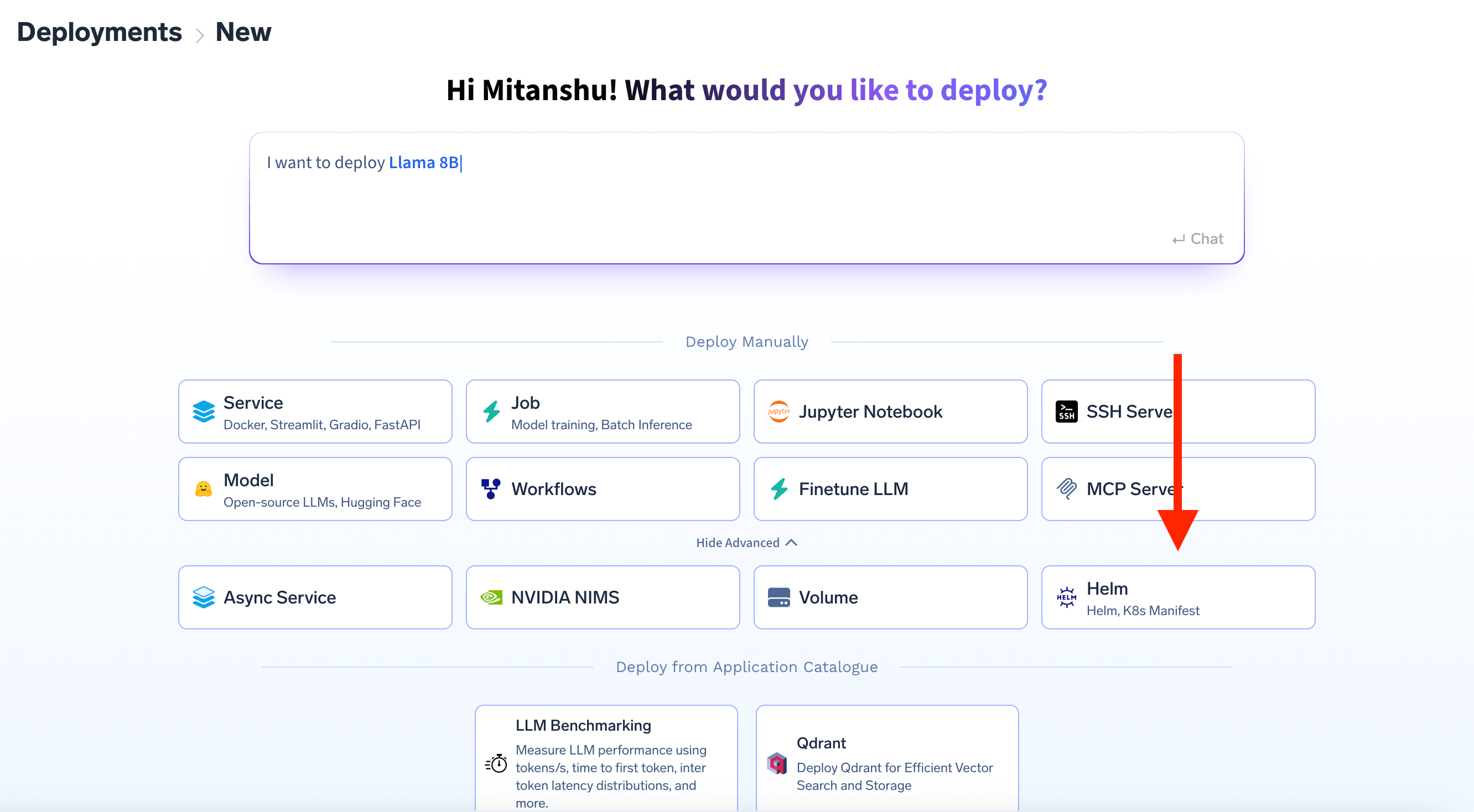
Choose Your Chart Source
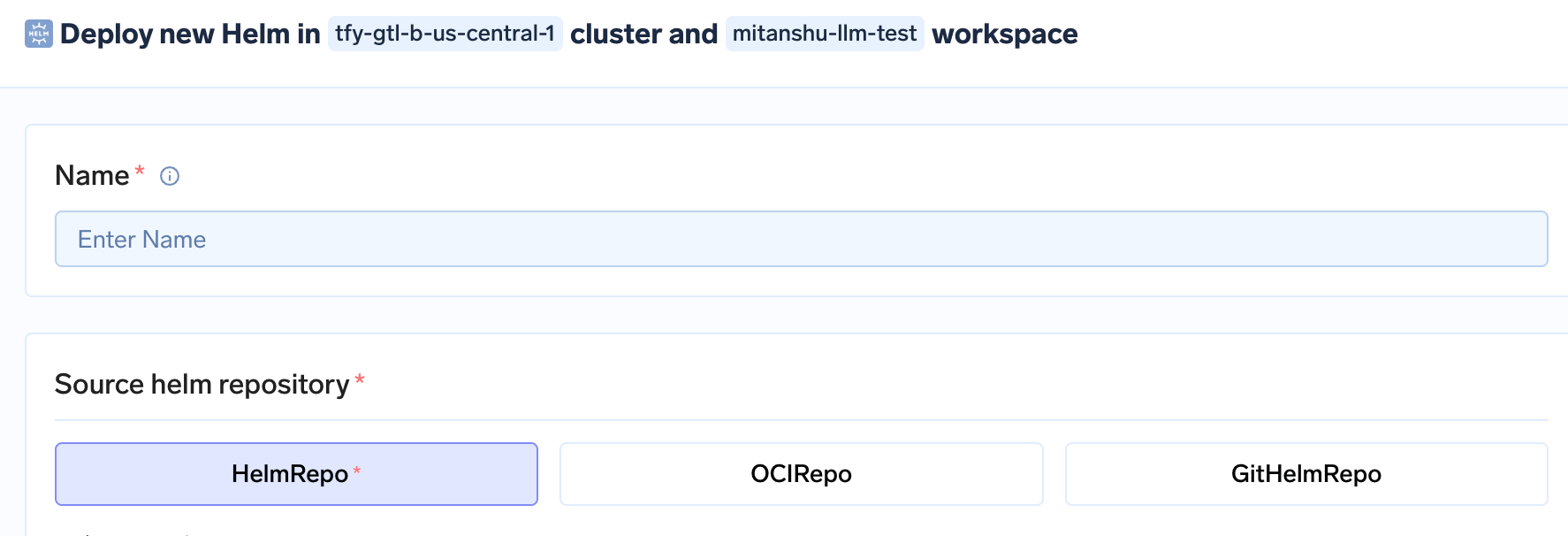
Helm Chart Deployment Form
Option 1: Public Helm Repository
Option 1: Public Helm Repository
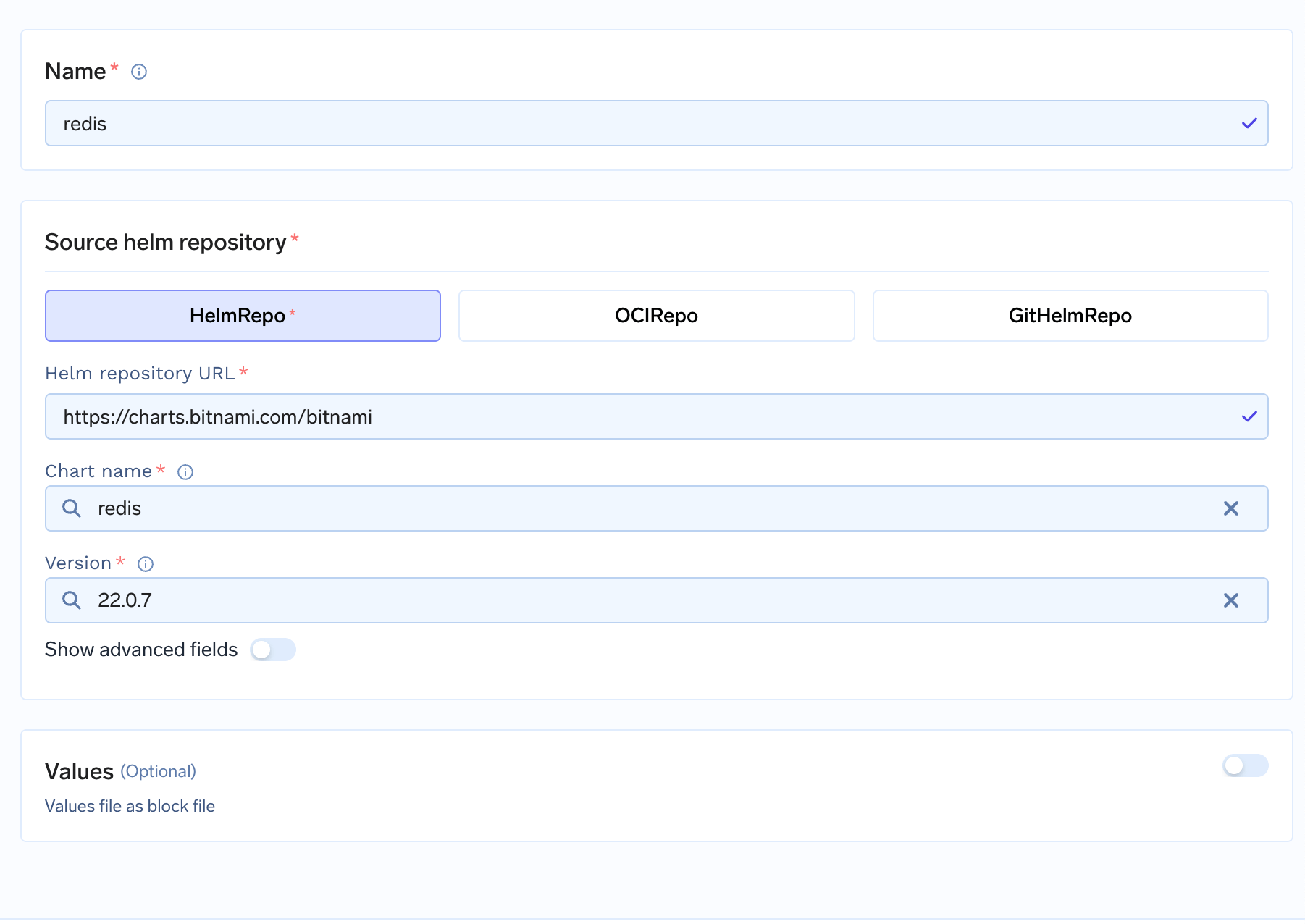
HelmRepo Configuration
Helm repository URL: The URL of the chart repository (e.g.,https://charts.bitnami.com/bitnami)Chart name: The name of the chart (e.g.,redis,postgresql)Version: The specific version you want to deploy
Option 2: Container Registry (OCI)
Option 2: Container Registry (OCI)
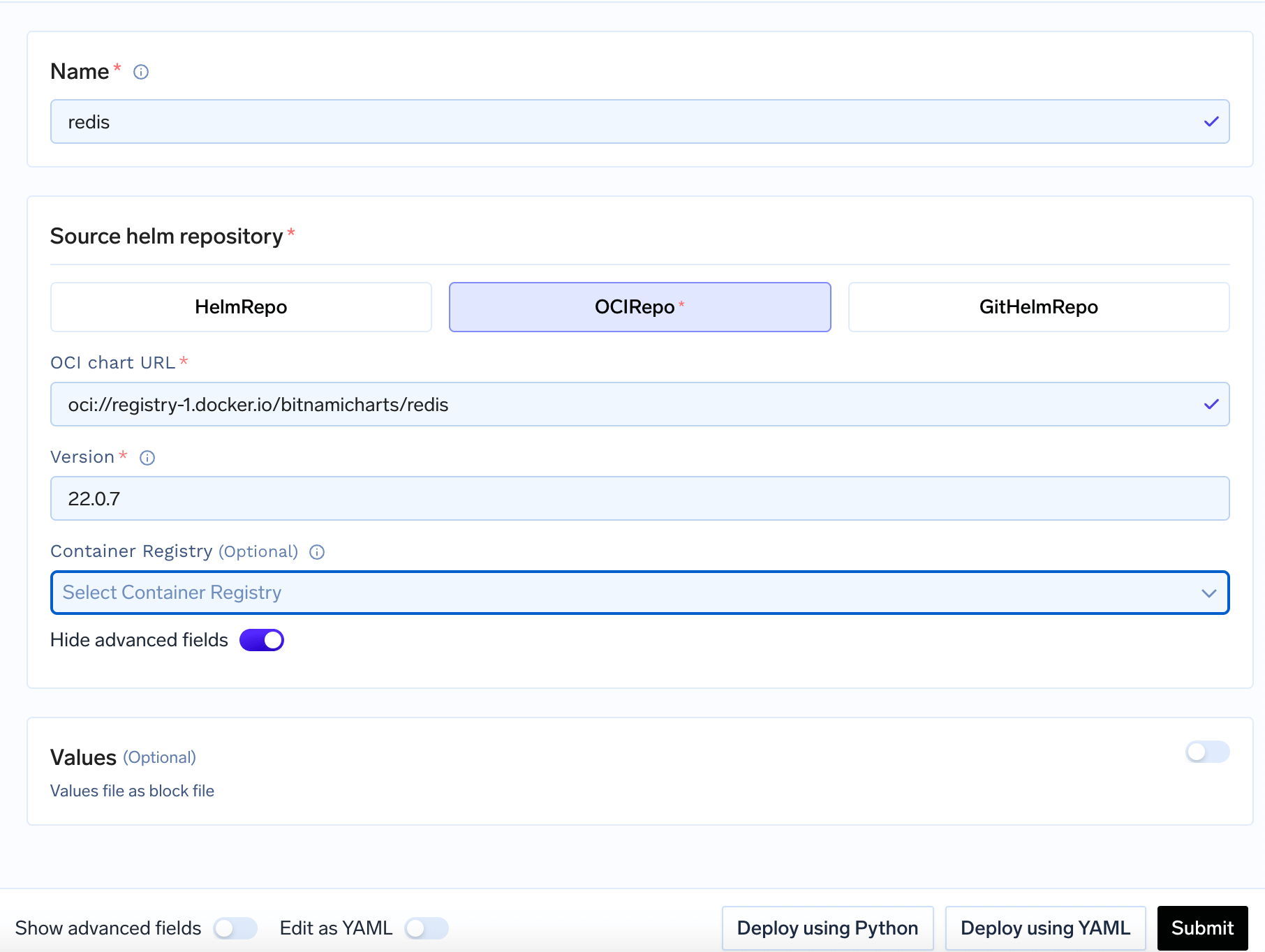
OCIRepo Configuration
OCI chart URL: The OCI URL of your chart (e.g.,oci://registry-1.docker.io/bitnamicharts/redis)Version: The specific version of the chartContainer Registry: This is only needed if you are deploying helm chart from your private container registry. Toggle the Show Advanced Fields and select the integration from the dropdown which contains your helm charts.
Option 3: Git Repository
Option 3: Git Repository
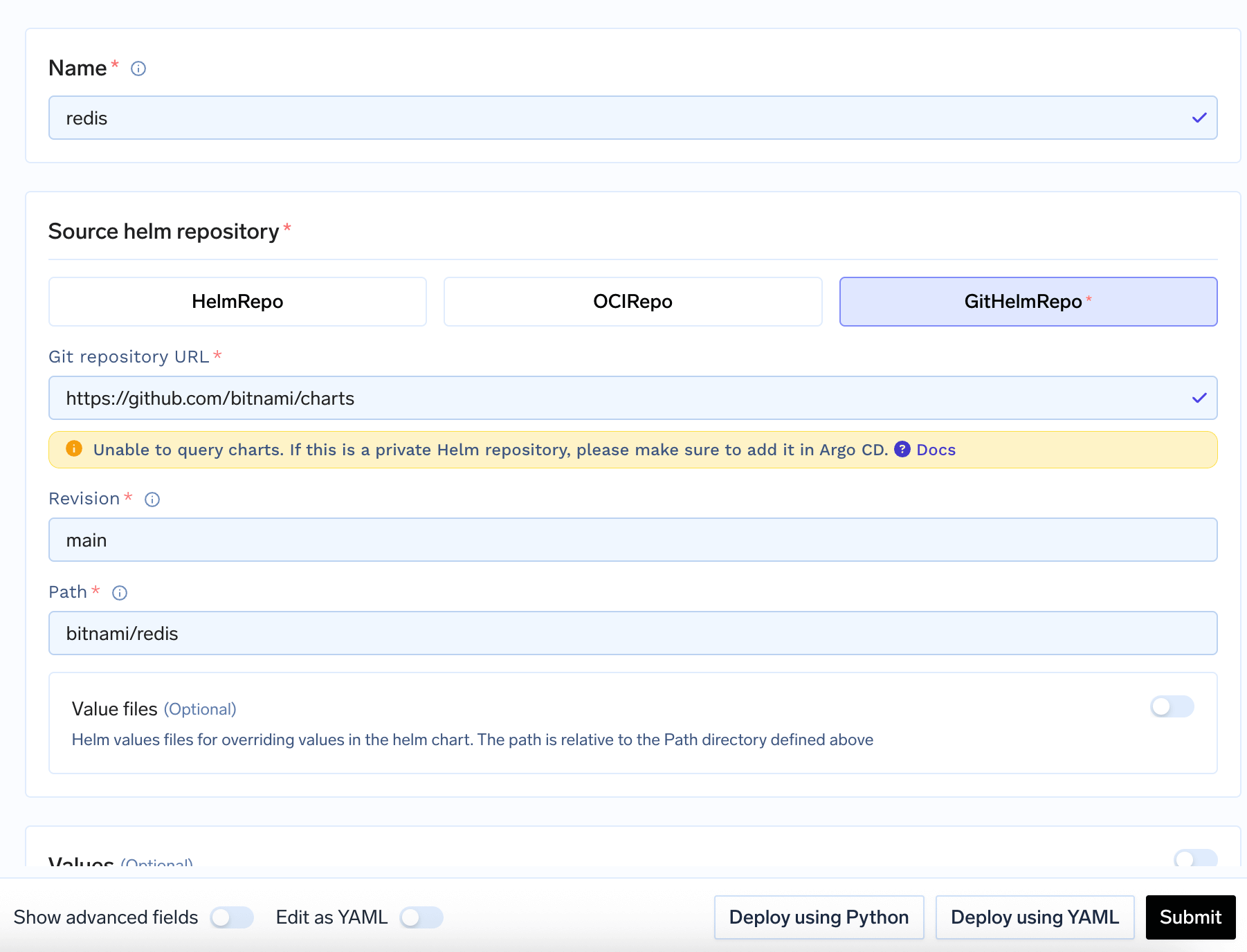
GitHelmRepo Configuration
Git repository URL: The URL of your Git repositoryRevision: Branch, tag, or commit SHA to use (e.g.,main,v1.0.0)Path: Path to the chart within the repository (e.g.,charts/my-app)
Configure Your Application
Basic Values Configuration
Basic Values Configuration
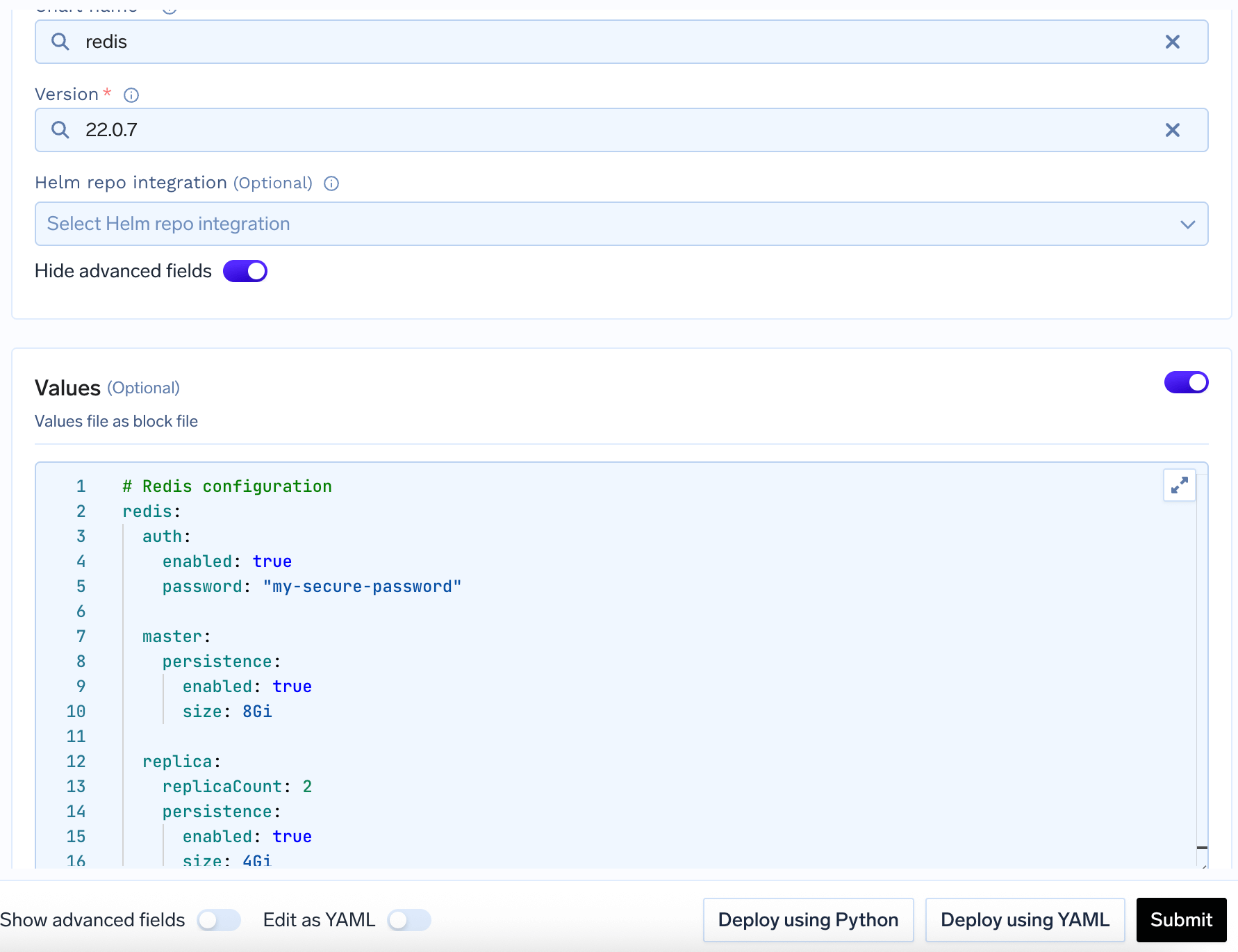
Values Configuration
Using Secrets (Recommended)
Using Secrets (Recommended)
- First, create a secret in TrueFoundry, you can refer to the Secret Management page for more details on how to create a secret.
- Copy the secret’s FQN (it looks like
tfy-secret://truefoundry:secret-name:key) - Use it in your secret manifest instead of plain text password.
stringData field to store the secret.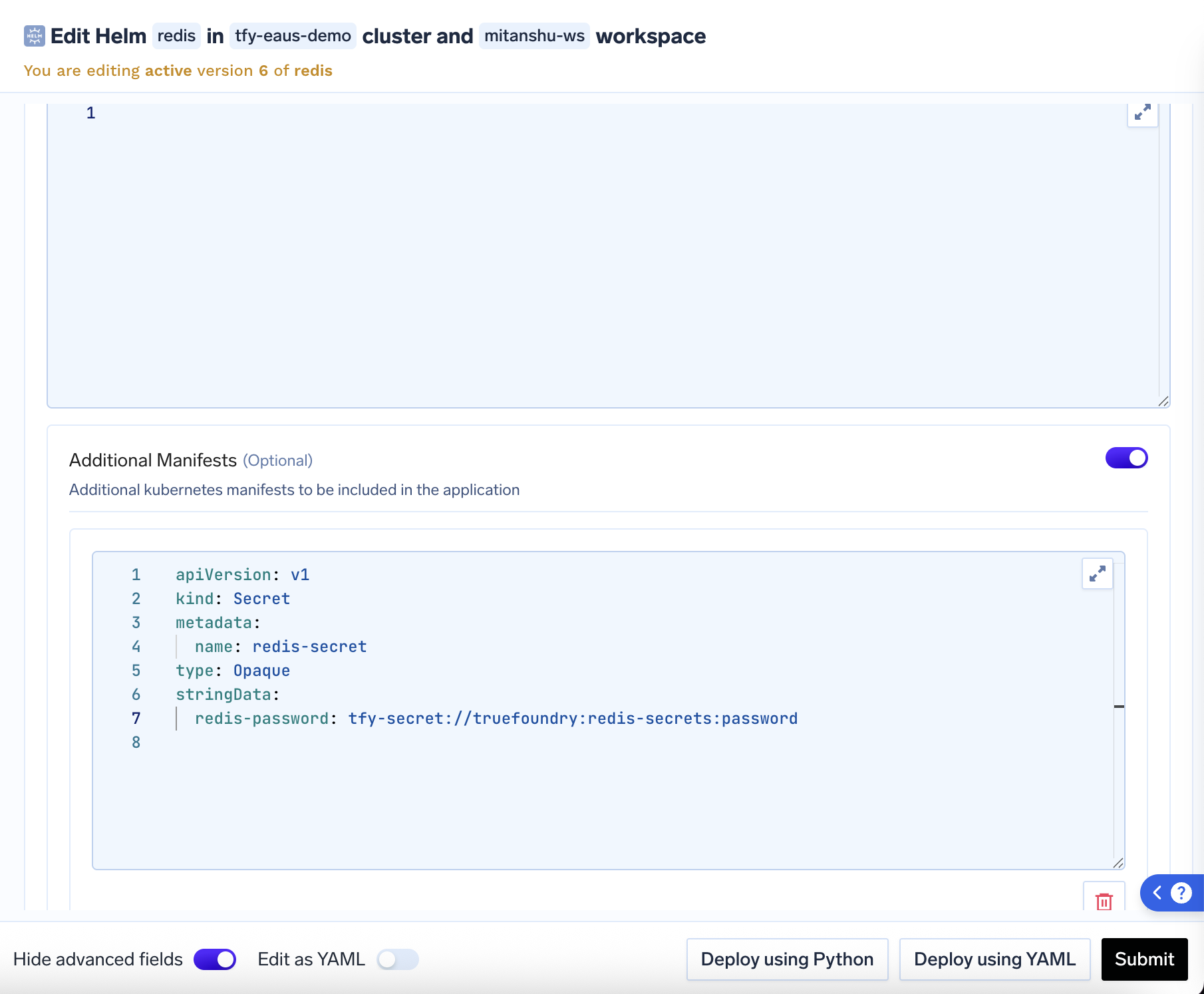
Secrets Configuration
Advanced Customization (Optional)
Advanced Customization (Optional)
- Kustomize Patches: Modify existing resources (e.g., add annotations, change resource limits), you can refer to the Kustomize page for more details on how to use kustomize patches.
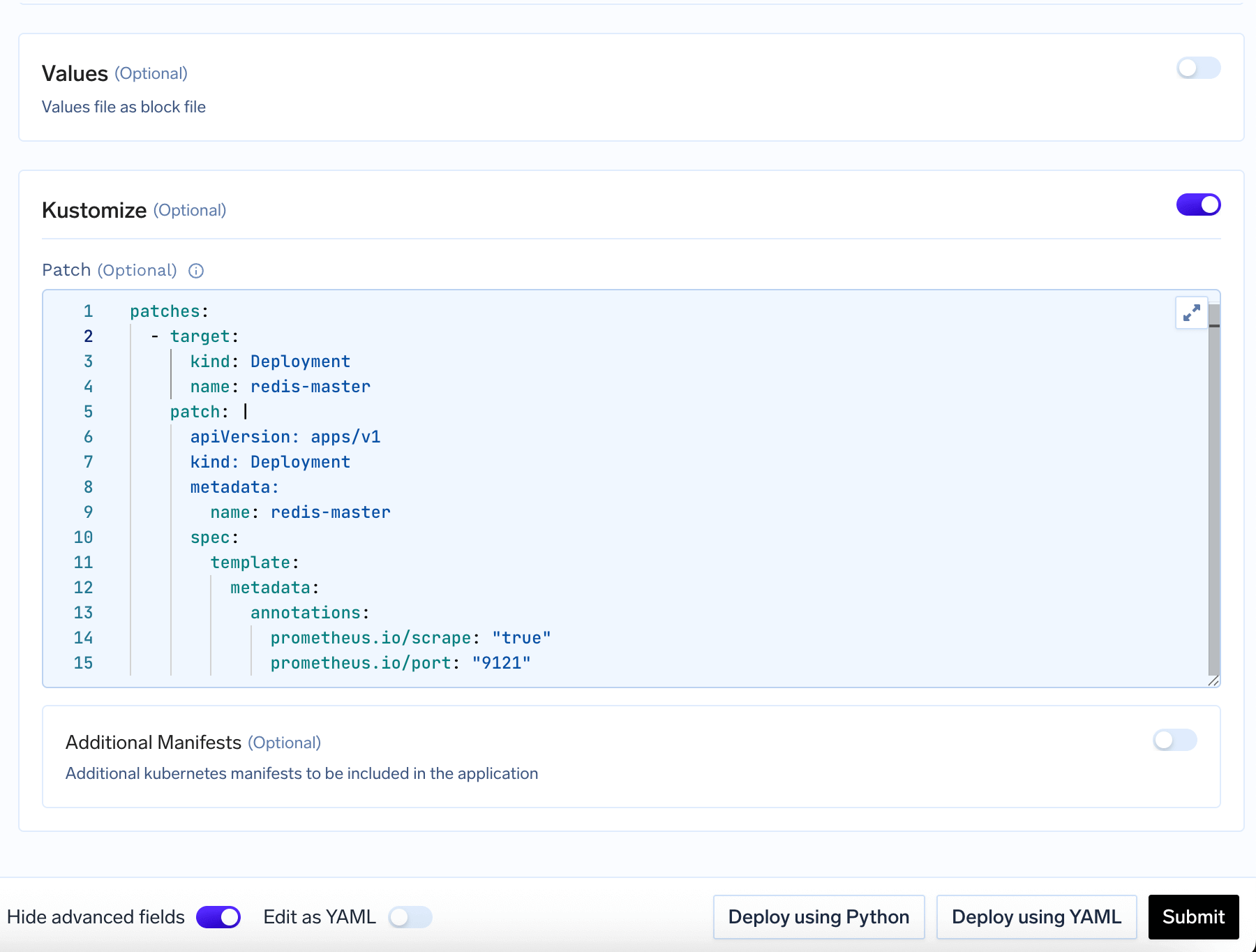
Kustomize Configuration
- Additional Manifests: Add new Kubernetes resources (e.g., To expose your app with a VirtualService, you can add a VirtualService manifest here.)
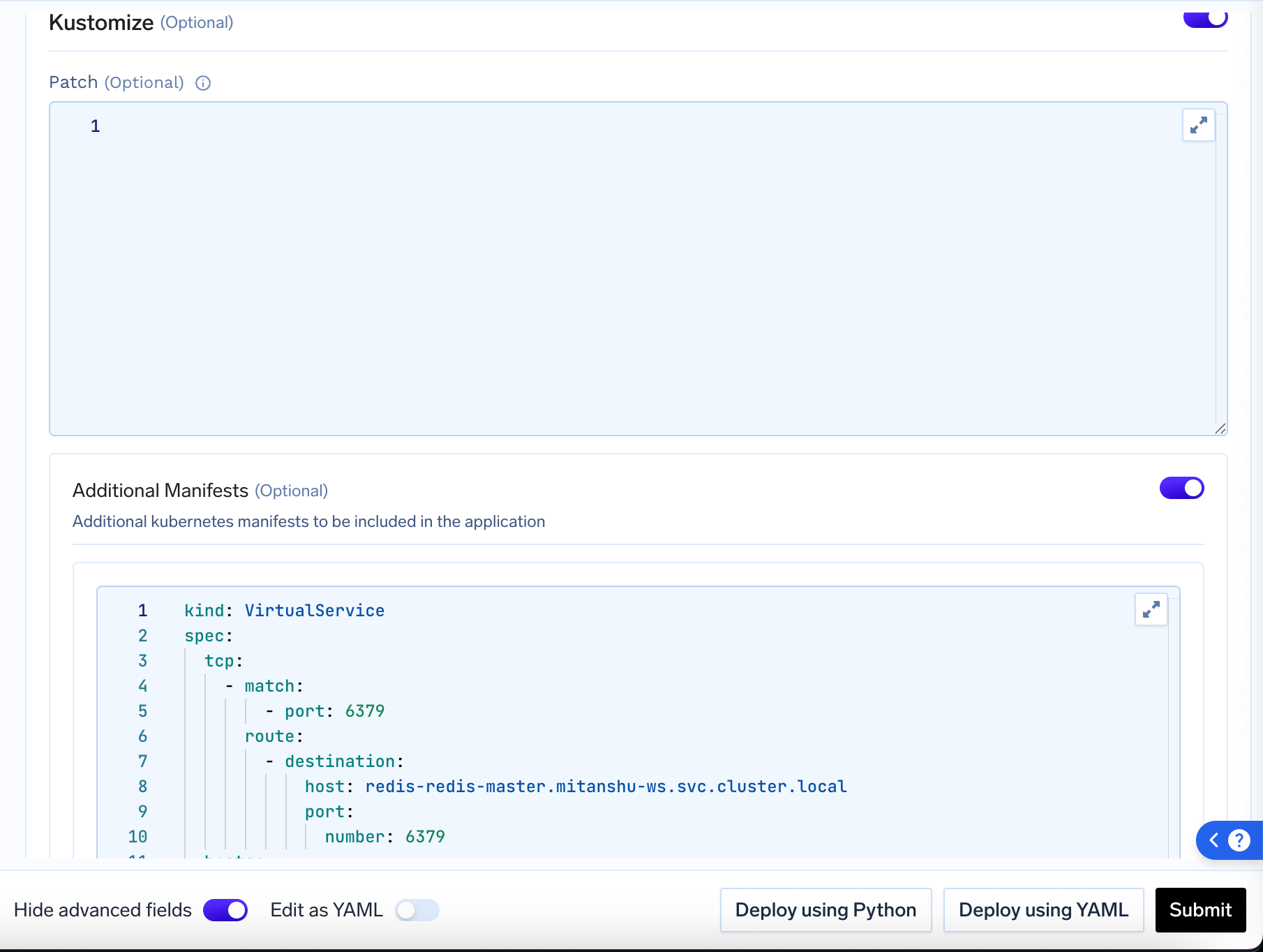
Additional Manifests Configuration
Deploy and Monitor
- Download your chart
- Apply your configuration
- Create the necessary Kubernetes resources
- Show you the deployment status
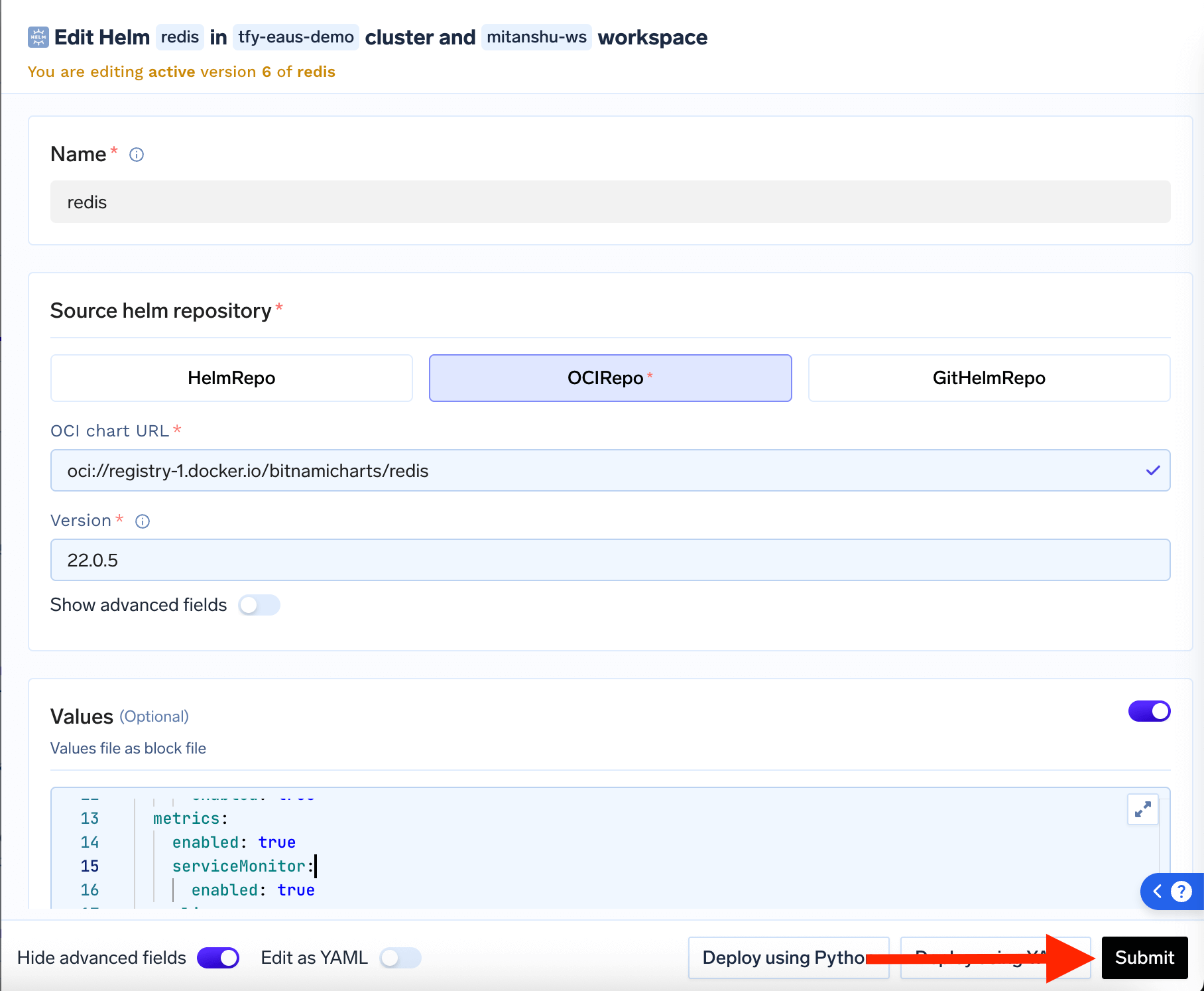
Deployment Status
Private Repository Configuration
TrueFoundry allows you to deploy Helm charts from private Git or OCI repositories by configuring repository credentials using the Kubernetes manifest deployment feature or by adding repository integrations.GitHub Private Repository
GitHub Private Repository
Add GitHub as Integration
Create GitHub Personal Access Token
- Go to https://github.com/settings/tokens (click on “Generate new token (classic)”)
- Select scopes:
repo(for private repositories) - Copy the generated token
Deploy Repository Secret using Kubernetes Manifest
https://github.com/your-org/helm-charts.gitwith your actual repository URLgithub_pat_11BAP2UBQ0tDSEVgbtphEM_18bH8fYWa6qhGCIWZsZIeIMm5NAEKYUIOfdfdfdfdfHER7RDDfbTAawith your actual GitHub tokenrepo-1752233801with a unique name for your secret
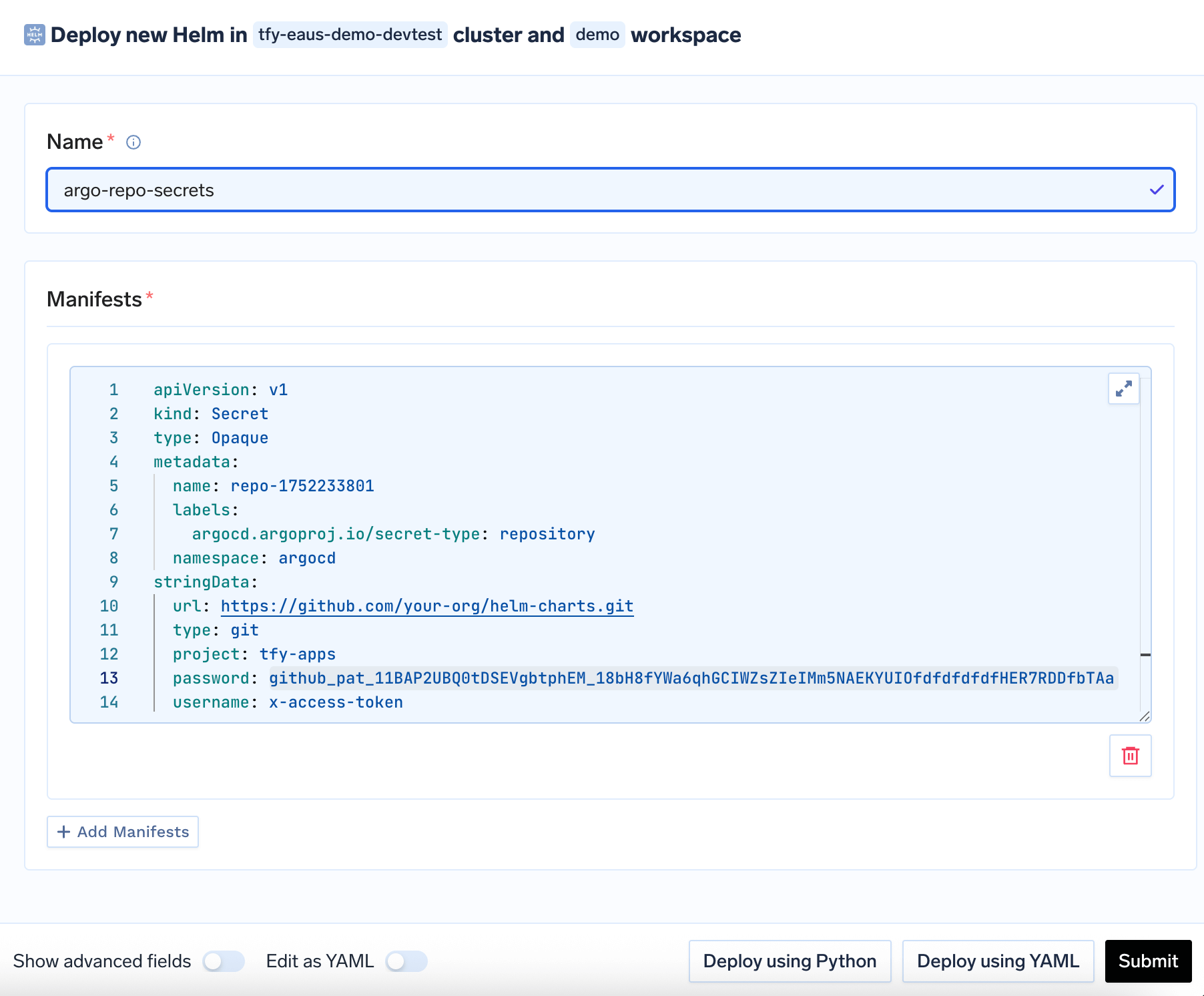
Deployed Secret
Deploy Helm Chart from Private Repository
- Go to Deployments → New → Helm
- Select Git Repository as your chart source
- Enter your private repository URL
- Specify the chart path and revision
- Configure your values and deploy
Private OCI Registry
Private OCI Registry
Add your container registry as an integration
Deploy the Helm chart with the registry integration
- Go to Deployments → New → Helm
- Select Container Registry (OCI) as the chart source
- Enter the OCI chart URL (for example
oci://myregistry.example.com/helm/my-chart) - Set the chart Version (typically the OCI tag, often a SemVer string)
- Open Show Advanced Fields and choose your Container Registry integration from the dropdown
- Configure values and deploy
helm pull or helm install against your registry.Argo CD repository secret via Kubernetes manifest
Secret so that Argo CD can access the private OCI registry. You can deploy one with Deploy Kubernetes Manifests or you can also do kubectly apply directly:urlwith your registry location without theoci://prefix (see Argo CD private Helm / OCI)oci-repo-myregistrywith a unique secret nameusernameandpasswordwith credentials your registry expects (robot account, personal access token, or provider-specific values such as$oauthtokenfor some registries)- Also in url make sure you give the registry url without the
oci://prefix and along with the path
Complete Example: Deploying Redis
Let’s walk through a real example of deploying Redis (a popular caching database) with proper configuration and security:Step 1: Choose Redis Chart
Step 1: Choose Redis Chart
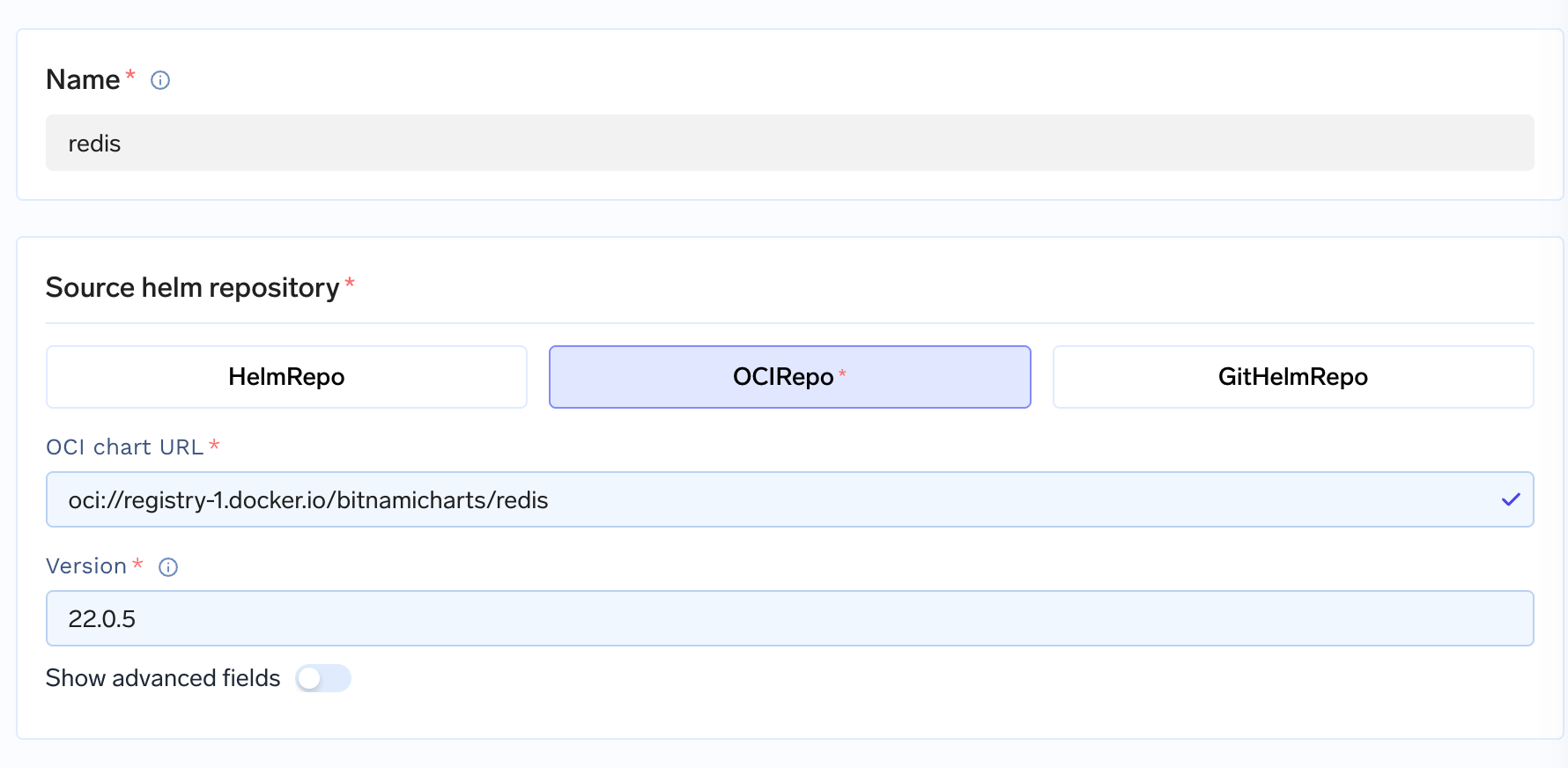
Redis Chart Configuration
Step 2: Set Up Secure Password
Step 2: Set Up Secure Password
-
Create a secret in TrueFoundry:
- Go to Secrets in the left sidebar
- Create a new secret called
redis-secrets - Add a key called
passwordwith your desired password
Creating Redis Password Secret
-
Copy the secret reference: It will look like
tfy-secret://truefoundry:redis-secrets:password
Step 3: Add additional manifests to create a redis password secret
Step 3: Add additional manifests to create a redis password secret
redis-secretwith a unique name for your secretredis-passwordwith your desired password
Creating Redis Password Secret
Step 4: Configure Redis Settings
Step 4: Configure Redis Settings
- Sets up a secure password using our secret
- Makes Redis accessible from outside (LoadBalancer)
- Saves data permanently (persistence)
- Runs backup instances for reliability
- Enables monitoring
Step 5: Custom Endpoint (Optional)
Step 5: Custom Endpoint (Optional)
redis.your-app.com), you can add this advanced configuration: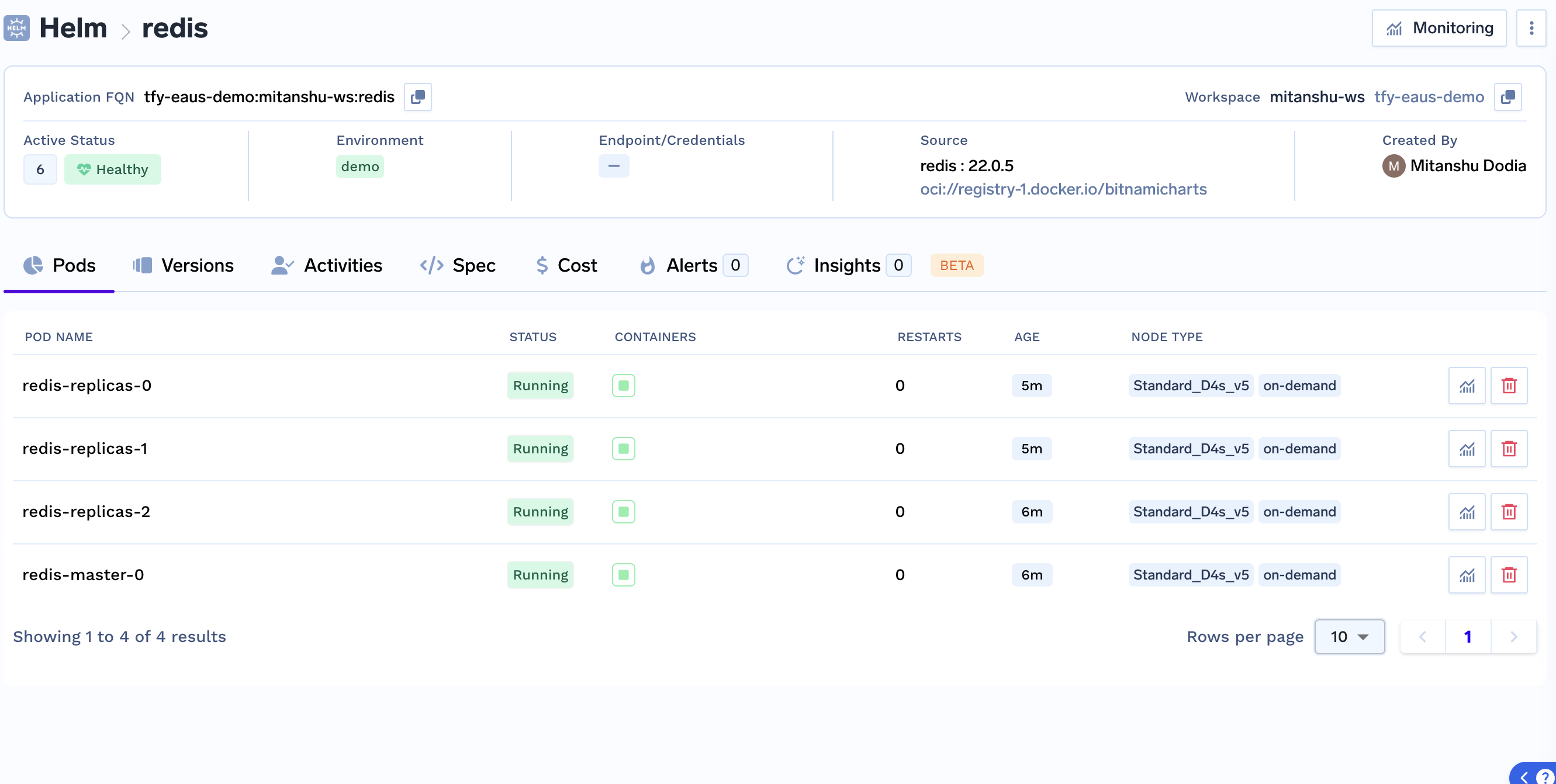
Final Redis Deployment Result