

When you save a secret using TrueFoundry’s UI, the actual secrets are stored
in your SecretManager and TrueFoundry never stores the secret with itself. You
will then get a fqn (fully-qualified-name) for your secret which you can then
use in your deployments.
Creating and Managing Secrets
In a project, you likely have a set of secrets associated with it. Managing access to each individual secret can become cumbersome. Hence, we have the concept of secret groups which lets you organize and manage related secrets for a specific project. Within a Secret Group, you can easily add, remove, and update secrets. You can configure access control on each secret group and grant users/teams read, write or admin access. You can check the demo below on how to add a secret group and some secrets in the group.
There are 3 roles in Secret groups:
- Secret Group Admin: Can create, edit and delete secrets in the group.
- Secret Group Editor: Can edit and delete secrets in the group and also see the secret values.
- Secret Group Viewer: Can only see the secret keys, but not the values.

By default, a tenant admin has access to all secret groups. For tenant members
and teams you need to assign roles for each secret group.
Using the Secrets
Each secret will have a fully-qualified-name (FQN) next to the secret using which you can refer to and use the secret in the places mentioned below.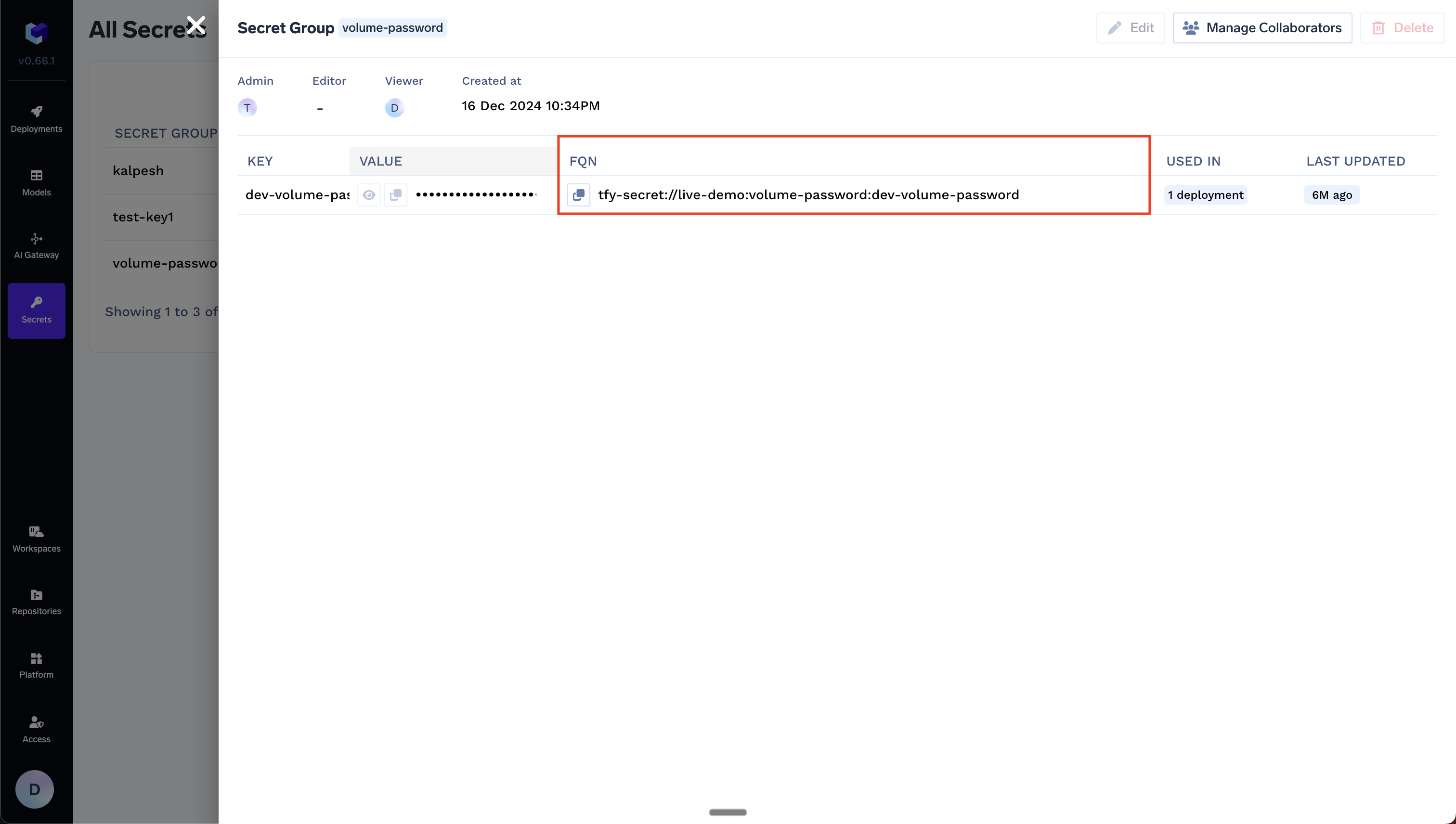
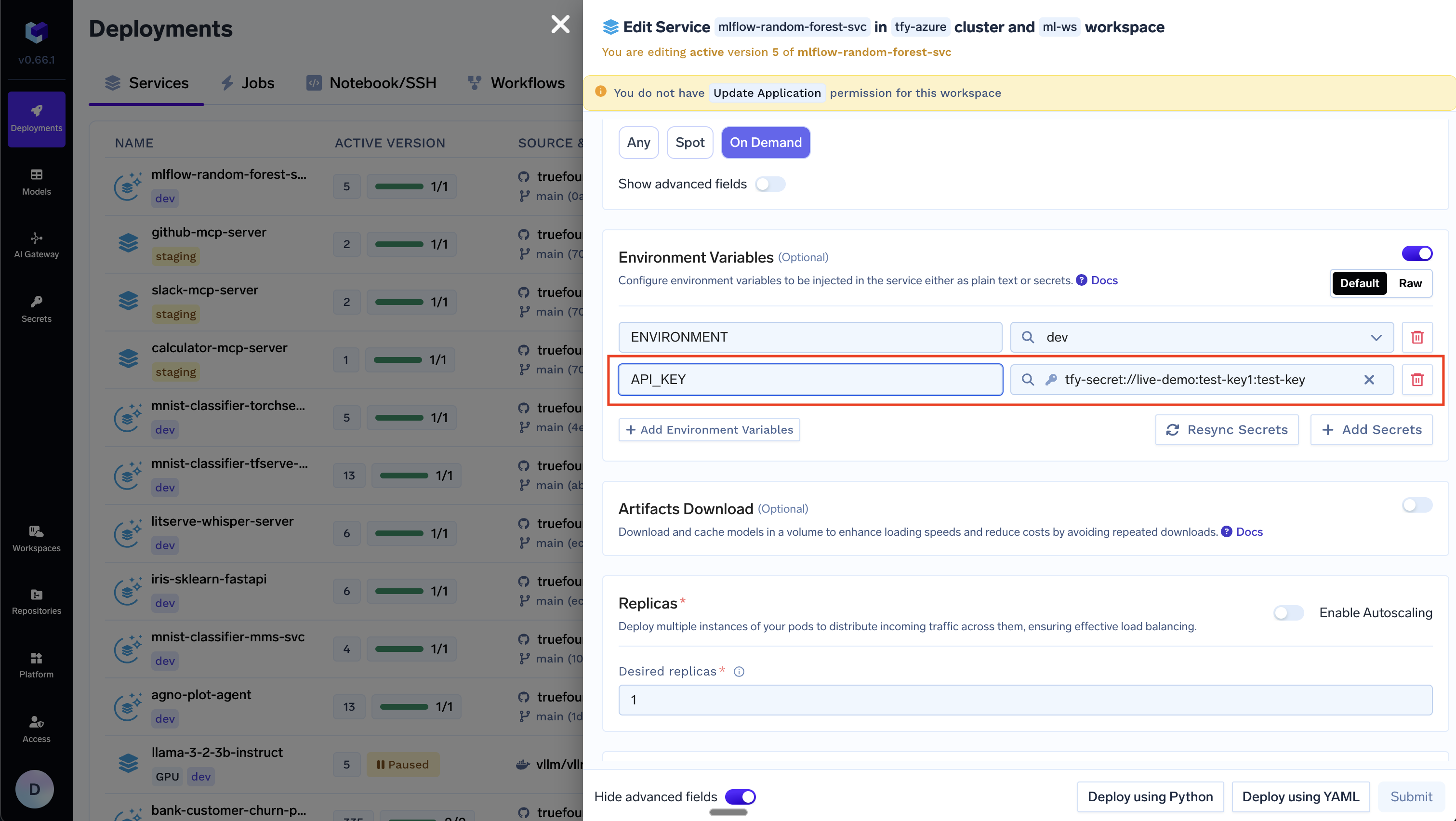
Environment variables in deployments
Environment variables in deployments
Volume Mounts in deployments
Volume Mounts in deployments
You can mount secrets as a volume in your deployments.
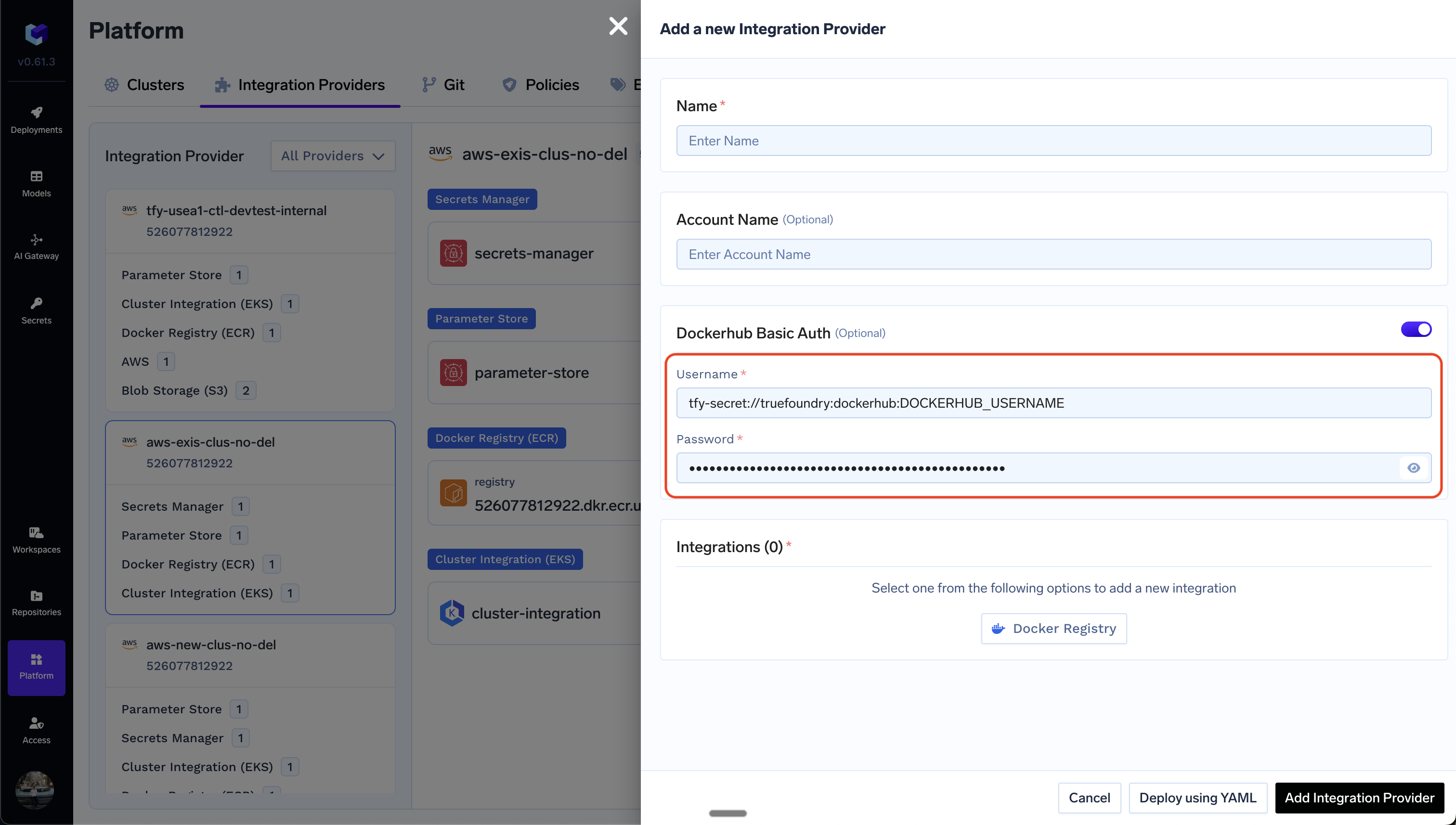
API keys / sensitive values in Integrations
API keys / sensitive values in Integrations
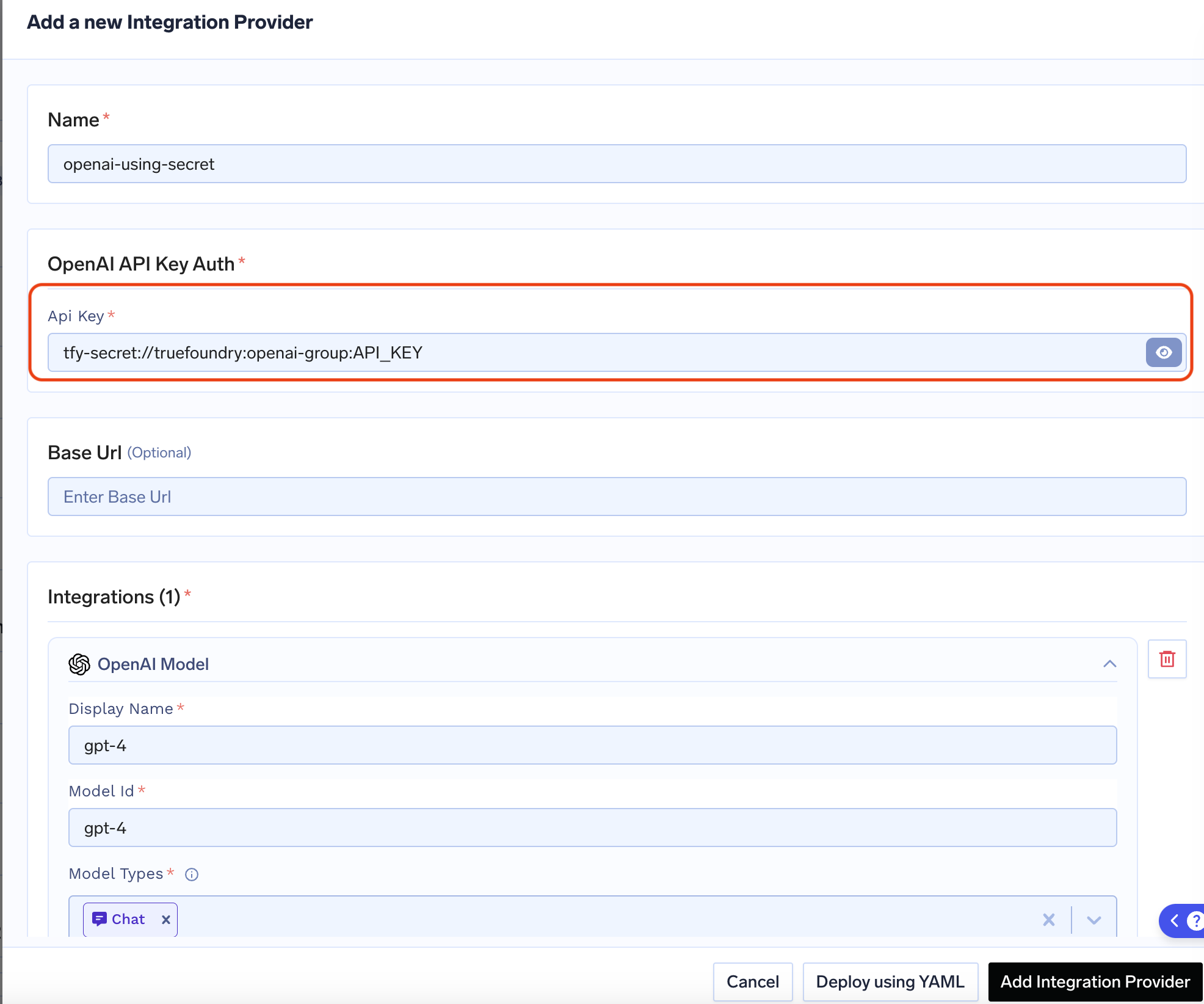
API keys for Models in AI Gateway
API keys for Models in AI Gateway
Use your Own Secret Manager
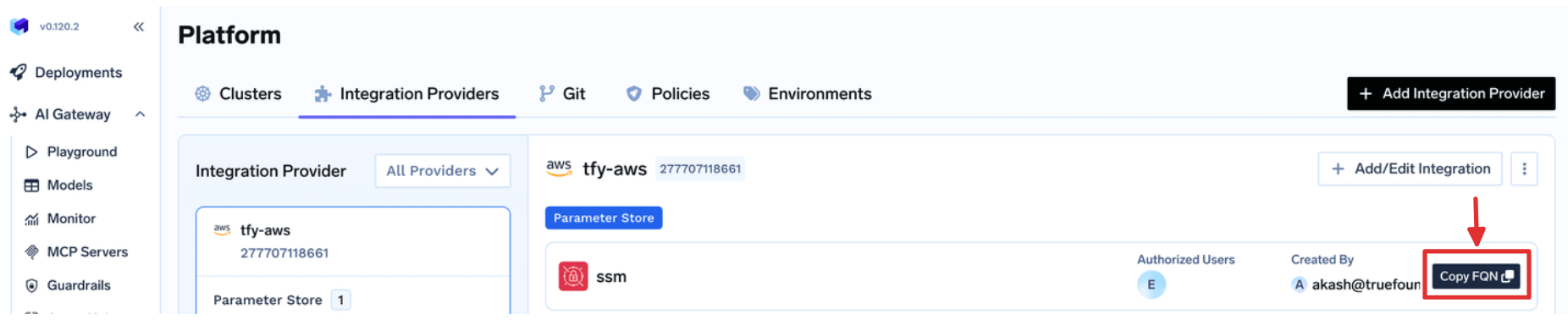
TrueFoundry also supports using your own Secret Manager directly. You can use following format to refer to a secret in your Secret Manager:example/aws/aws-ssm and you wish to use a secret at path /tfy-secret/example/key1, the referred key would look like example/aws/aws-ssm::/tfy-secret/example/key1
You can find the Secret Store FQN from Platform > Integrations page, as shown below:
Generic Secret Service (use your own secret server)
To use your own secret store with TrueFoundry, add a Generic Secret Store integration. Your server stays in your infrastructure; TrueFoundry talks to it over HTTP. You can use Header Auth (e.g. API key or bearer token). The secret mount path is fixed at tfy-secret.Add the integration
- Go to Platform > Integration Providers in the TrueFoundry UI.
- Click Add Integration Provider.
- Select Custom as the provider type.
- Choose Generic Secret Store in the integrations section.
- Fill out the form (see image below).

The root path for secrets is always tfy-secret.
API contract
Your server must expose these endpoints (relative to the Base URL). Header Auth headers are sent on every request.
Validation: On save, TrueFoundry calls GET /secrets?path=tfy-secret. Your server must respond successfully (e.g. 200) for validation to pass. After saving, use this integration as a secret store when configuring applications.