

The CLI and Python SDK accept the API key via the
TFY_API_KEY environment variable. For HTTP APIs (REST, AI Gateway, MCP Gateway), pass the same token in the Authorization: Bearer … header.Token types
TrueFoundry has two token types — pick the one that matches the identity you need:Choosing between PAT and VAT
Personal Access Tokens (PATs)
A PAT is created by a user and inherits all permissions of that user. Any user can create a PAT for themselves — admins can additionally configure tenant-wide limits and revoke other users’ tokens.Create a PAT
In the platform, go to Access > Personal Access Tokens and create a new token. You can optionally assign a Team to the token so that all costs incurred through this token are attributed to the selected team.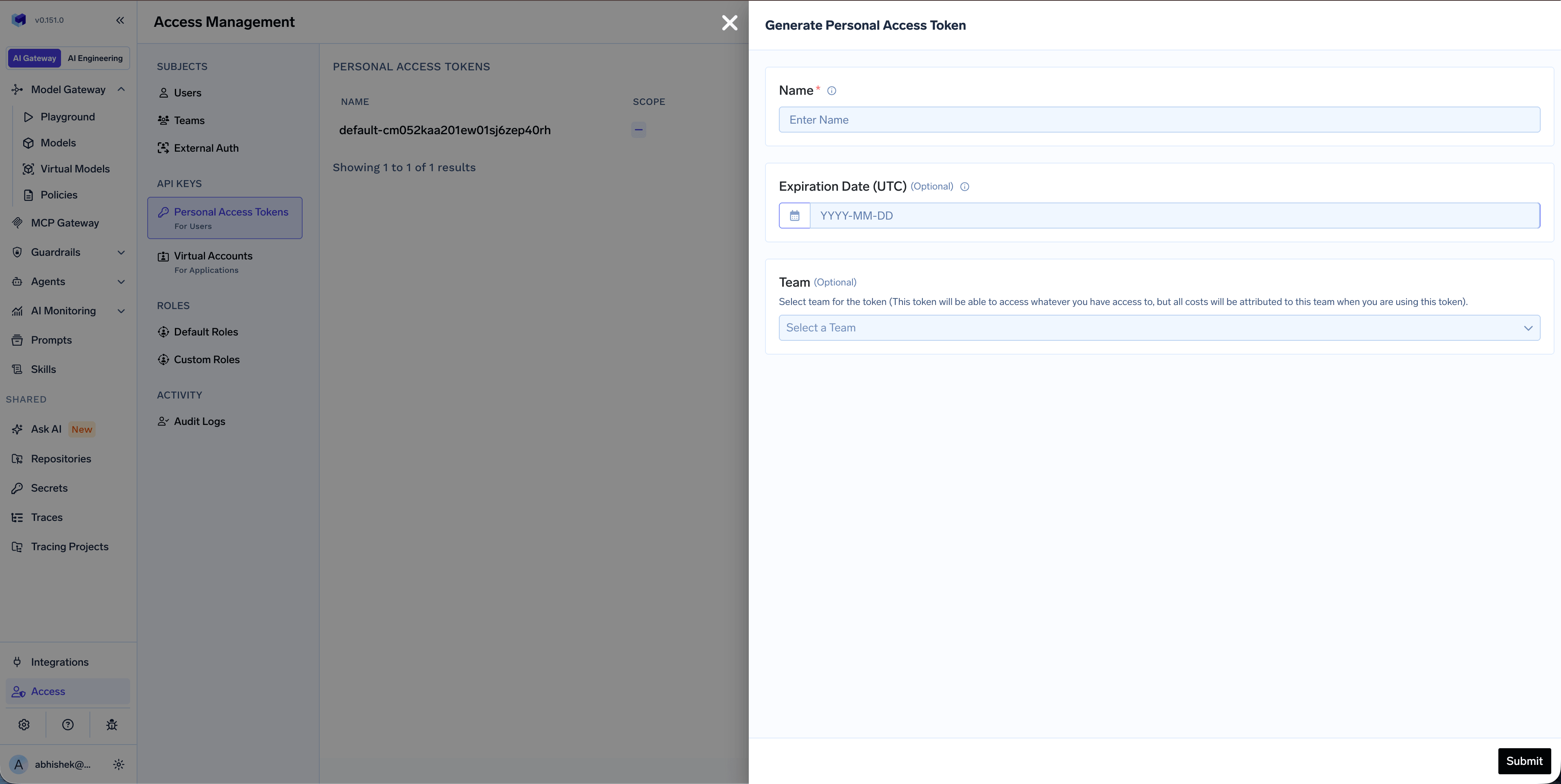
PAT creation form with optional team selection
Selecting a team on a PAT is for cost attribution only — it does not restrict the token’s permissions. The PAT still inherits the full permissions of the user who created it.
Admin controls
Configure tenant-wide PAT limits
Configure tenant-wide PAT limits
Tenant admins can limit the maximum PAT expiry and the number of PATs each user can have under Settings > Organisation > Security & Access > Security. See Security settings.
Configure team assignment for PATs
Configure team assignment for PATs
Tenant admins can make team selection required, optional, or disabled when users create PATs. Team assignment controls cost attribution; it does not change the user’s permissions. See PAT team assignment modes.
Revoke a user's PATs
Revoke a user's PATs
Admins can revoke all active personal access tokens for a particular user from Access > Users.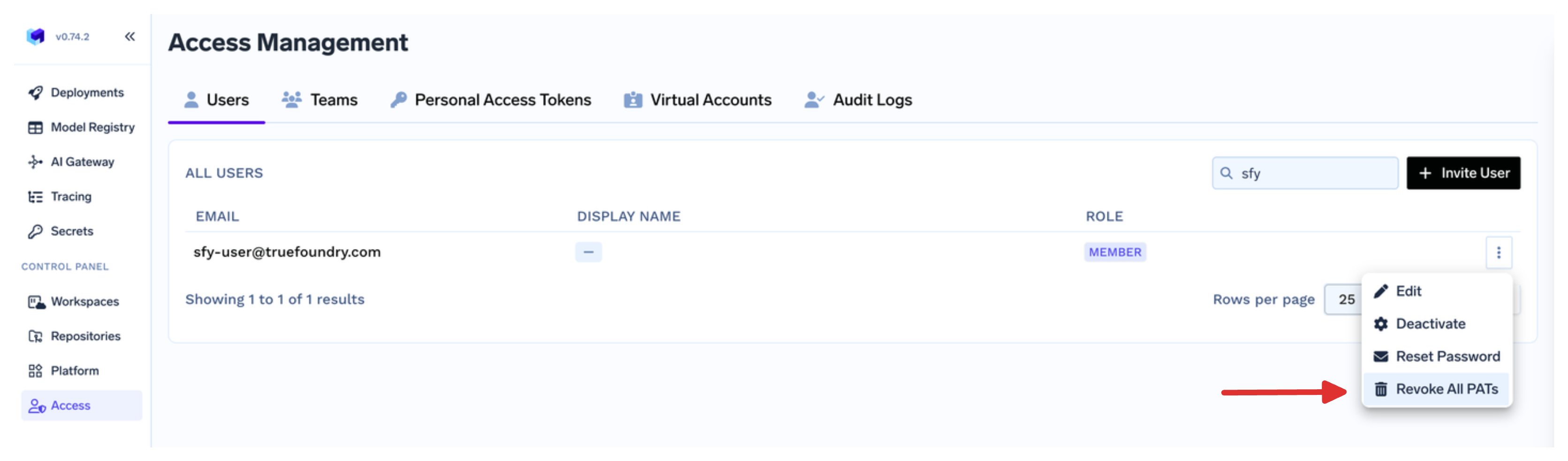
Revoke ALL PATs across org
Revoke ALL PATs across org
A Tenant Admin can revoke every personal access token in the tenant from Settings > Account Management > Revoke all PAT. This deletes tokens for every user immediately and cannot be undone.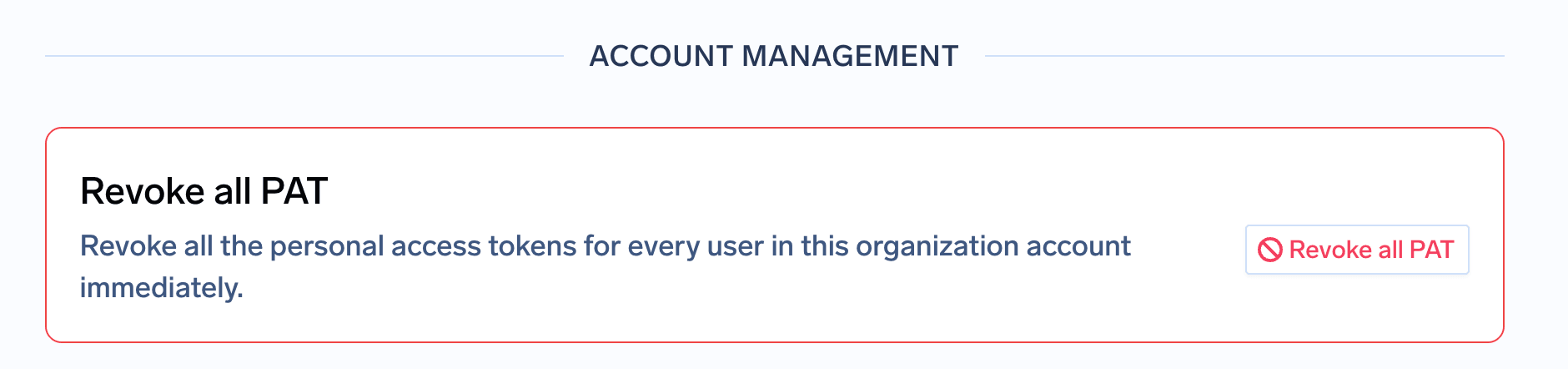
Virtual Account tokens (VATs)
A virtual account is a non-user identity owned by an admin or a team. Ownership lets those people manage the account once Team Manager or Team Member includes the relevant permissions. The account itself is granted exactly the permissions the application needs, separate from the owner’s roles, and its token survives staff turnover.1
Create a virtual account
In the platform, go to Access > Virtual Accounts and create a new account. Creation only establishes the identity — a name and an optional expiry — so at this point the account can authenticate but cannot reach anything.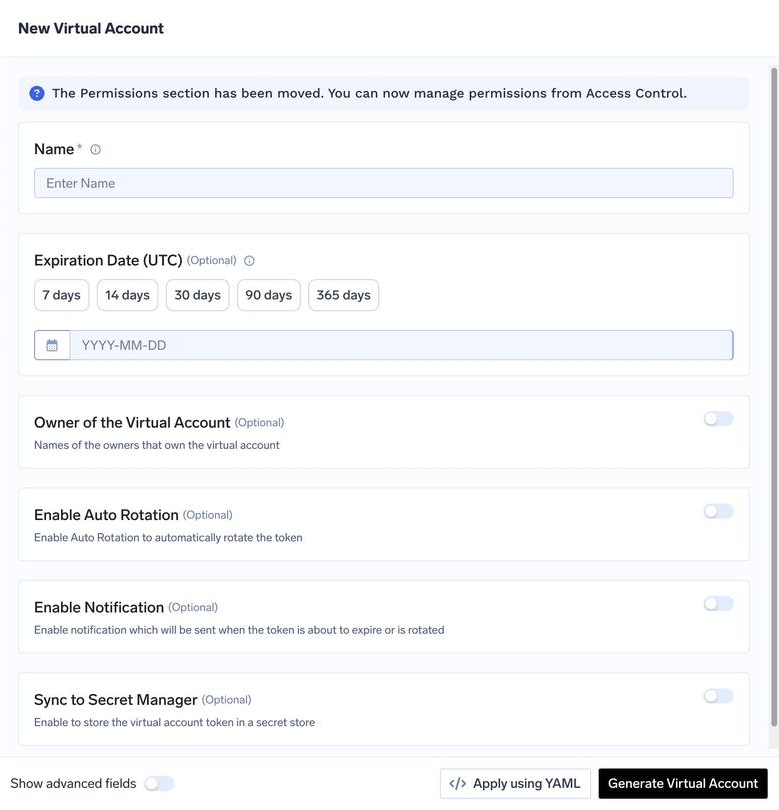
2
Grant it the access your application needs
Permissions are managed separately from creation, under Manage Permissions on the account’s row. Grant resource-specific permissions for exactly the models, workspaces, or other resources your application uses rather than a tenant-wide role. See Grant permissions.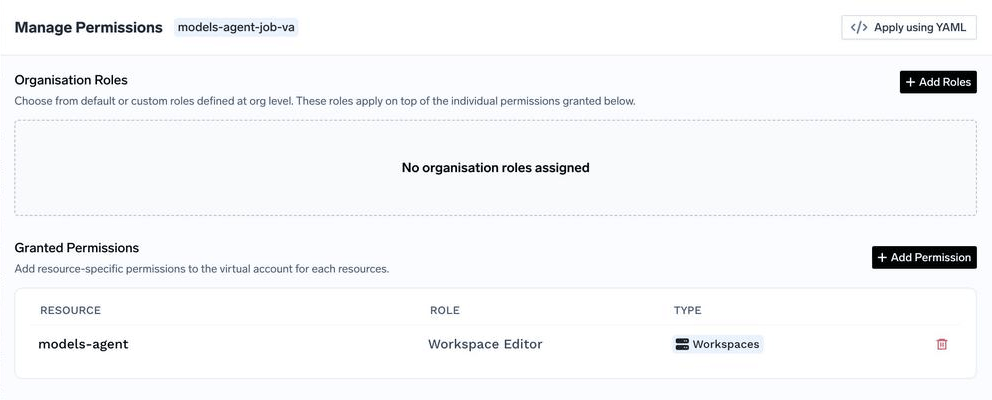
3
Get the token
Click Get Token on the virtual account to retrieve the bearer token. Use this as your API key in the application.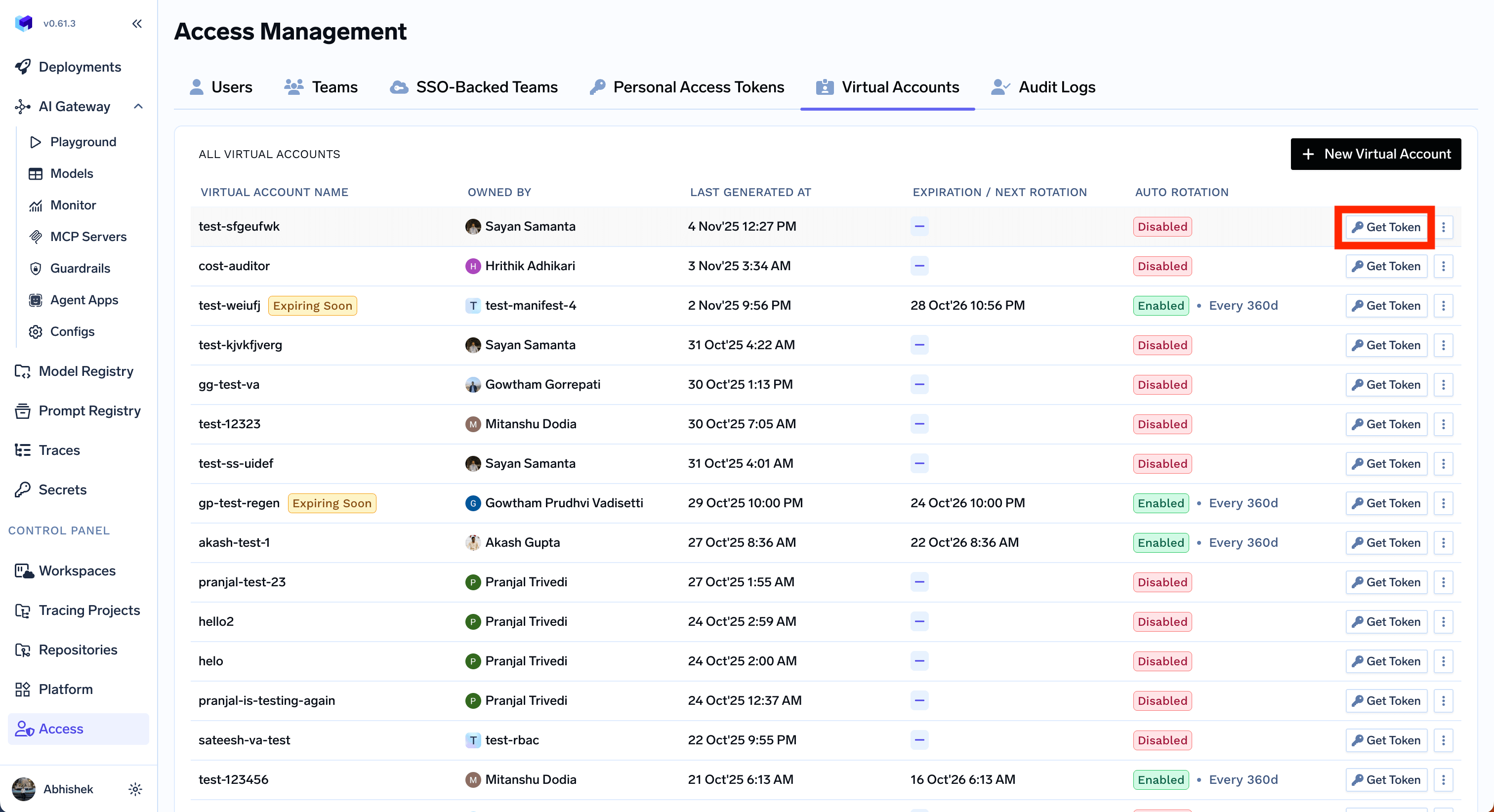
4
(Optional) Configure rotation, notifications, or secret store sync
Virtual accounts support advanced lifecycle features that PATs don’t:
- Auto-rotation — rotate the token at a configurable interval, with a grace period for the previous token. See Configure auto-rotation.
- Rotation notifications — get email or Slack alerts when a token rotates. See Configure notification on token rotation.
- Secret store sync — write the token to AWS Secrets Manager, HashiCorp Vault, Google Secret Manager, Azure Key Vault, etc., and keep it in sync on rotation. See Configure secret store sync.
- Identity provider mapping — let an externally issued JWT resolve to this virtual account. See Identity provider mappings.
Using your API key
Pass your API key as a Bearer token in theAuthorization header for all TrueFoundry HTTP APIs — REST, AI Gateway, and MCP Gateway:
Security best practices
- Scope to least privilege. Grant a virtual account only the resources and roles its application needs — never reuse an admin’s token for a service.
- Rotate regularly. Configure auto-rotation for VATs. For PATs, set tenant-wide expiry and count limits in Security settings.
- Sync to a secret store. Use secret store sync so the live token lives in your secret manager rather than in source code or CI variables.
- Revoke on suspicion. Admins can revoke all PATs for a user from Access > Users, and rotate or delete a virtual account from Access > Virtual Accounts.
- Never commit tokens to source control. Read them from environment variables or your secret store at runtime.
FAQ
How can a Tenant Admin manage PATs for all users?
How can a Tenant Admin manage PATs for all users?
- Limits. Set expiry, tokens per user, team assignment, and retrieval under Settings > Organisation > Security & Access > Security. See Security settings.
- One user. From Access > Users, open the user’s menu and select Revoke All PATs. The account stays active.
- Every user. From Settings > Account Management > Revoke all PAT, revoke every PAT in the tenant. This is immediate and cannot be undone.
- Create for a user. Call
POST /personal-access-tokens/for-userwithnameanduserEmail. OptionalteamNameattributes cost to a team the user belongs to. The token inherits that user’s permissions.