

Identity and permissions are managed separately
Creating a virtual account and deciding what it can do are two independent steps. Creating one establishes an identity — a name, an optional expiry, an owner, and a token. Granting it access happens afterwards, in Access Control, using the same roles and resource permissions that apply to users and teams. This separation means a newly created virtual account can authenticate but cannot do anything, which is the intended default: you hand out the token only after deciding what it should reach. It also means permissions can be changed, audited, and revoked over the account’s lifetime without touching the account itself or rotating its token.Earlier versions of TrueFoundry had a Permissions section inside the virtual
account creation form. That section has moved to Access Control. Existing
virtual accounts and their permissions are unaffected — only the place where
you edit them has changed.
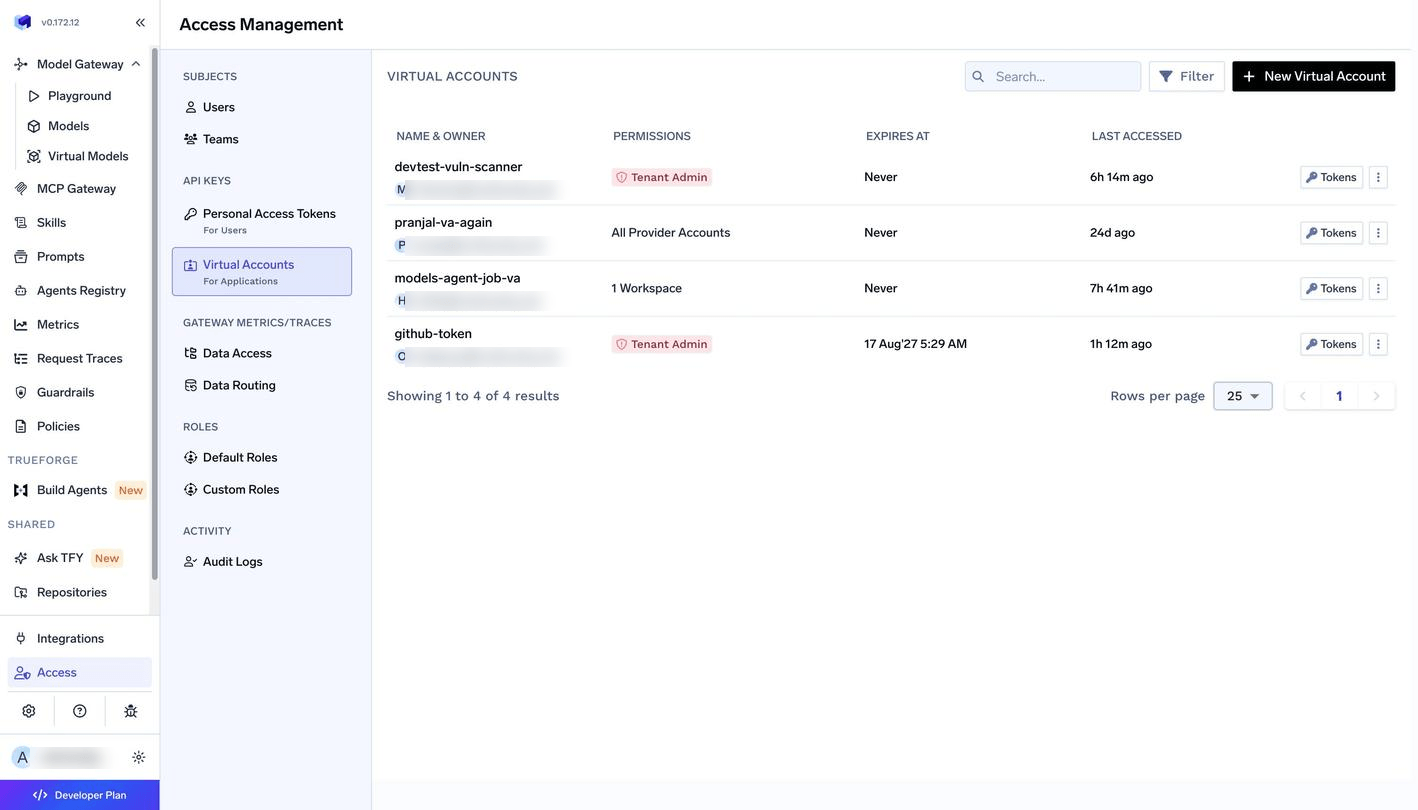
Virtual accounts with a summary of the access each one holds
Create a virtual account
A virtual account needs only a name. The remaining fields govern how long its token lives and what happens around it.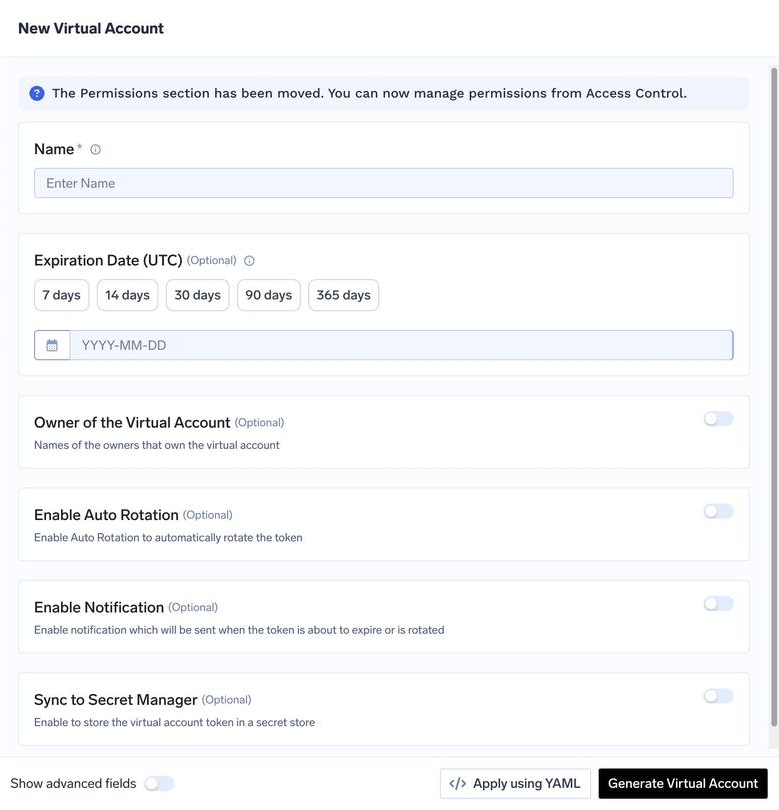
Creating a virtual account
string
required
Identifies the account throughout the platform and in audit logs. Naming it after the application that will use it keeps ownership obvious later.
date
Sets a date after which the token stops working. An expiry limits the blast radius of a leaked token and forces a periodic review of whether the integration is still needed. The expiry cannot be edited after creation, so an account intended to live indefinitely should be created without one.
string
Records the users or teams responsible for the account. Those people can retrieve the account’s tokens without becoming an admin — see how to let team members retrieve Virtual Account tokens. The account’s own access is granted separately from Manage Permissions.
boolean
Rotates the token automatically on an interval. See auto-rotation.
boolean
Notifies you when the token is about to expire or has been rotated. See rotation notifications.
boolean
Writes the token into an external secret store so applications never handle it directly. See secret store sync.
Grant permissions
Permissions for a virtual account are managed from Manage Permissions on the account’s row, which opens the same access model used for users and teams. Access is expressed at two levels that combine.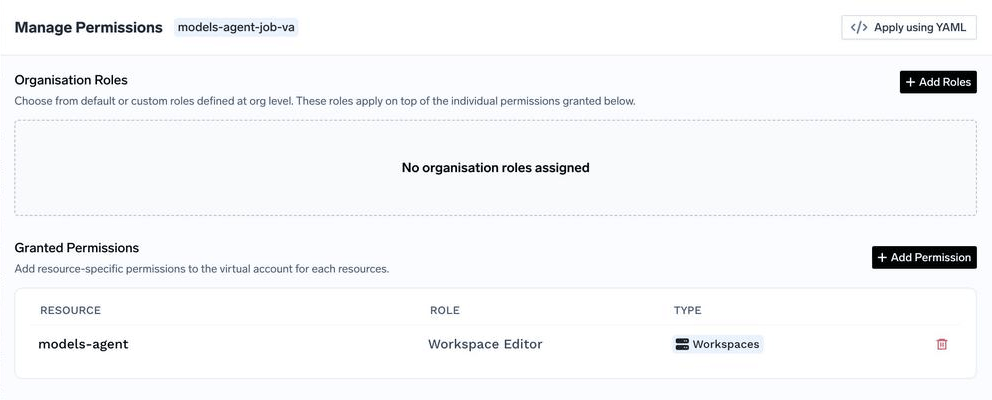
Organisation roles and resource-specific permissions for a virtual account
Member and Read-Only Member, plus any custom roles you have created. They apply across the tenant and sit on top of anything granted below them.
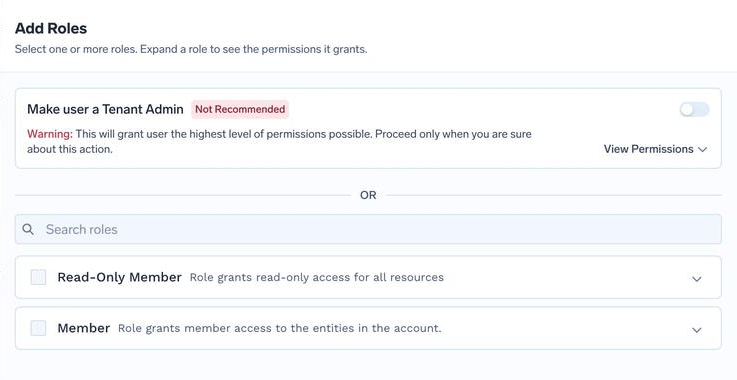
Assigning an organisation role
Workspace Editor on a single workspace, or provider integration access on one set of models. Resource types cover AI Gateway entities such as models, model providers, MCP servers, agents, guardrail groups, secret stores and storage integrations, as well as repositories and secret groups.
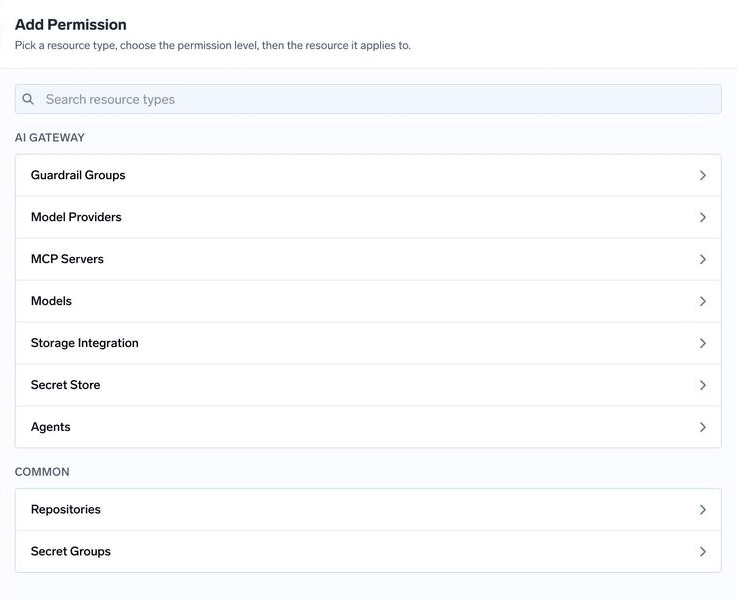
Granting a resource-specific permission
Retrieve and rotate tokens
An account’s tokens are managed from Tokens on its row, which lists each token with when it was created, when it expires, and when it was last used. Last-used timestamps are the practical way to find integrations that have been decommissioned without anyone removing the account.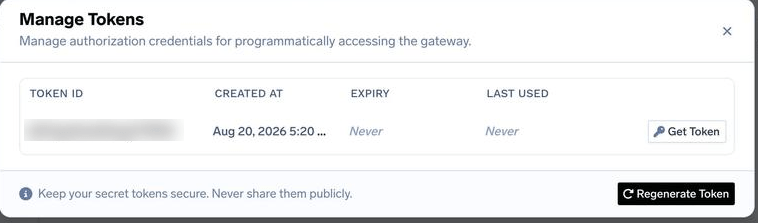
Managing an account's tokens
Manage Virtual Account permission; Read Virtual Account only permits viewing the account’s details. Regenerating a token issues a new value and invalidates the old one immediately, so it is the correct response to a suspected leak but will break any client still using the previous token. Accounts that resolve their identity through an identity provider mapping have no stored token to regenerate.
Configure auto-rotation of virtual account tokens
Auto-rotation generates a new token on a schedule so that no single token value stays valid indefinitely. The previous token remains usable for a configurable grace period, which gives clients time to pick up the new value instead of failing the moment rotation happens. New tokens can be read from the UI or the API.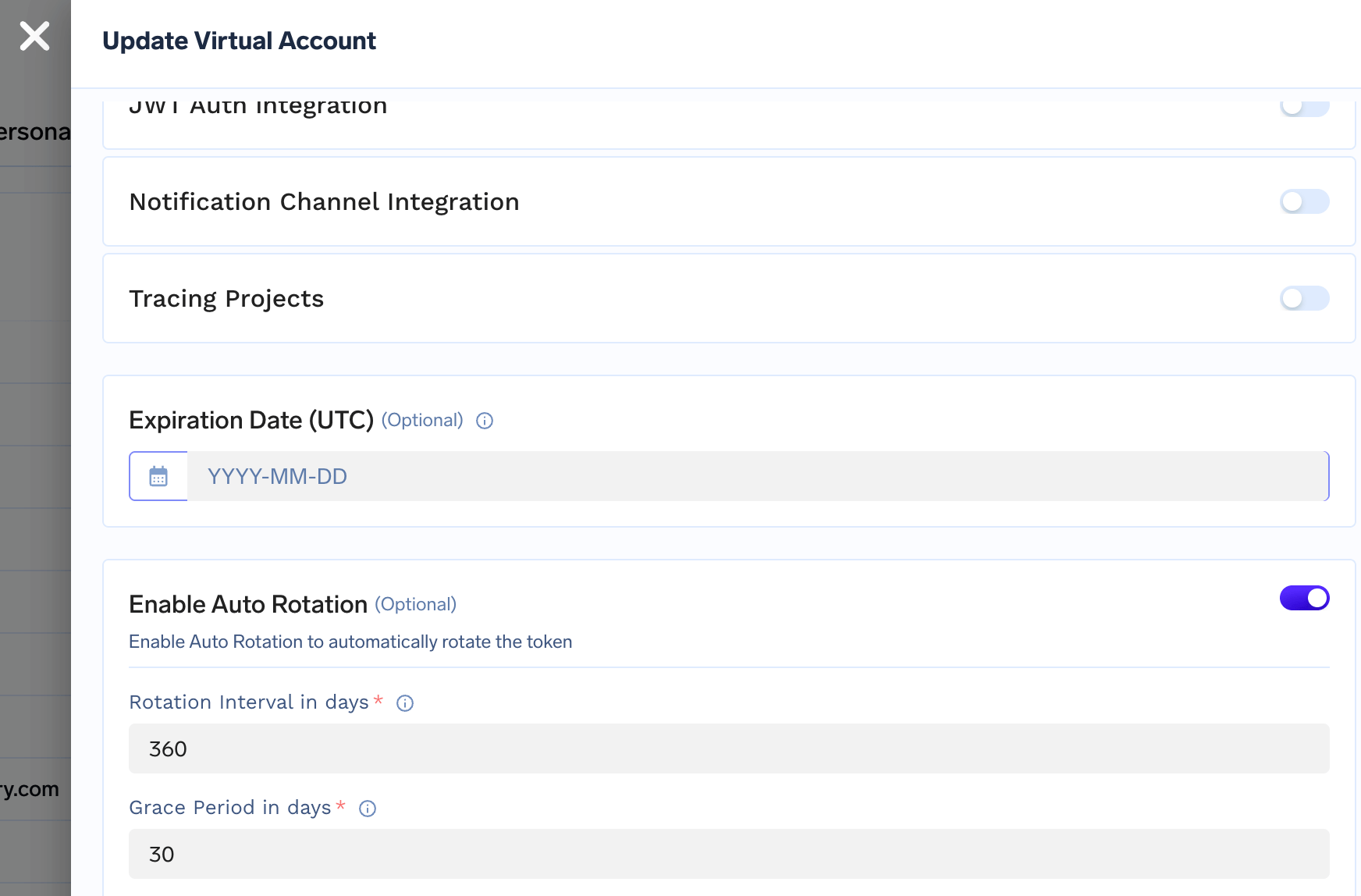
Configure notification on token rotation
Rotation and impending expiry can be announced over email or Slack, which matters most for accounts whose tokens are consumed by systems outside TrueFoundry. Notifications require an email or Slack integration to be configured first — see email integration and Slack integration.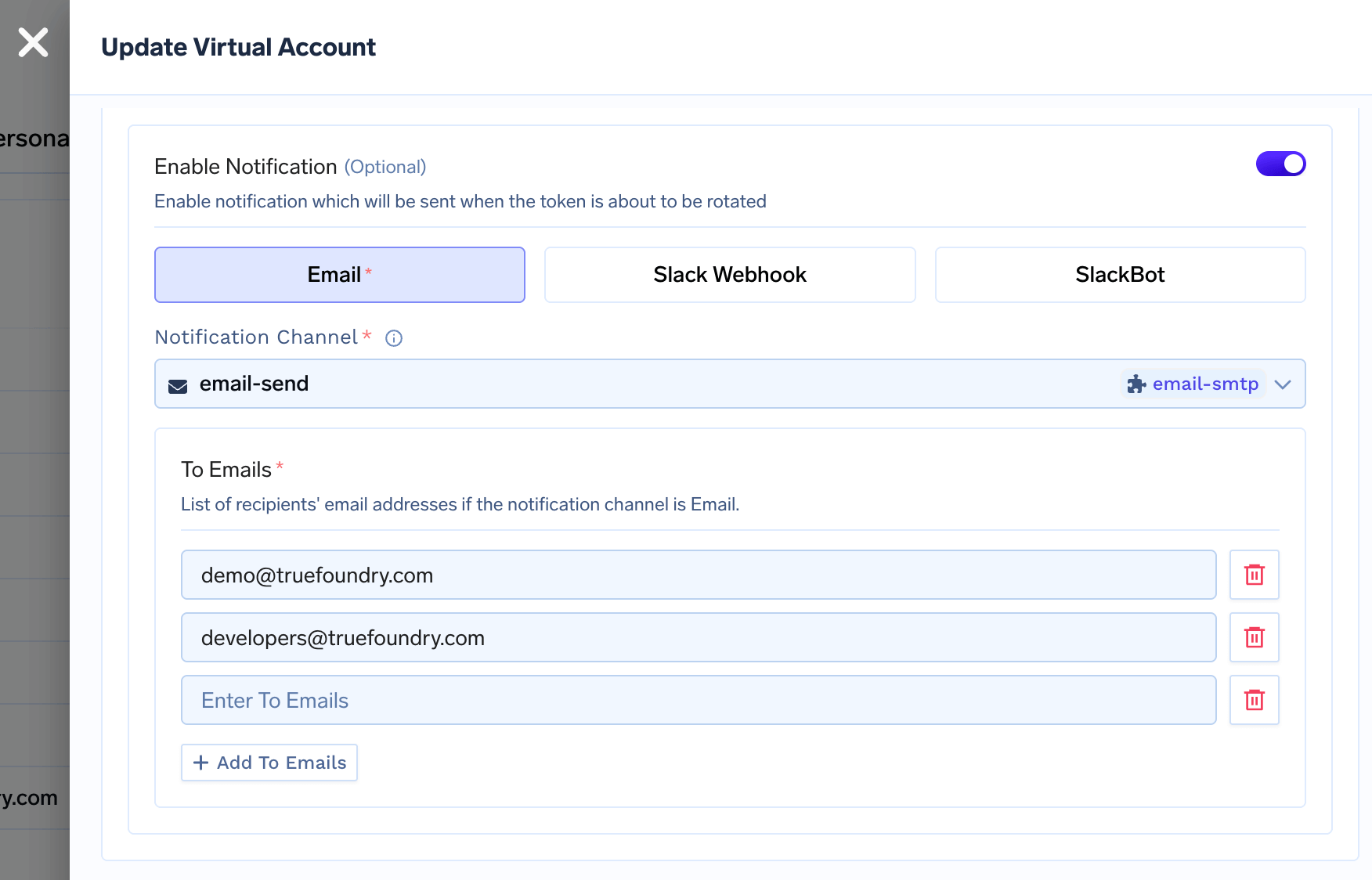
Configure secret store sync for virtual account tokens
Instead of distributing tokens by hand, TrueFoundry can write them to an external secret store at a path of your choosing, and re-write them there on every rotation. Applications then read the token from the store they already trust, and rotation becomes invisible to them. TrueFoundry supports AWS Parameter Store, AWS Secrets Manager, Google Secret Manager, HashiCorp Vault and Azure Vault among others; the store must be integrated before it can be selected here.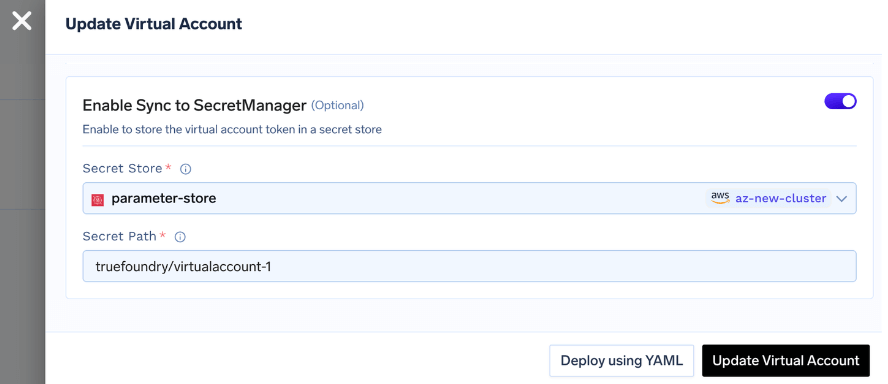
Identity provider mappings
If you have configured an Identity Provider to resolve tokens to virtual accounts, a claim value from that provider can be mapped directly onto a virtual account. The account then has no TrueFoundry-issued token of its own: a machine user, application, CI job, or external service presents a JWT from your IdP, and TrueFoundry resolves it to this account and applies its permissions. This is the preferred pattern when your organisation already manages machine identities centrally, since it removes a second set of long-lived credentials to distribute and rotate.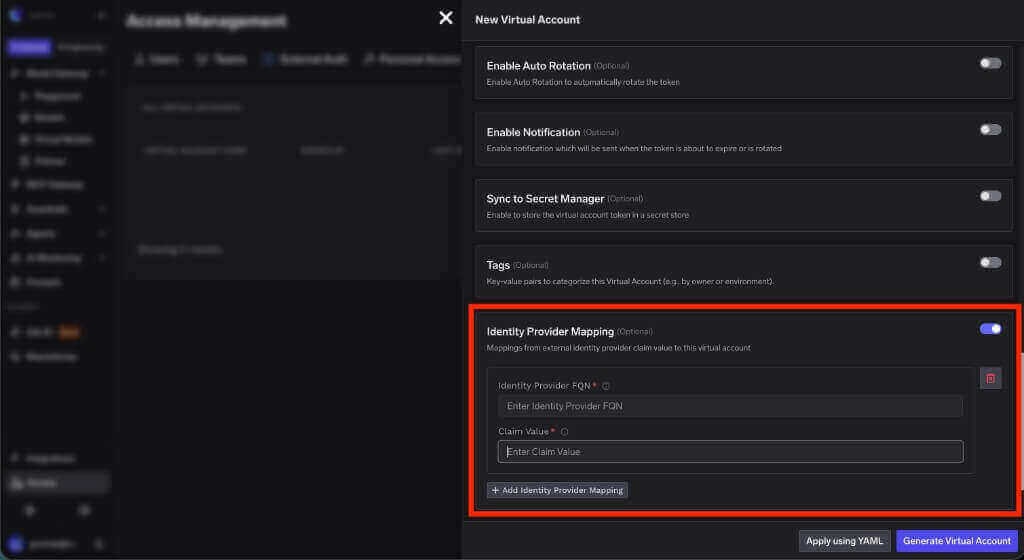
Identity provider mapping while creating a virtual account
string
required
The fully qualified name of the Identity Provider that validates the incoming JWT. Copy this value from the Identity Provider configuration.
string
required
The value from the claim configured as the virtual account name claim. For example, if the Identity Provider uses
client_id as the name claim and the token contains gateway-service, enter gateway-service here.