

Architecture
The diagram below shows the architecture of the TrueFoundry compute plane.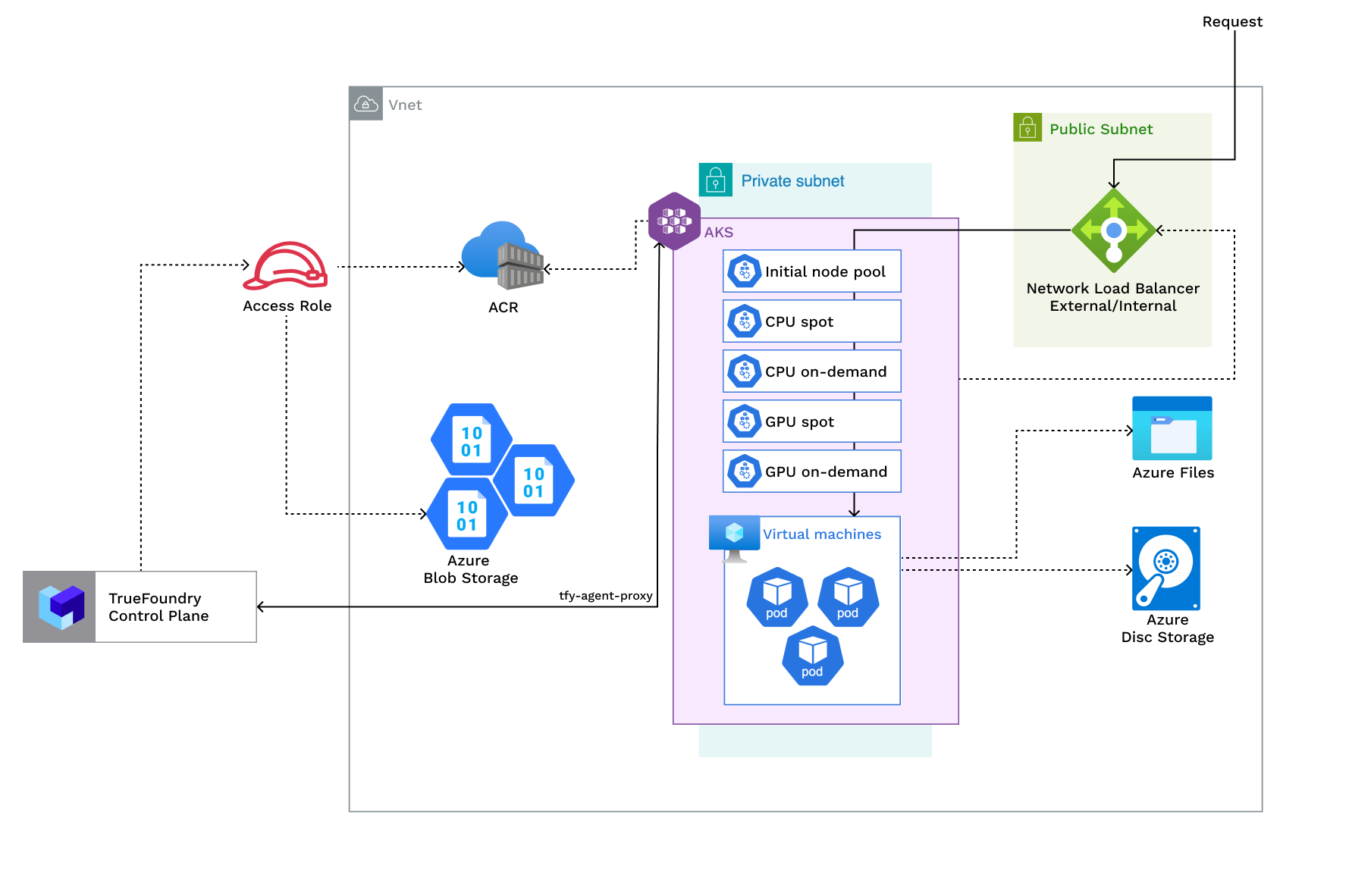
Access Policies
The compute plane requires the following IAM policies to operate. These are created automatically during platform deployment.Required IAM policies
Required IAM policies
These are the identities and role assignments that TrueFoundry creates and uses at runtime on the compute plane.
Requirements
Common requirements for setting up the compute plane:- Billing must be enabled for the Azure subscription.
- The
Microsoft.Storageresource provider must be registered. See the Azure host-based encryption documentation for details. - Egress access to container registries —
public.ecr.aws,quay.io,ghcr.io,tfy.jfrog.io,docker.io/natsio,nvcr.io,registry.k8s.io— to pull images for ArgoCD, NATS, GPU Operator, Argo Rollouts, Argo Workflows, Istio, and Keda. - A domain mapped to the service endpoints, plus a certificate to encrypt traffic. A wildcard domain such as
*.services.example.comis preferred. TrueFoundry supports path-based routing (e.g.services.example.com/tfy/*), but many frontend applications do not. - Sufficient CPU/GPU quotas for your use case. Check and increase them at Azure compute quotas.
- Host encryption must be enabled.
- Sufficient permissions on the Azure subscription to create the compute-plane resources. See Permissions required to create the infrastructure for details.
- New network and New AKS Cluster
- Existing network and New AKS Cluster
- Existing AKS Cluster
- The new VPC subnet should have a CIDR range of /24 or larger. Secondary ranges for pods (min /20) and services (min /24) are required. Secondary range can be from a non-routable range. This is to ensure capacity for ~250 instances and 4096 pods.
- A user/service account to provision the infrastructure.
Permissions required to create the infrastructure
Contributor + User Access Administrator on the subscription (or Owner) is the simplest. For the exact least-privilege set, the custom role definition below is the base cluster role plus the compute-plane (blob + registry) delta. SetAssignableScopes before running az role definition create — wildcards in Actions do not expand the scope.
The role includes Microsoft.Resources/subscriptions/resourceGroups/*, so you do not need to create the resource group first — the deploy creates it. Scope depends on which you use:
- New resource group (deploy creates it) — scope the role at the subscription (
/subscriptions/<subscription-id>), becauseresourceGroups/writeis evaluated at subscription scope before the group exists. - Existing resource group — scope to that group (
/subscriptions/<subscription-id>/resourceGroups/<resource-group>) for tighter least privilege.
The base role includes
Microsoft.Authorization/roleAssignments/write because the AKS module assigns roles (e.g. Network Contributor) to managed identities. If you use the built-in shortcut instead of this custom role, plain Contributor is not enough — use Contributor + User Access Administrator.Microsoft Graph permission
When Cluster Integration is on (the default), the compute plane creates a Microsoft Entra application and service principal. This is not Azure RBAC — it is a directory write behind the Microsoft Graph API, so no ARM role above covers it. Grant the deploy service principal the Microsoft Graph application permissionApplication.ReadWrite.OwnedBy (with admin consent):
This is a separate grant from the Azure RBAC role above, and the two are independent:
So
Application.ReadWrite.OwnedBy is always the same regardless of whether the resource group is created before or after — the new-vs-existing-RG choice only affects where you assign the RBAC role, never this Graph permission.Setting up compute plane
TrueFoundry compute plane infrastructure is provisioned using OpenTofu/Terraform. You can download the OpenTofu/Terraform code for your exact account by filling up your account details and downloading a script that can be executed on your local machine.1
Enable Deployment Feature in the Platform (Optional)
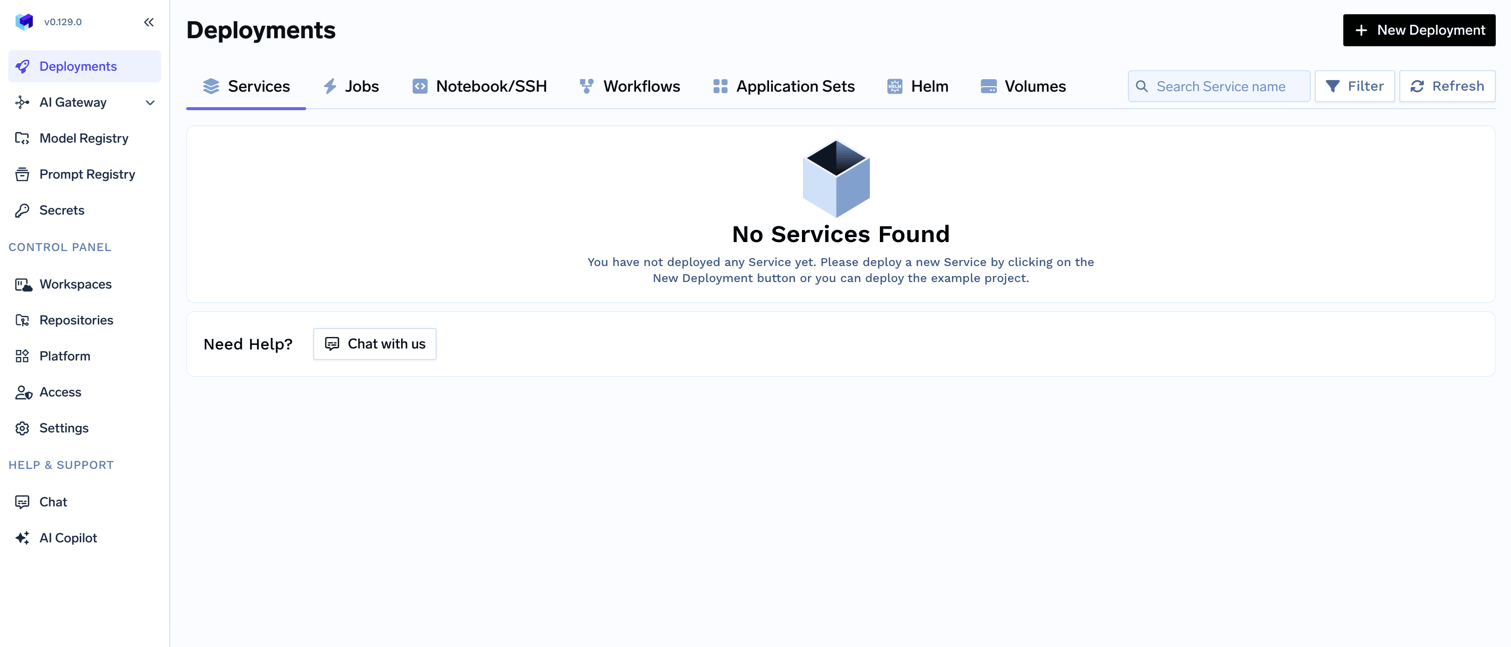
To enable the deployment feature which allows you to deploy services through the platform, you need to enable it;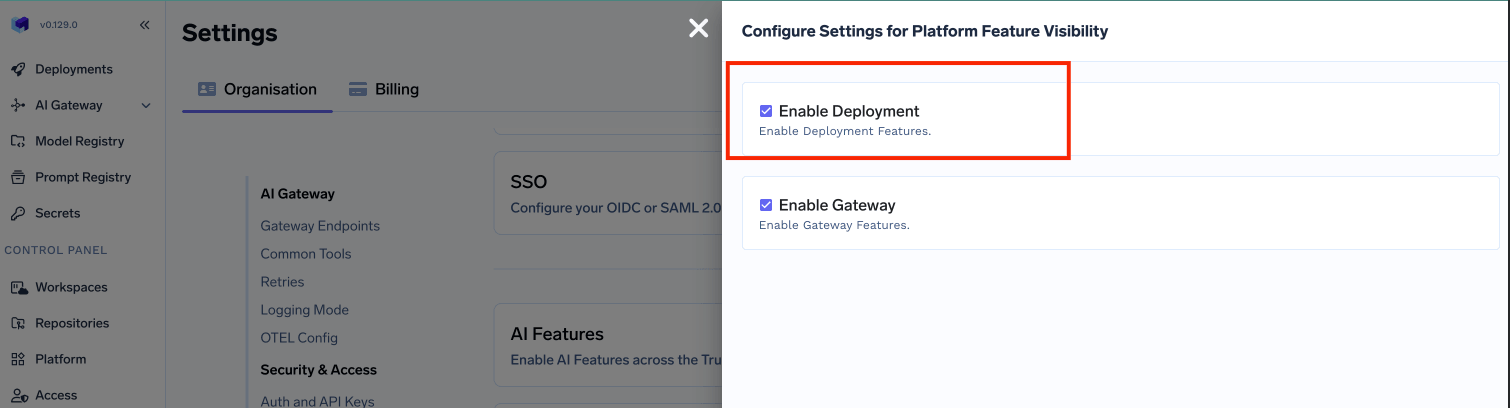
- In the left hand navigation, go to
SettingsthenPlatform Feature VisibilityunderPreferences - Click on
Editbutton. Then enable the toggle forEnable Deployment
- Click on
Savebutton.
2
Choose to create a new cluster or attach an existing cluster
Go to the platform section in the left panel and click on 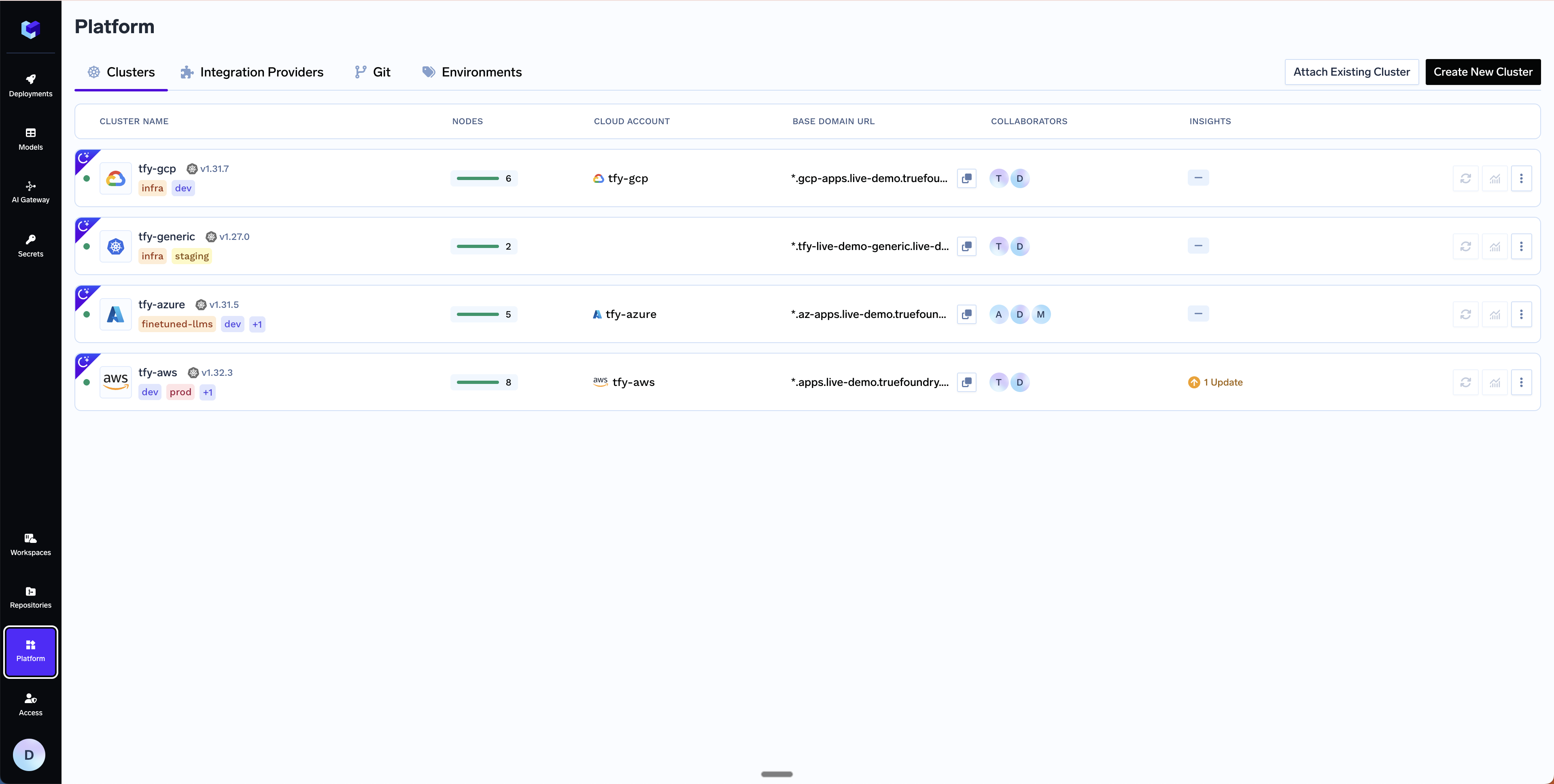
Clusters. You can click on Create New Cluster or Attach Existing Cluster depending on your use case. Read the requirements and if everything is satisfied, click on Continue.3
Fill up the form to generate the OpenTofu/Terraform code
A form will be presented with the details for the new cluster to be created. Fill in with your cluster details. Click
Submit when done.- Create New Cluster
- Attach Existing Cluster
The key fields to fill up here are:
-
Region- The region and availability zones where you want to create the cluster. -
Resource Group- The resource group where you want to create the cluster. Chose betweenNew Resource GrouporExisting Resource Groupdepending on your use case. -
Cluster Name- A name for your cluster. -
Kubernetes Version- The Kubernetes version for the cluster (e.g.1.34). -
Node Pools- Configure CPU and GPU node pools for the cluster. The form comes with sensible defaults (see below) which you can adjust based on your workload requirements.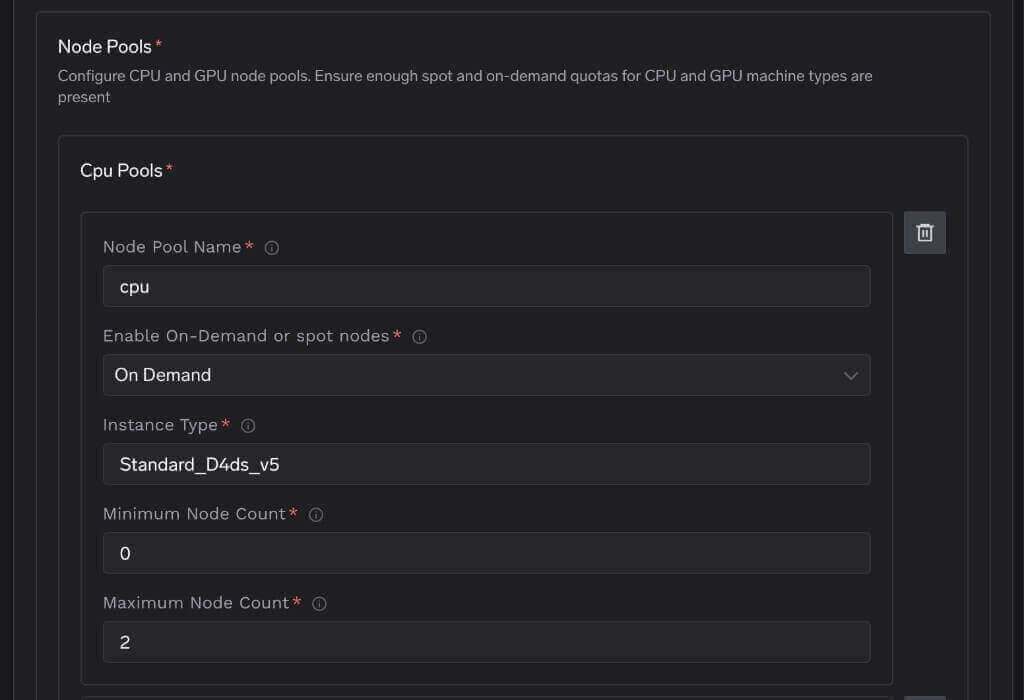 The initial pool is the system node pool that runs TrueFoundry platform components (ArgoCD, Istio, tfy-agent, etc.) and must always be on-demand with at least 2 nodes. You can add, remove, or resize the other CPU/GPU pools to match your workload needs. GPU pools can be removed entirely if you don’t plan to run GPU workloads. Make sure you have sufficient Azure compute quotas for the instance types you select.
 -
Network Configuration- Choose betweenNew VnetorExisting Vnetdepending on your use case. -
DNS Configuration- Configure the DNS zone and domains that will point to the cluster’s load balancer. This also provisions a TLS certificate for those domains. Select New DNS Zone or Existing DNS Zone if you want TrueFoundry to manage DNS in Azure. If you use an external DNS provider (e.g., Route53, Cloudflare), you can skip this section.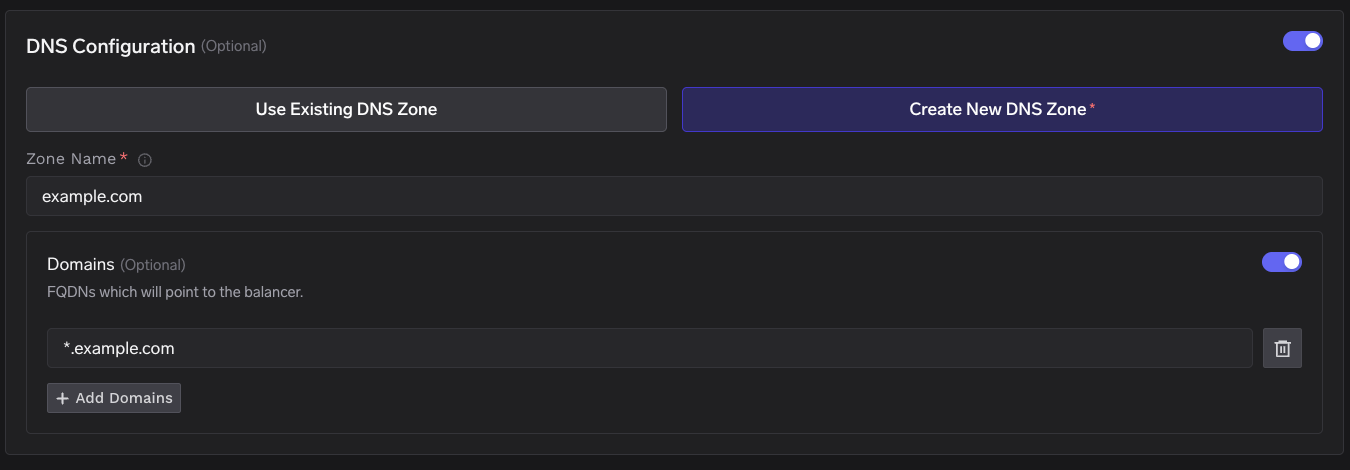
-
Storage account (container) for OpenTofu/Terraform State- OpenTofu/Terraform state will be stored in this container. It can be a preexisting storage account or a new storage account name. The new storage account will automatically be created by our script. -
Platform Features- This is to decide which features like Blob Storage, Cluster Integration (using Azure AD), and Container Registry will be enabled for your cluster. To read more on how these integrations are used in the platform, please refer to the platform features page.
4
Copy the curl command and execute it on your local machine
You will be presented with a 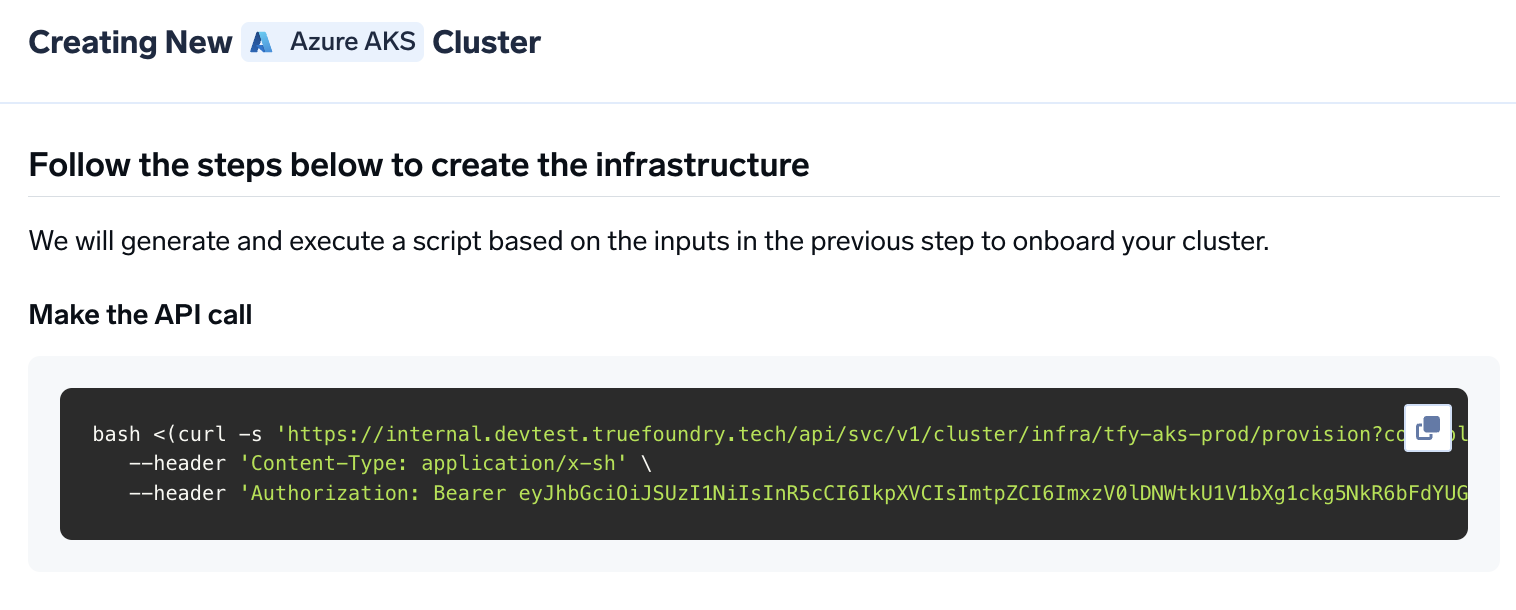
curl command to download and execute the script. The script will take care of installing the prerequisites, downloading OpenTofu/Terraform code, and running it on your local machine to create the cluster. This will take around 40-50 minutes to complete.5
Verify the cluster is showing as connected in the platform
Once the script is executed, the cluster will be shown as connected in the platform.
6
Create DNS Record
You can get the load balancer’s IP address by going to the platform section in the bottom left panel under the Clusters section. Under the preferred cluster, you’ll see the load balancer IP address under the 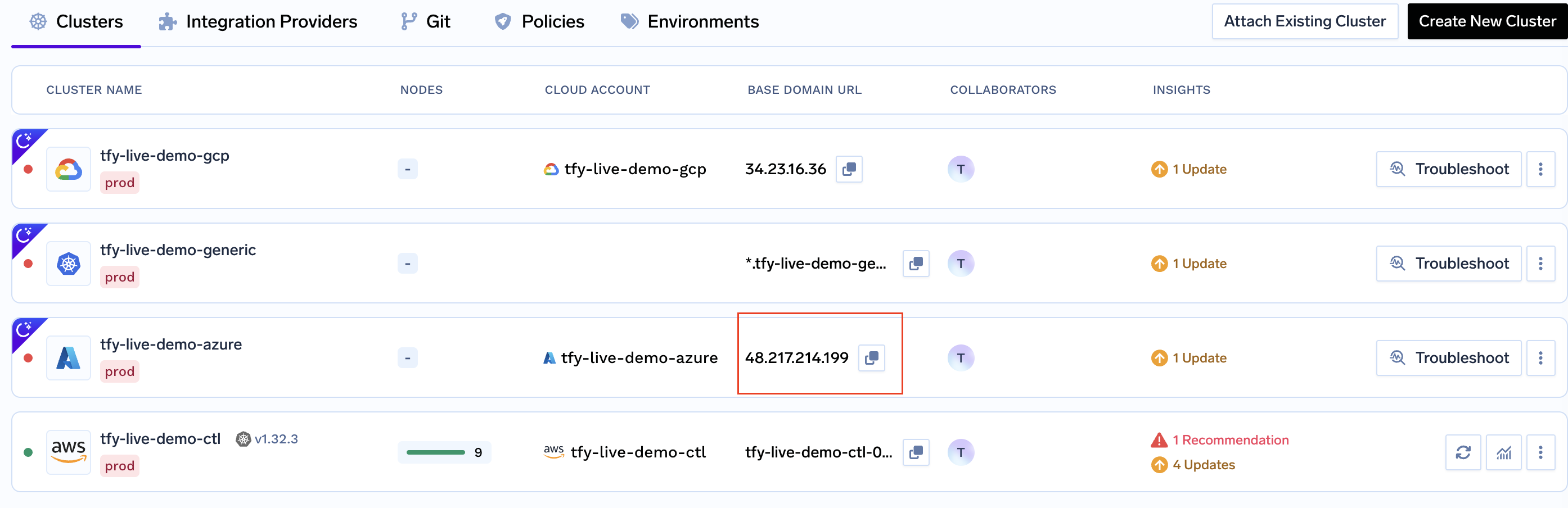
Base Domain URL section.7
Start deploying workloads to your cluster
You can start by deploying your first service.
FAQ
Can I use my own certificate and key files to add TLS to the load balancer?
Can I use my own certificate and key files to add TLS to the load balancer?
If you have your own certificate files (for example, from another certificate provider or self-signed), you can use them directly with TrueFoundry.
-
Create a Kubernetes secret with your certificate and key, or create a self-signed certificate:
-
Once the secret is created, head over to the cluster page and navigate to the
tfy-istio-ingressadd-on. Add the secret name in thetfyGateway.spec.servers[1].tls.credentialNamesection and ensure thattfyGateway.spec.servers[1].port.protocolis set toHTTPS. Here we are usingexample-com-tlsas the secret name, which contains the certificate and key.
How do I add node pools after cluster creation?
How do I add node pools after cluster creation?
If you need to add or modify node pools after the cluster is created, you can do so using the Azure CLI. Set the following variables before running the commands:You can browse available instance types and pricing at azureprice.net.New node pools are automatically synced in TrueFoundry if the Azure AD application has
- On-Demand CPU
- Spot CPU
- On-Demand GPU
- Spot GPU
Reader access on the AKS cluster.When should I use spot vs on-demand node pools?
When should I use spot vs on-demand node pools?
The system node pool (initial) must always be on-demand. For user workloads, spot pools can bring significant cost savings if the application can tolerate interruptions. Make sure you have sufficient spot quotas in your region.