

- A workflow fails due to transient issues (network timeouts, temporary resource unavailability)
- You want to avoid re-running expensive or time-consuming tasks that already completed successfully
- You need to conserve compute resources by not repeating completed work
When you recover a workflow execution, TrueFoundry automatically identifies
the failed task and resumes execution from that point. All previously
completed tasks retain their outputs and are not re-executed.
How to Recover a Failed Workflow Execution
Recover from UI
Navigate to the execution details page of the failed workflow execution. There are two ways to recover from the UI:- Recover Workflow button — On the Graph tab, click the Recover Workflow button located on the right side of the tab bar.
- Retry from failed node — Hover over the failed node in the graph to open its tooltip. Click the Retry button in the tooltip to recover the workflow directly from that node.
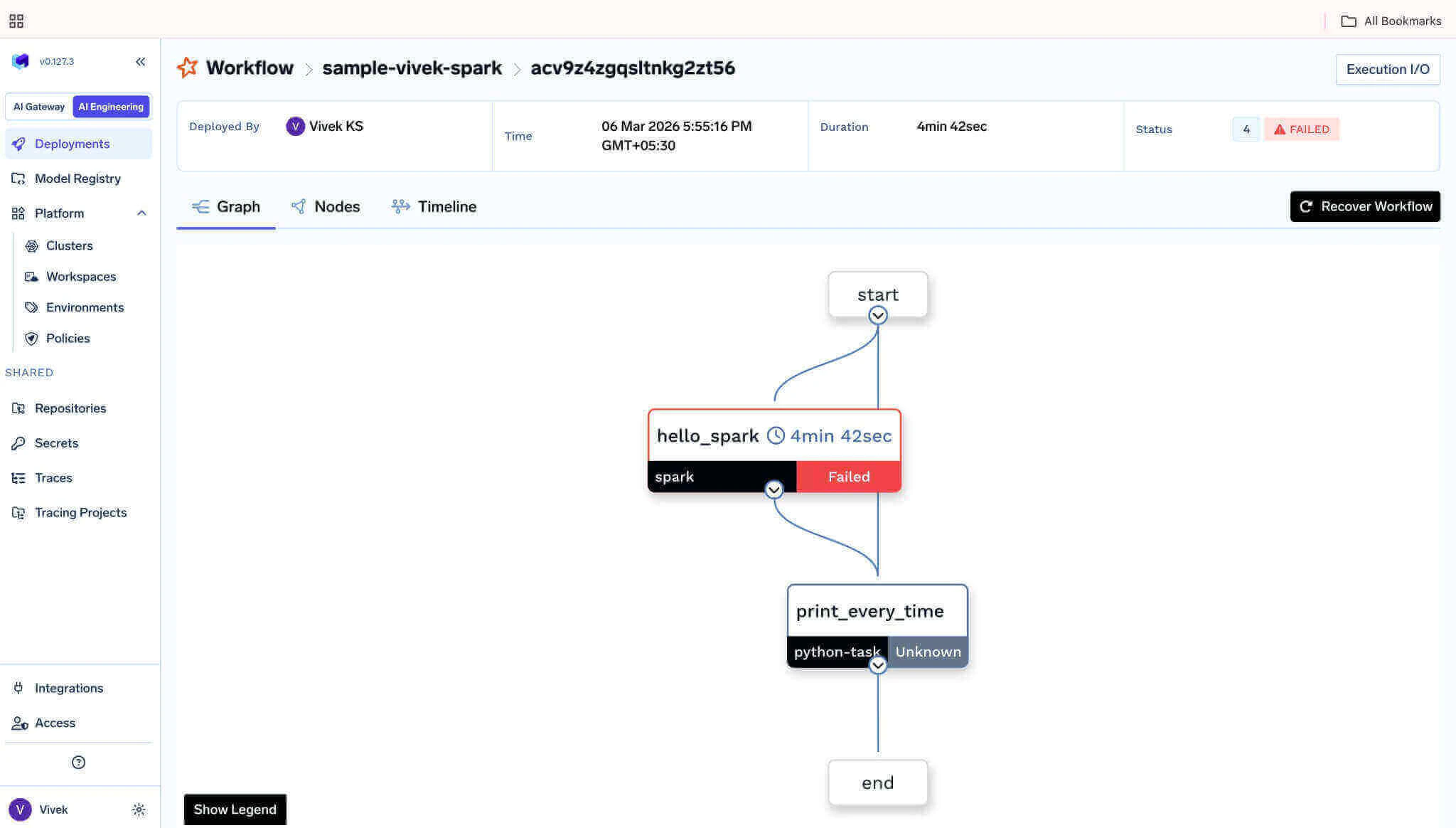
Click the 'Recover Workflow' button on the right side of the tab bar, or hover over the failed node and click 'Retry' in its tooltip.
Using the REST API
To recover a failed workflow execution, you need:- The Application ID of the application/workflow
- The Execution ID of the failed execution
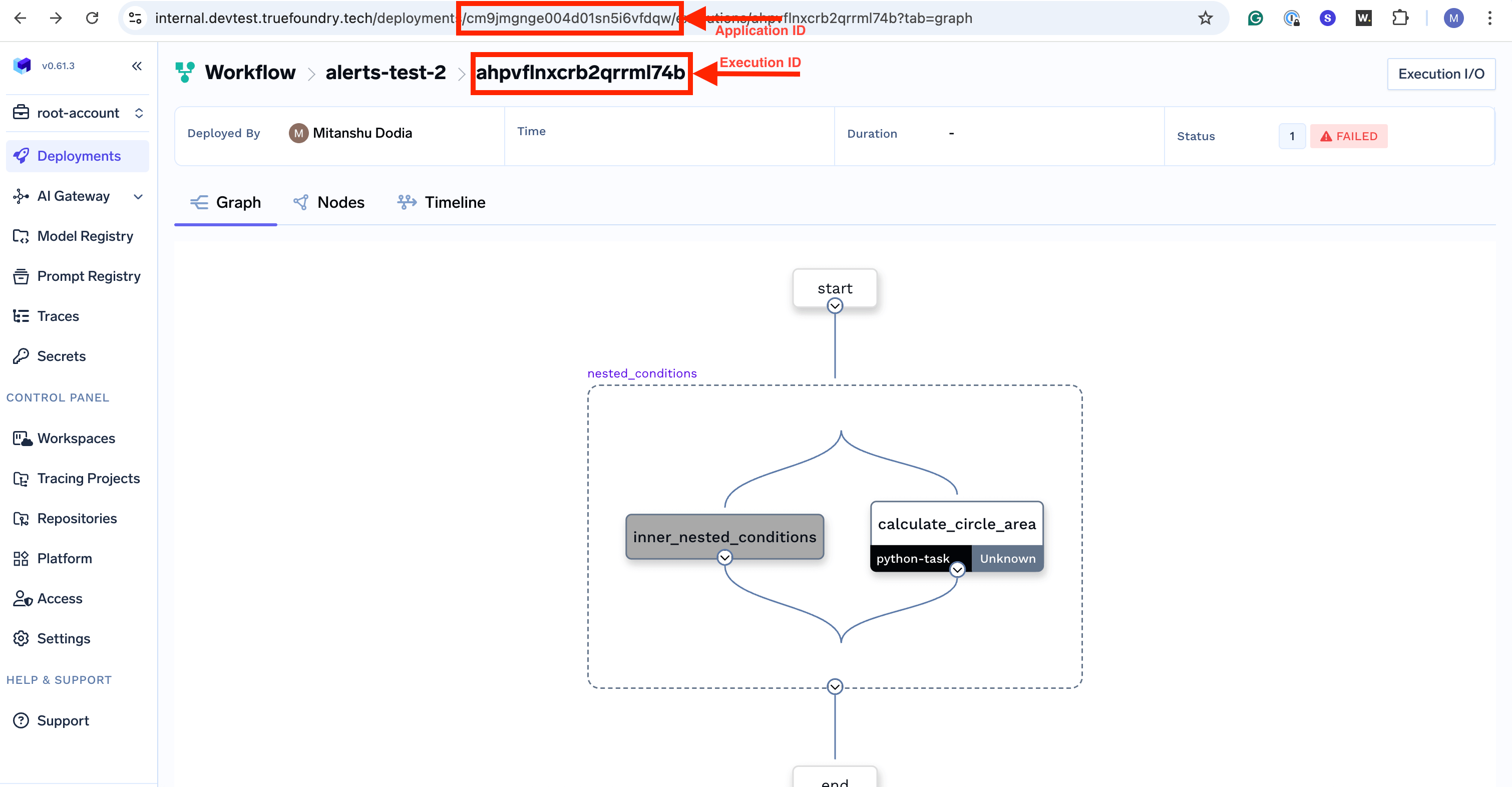
API Parameters
Authentication
The API requires a valid TrueFoundry API token passed in theAuthorization header as a Bearer token. You can generate an API token from the TrueFoundry UI under your account settings. For more information, see API Keys.
Example: Recovering a Failed Workflow
Let’s say you have a workflow with three tasks wheretask_2 failed:
task_2 fails after task_1 completes successfully, you can recover the execution:
task_1will not be re-executed (its output is preserved)task_2will be re-executed from the beginningtask_3will execute aftertask_2completes successfully