Use this file to discover all available pages before exploring further.
We often have a requirement to access cloud managed services like blob storage, queues, databases etc from our services. A most common use case is access S3 or GCS bucket from our services to read or write data. To enable this in Truefoundry, the process is the same as you would do in a normal Kubernetes cluster. In this example below we explain the process to read and write data to blob storage - however, the concept remains roughly the same in case you are connecting to other cloud services like SQS. The key steps are:
2. Authenticate your service to access the cloud service
We need to provide the correct credentials to our code so that it can authenticate and connect to the cloud services. The exact approach depends on the cloud provider. Here’s how you can do it for the most common cloud providers:
AWS
GCP
Azure
There are two ways to authenticate your service to access AWS services:
This involves setting the AWS_ACCESS_KEY_ID and AWS_SECRET_ACCESS_KEY environment variables. AWS SDKs will automatically pick these up from the environment variables and authenticate with the corresponding AWS service. The accesskey and secretaccesskey can be found in the AWS console and can be generated by your Infra team.
2. IAM Role-Based Access through Service Account (Recommended)
This approach typically involves creating IAM roles, associating them with Kubernetes service accounts, and configuring your deployments to use those service accounts. Here’s a detailed breakdown:Key Concepts
Kubernetes Service Accounts (SA): These are identities for processes running inside a pod. They provide a way to authenticate your pods with other Kubernetes services and external resources.
IAM Roles: IAM roles are sets of permissions that define what actions an AWS entity (like a user, application, or service) can perform.
IAM Roles for Service Accounts (IRSA): This is the key technology that allows you to map a Kubernetes service account to an IAM role. It uses AWS’s OpenID Connect (OIDC) provider capability.
Using IRSA (IAM Role for Service Accounts), you can securely grant Kubernetes deployments access to cloud services using service accounts and IAM roles, leveraging the power of IRSA for authentication and authorization. This is recommended and well understood by the Infrastructure / Devops teams. Please reach out to them to get the IAM role and service account created.
How to create an IAM role and service account?
1
Get cluster and accountdetails
We will need the name of the cluster, AWS account ID, region, namespace (workspace in Truefoundry) in which the application is to be deployed. Set the following variables:
export CLUSTER_NAME="your-cluster-name"export ACCOUNT_ID="your-aws-account-id"export AWS_REGION="your-aws-region"export NAMESPACE="your-namespace / workspace in Truefoundry"export SERVICE_ACCOUNT_NAME="your-service-account-name" # You can set this to anything descriptive like s3-<bucketname>access-sa
2
Get Cluster's OIDC Provider URL
OIDC_ISSUER_URL=$(aws eks describe-cluster --name $CLUSTER_NAME --query "cluster.identity.oidc.issuer" --output text | sed 's/https:\/\///')
The value of OIDC_ISSUER_URL will be the OIDC provider URL. It will be something like: oidc.eks.YOUR_REGION.amazonaws.com/id/YOUR_OIDC_ID
3
Create an IAM Policy
Create an IAM policy with the required permissions. This example grants full access to S3. It’s strongly recommended to scope down the permissions to only what’s necessary for security best practices.
Replace your-bucket-name with the actual name of your S3 bucket. You can also use wildcards to specify multiple buckets or prefixes within a bucket.Create the policy using the AWS CLI:
aws iam create-policy \ --policy-name "${CLUSTER_NAME}-s3-policy" \ --policy-document file://s3-access-policy.json
IAM_ROLE_ARN=$(aws iam create-role --role-name access-to-s3-role --assume-role-policy-document file://s3-access-policy.json --output text --query 'Role.Arn')
5
Attach the IAM Policy to the Role
aws iam attach-role-policy --role-name "$CLUSTER_NAME-s3-role" --policy-arn="arn:aws:iam::${ACCOUNT_ID}:policy/${CLUSTER_NAME}-s3-policy"
6
Create and Apply the Kubernetes Service Account
Create a Kubernetes service account in your desired namespace. You can apply this either via Kubectl or using the Truefoundry UI.This is a simple YAML file (e.g., service-account.yaml):
Kubectl exec into the pod and test if you are able to perform operations on the AWS S3 bucket
kubectl exec -it my-pod -- /bin/bashbash-4.2# aws s3 ls
Run the command aws s3 ls to verify if you are able to access the S3 bucket.
aws s3 ls s3://your-bucket-name/
Authenticate to GCP using IAM serviceaccount
In Google Kubernetes Engine (GKE), applications leverage Workload Identity to securely connect with Google Cloud Platform (GCP) services through IAM service accounts. This seamless integration enables fine-grained access control and eliminates the need for managing credentials within the application code, enhancing both security and operational efficiency in the GKE environment.
Export the namespace and the serviceaccount . TrueFoundry’s workspace is analogous to Kubernetes namespace.
export APP_NS=""export APP_SA=""
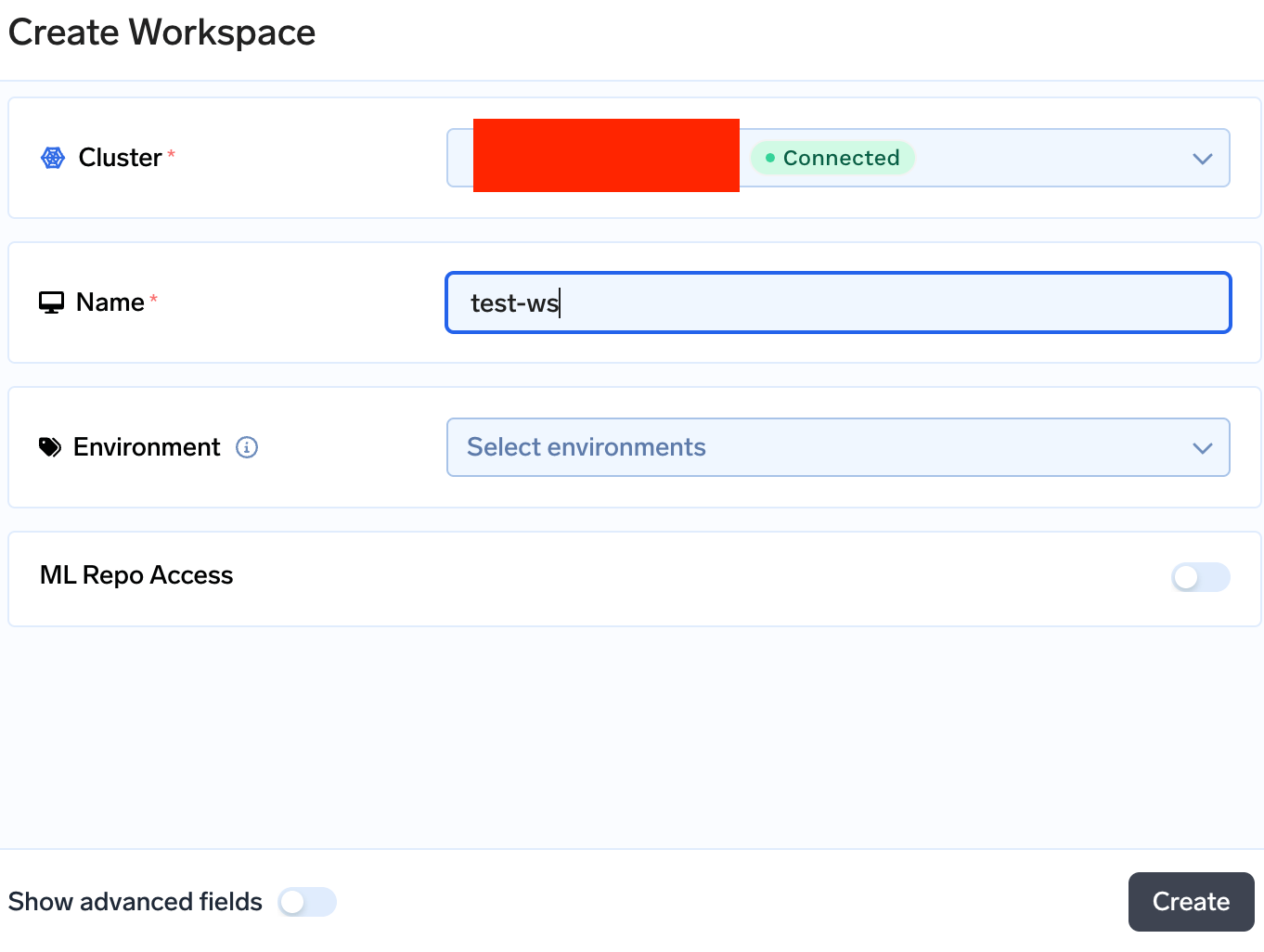
Go to Workspaces tab from the left panel of the portal and create the workspace with same name as of your namespace $APP_NS
Click on + New Workspace to create a new workspace. If you already have a workspace created click on the Edit section from the right side of the workspace card.
Select the cluster where you want to create the serviceaccount and enter the name of the workspace (namespace).
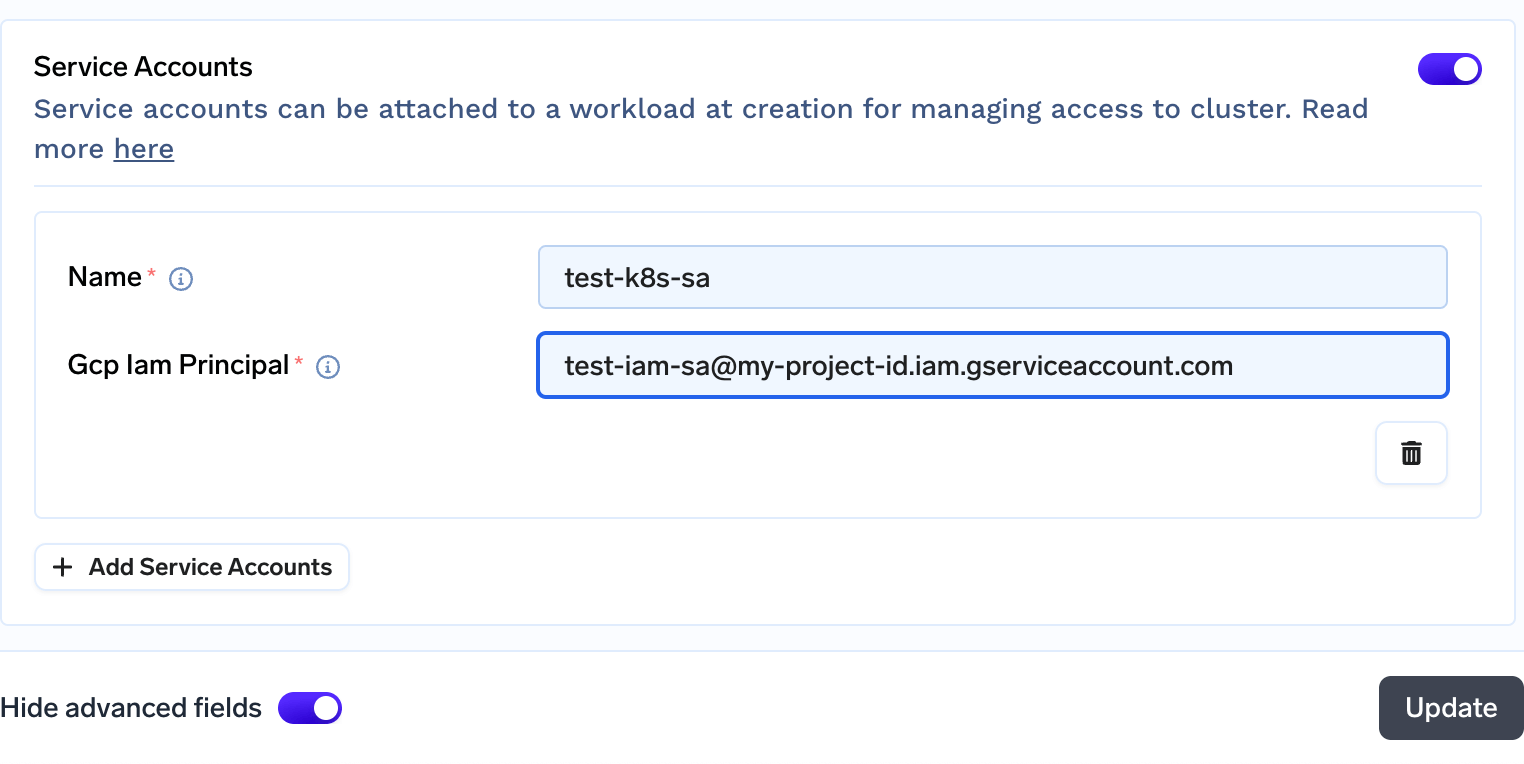
In this section we will create an IAM serviceaccount which has access to buckets. We will try to use this to access the bucket files in GCP
Export these variables and enter the name of the google serviceaccount you want to give in the variable GSA_NAME. We are assigning this serviceaccount Storage admin permission. You can assign the permissions that you want for accessing your GCP application.
# google serviceaccountexport GSA_NAME=""export ROLE_NAME="roles/storage.admin"
Create the IAM serviceaccount and assign the role using the below command. We are also assigning roles/iam.workloadIdentityUser role to the IAM serviceaccount on itself so that it can be accessed from inside GKE.
# creating the IAM serviceaccountgcloud iam service-accounts create $GSA_NAME \ --project=$PROJECT_ID# assigning the rolegcloud projects add-iam-policy-binding $PROJECT_ID \ --member "serviceAccount:$GSA_NAME@$PROJECT_ID.iam.gserviceaccount.com" \ --role "$ROLE_NAME"# assign the roles/iam.workloadIdentityUsergcloud iam service-accounts add-iam-policy-binding $GSA_NAME@$PROJECT_ID.iam.gserviceaccount.com \ --role roles/iam.workloadIdentityUser \ --member "serviceAccount:$PROJECT_ID.svc.id.goog[$APP_NS/$APP_SA]"
When you are trying to run the command gcloud projects add-iam-policy-binding you might get the below output
Created service account [test-iam-sa]. [1] EXPRESSION=resource.name.startsWith("projects/_/buckets/xxxxxxxx"), TITLE=xxxxxxx Admin [2] None [3] Specify a new conditionThe policy contains bindings with conditions, so specifying a condition is required when adding a binding. Please specify a condition.:
You can enter a condition if you want to restrict the GCP IAM serviceaccount to a certain bucket or you can use option 2 and continue.
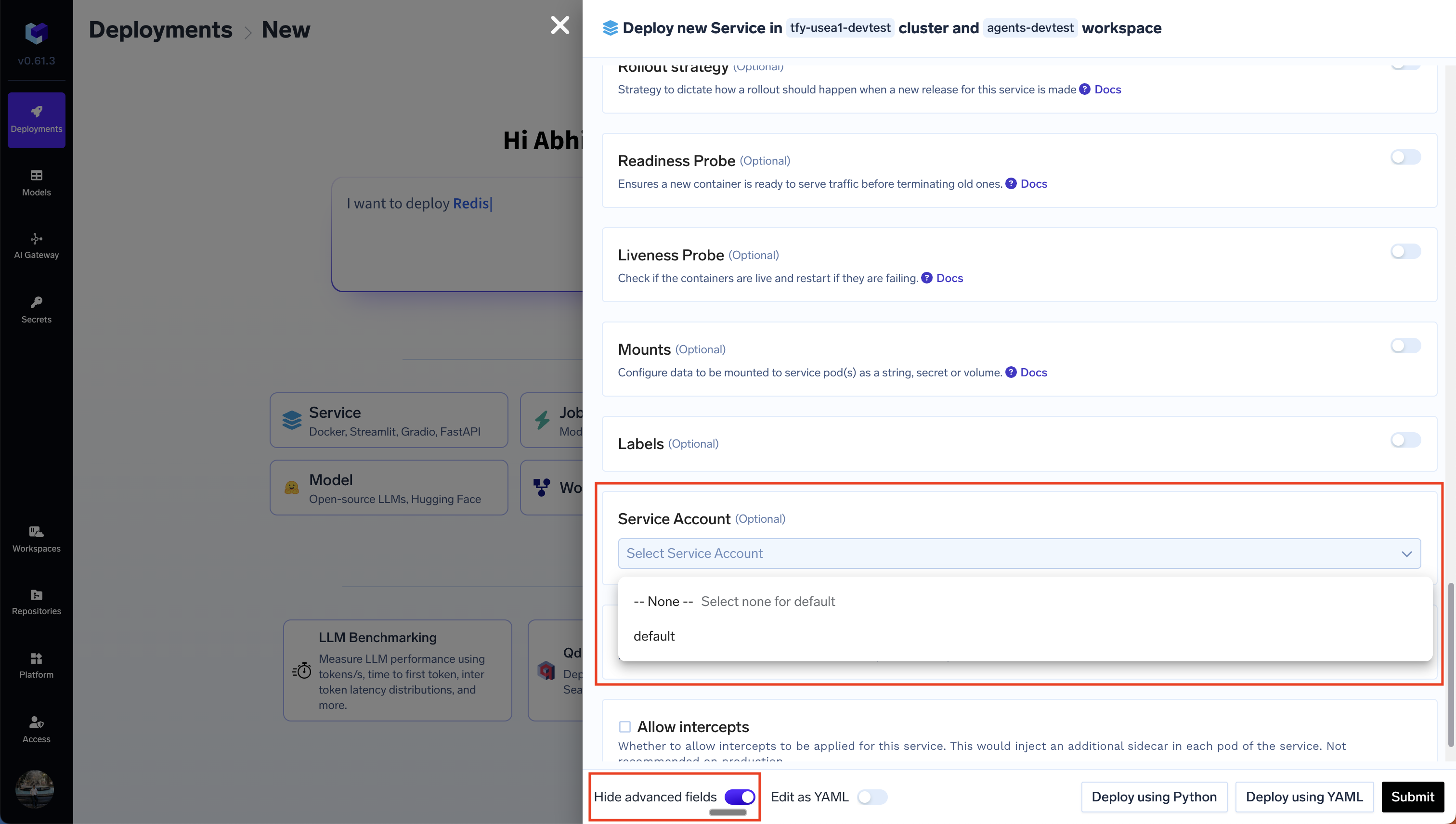
Once you’ve configured the Service Account in Kubernetes following the steps above, you can select the service account for the service in the Truefoundry UI. This can be viewed after switching on the advanced options in the service deployment form.