

Adding an Auth Override
1
Open the Auth Overrides tab
Navigate to the MCP server detail page and click the Auth Overrides tab.
2
Click Add Override
Click the + Add Override button in the top right corner.
3
Configure the override
- Subject — only MCP Server Managers can change this. As a Manager, select the user or virtual account the override applies to. If you’re a non-manager user of the MCP server, the subject is fixed to you and cannot be changed.
- Credential — what you enter depends on how the MCP server’s outbound auth is configured:
- Templated header (per-user API key) — the MCP server is configured with a placeholder, e.g.
Authorization: Bearer {{API_KEY}}. Enter only the value that goes inside{{...}}— the AI Gateway substitutes it into the template at request time. - Non-templated header — enter the complete header value exactly as the upstream service expects it in the
Authorizationheader.
- Templated header (per-user API key) — the MCP server is configured with a placeholder, e.g.
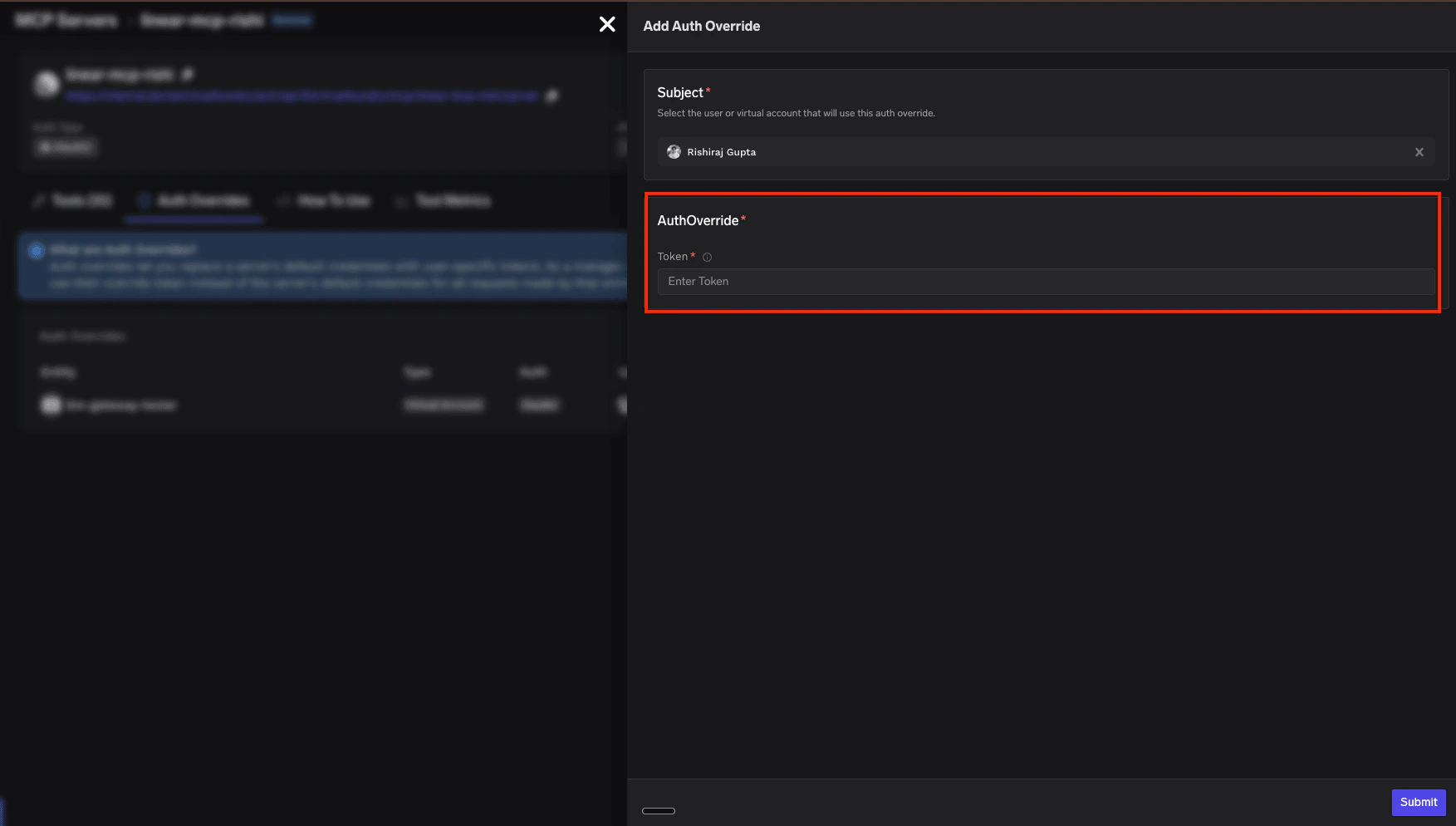
4
Submit
Click Submit to save the override. The AI Gateway will now use this credential for all requests made by the selected subject.
Managing Auth Overrides
The Auth Overrides tab on the MCP server detail page lists all existing overrides: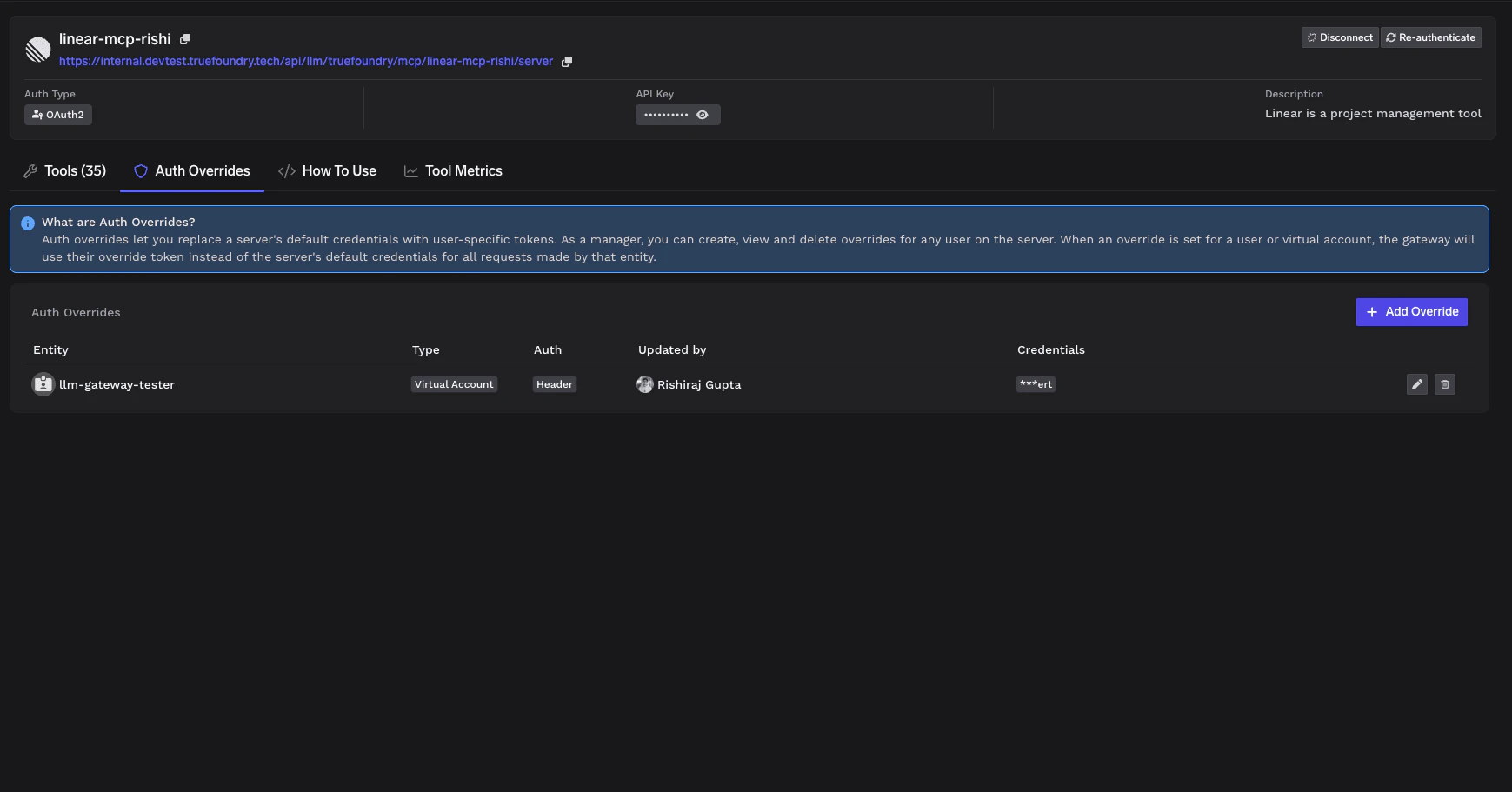
Who can manage Auth Overrides?
Which MCP servers support Auth Overrides?
Auth Override availability depends on the MCP server’s outbound authentication mode. Use the table below to check whether your server supports overrides and who can add them.Whose authentication can be overridden?
When an override is supported, it can be applied to one of the following subjects on the MCP server:How Auth Overrides work at runtime?
When a user makes a request through the AI Gateway to an MCP server with Auth Overrides configured:- The AI Gateway authenticates the user (inbound authentication).
- The AI Gateway checks if an Auth Override exists for this user on this MCP server.
- If an override exists: The AI Gateway injects the user’s override credentials into the request (template substitution for Individual, or full
Authorizationvalue when applicable). - If no override exists: The AI Gateway uses the server’s default credentials (for Shared Credentials) or returns an error (for Individual Credentials).
For MCP servers configured with Individual Credentials, users without an Auth Override will not be able to use the server until an override is created for them.