

For Options A and B below, secrets are synced from your secret manager to
TrueFoundry every hour by default. This lets secret rotation in your external
secret manager get picked up automatically.
1
Connect Your Secret Store to TrueFoundry for Options A and B
Integrate your secret store with TrueFoundry (for example AWS SSM, GCP
Secret Manager, HashiCorp Vault, or Azure Key Vault) if you want to use
Option A or Option B below.To connect your secret store, navigate to 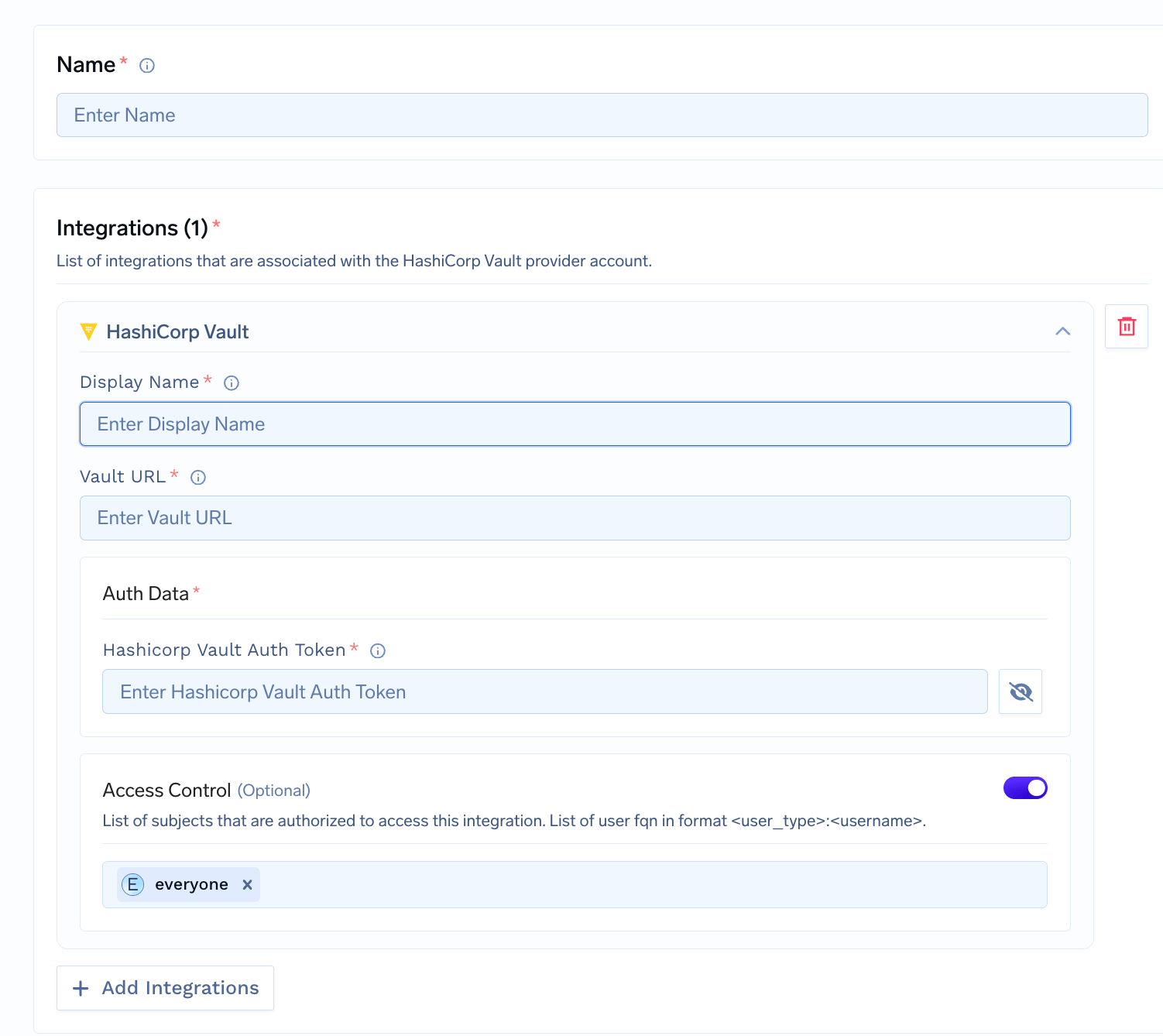
Platform > Integrations and add
the integration for your provider. We support
AWS SSM,
GCP Secrets Manager,
Azure Key Vault,
and HashiCorp Vault.TrueFoundry does not store the secret values; they live in your secret
manager. You get a reference to use in deployments and integrations. See
integrate a secret manager for setup.
2
Use the Secret in an Integration
When adding or editing an integration, such as a
Model provider, an
MCP server, or a
Guardrail, use one of the three
options below in any API key or other sensitive field instead of pasting
the raw value.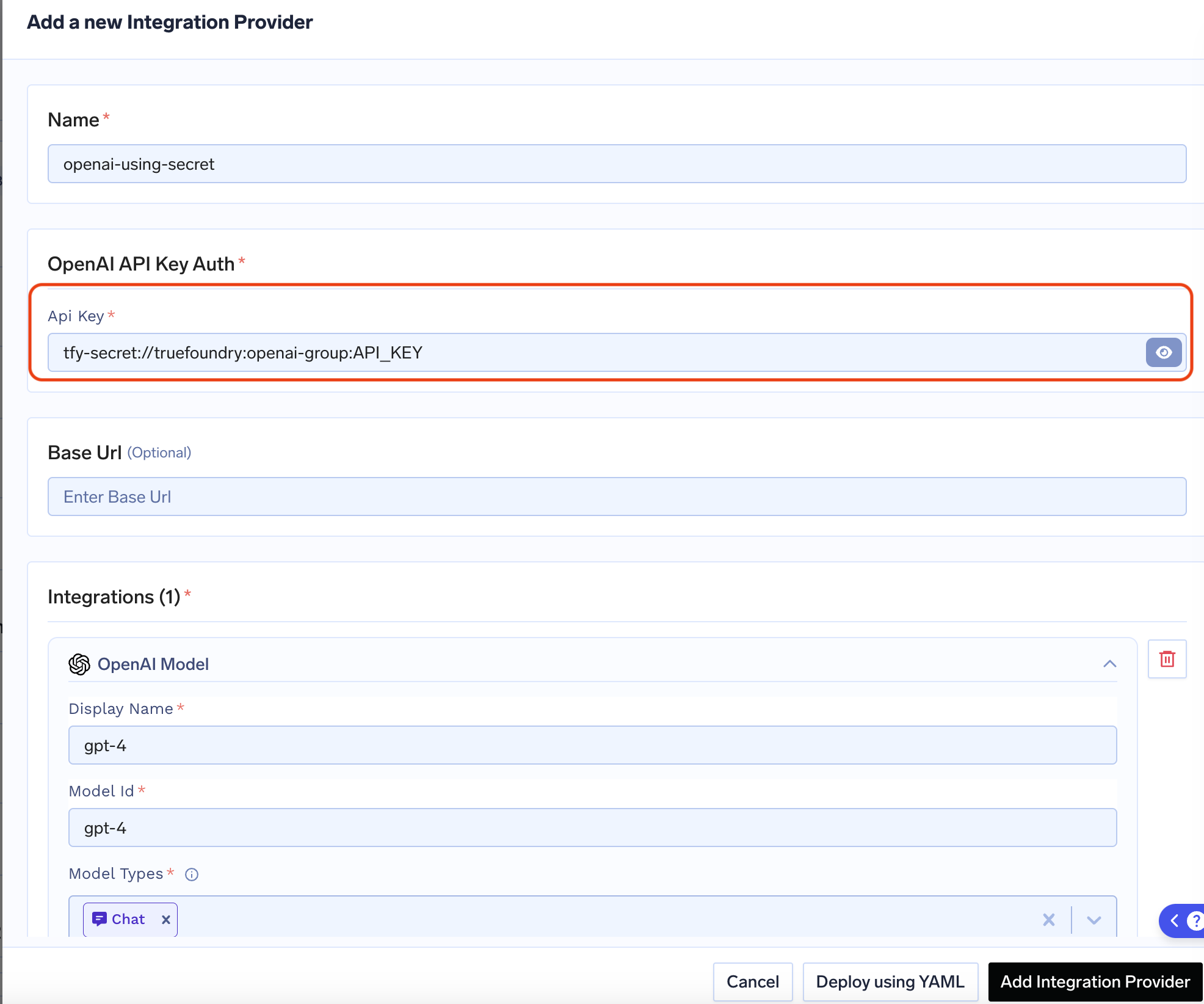
Option A: Create the secret in TrueFoundry, then add the secret FQN
Option A: Create the secret in TrueFoundry, then add the secret FQN
Create the secret in a secret group in TrueFoundry, then use its fully-qualified name (FQN) in the integration.Format: 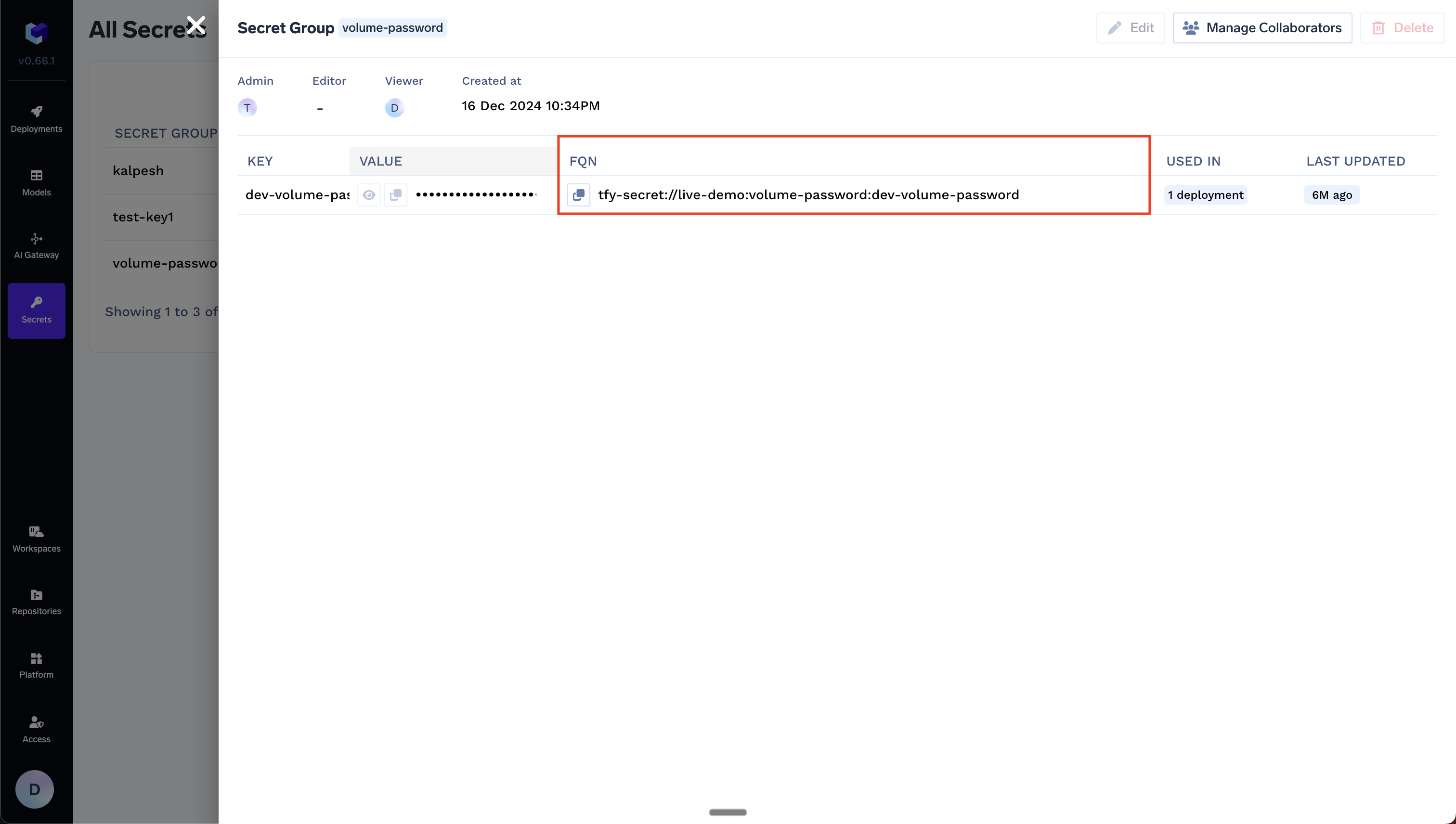
tfy-secret://<tenant>:<secret-group>:<secret-key>Example: For tenant my-tenant, secret group openai-keys, and key OPENAI_API_KEY:Option B: Use any existing secret in your secret manager directly
Option B: Use any existing secret in your secret manager directly
Use a secret that already exists in your secret manager. You do not create the secret in TrueFoundry—reference it by your secret store FQN and the path in your store.Format: You can find the Secret Store FQN on Platform → Integrations, as shown below: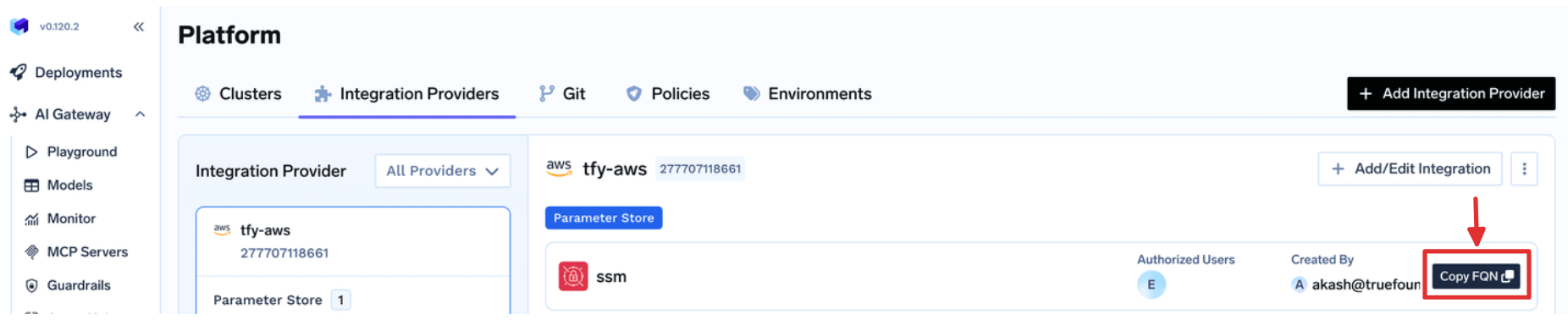
tfy-secret-ref://<secret-store-fqn>::<path-to-secret-in-secret-manager>Example: If your secret store FQN is my-tenant:aws:my-aws-provider:secret-store:aws-ssm and the secret path is /tfy-secret/openai/api-key:Option C: Use a Kubernetes secret for integrations auth data
Option C: Use a Kubernetes secret for integrations auth data
Use a Kubernetes secret when you want the integration auth value to come
from a secret mounted into the How it works:When this value is set, the secret is mounted into the
Replace Replace The value after then in the HashiCorp Vault integration form you can enter: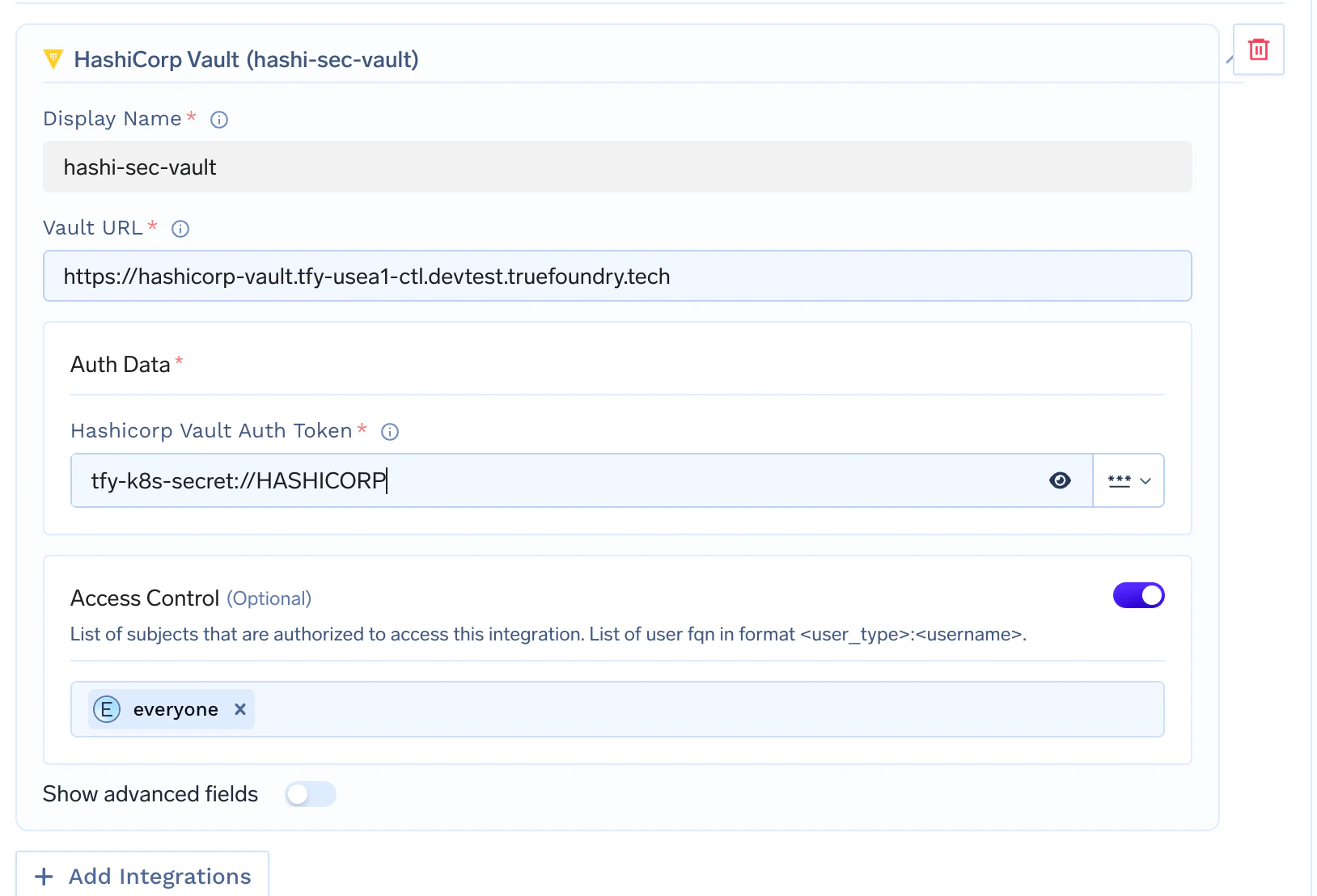
servicefoundry-server pod.Self-hosted control plane only. This option is available only when
you host your own control plane. It is not available on the TrueFoundry
managed control plane.
- Create a Kubernetes secret in the namespace where your TrueFoundry control plane is installed.
- Set
servicefoundryServer.tfyK8sSecretNamein your Helm values to that secret name. - Upgrade your TrueFoundry Helm release.
- In the integration field, reference a key from that secret using
tfy-k8s-secret://<KEY_NAME>.
values.yaml.servicefoundry-server pod at /opt/truefoundry/tfy-k8s-secrets.Create the Kubernetes secretsecrets.yaml
truefoundry with the namespace where your TrueFoundry control
plane is installed.Apply it with:<namespace> with the namespace where your TrueFoundry control plane is installed.Reference a secret key in the integration
Format: tfy-k8s-secret://<KEY_NAME>
Example:tfy-k8s-secret:// must exactly match the key inside
the Kubernetes secret.For example, if your secret contains:- Vault URL:
https://vault.example.com - HashiCorp Vault Auth Token:
tfy-k8s-secret://HASHICORP