

Adding Models
This section explains the steps to add OpenAI models and configure the required access controls.Select OpenAI as the provider
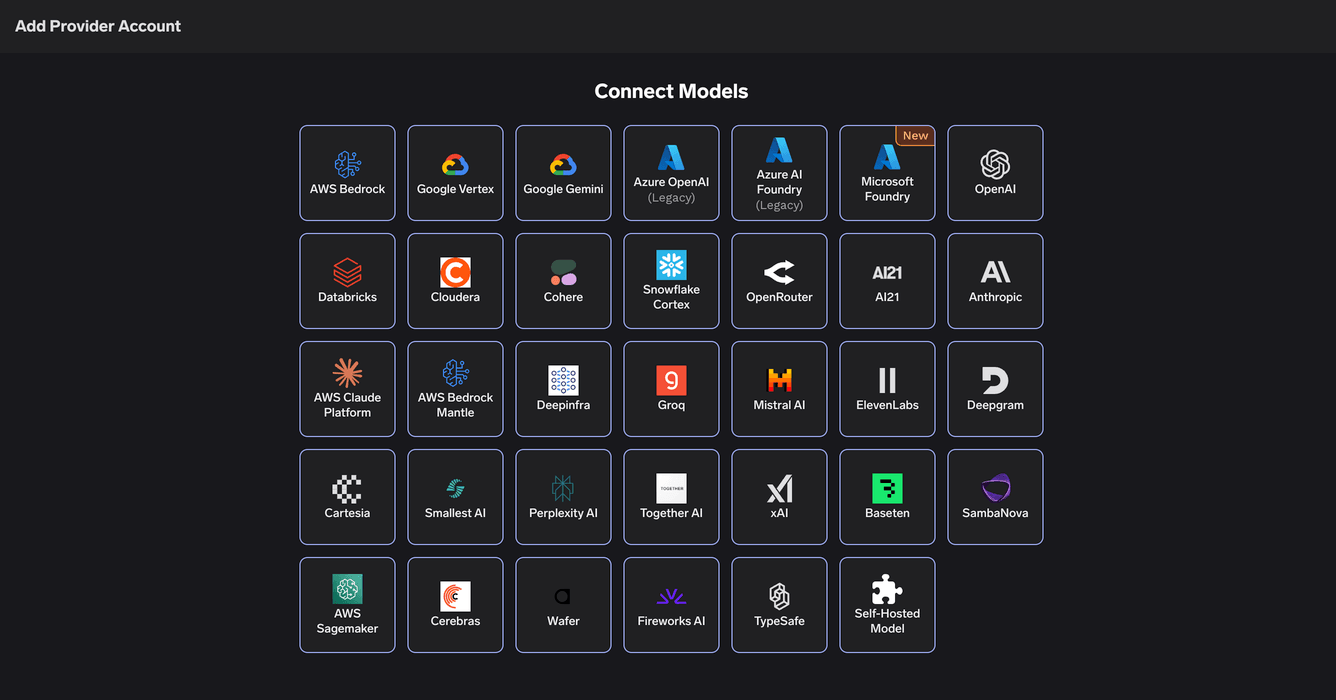
Choose a provider in Add Provider Account
Configure Account
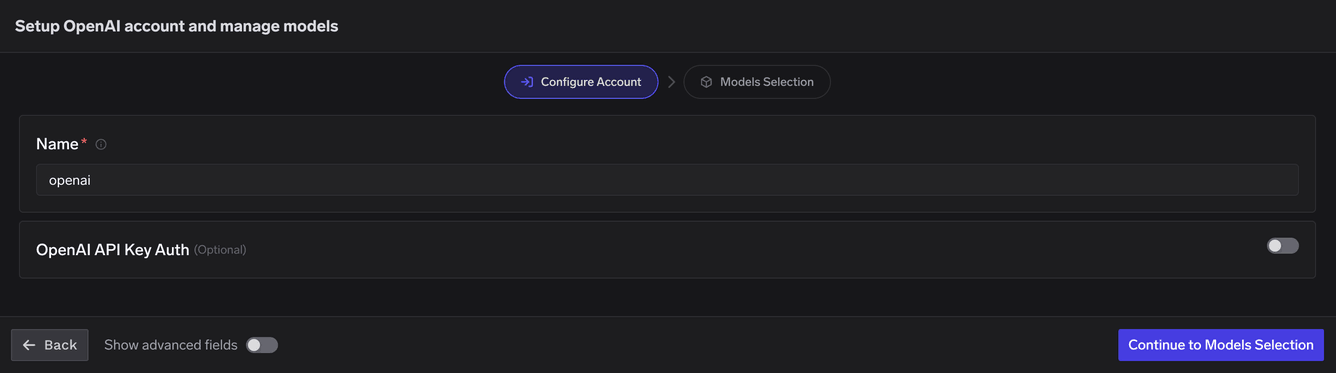
Configure Account for OpenAI
Select Models
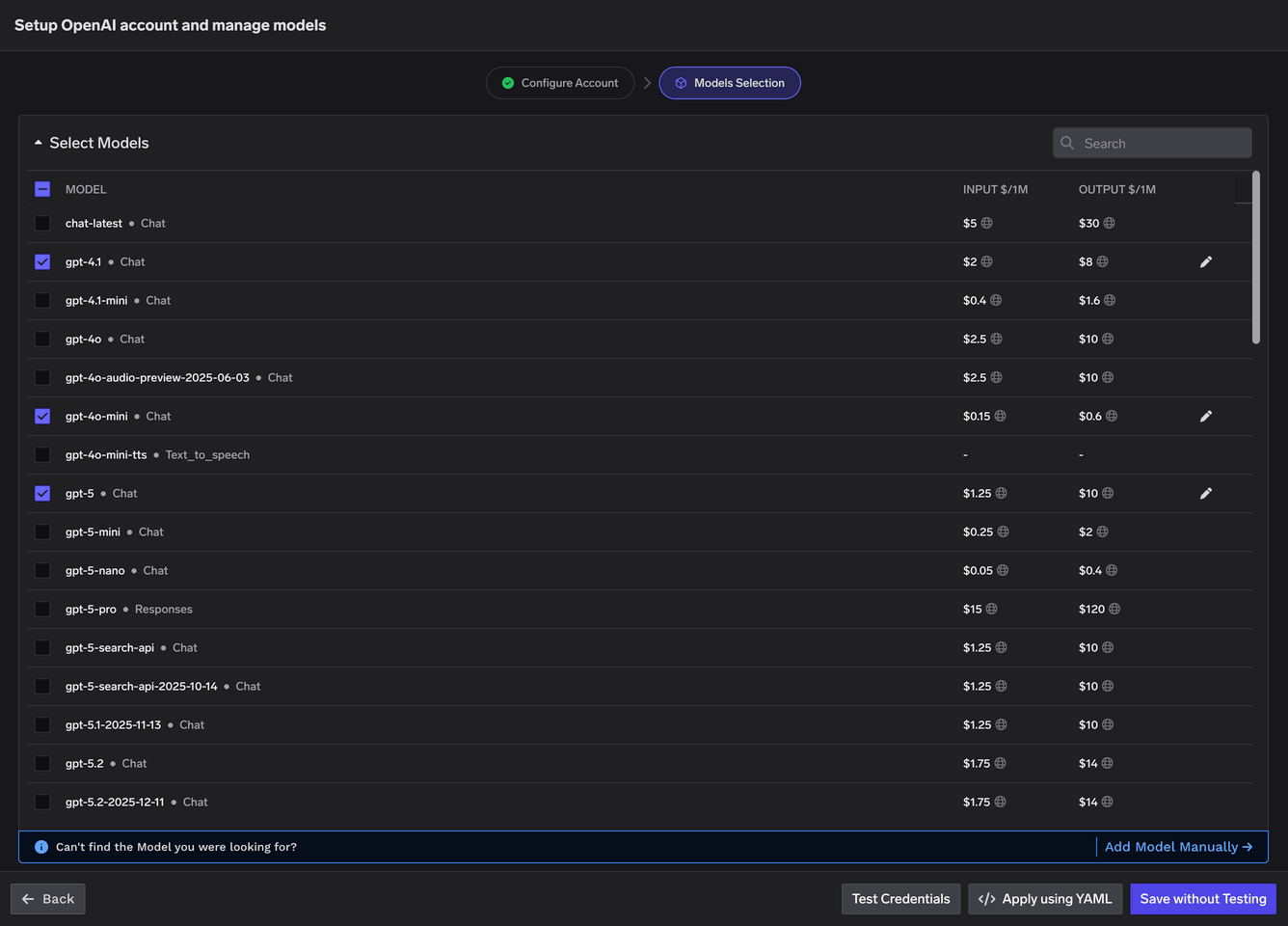
Models Selection with three OpenAI models picked
gpt-6-luna), set Model Types to Decision. These models answer on /v1/decisions and /v1/systemone, not chat completions. See Decision.Save and grant access
tfy apply.To let other users, teams or virtual accounts use or manage these models, open Manage Accounts, click ⋮ on the account and choose Access Control > Grant Access. See Access control.Authenticate with Workload Identity Federation
gateway.truefoundry.ai). Support for
customer-hosted (hybrid) and self-hosted gateways is planned.idp_… or wip_…) and the Service Account ID
(user-… or svc_acct_…). Neither is secret.
What you’ll do
The examples use a tenant namedacme.
- In TrueFoundry, open a new OpenAI provider account on the Workload Identity Federation tab and copy the Issuer URL, Subject, and Audience.
- On the OpenAI Platform, create an identity provider and mapping that use those three values.
- Copy the resulting Identity Provider ID and Service Account ID back into TrueFoundry, then test and save.
Copy the values from TrueFoundry
Go to AI Gateway > Models, click Add Model, choose To New Provider Account and select OpenAI. Name the account, turn on Authentication Data and select the Workload Identity Federation tab. Copy the Issuer URL, Subject and Audience, and keep the form open — you’ll paste OpenAI’s IDs into the empty fields below them. Every provider account in your tenant shows the same issuer and subject.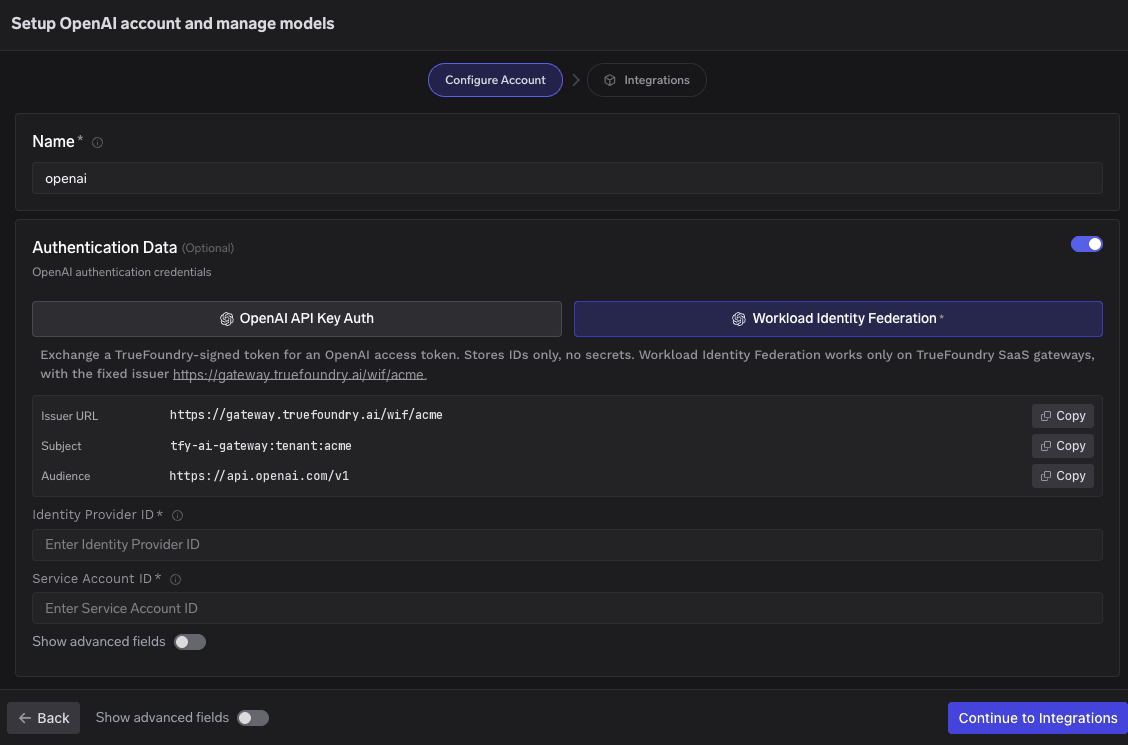
The Workload Identity Federation tab of an OpenAI provider account
Set up OpenAI
Do these steps on the OpenAI Platform. Paste the three values you copied from TrueFoundry into the matching fields below.Choose a project
Create the identity provider
- Name: for example
truefoundry-acme. - Provider type: OIDC.
- OIDC Issuer URL: paste the Issuer URL from TrueFoundry, exactly.
- Audience: paste the Audience from TrueFoundry (
https://api.openai.com/v1). The placeholder shows it without/v1. If you enter another value, enter the same value in TrueFoundry too. - Advanced: leave both options off and add no attribute transformations.
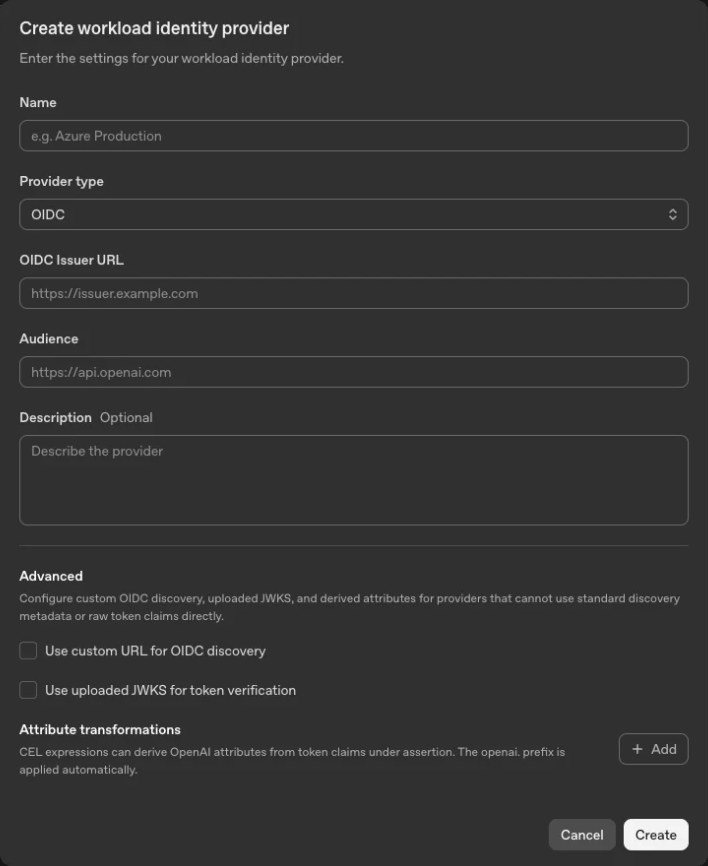
Create workload identity provider
Create the mapping
- Name: for example
tenant-acme. - Key and Value: key
sub, value the Subject from TrueFoundry, exactly, with no wildcard. - Project: the project from step 1.
- Service account: keep Create a new service account in this project ticked and give
it a name. Note the Service Account ID that OpenAI creates (
user-…orsvc_acct_…) — you’ll paste it into TrueFoundry next. - Permissions: Restricted, with Model capabilities set to Request
(
api.model.request) and everything else set to None. TrueFoundry doesn’t check the scope of the tokens OpenAI issues, so these permissions are the only limit on what they can do.
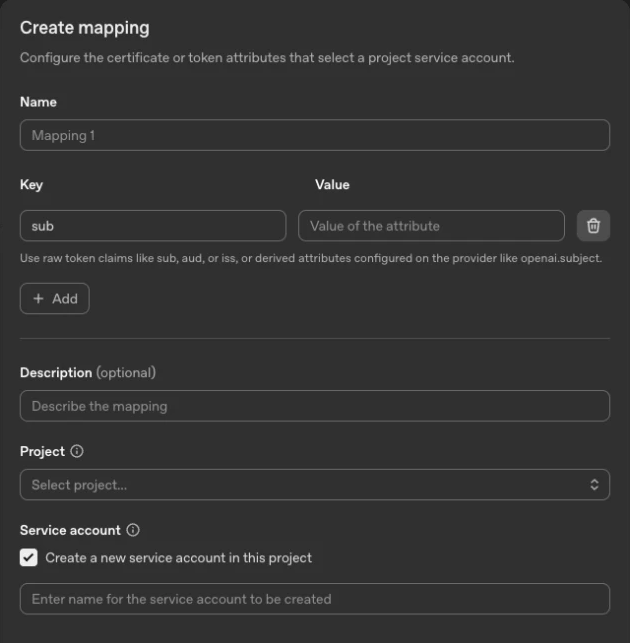
Create mapping: the sub value, project and service account
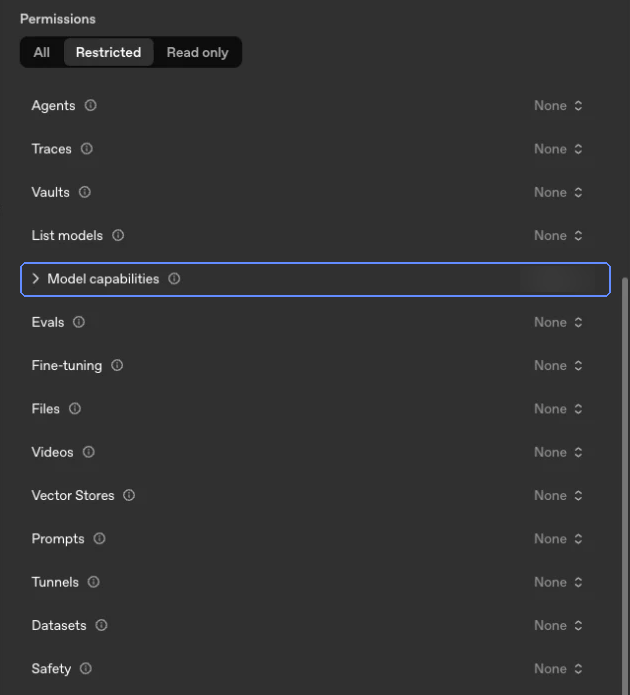
Further down the dialog: Restricted permissions. Set Model capabilities to Request and leave everything else at None.
Copy the IDs from OpenAI
Copy these two IDs — they are what you paste into TrueFoundry: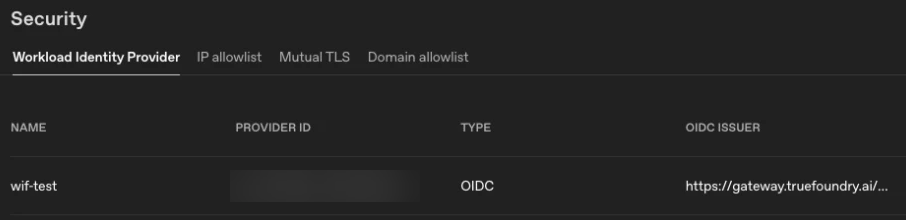
The identity provider's ID is in the Provider ID column (hidden here)
Add the account in TrueFoundry
Go back to the form from Copy the values from TrueFoundry.Enter the IDs
https://api.openai.com/v1, turn on Show advanced fields
in the tab and enter it as Audience.Leave Base URL (under Show advanced fields at the bottom of the form) empty, unless your
OpenAI project uses data residency: then enter your region’s endpoint, such as
https://eu.api.openai.com/v1 (see Regional Endpoints). With Workload
Identity Federation, any other host is rejected when you save the account.Select models
Test and save
tfy apply.The same account as YAML
The same account as YAML
Revoke access
Disable the mapping on the OpenAI Platform. New exchanges then fail. Access tokens OpenAI has already issued keep working until they expire, within about 1 hour.Troubleshooting
OpenAI names the problem in the error response.OpenAI error: invalid_subject_token
OpenAI error: invalid_subject_token
https://api.openai.com/v1 if that’s
empty).OpenAI error: invalid_grant
OpenAI error: invalid_grant
sub row of the mapping is exactly
tfy-ai-gateway:tenant:<tenant-name>, and that the mapping is enabled.502 from the gateway saying OpenAI couldn't reach the TrueFoundry issuer
502 from the gateway saying OpenAI couldn't reach the TrueFoundry issuer
500 or 504 because it couldn’t reach the issuer. Usually
temporary — retry, and check that the issuer is reachable. If it persists, contact TrueFoundry
support.OpenAI rejects the identity provider, or every exchange fails
OpenAI rejects the identity provider, or every exchange fails
Gateway or control plane isn't TrueFoundry SaaS
Gateway or control plane isn't TrueFoundry SaaS
- Requests on a customer-hosted (hybrid) or self-hosted gateway fail with
Workload identity federation for Anthropic and OpenAI is only supported on TrueFoundry SaaS gateways.— send these requests through a TrueFoundry SaaS gateway, or use an API key provider account on that gateway. - Saving the provider account fails with a
400error:Workload identity federation for Anthropic and OpenAI is only supported on TrueFoundry SaaS.— your control plane isn’t TrueFoundry SaaS. Use an API key provider account there.
Check that the issuer is reachable
Use this when OpenAI can’t verify TrueFoundry’s tokens. OpenAI fetches the signing keys from your issuer URL to check each token, so if that URL doesn’t serve them, every exchange fails. Run these checks before you change the identity provider or mapping. They don’t need any credentials. Fetch your tenant’s discovery document:issuer is your issuer URL and whose jwks_uri is
<issuer URL>/.well-known/jwks.json. Both documents are public. A 404 means the tenant name in the
URL is wrong or the tenant isn’t active. A 503 is temporary, for example while the signing keys
load, so retry after a short wait.
How it works
- The gateway signs a JWT that names your TrueFoundry tenant, valid for 1 hour, and sends it with the account’s IDs to the provider’s token endpoint.
- The provider fetches the public signing keys from your tenant’s issuer URL, verifies the JWT, and checks it against your federation rule (Anthropic) or mapping (OpenAI).
- The provider returns an access token valid for about 1 hour, which the gateway uses for model calls. Once half of the token’s life has passed (30 minutes before expiry for a one-hour token), the next request starts a new exchange in the background, and requests keep using the current token meanwhile.
What the JWT contains
What the JWT contains
exp is 1 hour after iat, and jti is a new random ID for each JWT. The gateway
reuses a signed JWT for up to 5 minutes, so several exchanges can carry the same jti.aud is the account’s Audience, or https://api.openai.com/v1 if it’s empty.Reference links
Inference
After adding the models, you can perform inference using an OpenAI-compatible API via the Playground or by integrating with your own application.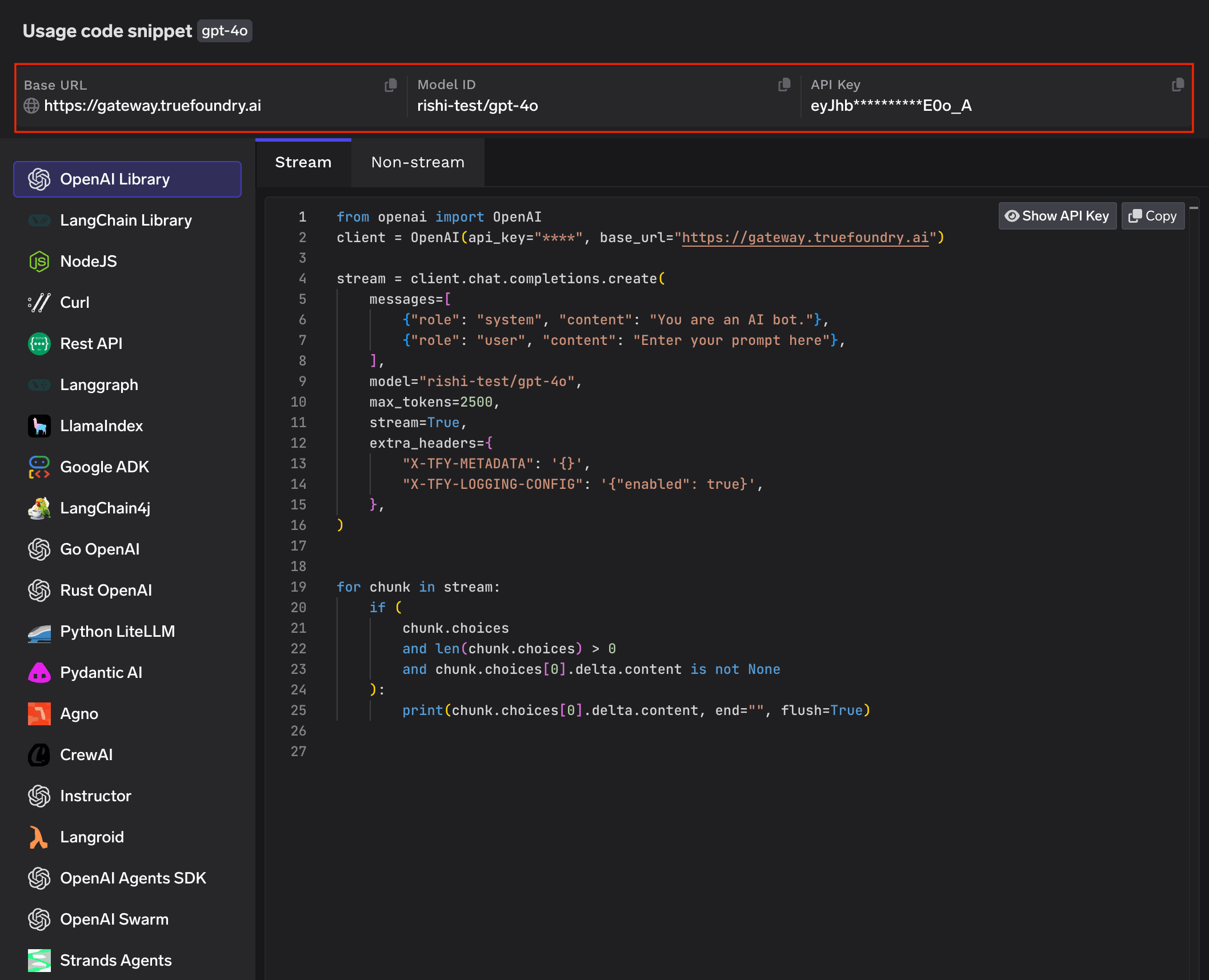
Code Snippet panel showing Base URL, Model ID, and API Key
Supported APIs
Once your OpenAI model account is configured, the following API surfaces are available through the AI Gateway. The table below summarizes each endpoint alongside platform feature support (tracing, cost tracking).- ✅ Supported by provider and TrueFoundry
- Supported by Provider, but not by TrueFoundry
- Provider does not support this feature
Chat Completions
Chat Completions
Streaming
Streaming
stream=True to start streaming responses and iterate over delta chunks. You may defensively check that chunk.choices is non-empty and delta.content is not None as some provider chunks (role deltas, finish markers) have no content.Request parameters
Request parameters
temperature, max_tokens, top_p, frequency_penalty, presence_penalty, and stop fine-tune generation behaviour.temperature is not supported on o-series reasoning models.Function calling / tools
Function calling / tools
tool_calls back as a tool role message, then request the final response. Use tool_choice to force the model to call a specific tool when you need deterministic behaviour, and defensively unwrap tool_calls since the model may still return content instead of a tool call on some prompts.Vision (multimodal input)
Vision (multimodal input)
image_url content part. The URL can be a public HTTP URL or an inline data:image/...;base64,... URI.PDF document input
PDF document input
file content type with base64 encoding.Response format (structured outputs)
Response format (structured outputs)
response_format. Two modes:- JSON object —
{"type": "json_object"}— valid JSON, no schema. Include “respond in JSON” in the prompt. - JSON schema —
{"type": "json_schema", ...}— strict schema conformance. Set all properties inrequired.
Reasoning models (o-series)
Reasoning models (o-series)
response.usage. Some request parameters like temperature are not supported on these models.Prompt caching
Prompt caching
gpt-4o and newer models. Pass an optional prompt_cache_key parameter to improve cache hit rates when requests share common prefixes. Cached tokens appear in usage.prompt_tokens_details.cached_tokens.Embeddings
Embeddings
text-embedding-3-small, text-embedding-3-large, text-embedding-ada-002. See the OpenAI embeddings guide for dimension and pricing details.Responses API
Responses API
retrieve, delete, and multimodal inputs. Full docs: Responses API.Image Generation
Image Generation
client.images.generate. The response contains either b64_json or url depending on the model and request parameters — handle both. Full docs: Image Generation.gpt-image-1, dall-e-2, dall-e-3.Image Edit
Image Edit
client.images.edit. Same models as image generation, with size constraints: gpt-image-1 accepts PNG/WebP/JPG up to 50 MB and up to 16 input images, while dall-e-2 requires a single square PNG ≤ 4 MB. Full docs: Image Edit.Image Variation
Image Variation
create_variation (dall-e-2 only — deprecated)The original variation API accepted an image and returned creative variations. It required a square PNG ≤ 4 MB and only worked with dall-e-2.
Full docs: Image Variation.images.edit with variation prompt (gpt-image-1)The recommended replacement is to use images.edit with a variation-style prompt. This works with current models and produces similar results.Text-to-Speech
Text-to-Speech
with_streaming_response.create(...) to stream the response body directly to a file or an AsyncIterator. Full docs: Text-to-Speech.gpt-4o-mini-tts, tts-1, tts-1-hd. Supported voices include alloy, echo, fable, onyx, nova, shimmer. See the OpenAI TTS guide for the full list of voices and audio formats.Speech-to-Text
Speech-to-Text
client.audio.transcriptions.create. Full docs: Audio Transcription.gpt-transcribe, whisper-1, gpt-4o-transcribe, gpt-4o-mini-transcribe. gpt-live-transcribe is realtime-only; see Realtime API.Audio Translation
Audio Translation
client.audio.translations.create. Same whisper-1 model as transcription; the response is always English. Full docs: Audio Translation.The example below generates a short French TTS sample inline and translates it back to English so the demo is self-contained — text ↔ translated text round-trip with no external audio file.Batch API
Batch API
Files API
Files API
Moderation
Moderation
client.moderations.create. Routes through the regular client (no x-tfy-provider-name header needed). Full docs: Moderation API.omni-moderation-latest (multi-modal — text + image, recommended) and text-moderation-latest (legacy, text-only).Fine-tuning
Fine-tuning
Realtime API
Realtime API
- The host is the bare gateway host — no
/api/llmsuffix. - The OpenAI provider-account name is encoded in the URL path, not in the model name. The model passed to
client.realtime.connect(model=...)is the bare upstream OpenAI name (e.g.gpt-4o-realtime-preview).
AsyncOpenAI from openai[realtime], which handles the WebSocket framing and event schema for you. Full docs: Realtime API.For browser WebRTC, mint an ephemeral client secret through the Proxy API and connect the browser directly to OpenAI — see OpenAI Realtime with WebRTC. Live WebRTC media is not proxied through the gateway.output_modalities: ["audio"], add an audio.input.turn_detection block, and stream PCM chunks through connection.input_audio_buffer.append. See the OpenAI realtime audio reference for a complete sounddevice-based example — it works against the AI Gateway unchanged, just point websocket_base_url at wss://{host}/live/openai-main.gpt-live-transcribe need a transcription session. Connect with intent=transcription and the model name, then select the model in session.update under audio.input.transcription.model. Without intent=transcription, OpenAI rejects the model with invalid_model.ffmpeg -i input.mp3 -f s16le -ar 24000 -ac 1 audio.pcm. gpt-live-transcribe does not support server_vad or semantic_vad, so commit each turn yourself. For file transcription of recorded audio, use gpt-transcribe with the Speech-to-Text API instead.Decision (OpenAI Decisions)
Decision (OpenAI Decisions)
predicate, choice, and score questions about text or images and return probabilities instead of generated text. Add the model with Model Types set to Decision (for example gpt-6-luna). Decision models bill input tokens only, so set the output cost to 0.Call POST /v1/decisions with OpenAI’s input + questions list, or POST /v1/systemone with a System One body — the AI Gateway translates. Image parts (input_image) work only on this provider and on Microsoft Foundry gpt-6-luna deployments. Full docs: Decisions API.Regional Endpoints
OpenAI offers data residency controls that let you configure the region where your data is stored and, in some regions, processed. When data residency is enabled on your OpenAI account, you must use a region-specific domain prefix for API requests instead of the defaultapi.openai.com.
When adding an OpenAI account in TrueFoundry AI Gateway, set the Base URL to the appropriate regional endpoint for your OpenAI project.
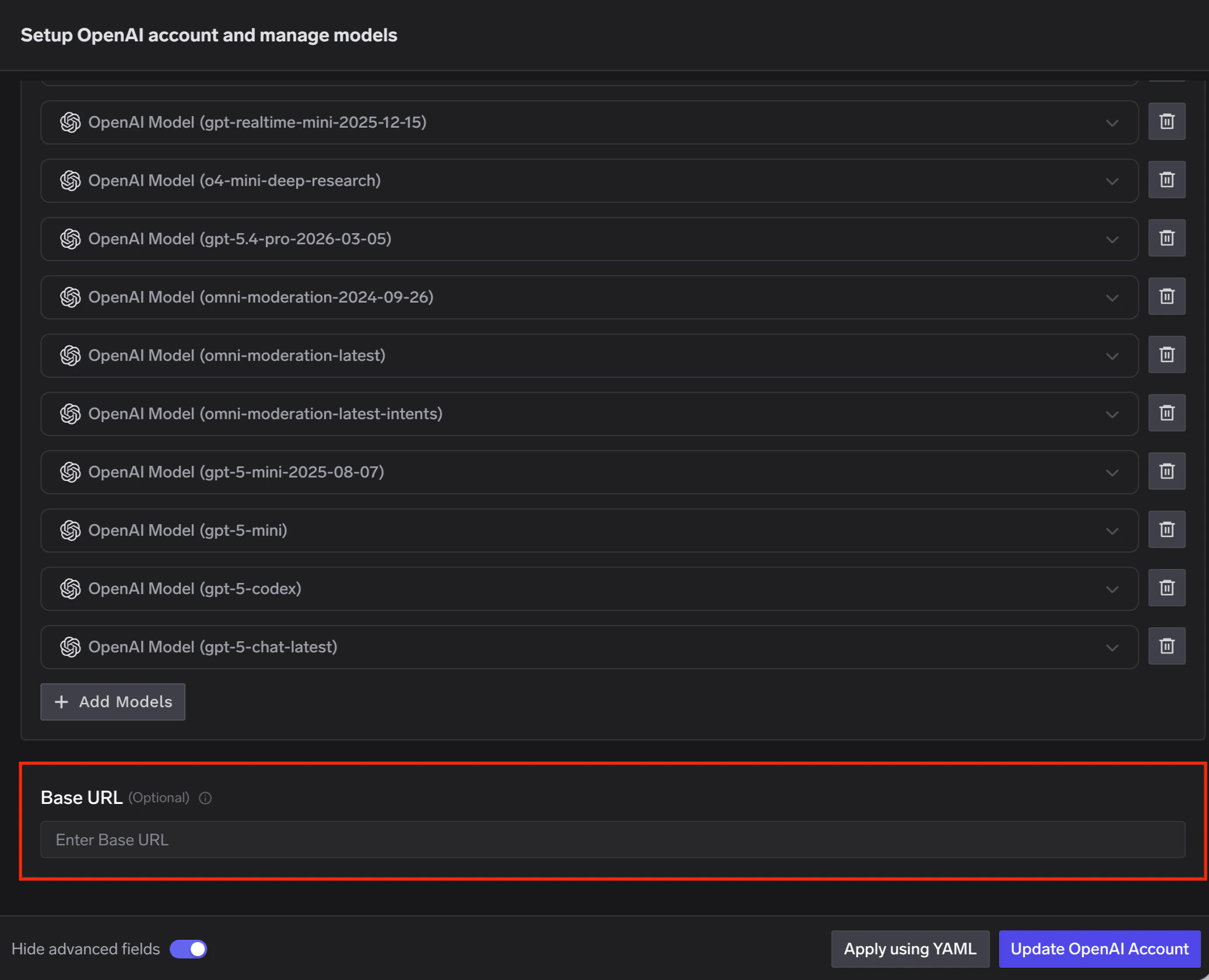
Enable Advanced Fields to Set Base URL