Add and configure Deepinfra models in TrueFoundry’s AI Gateway.
Adding Models
This section explains the steps to add Deepinfra models and configure the required access controls.
1
Select Deepinfra as the provider
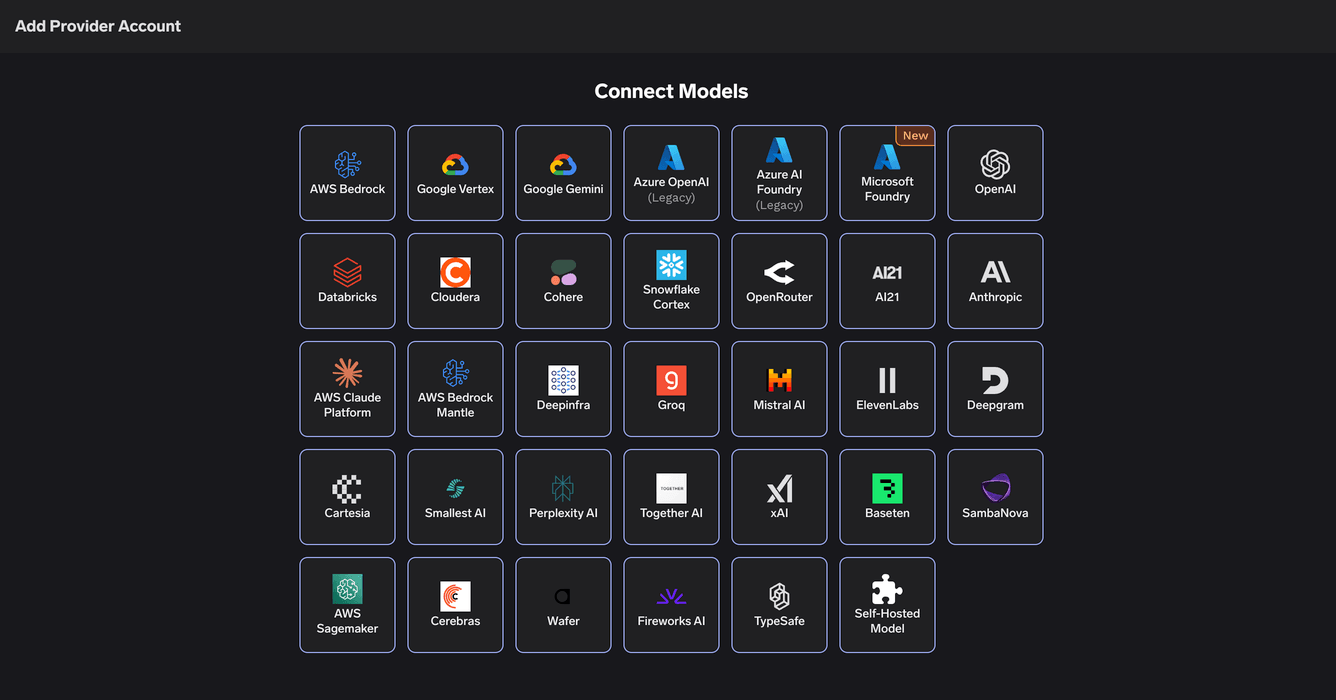
From the TrueFoundry dashboard, go to AI Gateway > Models, click Add Model and choose To New Provider Account. Select Deepinfra from the provider list.
Choose a provider in Add Provider Account
2
Add Deepinfra Account Details
Give a unique name to your Deepinfra account and complete the form with your Deepinfra authentication details (API Key).
Configure Account for Deepinfra
3
Add Models
Select the model from the list. If you see the model you want to add in the list of checkboxes, we support public model cost for these models.
If the model you need is not listed, click Add Model Manually in the banner below the list and enter its display name, model ID and model types.
4
Save and grant access
Click Test Credentials to check the account against the selected models, or click Save without Testing. To keep the account in Git instead, click Apply using YAML and apply the generated spec with tfy apply.To let other users, teams or virtual accounts use or manage these models, open Manage Accounts, click ⋮ on the account and choose Access Control > Grant Access. See Access control.
Inference
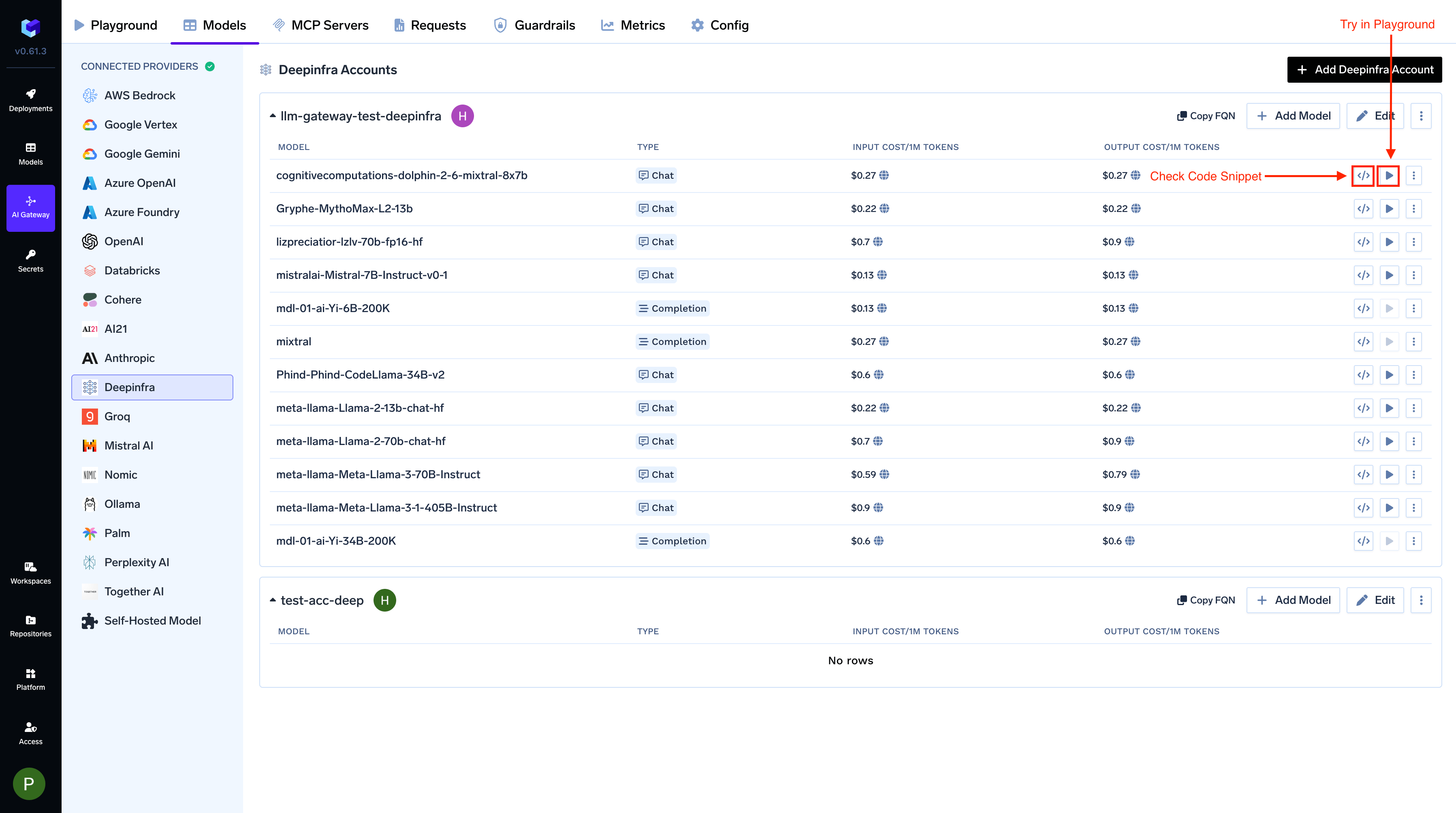
After adding the models, you can perform inference using an OpenAI-compatible API via the Playground or by integrating with your own application.
Was this page helpful?
{"docsConfig":{"theme":"mint","$schema":"https://mintlify.com/docs.json","name":"TrueFoundry Docs","description":"TrueFoundry documentation — enterprise-grade AI Gateway combining LLM, MCP, and Agent Gateways to connect, monitor, and govern agentic AI applications across providers from a unified control plane.","colors":{"primary":"#4f46e5","light":"#4f46e5","dark":"#4f46e5"},"logo":{"light":"https://mintcdn.com/truefoundry/e2uUimEwX30qkWxc/logo/light.svg?fit=max\u0026auto=format\u0026n=e2uUimEwX30qkWxc\u0026q=85\u0026s=6068d83664aeda0239bec2422657dd20","dark":"https://mintcdn.com/truefoundry/e2uUimEwX30qkWxc/logo/dark.svg?fit=max\u0026auto=format\u0026n=e2uUimEwX30qkWxc\u0026q=85\u0026s=c1cb26554a546d84500b40f7057bece8"},"favicon":"https://mintcdn.com/truefoundry/6bbtTt95c1iCcyph/favicon.svg?fit=max\u0026auto=format\u0026n=6bbtTt95c1iCcyph\u0026q=85\u0026s=f55bde34214b38034126d05b08ea16c7","appearance":{"default":"light"},"background":{"decoration":"grid"},"navbar":{"links":[{"href":"https://www.truefoundry.com/book-demo","label":"Book Demo"},{"href":"https://www.truefoundry.com/blog","label":"Blog"}],"primary":{"type":"button","label":"Sign Up","href":"https://www.truefoundry.com/register"}},"footer":{"socials":{"x":"https://twitter.com/truefoundry","linkedin":"https://in.linkedin.com/company/truefoundry"}},"seo":{"metatags":{"og:type":"website","og:site_name":"TrueFoundry Docs","og:image":"https://assets.production.truefoundry.com/logo.svg","og:description":"TrueFoundry offers an enterprise-grade AI Gateway combining LLM, MCP, and Agent Gateways—empowering businesses to connect, monitor, and govern agentic AI applications across providers from a unified control plane.","description":"TrueFoundry offers an enterprise-grade AI Gateway combining LLM, MCP, and Agent Gateways—empowering businesses to connect, monitor, and govern agentic AI applications across providers from a unified control plane."}},"icons":{"library":"fontawesome"},"styling":{"codeblocks":"dark","latex":true},"integrations":{"ga4":{"measurementId":"G-BSSG699JC1"}},"contextual":{"options":["copy","view","chatgpt","claude","mcp","cursor","vscode"],"display":"header"},"navigation":{"pages":[]}},"deployment":{"deploymentMetadataValue":{"subdomain":"truefoundry","hasAudioNarration":false,"actualSubdomain":"truefoundry","customDomains":["www.truefoundry.com"],"gitSource":{"type":"github","owner":"truefoundry","repo":"docs-mintlify","deployBranch":"main","contentDirectory":"","isPrivate":true,"mountPath":"","label":""},"feedback":{"thumbs":true},"entitlements":{"AI_CHAT":{"status":"ENABLED"},"WEB_MCP":{"status":"ENABLED"},"NARRATION":{"status":"ENABLED"}},"buildId":"6b096311dd4a00ade0d10c53","clientVersion":"0.0.4344","searchFilterCounts":[{"language":"default","tag":"AI Gateway","count":253},{"language":"default","tag":"API Reference","count":202},{"language":"default","tag":"Platform","count":198},{"language":"default","tag":"Integrations","count":138},{"language":"default","tag":"LLM Gateway","count":118},{"language":"default","tag":"AI Deployment","count":109},{"language":"default","tag":"Integrate Models","count":51},{"language":"default","tag":"Guardrails and Security","count":48},{"language":"default","tag":"Observability","count":47},{"language":"default","tag":"MCP Servers","count":44}]},"assistantConfig":{"enableAskAiButton":true,"enableAskAiSearchBar":true,"deflection":{"enabled":true,"email":"support@truefoundry.com","showHelpButton":true}},"basePath":"","hasChatPermissions":true,"hasWebMcpPermissions":true,"toggles":[{"name":"kill-isr","enabled":true,"variant":{"name":"disabled","enabled":false,"feature_enabled":true},"impressionData":false},{"name":"custom-rbac-roles","enabled":true,"variant":{"name":"disabled","enabled":false,"feature_enabled":true},"impressionData":false},{"name":"agent-mintlify-slack","enabled":true,"variant":{"name":"disabled","enabled":false,"feature_enabled":true},"impressionData":false},{"name":"agent-integrations-settings","enabled":true,"variant":{"name":"disabled","enabled":false,"feature_enabled":true},"impressionData":false},{"name":"rbac-expansion","enabled":true,"variant":{"name":"disabled","enabled":false,"feature_enabled":true},"impressionData":false},{"name":"automations-pr-grouping","enabled":true,"variant":{"name":"disabled","enabled":false,"feature_enabled":true},"impressionData":false},{"name":"custom-prefix","enabled":true,"variant":{"name":"disabled","enabled":false,"feature_enabled":true},"impressionData":false},{"name":"analytics-v7","enabled":true,"variant":{"name":"disabled","enabled":false,"feature_enabled":true},"impressionData":false},{"name":"user-flows-analytics","enabled":true,"variant":{"name":"disabled","enabled":false,"feature_enabled":true},"impressionData":false},{"name":"no-publish-flow","enabled":true,"variant":{"name":"disabled","enabled":false,"feature_enabled":true},"impressionData":false},{"name":"snapshot-serving-live","enabled":true,"variant":{"name":"disabled","enabled":false,"feature_enabled":true},"impressionData":false},{"name":"stripTemperatureMiddleware","enabled":true,"variant":{"name":"disabled","enabled":false,"feature_enabled":true},"impressionData":false},{"name":"support-platform-pylon-zendesk","enabled":true,"variant":{"name":"disabled","enabled":false,"feature_enabled":true},"impressionData":false},{"name":"snapshot-serving","enabled":true,"variant":{"name":"disabled","enabled":false,"feature_enabled":true},"impressionData":false},{"name":"instant-rollback","enabled":true,"variant":{"name":"disabled","enabled":false,"feature_enabled":true},"impressionData":false},{"name":"granular-notifications-server","enabled":true,"variant":{"name":"disabled","enabled":false,"feature_enabled":true},"impressionData":false},{"name":"granular-notifications","enabled":true,"variant":{"name":"disabled","enabled":false,"feature_enabled":true},"impressionData":false},{"name":"automations-fable","enabled":true,"variant":{"name":"disabled","enabled":false,"feature_enabled":true},"impressionData":false},{"name":"fixed-ai-action-pricing","enabled":true,"variant":{"name":"disabled","enabled":false,"feature_enabled":true},"impressionData":false},{"name":"site-roles","enabled":true,"variant":{"name":"disabled","enabled":false,"feature_enabled":true},"impressionData":false},{"name":"automation-resolve-merge-conflict","enabled":true,"variant":{"name":"disabled","enabled":false,"feature_enabled":true},"impressionData":false},{"name":"scoped-publishing","enabled":true,"variant":{"name":"disabled","enabled":false,"feature_enabled":true},"impressionData":false},{"name":"mintql","enabled":true,"variant":{"name":"disabled","enabled":false,"feature_enabled":true},"impressionData":false},{"name":"page-level-analytics","enabled":true,"variant":{"name":"disabled","enabled":false,"feature_enabled":true},"impressionData":false},{"name":"editor-version-history-v2","enabled":true,"variant":{"name":"disabled","enabled":false,"feature_enabled":true},"impressionData":false},{"name":"billing-page-v2","enabled":true,"variant":{"name":"disabled","enabled":false,"feature_enabled":true},"impressionData":false},{"name":"full-page-search","enabled":true,"variant":{"name":"disabled","enabled":false,"feature_enabled":true},"impressionData":false},{"name":"workspace-projects","enabled":true,"variant":{"name":"disabled","enabled":false,"feature_enabled":true},"impressionData":false},{"name":"fork-pr-previews","enabled":true,"variant":{"name":"disabled","enabled":false,"feature_enabled":true},"impressionData":false},{"name":"revalidation-jwt","enabled":true,"variant":{"name":"disabled","enabled":false,"feature_enabled":true},"impressionData":false},{"name":"hobby-abuse-scan","enabled":true,"variant":{"name":"disabled","enabled":false,"feature_enabled":true},"impressionData":false},{"name":"dashboard-inbox","enabled":true,"variant":{"name":"disabled","enabled":false,"feature_enabled":true},"impressionData":false},{"name":"turbopuffer-dual-write","enabled":true,"variant":{"name":"disabled","enabled":false,"feature_enabled":true},"impressionData":false},{"name":"approve-review-flow","enabled":true,"variant":{"name":"disabled","enabled":false,"feature_enabled":true},"impressionData":false},{"name":"editor-metadata","enabled":true,"variant":{"name":"disabled","enabled":false,"feature_enabled":true},"impressionData":false},{"name":"turbopuffer-serve","enabled":true,"variant":{"name":"disabled","enabled":false,"feature_enabled":true},"impressionData":false},{"name":"live-agents","enabled":true,"variant":{"name":"disabled","enabled":false,"feature_enabled":true},"impressionData":false},{"name":"starter-pricing","enabled":true,"variant":{"name":"control","enabled":true,"payload":{"type":"string","value":"control"},"feature_enabled":true},"impressionData":false},{"name":"llms-txt-v2","enabled":true,"variant":{"name":"disabled","enabled":false,"feature_enabled":true},"impressionData":false},{"name":"wildcard-email-auth","enabled":true,"variant":{"name":"disabled","enabled":false,"feature_enabled":true},"impressionData":false}],"starterQuestions":[],"googleFontsInlined":false},"customCss":[{"filePath":"style.css","content":".line-highlight{background:rgb(var(--primary-light)/.7)!important}.tfy-cat-anchor{scroll-margin-top:6rem;margin-block:1.75rem}.line-highlight:before{background:rgb(var(--primary-light)/.7)!important}.line-highlight:after{background:rgb(var(--primary-light)/.7)!important}"}]}
{"page":{"pagePath":"docs/ai-gateway/deepinfra","slug":"/docs/ai-gateway/deepinfra","pageMetadata":{"title":"Deepinfra","sidebarTitle":"Deepinfra Models","description":"Add and configure Deepinfra models in TrueFoundry's AI Gateway.","href":"/docs/ai-gateway/deepinfra"},"description":{"compiledSource":"\"use strict\";\nconst {jsx: _jsx} = arguments[0];\nconst {useMDXComponents: _provideComponents} = arguments[0];\nfunction _createMdxContent(props) {\n const _components = {\n p: \"p\",\n ..._provideComponents(),\n ...props.components\n };\n return _jsx(_components.p, {\n children: \"Add and configure Deepinfra models in TrueFoundry’s AI Gateway.\"\n });\n}\nfunction MDXContent(props = {}) {\n const {wrapper: MDXLayout} = {\n ..._provideComponents(),\n ...props.components\n };\n return MDXLayout ? _jsx(MDXLayout, {\n ...props,\n children: _jsx(_createMdxContent, {\n ...props\n })\n }) : _createMdxContent(props);\n}\nreturn {\n default: MDXContent\n};\n","frontmatter":{},"scope":{}},"pageType":"default","mdx":{"mdxSource":{"compiledSource":"\"use strict\";const{Fragment:_Fragment,jsx:_jsx,jsxs:_jsxs}=arguments[0];const{useMDXComponents:_provideComponents}=arguments[0];function _createMdxContent(props){const _components={a:`a`,code:`code`,p:`p`,strong:`strong`,..._provideComponents(),...props.components},{Frame,Heading,Note,OptimizedImage,Step,Steps}=_components;if(!Frame)_missingMdxReference(`Frame`,true);if(!Heading)_missingMdxReference(`Heading`,true);if(!Note)_missingMdxReference(`Note`,true);if(!OptimizedImage)_missingMdxReference(`OptimizedImage`,true);if(!Step)_missingMdxReference(`Step`,true);if(!Steps)_missingMdxReference(`Steps`,true);return _jsxs(_Fragment,{children:[_jsx(Heading,{level:`3`,id:`adding-models`,children:`Adding Models`}),`\n`,_jsx(_components.p,{children:`This section explains the steps to add Deepinfra models and configure the required access controls.`}),`\n`,_jsxs(Steps,{children:[_jsxs(Step,{title:`Select Deepinfra as the provider`,children:[_jsxs(_components.p,{children:[`From the TrueFoundry dashboard, go to `,_jsx(_components.strong,{children:`AI Gateway`}),` > `,_jsx(_components.strong,{children:`Models`}),`, click `,_jsx(_components.strong,{children:`Add Model`}),` and choose `,_jsx(_components.strong,{children:`To New Provider Account`}),`. Select `,_jsx(_components.strong,{children:`Deepinfra`}),` from the provider list.`]}),_jsx(Frame,{caption:`Choose a provider in Add Provider Account`,children:_jsx(OptimizedImage,{src:`https://mintcdn.com/truefoundry/fDI2fd3aQvGCJmLJ/images/ai-gateway-add-models/provider-grid.png?fit=max\u0026auto=format\u0026n=fDI2fd3aQvGCJmLJ\u0026q=85\u0026s=1e56a2ef4980999dc0d86d50ec7ab5c2`,alt:`Add Provider Account page listing the supported model providers`,\"data-og-width\":`1336`,width:`1336`,\"data-og-height\":`700`,height:`700`,\"data-path\":`images/ai-gateway-add-models/provider-grid.png`,\"data-optimize\":`true`,\"data-opv\":`3`,srcset:`https://mintcdn.com/truefoundry/fDI2fd3aQvGCJmLJ/images/ai-gateway-add-models/provider-grid.png?w=280\u0026fit=max\u0026auto=format\u0026n=fDI2fd3aQvGCJmLJ\u0026q=85\u0026s=74a96b6a3121e52cf59523f7c13cad0d 280w, https://mintcdn.com/truefoundry/fDI2fd3aQvGCJmLJ/images/ai-gateway-add-models/provider-grid.png?w=560\u0026fit=max\u0026auto=format\u0026n=fDI2fd3aQvGCJmLJ\u0026q=85\u0026s=faf0a3b147377bd13d9b8e061dfbd67f 560w, https://mintcdn.com/truefoundry/fDI2fd3aQvGCJmLJ/images/ai-gateway-add-models/provider-grid.png?w=840\u0026fit=max\u0026auto=format\u0026n=fDI2fd3aQvGCJmLJ\u0026q=85\u0026s=a899964fa70da54329539fd02044e87e 840w, https://mintcdn.com/truefoundry/fDI2fd3aQvGCJmLJ/images/ai-gateway-add-models/provider-grid.png?w=1100\u0026fit=max\u0026auto=format\u0026n=fDI2fd3aQvGCJmLJ\u0026q=85\u0026s=7a25dbc06b41dbab408fda7e370e74cd 1100w, https://mintcdn.com/truefoundry/fDI2fd3aQvGCJmLJ/images/ai-gateway-add-models/provider-grid.png?w=1650\u0026fit=max\u0026auto=format\u0026n=fDI2fd3aQvGCJmLJ\u0026q=85\u0026s=9e5974cba9bd30f1098c65a24a742a00 1650w, https://mintcdn.com/truefoundry/fDI2fd3aQvGCJmLJ/images/ai-gateway-add-models/provider-grid.png?w=2500\u0026fit=max\u0026auto=format\u0026n=fDI2fd3aQvGCJmLJ\u0026q=85\u0026s=bd53d4a307b5056f1e94f97622a4edbc 2500w`})})]}),_jsxs(Step,{title:`Add Deepinfra Account Details`,children:[_jsx(_components.p,{children:`Give a unique name to your Deepinfra account and complete the form with your Deepinfra authentication details (API Key).`}),_jsx(Frame,{caption:`Configure Account for Deepinfra`,children:_jsx(OptimizedImage,{src:`https://mintcdn.com/truefoundry/fDI2fd3aQvGCJmLJ/images/ai-gateway-add-models/config-deepinfra.png?fit=max\u0026auto=format\u0026n=fDI2fd3aQvGCJmLJ\u0026q=85\u0026s=30a5d4aa58decf9290f39a62ed5134b6`,alt:`Deepinfra Configure Account form in the provider account setup drawer`,\"data-og-width\":`1336`,width:`1336`,\"data-og-height\":`452`,height:`452`,\"data-path\":`images/ai-gateway-add-models/config-deepinfra.png`,\"data-optimize\":`true`,\"data-opv\":`3`,srcset:`https://mintcdn.com/truefoundry/fDI2fd3aQvGCJmLJ/images/ai-gateway-add-models/config-deepinfra.png?w=280\u0026fit=max\u0026auto=format\u0026n=fDI2fd3aQvGCJmLJ\u0026q=85\u0026s=bb508c6750079b0db5ce8c29fd5af644 280w, https://mintcdn.com/truefoundry/fDI2fd3aQvGCJmLJ/images/ai-gateway-add-models/config-deepinfra.png?w=560\u0026fit=max\u0026auto=format\u0026n=fDI2fd3aQvGCJmLJ\u0026q=85\u0026s=86a8f99272a8ec890fed015fa6584919 560w, https://mintcdn.com/truefoundry/fDI2fd3aQvGCJmLJ/images/ai-gateway-add-models/config-deepinfra.png?w=840\u0026fit=max\u0026auto=format\u0026n=fDI2fd3aQvGCJmLJ\u0026q=85\u0026s=cf0d8fe006c613ee1842c8b8a5e729ba 840w, https://mintcdn.com/truefoundry/fDI2fd3aQvGCJmLJ/images/ai-gateway-add-models/config-deepinfra.png?w=1100\u0026fit=max\u0026auto=format\u0026n=fDI2fd3aQvGCJmLJ\u0026q=85\u0026s=004e0ac3eb8280f0810c121fb80204b4 1100w, https://mintcdn.com/truefoundry/fDI2fd3aQvGCJmLJ/images/ai-gateway-add-models/config-deepinfra.png?w=1650\u0026fit=max\u0026auto=format\u0026n=fDI2fd3aQvGCJmLJ\u0026q=85\u0026s=83936e1f8b9e9eb2a3e65eacdd8d0edb 1650w, https://mintcdn.com/truefoundry/fDI2fd3aQvGCJmLJ/images/ai-gateway-add-models/config-deepinfra.png?w=2500\u0026fit=max\u0026auto=format\u0026n=fDI2fd3aQvGCJmLJ\u0026q=85\u0026s=c81d54767da02d8c68a5d52663199e19 2500w`})})]}),_jsxs(Step,{title:`Add Models`,children:[_jsx(_components.p,{children:`Select the model from the list. If you see the model you want to add in the list of checkboxes, we support public model cost for these models.`}),_jsx(Note,{children:_jsxs(_components.p,{children:[`If the model you need is not listed, click `,_jsx(_components.strong,{children:`Add Model Manually`}),` in the banner below the list and enter its display name, model ID and model types.`]})})]}),_jsxs(Step,{title:`Save and grant access`,children:[_jsxs(_components.p,{children:[`Click `,_jsx(_components.strong,{children:`Test Credentials`}),` to check the account against the selected models, or click `,_jsx(_components.strong,{children:`Save without Testing`}),`. To keep the account in Git instead, click `,_jsx(_components.strong,{children:`Apply using YAML`}),` and apply the generated spec with `,_jsx(_components.code,{children:`tfy apply`}),`.`]}),_jsxs(_components.p,{children:[`To let other users, teams or virtual accounts use or manage these models, open `,_jsx(_components.strong,{children:`Manage Accounts`}),`, click `,_jsx(_components.strong,{children:`⋮`}),` on the account and choose `,_jsx(_components.strong,{children:`Access Control`}),` > `,_jsx(_components.strong,{children:`Grant Access`}),`. See `,_jsx(_components.a,{href:`/docs/ai-gateway/gateway-access-control`,children:`Access control`}),`.`]})]})]}),`\n`,_jsx(Heading,{level:`3`,id:`inference`,children:`Inference`}),`\n`,_jsx(_components.p,{children:`After adding the models, you can perform inference using an OpenAI-compatible API via the Playground or by integrating with your own application.`}),`\n`,_jsx(OptimizedImage,{src:`https://mintcdn.com/truefoundry/jw406UAsc7ErYUq8/images/Screenshot2025-07-23at3.32.20PM-min.png?fit=max\u0026auto=format\u0026n=jw406UAsc7ErYUq8\u0026q=85\u0026s=018dfeba329c1ba6586b09fe1730d2d0`,alt:`Code Snippet and Try in Playground Buttons for each Deepinfra model`,\"data-og-width\":`3594`,width:`3594`,\"data-og-height\":`2006`,height:`2006`,\"data-path\":`images/Screenshot2025-07-23at3.32.20PM-min.png`,\"data-optimize\":`true`,\"data-opv\":`3`,srcset:`https://mintcdn.com/truefoundry/jw406UAsc7ErYUq8/images/Screenshot2025-07-23at3.32.20PM-min.png?w=280\u0026fit=max\u0026auto=format\u0026n=jw406UAsc7ErYUq8\u0026q=85\u0026s=f3f1f50f9bd3d5de62ea63e20a248638 280w, https://mintcdn.com/truefoundry/jw406UAsc7ErYUq8/images/Screenshot2025-07-23at3.32.20PM-min.png?w=560\u0026fit=max\u0026auto=format\u0026n=jw406UAsc7ErYUq8\u0026q=85\u0026s=9d7ddc0b6e5caa0661bd867e5ac2ce0b 560w, https://mintcdn.com/truefoundry/jw406UAsc7ErYUq8/images/Screenshot2025-07-23at3.32.20PM-min.png?w=840\u0026fit=max\u0026auto=format\u0026n=jw406UAsc7ErYUq8\u0026q=85\u0026s=d5b1cb33548e93ccc8579f5193929e07 840w, https://mintcdn.com/truefoundry/jw406UAsc7ErYUq8/images/Screenshot2025-07-23at3.32.20PM-min.png?w=1100\u0026fit=max\u0026auto=format\u0026n=jw406UAsc7ErYUq8\u0026q=85\u0026s=734a88aca1cb0f8338516808e9ad3a58 1100w, https://mintcdn.com/truefoundry/jw406UAsc7ErYUq8/images/Screenshot2025-07-23at3.32.20PM-min.png?w=1650\u0026fit=max\u0026auto=format\u0026n=jw406UAsc7ErYUq8\u0026q=85\u0026s=870de686ebeb95506546ac4f97d331a5 1650w, https://mintcdn.com/truefoundry/jw406UAsc7ErYUq8/images/Screenshot2025-07-23at3.32.20PM-min.png?w=2500\u0026fit=max\u0026auto=format\u0026n=jw406UAsc7ErYUq8\u0026q=85\u0026s=88163321ef0cfc77089f4d9563fc796e 2500w`})]})}function MDXContent(props={}){const{wrapper:MDXLayout}={..._provideComponents(),...props.components};return MDXLayout?_jsx(MDXLayout,{...props,children:_jsx(_createMdxContent,{...props})}):_createMdxContent(props)}return{default:MDXContent};function _missingMdxReference(id,component){throw new Error(`Expected `+(component?`component`:`object`)+\" `\"+id+\"` to be defined: you likely forgot to import, pass, or provide it.\")}","frontmatter":{},"scope":{"codeStyling":"dark","config":{},"pageMetadata":{"title":"Deepinfra","sidebarTitle":"Deepinfra Models","description":"Add and configure Deepinfra models in TrueFoundry's AI Gateway.","href":"/docs/ai-gateway/deepinfra"}}},"mdxSourceWithNoJs":null},"mdxExtracts":{"tableOfContents":[{"title":"Adding Models","slug":"adding-models","depth":3,"children":[]},{"title":"Inference","slug":"inference","depth":3,"children":[]}],"codeExamples":{}},"jsLinks":["/_mintlify/custom/truefoundry/9e0085f7ed271180/scripts.js"],"subdomain":"truefoundry","siteName":"TrueFoundry Docs","title":"Deepinfra - TrueFoundry Docs","contextualStarterQuestions":[],"navMaps":{"firstHrefInVersion":{},"firstHrefInLanguage":{}},"lastModified":"2026-11-04T09:24:13.047Z","originalFileLocation":"docs/ai-gateway/deepinfra.mdx"},"headHtml":"\u003cscript data-mint-head>(function(){var d=document.documentElement,p=null;if(!p){try{p=localStorage.getItem(\"isDarkMode\")}catch(e){}if(p==='true')p='dark';else if(p==='false')p='light';if(p!=='light'\u0026\u0026p!=='dark'\u0026\u0026p!=='system')p=\"light\"}var r=p==='system'?(matchMedia(\"(prefers-color-scheme: dark)\").matches?'dark':'light'):p;d.classList.remove(r==='dark'?'light':'dark');d.classList.add(r);d.setAttribute(\"data-theme-preference\",p)})();\u003c/script>\u003cmeta data-mint-head name=\"description\" content=\"Add and configure Deepinfra models in TrueFoundry\u0026#x27;s AI Gateway.\">\u003cmeta data-mint-head name=\"application-name\" content=\"TrueFoundry Docs\">\u003cmeta data-mint-head name=\"generator\" content=\"Mintlify\">\u003clink data-mint-head rel=\"icon\" type=\"image/png\" sizes=\"192x192\" href=\"/mintlify-assets/_mintlify/favicons/truefoundry/DMuq4kzeTciVEGUc/_generated/favicon/android-chrome-192x192.png\" media=\"(prefers-color-scheme: light)\">\u003clink data-mint-head rel=\"apple-touch-icon\" type=\"image/png\" sizes=\"180x180\" href=\"/mintlify-assets/_mintlify/favicons/truefoundry/DMuq4kzeTciVEGUc/_generated/favicon/apple-touch-icon.png\">\u003clink data-mint-head rel=\"icon\" type=\"image/png\" sizes=\"16x16\" href=\"/mintlify-assets/_mintlify/favicons/truefoundry/DMuq4kzeTciVEGUc/_generated/favicon/favicon-16x16.png\" media=\"(prefers-color-scheme: light)\">\u003clink data-mint-head rel=\"icon\" type=\"image/png\" sizes=\"32x32\" href=\"/mintlify-assets/_mintlify/favicons/truefoundry/DMuq4kzeTciVEGUc/_generated/favicon/favicon-32x32.png\" media=\"(prefers-color-scheme: light)\">\u003clink data-mint-head rel=\"shortcut icon\" type=\"image/x-icon\" href=\"/mintlify-assets/_mintlify/favicons/truefoundry/DMuq4kzeTciVEGUc/_generated/favicon/favicon.ico\" media=\"(prefers-color-scheme: light)\">\u003clink data-mint-head rel=\"icon\" type=\"image/png\" sizes=\"192x192\" href=\"/mintlify-assets/_mintlify/favicons/truefoundry/DMuq4kzeTciVEGUc/_generated/favicon-dark/android-chrome-192x192.png\" media=\"(prefers-color-scheme: dark)\">\u003clink data-mint-head rel=\"icon\" type=\"image/png\" sizes=\"16x16\" href=\"/mintlify-assets/_mintlify/favicons/truefoundry/DMuq4kzeTciVEGUc/_generated/favicon-dark/favicon-16x16.png\" media=\"(prefers-color-scheme: dark)\">\u003clink data-mint-head rel=\"icon\" type=\"image/png\" sizes=\"32x32\" href=\"/mintlify-assets/_mintlify/favicons/truefoundry/DMuq4kzeTciVEGUc/_generated/favicon-dark/favicon-32x32.png\" media=\"(prefers-color-scheme: dark)\">\u003clink data-mint-head rel=\"shortcut icon\" type=\"image/x-icon\" href=\"/mintlify-assets/_mintlify/favicons/truefoundry/DMuq4kzeTciVEGUc/_generated/favicon-dark/favicon.ico\" media=\"(prefers-color-scheme: dark)\">\u003cmeta data-mint-head property=\"og:title\" content=\"Deepinfra - TrueFoundry Docs\">\u003cmeta data-mint-head property=\"og:description\" content=\"TrueFoundry offers an enterprise-grade AI Gateway combining LLM, MCP, and Agent Gateways—empowering businesses to connect, monitor, and govern agentic AI applications across providers from a unified control plane.\">\u003cmeta data-mint-head property=\"og:site_name\" content=\"TrueFoundry Docs\">\u003cmeta data-mint-head property=\"og:url\" content=\"https://www.truefoundry.com/docs/ai-gateway/deepinfra\">\u003cmeta data-mint-head property=\"og:type\" content=\"website\">\u003cmeta data-mint-head property=\"og:image\" content=\"https://assets.production.truefoundry.com/logo.svg\">\u003cmeta data-mint-head property=\"og:image:width\" content=\"1200\">\u003cmeta data-mint-head property=\"og:image:height\" content=\"630\">\u003cmeta data-mint-head name=\"twitter:card\" content=\"summary_large_image\">\u003cmeta data-mint-head name=\"twitter:title\" content=\"Deepinfra - TrueFoundry Docs\">\u003cmeta data-mint-head name=\"twitter:description\" content=\"TrueFoundry offers an enterprise-grade AI Gateway combining LLM, MCP, and Agent Gateways—empowering businesses to connect, monitor, and govern agentic AI applications across providers from a unified control plane.\">\u003cmeta data-mint-head name=\"twitter:image\" content=\"https://assets.production.truefoundry.com/logo.svg\">\u003cmeta data-mint-head name=\"twitter:image:width\" content=\"1200\">\u003cmeta data-mint-head name=\"twitter:image:height\" content=\"630\">\u003cmeta data-mint-head name=\"msapplication-config\" content=\"/mintlify-assets/_mintlify/favicons/truefoundry/DMuq4kzeTciVEGUc/_generated/favicon/browserconfig.xml\">\u003cmeta data-mint-head name=\"apple-mobile-web-app-title\" content=\"TrueFoundry Docs\">\u003cmeta data-mint-head name=\"msapplication-TileColor\" content=\"#4f46e5\">\u003clink data-mint-head rel=\"canonical\" href=\"https://www.truefoundry.com/docs/ai-gateway/deepinfra\">\u003clink data-mint-head rel=\"alternate\" type=\"application/xml\" href=\"/sitemap.xml\">\u003clink data-mint-head rel=\"alternate\" type=\"text/markdown\" href=\"/docs/ai-gateway/deepinfra.md\">\u003cscript data-mint-head type=\"application/ld+json\">{\"@context\":\"https://schema.org\",\"@graph\":[{\"@type\":\"Organization\",\"@id\":\"https://www.truefoundry.com/#organization\",\"name\":\"TrueFoundry Docs\",\"url\":\"https://www.truefoundry.com\",\"logo\":{\"@type\":\"ImageObject\",\"url\":\"https://mintcdn.com/truefoundry/e2uUimEwX30qkWxc/logo/light.svg?fit=max\u0026auto=format\u0026n=e2uUimEwX30qkWxc\u0026q=85\u0026s=6068d83664aeda0239bec2422657dd20\"}},{\"@type\":\"WebSite\",\"@id\":\"https://www.truefoundry.com#website\",\"name\":\"TrueFoundry Docs\",\"url\":\"https://www.truefoundry.com\",\"publisher\":{\"@id\":\"https://www.truefoundry.com/#organization\"}},{\"@type\":\"WebPage\",\"@id\":\"https://www.truefoundry.com/docs/ai-gateway/deepinfra#webpage\",\"url\":\"https://www.truefoundry.com/docs/ai-gateway/deepinfra\",\"name\":\"Deepinfra\",\"description\":\"Add and configure Deepinfra models in TrueFoundry's AI Gateway.\",\"dateModified\":\"2026-11-04T09:24:13.047Z\",\"isPartOf\":{\"@id\":\"https://www.truefoundry.com#website\"},\"breadcrumb\":{\"@id\":\"https://www.truefoundry.com/docs/ai-gateway/deepinfra#breadcrumb\"}},{\"@type\":\"BreadcrumbList\",\"@id\":\"https://www.truefoundry.com/docs/ai-gateway/deepinfra#breadcrumb\",\"itemListElement\":[{\"@type\":\"ListItem\",\"position\":1,\"name\":\"LLM Gateway\",\"item\":\"https://www.truefoundry.com/docs/ai-gateway/truefoundry-managed\"},{\"@type\":\"ListItem\",\"position\":2,\"name\":\"Integrate Models\",\"item\":\"https://www.truefoundry.com/docs/ai-gateway/truefoundry-managed\"},{\"@type\":\"ListItem\",\"position\":3,\"name\":\"Deepinfra\",\"item\":\"https://www.truefoundry.com/docs/ai-gateway/deepinfra\"}]},{\"@type\":[\"Article\",\"TechArticle\"],\"@id\":\"https://www.truefoundry.com/docs/ai-gateway/deepinfra#article\",\"headline\":\"Deepinfra\",\"name\":\"Deepinfra\",\"description\":\"Add and configure Deepinfra models in TrueFoundry's AI Gateway.\",\"url\":\"https://www.truefoundry.com/docs/ai-gateway/deepinfra\",\"mainEntityOfPage\":{\"@id\":\"https://www.truefoundry.com/docs/ai-gateway/deepinfra#webpage\"},\"image\":\"https://assets.production.truefoundry.com/logo.svg\",\"dateModified\":\"2026-11-04T09:24:13.047Z\",\"publisher\":{\"@id\":\"https://www.truefoundry.com/#organization\"},\"isPartOf\":{\"@id\":\"https://www.truefoundry.com#website\"}}]}\u003c/script>\u003cscript data-mint-head type=\"application/ld+json\">{\"@context\":\"https://schema.org\",\"@type\":\"WebSite\",\"name\":\"TrueFoundry Docs\",\"publisher\":{\"@type\":\"Organization\",\"name\":\"TrueFoundry Docs\"},\"provider\":{\"@type\":\"Organization\",\"name\":\"Mintlify\",\"url\":\"https://mintlify.com\"}}\u003c/script>","agentPointerHref":"/docs/ai-gateway/deepinfra.md","siteName":"TrueFoundry Docs","nav":{"global":null,"tabs":[{"tab":"AI Gateway","groups":[{"group":"Get Started","pages":[{"title":"Introduction to AI Gateway","sidebarTitle":"AI Gateway Overview","href":"/docs/ai-gateway/intro-to-llm-gateway"},{"title":"Quick Start Guide: Setup \u0026 Integration","sidebarTitle":"Quick Start","href":"/docs/ai-gateway/quick-start"}]},{"group":"LLM Gateway","pages":[{"group":"Integrate Models","pages":[{"title":"TrueFoundry Managed Models","sidebarTitle":"TrueFoundry Managed Models","href":"/docs/ai-gateway/truefoundry-managed"},{"title":"Providers","sidebarTitle":"Supported Providers","href":"/docs/ai-gateway/supported-providers"},{"title":"OpenAI","sidebarTitle":"OpenAI Models","href":"/docs/ai-gateway/openai"},{"title":"Anthropic","sidebarTitle":"Anthropic","href":"/docs/ai-gateway/anthropic"},{"title":"AWS Claude Platform","sidebarTitle":"AWS Claude Platform","href":"/docs/ai-gateway/aws-claude-platform"},{"title":"AWS Bedrock","sidebarTitle":"AWS Bedrock","href":"/docs/ai-gateway/aws-bedrock"},{"title":"AWS Bedrock Mantle","sidebarTitle":"AWS Bedrock Mantle","href":"/docs/ai-gateway/aws-bedrock-mantle"},{"title":"AWS Sagemaker","sidebarTitle":"AWS Sagemaker","href":"/docs/ai-gateway/aws-sagemaker"},{"title":"Google Vertex","sidebarTitle":"Google Vertex AI","href":"/docs/ai-gateway/google-vertex"},{"title":"Google Gemini","sidebarTitle":"Google Gemini","href":"/docs/ai-gateway/google-gemini"},{"group":"Azure Models","pages":[{"title":"Choosing an Azure model integration","sidebarTitle":"Overview","href":"/docs/ai-gateway/azure-models-guide"},{"title":"Microsoft Foundry","sidebarTitle":"Microsoft Foundry","tag":"NEW","href":"/docs/ai-gateway/microsoft-foundry"},{"title":"Migrate to Microsoft Foundry","sidebarTitle":"Migrate to Microsoft Foundry","href":"/docs/ai-gateway/migrate-to-microsoft-foundry"},{"title":"Azure OpenAI","sidebarTitle":"Azure OpenAI","tag":"LEGACY","href":"/docs/ai-gateway/azure-openai"},{"title":"Azure Foundry","sidebarTitle":"Azure AI Foundry","tag":"LEGACY","href":"/docs/ai-gateway/azure-ai-foundry"},{"group":"Authentication","pages":[{"title":"Azure Entra ID Certificate Based Authentication","sidebarTitle":"Azure Certificate Auth","href":"/docs/ai-gateway/azure-entra-certificate-auth"},{"title":"Azure Entra ID Client Secret Based Authentication","sidebarTitle":"Azure Client Secret Auth","href":"/docs/ai-gateway/azure-entra-client-secret-auth"},{"title":"Azure Workload Identity Federation Authentication","sidebarTitle":"Azure Workload Identity","href":"/docs/ai-gateway/azure-entra-wif-auth"}]}]},{"title":"Databricks","sidebarTitle":"Databricks Models","href":"/docs/ai-gateway/databricks-models"},{"title":"Cohere","sidebarTitle":"Cohere Models","href":"/docs/ai-gateway/cohere"},{"title":"AI21","sidebarTitle":"AI21","description":"Add and configure AI21 language models in TrueFoundry's AI Gateway.","href":"/docs/ai-gateway/ai21"},{"title":"Deepinfra","sidebarTitle":"Deepinfra Models","href":"/docs/ai-gateway/deepinfra"},{"title":"Groq","sidebarTitle":"Groq Models","description":"Add and configure Groq models in TrueFoundry's AI Gateway for high-performance inference.","href":"/docs/ai-gateway/groq"},{"title":"ElevenLabs","sidebarTitle":"ElevenLabs","href":"/docs/ai-gateway/elevenlabs"},{"title":"Deepgram","sidebarTitle":"Deepgram","href":"/docs/ai-gateway/deepgram"},{"title":"Cartesia","sidebarTitle":"Cartesia","href":"/docs/ai-gateway/cartesia"},{"title":"Smallest AI","sidebarTitle":"Smallest AI","href":"/docs/ai-gateway/smallest-ai"},{"title":"Mistral AI","sidebarTitle":"Mistral AI Models","href":"/docs/ai-gateway/mistral"},{"title":"Cloudera","sidebarTitle":"Cloudera Models","href":"/docs/ai-gateway/cloudera"},{"title":"OpenRouter","sidebarTitle":"OpenRouter","href":"/docs/ai-gateway/openrouter"},{"title":"Perplexity AI","sidebarTitle":"Perplexity Models","href":"/docs/ai-gateway/perplexity-ai"},{"title":"Together AI","sidebarTitle":"Together AI","href":"/docs/ai-gateway/together-ai"},{"title":"xAI","sidebarTitle":"xAI Models","href":"/docs/ai-gateway/xai"},{"title":"SambaNova","sidebarTitle":"SambaNova","href":"/docs/ai-gateway/sambanova"},{"title":"Cerebras","sidebarTitle":"Cerebras","href":"/docs/ai-gateway/cerebras"},{"title":"Wafer","sidebarTitle":"Wafer","href":"/docs/ai-gateway/wafer"},{"title":"Fireworks AI Model Provider for TrueFoundry AI Gateway","sidebarTitle":"Fireworks AI","href":"/docs/ai-gateway/fireworks-ai"},{"title":"Snowflake Cortex","sidebarTitle":"Snowflake Cortex","href":"/docs/ai-gateway/snowflake-cortex"},{"title":"Baseten","sidebarTitle":"Baseten","href":"/docs/ai-gateway/baseten"},{"title":"TypeSafe","sidebarTitle":"TypeSafe","href":"/docs/ai-gateway/typesafe"},{"group":"Custom Endpoints","root":{"title":"Custom Endpoints","sidebarTitle":"Custom Endpoints","href":"/docs/ai-gateway/custom-endpoints"},"expanded":false,"pages":[{"group":"Examples","pages":[{"title":"CoreWeave","sidebarTitle":"CoreWeave Models","href":"/docs/ai-gateway/coreweave-models"},{"title":"PipeShift","sidebarTitle":"PipeShift","href":"/docs/ai-gateway/pipeshift"},{"title":"SiliconFlow","sidebarTitle":"SiliconFlow","href":"/docs/ai-gateway/siliconflow"},{"title":"io.net","sidebarTitle":"io.net","href":"/docs/ai-gateway/io-net"},{"title":"Resemble AI","sidebarTitle":"Resemble AI","href":"/docs/ai-gateway/resemble-ai"},{"title":"Ringg.AI","sidebarTitle":"Ringg.AI","href":"/docs/ai-gateway/ringg-ai"},{"title":"Crusoe","sidebarTitle":"Crusoe","href":"/docs/ai-gateway/crusoe"},{"title":"Jev (TypeSafe)","sidebarTitle":"Jev","href":"/docs/ai-gateway/jev"},{"title":"SCX.ai","sidebarTitle":"SCX.ai","href":"/docs/ai-gateway/scx-ai"}]}]},{"title":"Self-Hosted Models","sidebarTitle":"Self-Hosted Models","href":"/docs/ai-gateway/self-hosted-models"}]},{"group":"Supported APIs","pages":[{"group":"Chat Completions","root":{"title":"Chat Completions API (/chat/completions)","sidebarTitle":"Overview","href":"/docs/ai-gateway/chat-completions-overview"},"expanded":false,"directory":"accordion","pages":[{"title":"Chat Completions API (/chat/completions)","sidebarTitle":"Overview","href":"/docs/ai-gateway/chat-completions-overview"},{"title":"Chat Completions: Multimodal","sidebarTitle":"Multimodal","href":"/docs/ai-gateway/chat-completions-multimodal"},{"title":"Chat Completions: Tools \u0026 Signatures","sidebarTitle":"Tools","href":"/docs/ai-gateway/chat-completions-tools"},{"title":"Chat Completions: Structured Outputs","sidebarTitle":"Structured Outputs","href":"/docs/ai-gateway/chat-completions-structured-outputs"},{"title":"Chat Completions: Caching \u0026 Reasoning","sidebarTitle":"Caching \u0026 Reasoning","href":"/docs/ai-gateway/chat-completions-advanced"},{"title":"Chat Completions: Extended Thinking","sidebarTitle":"Extended Thinking","href":"/docs/ai-gateway/chat-completions-extended-thinking"}]},{"title":"Embeddings API (/embeddings)","sidebarTitle":"Embeddings","href":"/docs/ai-gateway/embed"},{"title":"Batch API (/batches)","sidebarTitle":"Batch Predictions","href":"/docs/ai-gateway/batch-predictions-with-truefoundry-llm-gateway"},{"title":"Finetune API (/fine_tuning)","sidebarTitle":"Finetuning","href":"/docs/ai-gateway/finetune"},{"title":"Responses API (/responses)","sidebarTitle":"Responses API","href":"/docs/ai-gateway/responses-api"},{"title":"Image Generation API (/images/generations)","sidebarTitle":"Image Generation","href":"/docs/ai-gateway/image-generation"},{"title":"Image Edit API (/images/edits)","sidebarTitle":"Image Edit","href":"/docs/ai-gateway/image-edit"},{"title":"Image Variation API (/images/variations)","sidebarTitle":"Image Variation","href":"/docs/ai-gateway/image-variation"},{"title":"Video Generation API (/videos-proxy)","sidebarTitle":"Video Generation","href":"/docs/ai-gateway/video-generation"},{"title":"Text to Speech API","sidebarTitle":"Text to Speech","href":"/docs/ai-gateway/text-to-speech"},{"title":"Audio Translation API","sidebarTitle":"Audio Translation","href":"/docs/ai-gateway/audio-translation"},{"title":"Speech to Text API","sidebarTitle":"Speech to Text","href":"/docs/ai-gateway/audio-transcription"},{"group":"Live / Realtime API","root":{"title":"Live / Realtime API (/live)","sidebarTitle":"Overview","href":"/docs/ai-gateway/live-api"},"expanded":false,"directory":"accordion","pages":[{"title":"Live / Realtime API (/live)","sidebarTitle":"Overview","href":"/docs/ai-gateway/live-api"},{"title":"Live API: Code Snippets","sidebarTitle":"Code Snippets","href":"/docs/ai-gateway/live-api-code-snippets"},{"title":"Live API: Tool Calling","sidebarTitle":"Tool Calling","href":"/docs/ai-gateway/live-api-tool-calling"},{"title":"OpenAI Realtime with WebRTC","sidebarTitle":"WebRTC (OpenAI)","href":"/docs/ai-gateway/live-api-webrtc"},{"title":"Amazon Nova Sonic (Bedrock)","sidebarTitle":"Nova Sonic (Bedrock)","href":"/docs/ai-gateway/live-api-nova-sonic"}]},{"title":"Files API (/files)","sidebarTitle":"Files API","href":"/docs/ai-gateway/file-endpoints"},{"title":"Rerank API (/rerank)","sidebarTitle":"Rerank API","href":"/docs/ai-gateway/rerank"},{"title":"Moderation API (/moderations)","sidebarTitle":"Moderation API","href":"/docs/ai-gateway/moderation"},{"title":"Compaction API (/responses/compact)","sidebarTitle":"Compaction API","href":"/docs/ai-gateway/compaction"},{"title":"Messages API (/messages)","sidebarTitle":"Messages API","href":"/docs/ai-gateway/messages-overview"},{"title":"Decisions API (/v1/decisions, /v1/systemone)","sidebarTitle":"Decisions API","href":"/docs/ai-gateway/decisions"},{"title":"Proxy API (/proxy)","sidebarTitle":"Proxy API","href":"/docs/ai-gateway/proxy-api"}]},{"group":"Making LLM Requests","pages":[{"title":"Making Your First Request","sidebarTitle":"Making Your First Request","href":"/docs/ai-gateway/making-llm-requests-via-gateway"},{"title":"Authentication","sidebarTitle":"Authentication","href":"/docs/ai-gateway/authentication"},{"title":"Custom Metadata and Headers","sidebarTitle":"Metadata \u0026 Headers","href":"/docs/ai-gateway/request-headers"},{"title":"Native SDK Support","sidebarTitle":"Native SDK Support","href":"/docs/ai-gateway/native-sdk-support"},{"title":"Model Discovery","sidebarTitle":"Model Discovery","href":"/docs/ai-gateway/model-discovery"}]},{"group":"Set Up Your IDEs","pages":[{"title":"Set Up Your IDEs","sidebarTitle":"Overview","href":"/docs/ai-gateway/personal-setup"},{"title":"Claude Code","href":"/docs/ai-gateway/ide-setup/claude-code"},{"title":"Codex (CLI \u0026 Desktop)","href":"/docs/ai-gateway/ide-setup/codex"},{"title":"Claude Desktop","href":"/docs/ai-gateway/ide-setup/claude-desktop"},{"title":"Cursor","href":"/docs/ai-gateway/ide-setup/cursor"},{"title":"VS Code","href":"/docs/ai-gateway/ide-setup/vscode"},{"title":"GitHub Copilot CLI","href":"/docs/ai-gateway/ide-setup/copilot-cli"},{"title":"Gemini CLI","href":"/docs/ai-gateway/ide-setup/gemini-cli"},{"title":"OpenCode","href":"/docs/ai-gateway/ide-setup/opencode"},{"title":"Goose","href":"/docs/ai-gateway/ide-setup/goose"},{"title":"Qwen Code","href":"/docs/ai-gateway/ide-setup/qwen-code"},{"title":"Grok Build","href":"/docs/ai-gateway/ide-setup/grok-build"},{"title":"Pi","href":"/docs/ai-gateway/ide-setup/pi"}]},{"group":"Deploy with MDM","pages":[{"title":"Deploy coding agents with MDM","sidebarTitle":"Overview","href":"/docs/ai-gateway/mdm-setup"},{"title":"Claude Code and Claude Desktop with MDM","sidebarTitle":"Claude Code \u0026 Desktop","href":"/docs/ai-gateway/mdm/claude"},{"title":"Codex with MDM","sidebarTitle":"Codex","href":"/docs/ai-gateway/mdm/codex"},{"title":"MDM configuration reference","sidebarTitle":"Configuration reference","href":"/docs/ai-gateway/mdm/configuration-reference"}]},{"title":"TrueFoundry AI Gateway Playground","sidebarTitle":"AI Gateway Playground","href":"/docs/ai-gateway/playground-overview"},{"group":"Virtual Models","pages":[{"title":"Virtual Models","sidebarTitle":"Overview","href":"/docs/ai-gateway/virtual-model"},{"title":"Create a Virtual Model","sidebarTitle":"Create a Virtual Model","href":"/docs/ai-gateway/virtual-model-advanced"},{"title":"Auto Routing","sidebarTitle":"Auto Routing","href":"/docs/ai-gateway/auto-routing"}]},{"title":"Access Control","sidebarTitle":"Access Control","href":"/docs/ai-gateway/gateway-access-control"},{"group":"Policies","pages":[{"title":"Rate Limiting","sidebarTitle":"Rate Limiting","href":"/docs/ai-gateway/ratelimiting-v2"},{"title":"Rate Limiting (V1, deprecated)","sidebarTitle":"Rate Limiting (V1)","hidden":true,"href":"/docs/ai-gateway/ratelimiting"},{"title":"Budget Limiting","sidebarTitle":"Budget Limiting","href":"/docs/ai-gateway/budget-limiting-v2"},{"title":"Budget Usage Recovery","sidebarTitle":"Budget Usage Recovery","href":"/docs/ai-gateway/budget-usage-recovery"},{"title":"Budget Limiting (V1, deprecated)","sidebarTitle":"Budget Limiting (V1)","hidden":true,"href":"/docs/ai-gateway/budgetlimiting"},{"title":"Logging Configuration","sidebarTitle":"Logging Config","href":"/docs/ai-gateway/logging-config"}]},{"title":"Caching (Exact and Semantic)","sidebarTitle":"Caching (Exact and Semantic)","href":"/docs/ai-gateway/caching"},{"title":"Cost Tracking","sidebarTitle":"Cost Tracking","href":"/docs/ai-gateway/cost-tracking"},{"title":"Cost Savings","sidebarTitle":"Cost Savings","href":"/docs/ai-gateway/cost-savings"},{"group":"Extras","pages":[{"title":"Session Management","sidebarTitle":"Session Management","href":"/docs/ai-gateway/session-management"},{"title":"Log Feedback on Requests","sidebarTitle":"Log Feedback","href":"/docs/ai-gateway/feedback-for-traces"},{"title":"First Chunk Gate for Streaming","sidebarTitle":"First Chunk Gate","href":"/docs/ai-gateway/first-chunk-gate"},{"title":"Anthropic Stream Overload Fallback","sidebarTitle":"Anthropic Stream Fallback","href":"/docs/ai-gateway/anthropic-stream-overload-fallback"}]}]},{"group":"MCP Registry and Gateway","pages":[{"title":"TrueFoundry MCP Gateway","sidebarTitle":"Overview","href":"/docs/ai-gateway/mcp/mcp-overview"},{"title":"MCP Server: Getting Started","sidebarTitle":"Getting Started","href":"/docs/ai-gateway/mcp/mcp-server-getting-started"},{"title":"MCP Protocol Support","sidebarTitle":"Protocol Support","href":"/docs/ai-gateway/mcp/mcp-protocol-support"},{"group":"Authentication and Security","root":{"title":"Authentication and Security","sidebarTitle":"Authentication and Security","href":"/docs/ai-gateway/mcp/mcp-gateway-auth-security"},"pages":[{"title":"Authentication and Security","sidebarTitle":"Authentication and Security","href":"/docs/ai-gateway/mcp/mcp-gateway-auth-security"},{"title":"Auth Overrides","sidebarTitle":"Auth Overrides","href":"/docs/ai-gateway/mcp/mcp-server-auth-overrides"},{"group":"Outbound auth integrations","pages":[{"title":"Okta app setup","sidebarTitle":"Okta App Setup","href":"/docs/ai-gateway/mcp/okta-app-setup"},{"title":"Microsoft Entra app setup","sidebarTitle":"Microsoft Entra App Setup","href":"/docs/ai-gateway/mcp/entra-app-setup"},{"title":"Microsoft Entra On-Behalf-Of (OBO) for MCP","sidebarTitle":"Microsoft Entra OBO App Setup","href":"/docs/ai-gateway/mcp/mcp-server-oauth-azure-obo"},{"title":"Register an AWS Bedrock AgentCore MCP Server","sidebarTitle":"AgentCore (AWS SigV4)","href":"/docs/ai-gateway/mcp/mcp-server-agentcore-sigv4"}]}]},{"title":"MCP Troubleshooting Guide","sidebarTitle":"Troubleshooting Guide","href":"/docs/ai-gateway/mcp/mcp-troubleshooting-guide"},{"title":"MCP Tool Approvals","sidebarTitle":"Tool Approvals","href":"/docs/ai-gateway/mcp/mcp-tool-approval"},{"title":"MCP Tool Management","sidebarTitle":"Tool Management","href":"/docs/ai-gateway/mcp/mcp-tool-management"},{"title":"Connect MCP Servers from Your IDE","sidebarTitle":"Connect MCP Servers from Your IDE","href":"/docs/ai-gateway/mcp/connect-mcp-from-ide"},{"title":"TrueFoundry Managed MCPs","sidebarTitle":"TrueFoundry Managed MCPs","href":"/docs/ai-gateway/mcp/tfy-managed-mcp-server"},{"title":"Virtual MCP Server","sidebarTitle":"Virtual MCP Server","href":"/docs/ai-gateway/mcp/virtual-mcp-server"},{"title":"OpenAPI to MCP Server","sidebarTitle":"OpenAPI to MCP Server","href":"/docs/ai-gateway/mcp/openapi-mcp-server"},{"title":"Hosted Stdio-based MCP Server","sidebarTitle":"Hosted Stdio-based MCP Server","href":"/docs/ai-gateway/mcp/stdio-mcp-server"},{"group":"MCP Server Guides","pages":[{"group":"Creating MCP Servers","pages":[{"title":"Create a Basic Calculator MCP Server","sidebarTitle":"Basic Calculator MCP Server","href":"/docs/ai-gateway/mcp/create-calculator-mcp-server"},{"title":"Add Okta OAuth to a Calculator MCP Server","sidebarTitle":"Okta OAuth MCP server","href":"/docs/ai-gateway/mcp/mcp-server-oauth-okta"},{"title":"Create an OAuth MCP Server with Azure Entra ID","sidebarTitle":"Azure Entra ID OAuth MCP Server","href":"/docs/ai-gateway/mcp/mcp-server-oauth-azure"}]}]}]},{"group":"Skills Registry","pages":[{"title":"AI Gateway Skills Registry","sidebarTitle":"Overview","href":"/docs/ai-gateway/skills/skills-registry"},{"title":"Create, Manage, and Use Skills","sidebarTitle":"Create, Manage and Use Skills","href":"/docs/ai-gateway/skills/getting-started"}]},{"group":"Prompt Registry","pages":[{"title":"Prompt Management","sidebarTitle":"Create, Manage and Use Prompts","href":"/docs/ai-gateway/prompt-management"}]},{"group":"Guardrails and Security","pages":[{"title":"AI Gateway Guardrails Overview","sidebarTitle":"Overview","href":"/docs/ai-gateway/guardrails-overview"},{"title":"AI Gateway Guardrails: Quick Start","sidebarTitle":"Getting Started","href":"/docs/ai-gateway/guardrails-getting-started"},{"title":"Configure Guardrail Policies","sidebarTitle":"Configure Guardrail Policies","href":"/docs/ai-gateway/guardrails-configuration"},{"title":"Guardrails Best Practices","sidebarTitle":"Best Practices","href":"/docs/ai-gateway/guardrails-best-practices"},{"group":"TrueFoundry Guardrails","root":{"title":"TrueFoundry Guardrails","sidebarTitle":"Overview","href":"/docs/ai-gateway/truefoundry-guardrails"},"pages":[{"title":"TrueFoundry Guardrails","sidebarTitle":"Overview","href":"/docs/ai-gateway/truefoundry-guardrails"},{"title":"Secrets Detection Guardrail","sidebarTitle":"Secrets Detection","href":"/docs/ai-gateway/secrets-detection"},{"title":"Code Safety Linter Guardrail","sidebarTitle":"Code Safety Linter","href":"/docs/ai-gateway/code-safety-linter"},{"title":"SQL Sanitizer Guardrail","sidebarTitle":"SQL Sanitizer","href":"/docs/ai-gateway/sql-sanitizer"},{"title":"Regex Pattern Match Guardrail","sidebarTitle":"Regex Pattern Match","href":"/docs/ai-gateway/regex-pattern-matching"},{"title":"Prompt Injection Guardrail","sidebarTitle":"Prompt Injection","href":"/docs/ai-gateway/tfy-prompt-injection"},{"title":"PII/PHI Detection Guardrail","sidebarTitle":"PII/PHI","href":"/docs/ai-gateway/tfy-pii"},{"title":"Content Moderation Guardrail","sidebarTitle":"Content Moderation","href":"/docs/ai-gateway/tfy-content-moderation"},{"title":"Metadata Validation Guardrail","sidebarTitle":"Metadata Validation","href":"/docs/ai-gateway/metadata-validation"},{"title":"Cedar Guardrails","sidebarTitle":"Cedar Guardrails","href":"/docs/ai-gateway/cedar-guardrails"},{"title":"OPA Guardrails","sidebarTitle":"OPA Guardrails","href":"/docs/ai-gateway/opa-guardrails"}]},{"group":"External Providers","pages":[{"title":"Akto Integration","sidebarTitle":"Akto","href":"/docs/ai-gateway/akto"},{"title":"Arthur AI","sidebarTitle":"Arthur AI","href":"/docs/ai-gateway/arthur-ai"},{"title":"AWS Bedrock Guardrail Integration","sidebarTitle":"AWS Bedrock Guardrail","href":"/docs/ai-gateway/bedrock-guardrails"},{"title":"Azure Content Safety Guardrail Integration","sidebarTitle":"Azure Content Safety","href":"/docs/ai-gateway/azure-content-safety"},{"title":"Azure PII Guardrail Integration","sidebarTitle":"Azure PII","href":"/docs/ai-gateway/azure-pii"},{"title":"Azure Prompt Shield Guardrail Integration","sidebarTitle":"Azure Prompt Shield","href":"/docs/ai-gateway/azure-prompt-shield"},{"title":"Bigeye","sidebarTitle":"Bigeye","href":"/docs/ai-gateway/bigeye"},{"title":"CrowdStrike AIDR Integration","sidebarTitle":"CrowdStrike AIDR","href":"/docs/ai-gateway/crowdstrike"},{"title":"Cato Networks","sidebarTitle":"Cato Networks","href":"/docs/ai-gateway/cato-networks"},{"title":"Cisco AI Defense Integration","sidebarTitle":"Cisco AI Defense","href":"/docs/ai-gateway/cisco-ai-defense"},{"title":"DeepKeep AI Firewall","sidebarTitle":"DeepKeep","href":"/docs/ai-gateway/deepkeep"},{"title":"Enkrypt AI Guardrail Integration","sidebarTitle":"Enkrypt AI","href":"/docs/ai-gateway/enkrypt-ai"},{"title":"F5 AI Security (CalypsoAI) Integration","sidebarTitle":"F5 AI Security","href":"/docs/ai-gateway/f5-calypsoai"},{"title":"Fiddler Integration","sidebarTitle":"Fiddler","href":"/docs/ai-gateway/fiddler"},{"title":"Fireworks Safety Model Guardrail for TrueFoundry AI Gateway","sidebarTitle":"Fireworks","href":"/docs/ai-gateway/fireworks"},{"title":"Google Model Armor Guardrail Integration","sidebarTitle":"Google Model Armor","href":"/docs/ai-gateway/google-model-armor"},{"title":"Gray Swan Cygnal","sidebarTitle":"Gray Swan Cygnal","href":"/docs/ai-gateway/grayswan-cygnal"},{"title":"Guardrails AI Integration","sidebarTitle":"Guardrails AI","href":"/docs/ai-gateway/guardrails-ai"},{"title":"HiddenLayer Integration","sidebarTitle":"HiddenLayer","href":"/docs/ai-gateway/hiddenlayer"},{"title":"CoreWeave Weave Guardrails Integration","sidebarTitle":"CoreWeave Guardrails","href":"/docs/ai-gateway/coreweave-weave-guardrails"},{"title":"Lasso Security","sidebarTitle":"Lasso Security","href":"/docs/ai-gateway/lasso-security"},{"title":"Noma Security","sidebarTitle":"Noma Security","href":"/docs/ai-gateway/noma-security"},{"title":"NVIDIA NeMo Guardrails Integration","sidebarTitle":"NVIDIA NeMo","href":"/docs/ai-gateway/nvidia-nemo"},{"title":"OpenAI Moderation Integration","sidebarTitle":"OpenAI Moderation","href":"/docs/ai-gateway/openai-moderations"},{"title":"Onyx Security","sidebarTitle":"Onyx Security","href":"/docs/ai-gateway/onyx-security"},{"title":"Palo Alto Prisma AIRS Integration","sidebarTitle":"Palo Alto Prisma AIRS","href":"/docs/ai-gateway/palo-alto-airs"},{"title":"Patronus AI Integration","sidebarTitle":"Patronus AI","href":"/docs/ai-gateway/patronus"},{"title":"Pillar Security Integration","sidebarTitle":"Pillar Security","href":"/docs/ai-gateway/pillar-security"},{"title":"Straiker","sidebarTitle":"Straiker","href":"/docs/ai-gateway/straiker"},{"title":"TrojAI DEFEND Integration","sidebarTitle":"TrojAI","href":"/docs/ai-gateway/trojai"},{"title":"Verra","sidebarTitle":"Verra","href":"/docs/ai-gateway/verra"},{"title":"Zscaler AI Guard guardrail for prompts and responses","sidebarTitle":"Zscaler AI Guard","href":"/docs/ai-gateway/zscaler-ai-guard"}]},{"title":"Custom Guardrail/Plugins Configuration","sidebarTitle":"Bring your own Guardrail / Plugin","href":"/docs/ai-gateway/custom-guardrails"}]},{"group":"Observability","pages":[{"title":"Metrics Dashboard","sidebarTitle":"Metrics Dashboard","href":"/docs/ai-gateway/analytics"},{"title":"Request Logging","sidebarTitle":"Request Logging","href":"/docs/ai-gateway/request-logging"},{"title":"Configure Data Access","sidebarTitle":"Configure Data Access","href":"/docs/ai-gateway/data-access"},{"title":"Configure Data Routing","sidebarTitle":"Configure Data Routing","href":"/docs/ai-gateway/data-routing"},{"group":"Export Logs and Metrics","pages":[{"title":"Export OpenTelemetry Data","sidebarTitle":"Export via OpenTelemetry","href":"/docs/ai-gateway/export-opentelemetry-data"},{"title":"Prometheus Grafana Integration","sidebarTitle":"Prometheus \u0026 Grafana","href":"/docs/ai-gateway/prometheus-grafana-integration"}]},{"group":"API Access to Metrics","expanded":false,"pages":[{"title":"Model Metrics","sidebarTitle":"Model Metrics","href":"/docs/ai-gateway/fetch-model-metrics"},{"title":"MCP Metrics","sidebarTitle":"MCP Metrics","href":"/docs/ai-gateway/fetch-mcp-metrics"},{"title":"Guardrail Metrics","sidebarTitle":"Guardrail Metrics","href":"/docs/ai-gateway/fetch-guardrail-metrics"},{"title":"Cache Metrics","sidebarTitle":"Cache Metrics","href":"/docs/ai-gateway/fetch-cache-metrics"},{"title":"Routing Metrics","sidebarTitle":"Routing Metrics","href":"/docs/ai-gateway/fetch-routing-metrics"},{"title":"Agent Metrics","sidebarTitle":"Agent Metrics","href":"/docs/ai-gateway/fetch-agent-metrics"}]},{"group":"API Access to Logs","root":{"title":"API Access to Logs","sidebarTitle":"Overview","href":"/docs/ai-gateway/fetch-request-logs"},"expanded":false,"directory":"accordion","pages":[{"title":"API Access to Logs","sidebarTitle":"Overview","href":"/docs/ai-gateway/fetch-request-logs"},{"title":"Request Logs: Trace Inspection","sidebarTitle":"Trace Inspection","href":"/docs/ai-gateway/fetch-request-logs-trace-inspection"},{"title":"Request Logs: Filtering","sidebarTitle":"Filtering","href":"/docs/ai-gateway/fetch-request-logs-filtering"},{"group":"Use Cases","expanded":false,"pages":[{"title":"Request Logs: Common Use Cases","sidebarTitle":"Basic Queries","href":"/docs/ai-gateway/fetch-request-logs-use-cases"},{"title":"Request Logs: Advanced Queries","sidebarTitle":"Advanced Queries","href":"/docs/ai-gateway/fetch-request-logs-use-cases-advanced"}]},{"group":"Span Attributes","expanded":false,"pages":[{"title":"Request Logs: Span Attributes","sidebarTitle":"TrueFoundry Attributes","href":"/docs/ai-gateway/fetch-request-logs-span-attributes"},{"title":"GenAI Span Attributes","sidebarTitle":"GenAI Attributes","href":"/docs/ai-gateway/fetch-request-logs-span-attributes-genai"}]}]}]},{"group":"Deployment","pages":[{"title":"Gateway Architecture","sidebarTitle":"Architecture","href":"/docs/ai-gateway/gateway-architecture"},{"title":"Deployment Options","sidebarTitle":"Deployment Options","href":"/docs/ai-gateway/modes-of-deployment"},{"title":"Globally Distributed SAAS Gateway","sidebarTitle":"Globally Distributed SAAS","href":"/docs/ai-gateway/globally-distributed-saas"},{"title":"Connect Private Models and MCP Servers","sidebarTitle":"Connect Private Endpoints","href":"/docs/ai-gateway/connect-private-models-mcp-servers"},{"title":"Install LLM Gateway (Standalone)","sidebarTitle":"Install AI Gateway","href":"/docs/ai-gateway/install-only-llm-gateway"}]},{"group":"Admin Guide","pages":[{"title":"Setup AI Gateway in Your Organization","sidebarTitle":"Setup AI Gateway in Org","href":"/docs/ai-gateway/setup-ai-gateway-in-org"},{"title":"Govern All AI Traffic Through the AI Gateway","sidebarTitle":"Govern All AI Traffic","href":"/docs/ai-gateway/govern-traffic-through-ai-gateway"},{"title":"Setup Dev, Staging and Prod Environments","sidebarTitle":"Setup Multiple Environments","href":"/docs/ai-gateway/setup-multiple-environments"},{"title":"Use Secret Manager in Integrations","sidebarTitle":"Use Secret Manager","href":"/docs/ai-gateway/secret-manager-in-ai-gateway"}]},{"group":"Chat","pages":[{"title":"Chat Completions","deprecated":null,"version":null,"openapi":"/gateway-openapi.json post /chat/completions","href":"/docs/api-reference/chat/chat-completions"}]},{"group":"Messages","pages":[{"title":"Messages","deprecated":null,"version":null,"openapi":"/gateway-openapi.json post /messages","href":"/docs/api-reference/messages/messages"},{"title":"Count Tokens","deprecated":null,"version":null,"openapi":"/gateway-openapi.json post /messages/count_tokens","href":"/docs/api-reference/messages/count-tokens"}]},{"group":"Embeddings","pages":[{"title":"Generate Embeddings","deprecated":null,"version":null,"openapi":"/gateway-openapi.json post /embeddings","href":"/docs/api-reference/embeddings/generate-embeddings"}]},{"group":"Rerank","pages":[{"title":"Rerank Documents","deprecated":null,"version":null,"openapi":"/gateway-openapi.json post /v2/rerank","href":"/docs/api-reference/rerank/rerank-documents"}]},{"group":"Responses","pages":[{"title":"List Model Response Input Items","deprecated":null,"version":null,"openapi":"/gateway-openapi.json get /responses/{id}/input_items","href":"/docs/api-reference/responses/list-model-response-input-items"},{"title":"Get Model Response","deprecated":null,"version":null,"openapi":"/gateway-openapi.json get /responses/{id}","href":"/docs/api-reference/responses/get-model-response"},{"title":"Delete Model Response","deprecated":null,"version":null,"openapi":"/gateway-openapi.json delete /responses/{id}","href":"/docs/api-reference/responses/delete-model-response"},{"title":"Model Responses","deprecated":null,"version":null,"openapi":"/gateway-openapi.json post /responses","href":"/docs/api-reference/responses/model-responses"},{"title":"Model Responses Compact","deprecated":null,"version":null,"openapi":"/gateway-openapi.json post /responses/compact","href":"/docs/api-reference/responses/model-responses-compact"}]},{"group":"Image","pages":[{"title":"Generate Images","deprecated":null,"version":null,"openapi":"/gateway-openapi.json post /images/generations","href":"/docs/api-reference/image/generate-images"},{"title":"Edit Images","deprecated":null,"version":null,"openapi":"/gateway-openapi.json post /images/edits","href":"/docs/api-reference/image/edit-images"},{"title":"Create Image Variation","deprecated":null,"version":null,"openapi":"/gateway-openapi.json post /images/variations","href":"/docs/api-reference/image/create-image-variation"}]},{"group":"Audio","pages":[{"title":"Transcribe Audio","deprecated":null,"version":null,"openapi":"/gateway-openapi.json post /audio/transcriptions","href":"/docs/api-reference/audio/transcribe-audio"},{"title":"Translate Audio","deprecated":null,"version":null,"openapi":"/gateway-openapi.json post /audio/translations","href":"/docs/api-reference/audio/translate-audio"},{"title":"Generate Speech","deprecated":null,"version":null,"openapi":"/gateway-openapi.json post /audio/speech","href":"/docs/api-reference/audio/generate-speech"}]},{"group":"Batch","pages":[{"title":"List Batches","deprecated":null,"version":null,"openapi":"/gateway-openapi.json get /batches","href":"/docs/api-reference/batch/list-batches"},{"title":"Create Batch","deprecated":null,"version":null,"openapi":"/gateway-openapi.json post /batches","href":"/docs/api-reference/batch/create-batch"},{"title":"Get Batch","deprecated":null,"version":null,"openapi":"/gateway-openapi.json get /batches/{id}","href":"/docs/api-reference/batch/get-batch"},{"title":"Get Batch Output","deprecated":null,"version":null,"openapi":"/gateway-openapi.json get /batches/{id}/output","href":"/docs/api-reference/batch/get-batch-output"},{"title":"Cancel Batch","deprecated":null,"version":null,"openapi":"/gateway-openapi.json post /batches/{id}/cancel","href":"/docs/api-reference/batch/cancel-batch"}]},{"group":"Files","pages":[{"title":"List Files","deprecated":null,"version":null,"openapi":"/gateway-openapi.json get /files","href":"/docs/api-reference/files/list-files"},{"title":"Upload File","deprecated":null,"version":null,"openapi":"/gateway-openapi.json post /files","href":"/docs/api-reference/files/upload-file"},{"title":"Get File","deprecated":null,"version":null,"openapi":"/gateway-openapi.json get /files/{id}","href":"/docs/api-reference/files/get-file"},{"title":"Delete File","deprecated":null,"version":null,"openapi":"/gateway-openapi.json delete /files/{id}","href":"/docs/api-reference/files/delete-file"},{"title":"Get File Content","deprecated":null,"version":null,"openapi":"/gateway-openapi.json get /files/{id}/content","href":"/docs/api-reference/files/get-file-content"}]},{"group":"Fine-tuning","pages":[{"title":"List Fine-tuning Jobs","deprecated":null,"version":null,"openapi":"/gateway-openapi.json get /fine_tuning/jobs","href":"/docs/api-reference/fine-tuning/list-fine-tuning-jobs"},{"title":"Create Fine-tuning Job","deprecated":null,"version":null,"openapi":"/gateway-openapi.json post /fine_tuning/jobs","href":"/docs/api-reference/fine-tuning/create-fine-tuning-job"},{"title":"Retrieve Fine-tuning Job","deprecated":null,"version":null,"openapi":"/gateway-openapi.json get /fine_tuning/jobs/{fine_tuning_job_id}","href":"/docs/api-reference/fine-tuning/retrieve-fine-tuning-job"},{"title":"Cancel Fine-tuning Job","deprecated":null,"version":null,"openapi":"/gateway-openapi.json post /fine_tuning/jobs/{fine_tuning_job_id}/cancel","href":"/docs/api-reference/fine-tuning/cancel-fine-tuning-job"}]},{"group":"Moderations","pages":[{"title":"Create Moderation","deprecated":null,"version":null,"openapi":"/gateway-openapi.json post /moderations","href":"/docs/api-reference/moderations/create-moderation"}]},{"group":"Video","pages":[{"title":"Poll or Download Video","deprecated":null,"version":null,"openapi":"/gateway-openapi.json get /videos-proxy/{providerAccountName}/{nativePath}","href":"/docs/api-reference/video/poll-or-download-video"},{"title":"Generate Video","deprecated":null,"version":null,"openapi":"/gateway-openapi.json post /videos-proxy/{providerAccountName}/{nativePath}","href":"/docs/api-reference/video/generate-video"}]},{"group":"Models","pages":[{"title":"List available models","deprecated":null,"version":null,"openapi":"/gateway-openapi.json get /models","href":"/docs/api-reference/models/list-available-models"}]}]},{"tab":"Agent Platform","pages":[{"title":"Agent Platform","href":"/docs/agent-platform/agent-harness/overview"}]},{"tab":"Platform","pages":[{"title":"Platform","href":"/docs/platform/overview"}]},{"tab":"AI Deployment","pages":[{"title":"AI Deployment","href":"/docs/ai-deployment-overview"}]},{"tab":"API Reference","pages":[{"title":"API Reference","href":"/docs/truefoundry_sdk"}]},{"tab":"Integrations","pages":[{"title":"Integrations","href":"/docs/ai-gateway/ecosystem"}]},{"tab":"Changelog","groups":[{"group":" ","pages":[{"title":"Changelog","href":"/docs/changelog"},{"group":"Announcements","pages":[{"title":"Deprecation of Rate Limiting V1 — 2nd November, 2026","href":"/docs/change-announcements/deprecation-of-rate-limiting-v1"},{"title":"Move to Named Guardrail Policies — v0.179","href":"/docs/change-announcements/named-guardrails-config-v0.179"},{"title":"Perplexity Models Move to the Agent API","href":"/docs/change-announcements/perplexity-agent-api-migration"},{"title":"Plan-Based Feature Gating — v0.174.0","href":"/docs/change-announcements/plan-based-feature-gating-v0.174.0"},{"title":"Agent Builder Moving to Trueforge \u0026 Agent APIs Deprecated — v0.172","href":"/docs/change-announcements/agents-moving-to-trueforge"},{"title":"Removing Collaborators from Resources — v0.172.0","href":"/docs/change-announcements/removing-collaborators-from-resources"},{"title":"Deprecation of MCP tool_settings — 26th October, 2026","href":"/docs/change-announcements/deprecation-of-mcp-tool-settings"},{"title":"Deprecation of truefoundry \u003c 0.17.0 and truefoundry-sdk \u003c 0.4.0 packages","sidebarTitle":"Deprecation of truefoundry \u003c 0.17.0 and truefoundry-sdk \u003c 0.4.0 packages - 19th August 2026","href":"/docs/change-announcements/deprecation-of-truefoundry-below-0.17-and-api-ml"},{"title":"Minimum Python Version Raised to 3.10 — truefoundry v0.17.0","href":"/docs/change-announcements/python-3.10-minimum-truefoundry-cli-v0.17.0"},{"title":"Budget Limiting V2 — v0.158.0","href":"/docs/change-announcements/budget-limiting-v2-v0.158.0"},{"title":"Deprecation of MCP Servers APIs — 30th September, 2026","href":"/docs/change-announcements/deprecation-of-mcp-servers-v1-apis"},{"title":"Deprecation of Images and Plots in Job Runs — v0.156.0","href":"/docs/change-announcements/deprecation-of-images-and-plots-in-job-runs-v0.156.0"},{"title":"Moving to External Secrets Operator for Secrets Management — v0.151.5","href":"/docs/change-announcements/moving-to-eso-for-secret-management-v0.151.5"},{"title":"MCP DCR client_id \u0026 Redirect URL Validation — v0.148","href":"/docs/change-announcements/mcp-dcr-client-id-validation-v0.148"},{"title":"Deprecation of Routing Config","href":"/docs/change-announcements/deprecation-of-routing-config"},{"title":"Identity and Access Revamp — v0.143","href":"/docs/change-announcements/identity-and-access-revamp-v0.143"},{"title":"AI Gateway Metrics Rename — v0.136","href":"/docs/change-announcements/refactoring-of-ai-gateway-metrics"},{"title":"Deprecation of MCP Servers in Prompts","href":"/docs/change-announcements/deprecation-of-mcp-servers-in-prompts"},{"title":"Deprecation of Common Tools in Playground and Settings — v0.135","href":"/docs/change-announcements/deprecation-of-common-tools-v0-135-0"},{"title":"x-tfy-routing-config Header Removal — v0.133","href":"/docs/change-announcements/routing-config-header-removal-v0.133"},{"title":"Simplified GitOps CI/CD with tfy apply — v0.132","href":"/docs/change-announcements/simplified-gitops-cicd-v0.132"},{"title":"Legacy MCP OAuth Routes Removal — v0.134","href":"/docs/change-announcements/legacy-mcp-oauth-routes-removal"},{"title":"MCP Gateway URL and Transport Changes — v0.130","href":"/docs/change-announcements/mcp-gateway-url-transport-v0.130"},{"title":"Gemini CLI Model Registration Requirement — v0.118","href":"/docs/change-announcements/gemini-cli-model-registration-v0.118"},{"title":"Guardrails YAML Schema Change — v0.116","href":"/docs/change-announcements/guardrails-yaml-schema-change-v0.116"},{"title":"MCP Server Groups Removal — v0.112","href":"/docs/change-announcements/mcp-server-groups-removal-v0.112"}]}]}]}]},"basePath":"","title":"Deepinfra - TrueFoundry Docs","deploymentId":"dpl_EwfxjeKENdVkfzdag8rM6mKzcTUJ","buildId":"dpl_EwfxjeKENdVkfzdag8rM6mKzcTUJ","dynamics":["07c022d89b","a74be98ba7"],"chunks":["Frame-CG7QalVD.js","DynamicMarkdown-B_9ywLDq.js","zoom-image-lightbox-uS0aI388.js","lightbox-handle-r17bVUz3.js"]}