

Run setup
With Goose installed, install the setup tool, then run: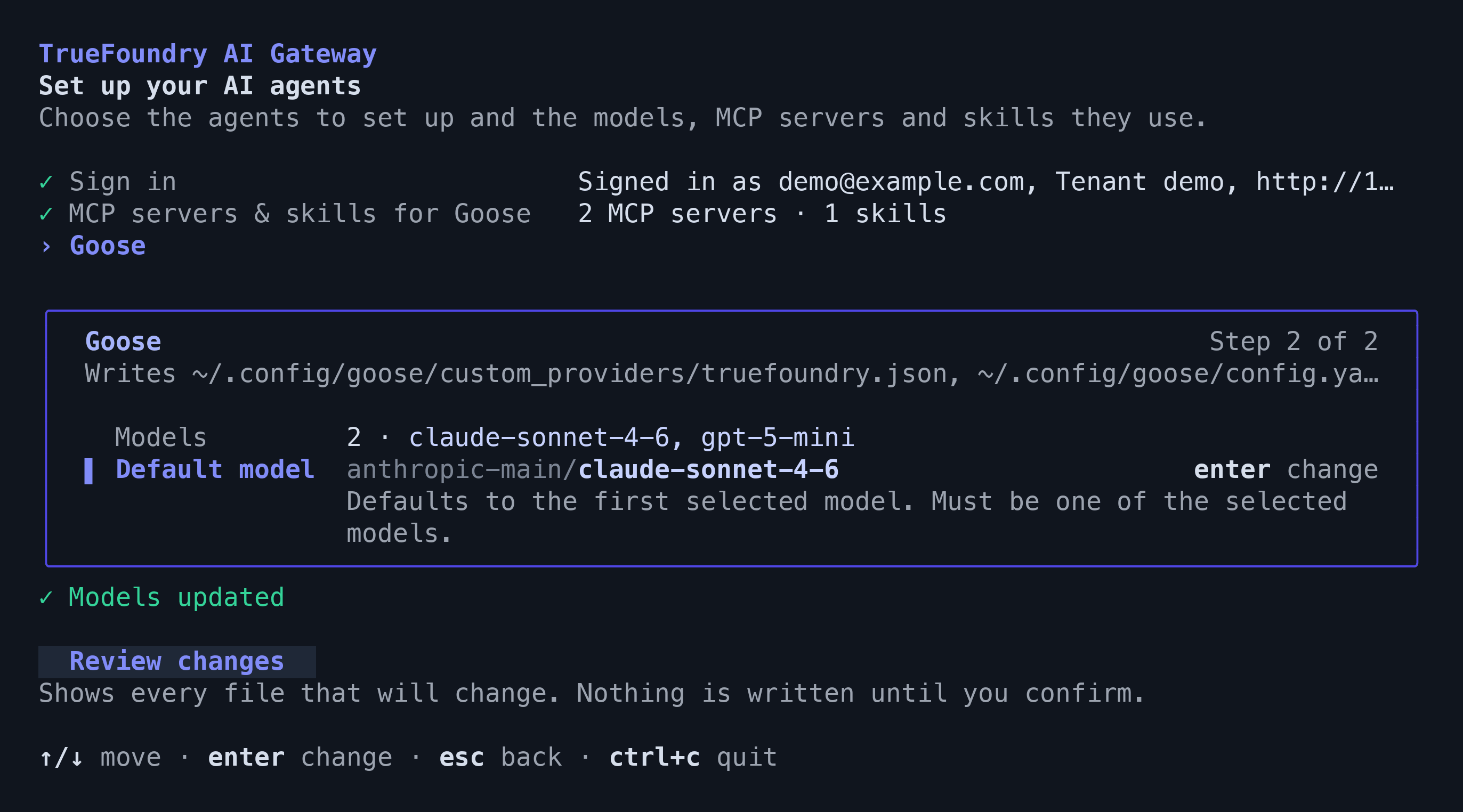
Example model settings for Goose; use your organization's model IDs.
Open Goose
Open a new terminal and launch Goose normally. Goose reads$TFY_AGENT_TOKEN from the shell it starts in, so if you use Goose Desktop, start it from the new terminal too; otherwise it won’t have the token. Follow any remaining actions in the completion summary. If you selected MCP servers, check their connection status inside the agent and complete any sign-in prompts.
Verify the connection
Select your configured model in a new conversation and ask:Reply exactly TFY-CHAT-OK. Do not use tools. Confirm that a response arrives without an authentication or model error. Then verify the request in the gateway.
For manual configuration and advanced options, see the Goose integration guide.