Proxy CoreWeave models (via W&B Inference) through TrueFoundry’s AI Gateway using Custom Endpoints.
CoreWeave exposes models through W&B Inference, which provides an OpenAI-compatible API. Because CoreWeave is not a first-class provider in the AI Gateway, you connect it using Custom Endpoints — the AI Gateway acts as a transparent proxy that forwards your requests to W&B Inference while keeping the upstream credential configured once in the AI Gateway.This gives your teams centralized authentication, access control, and tracing: clients call the AI Gateway with a single TrueFoundry API key and never see the upstream W&B key.
Before you start, get a W&B API key — this is the upstream credential the AI Gateway will inject on every request.
1
Create a W&B API key
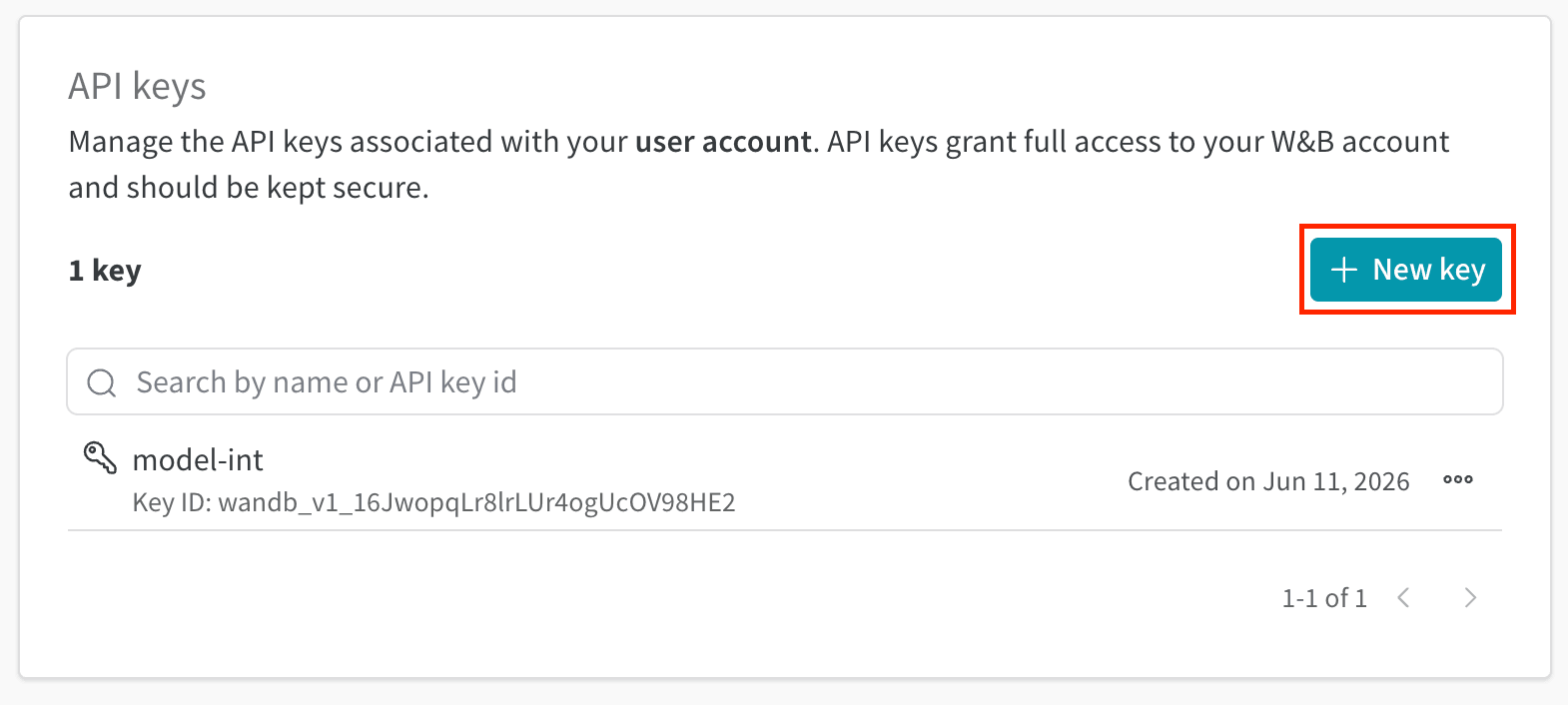
Go to your W&B settings page at wandb.ai/settings and open the API keys section under your user account. Click + New key to create a key, then copy it.
W&B settings — create a new API key
This key is stored as the upstream credential in TrueFoundry (Step 2 below). Clients calling the AI Gateway never see it.
This section walks through registering CoreWeave (W&B Inference) as a Custom Endpoint and configuring access control.
1
Navigate to Custom Endpoints
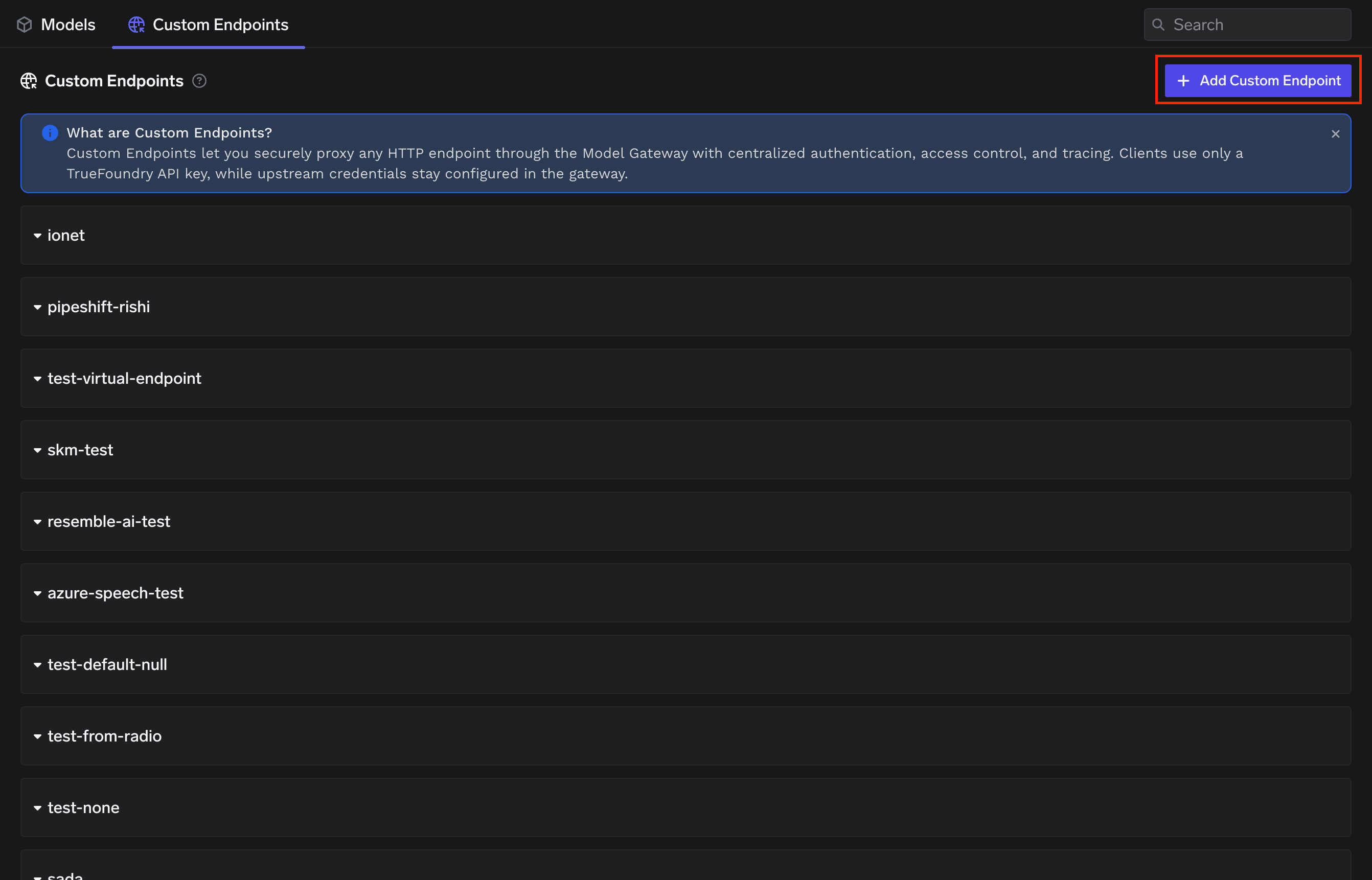
From the TrueFoundry dashboard, go to AI Gateway → Models, open the Custom Endpoints tab, and click + Add Custom Endpoint.
AI Gateway — Models — Custom Endpoints tab
Custom Endpoints let you securely proxy any HTTP endpoint through the Model Gateway with centralized authentication, access control, and tracing. Clients use only a TrueFoundry API key, while upstream credentials stay configured in the AI Gateway.
2
Step 1 — Configure Account
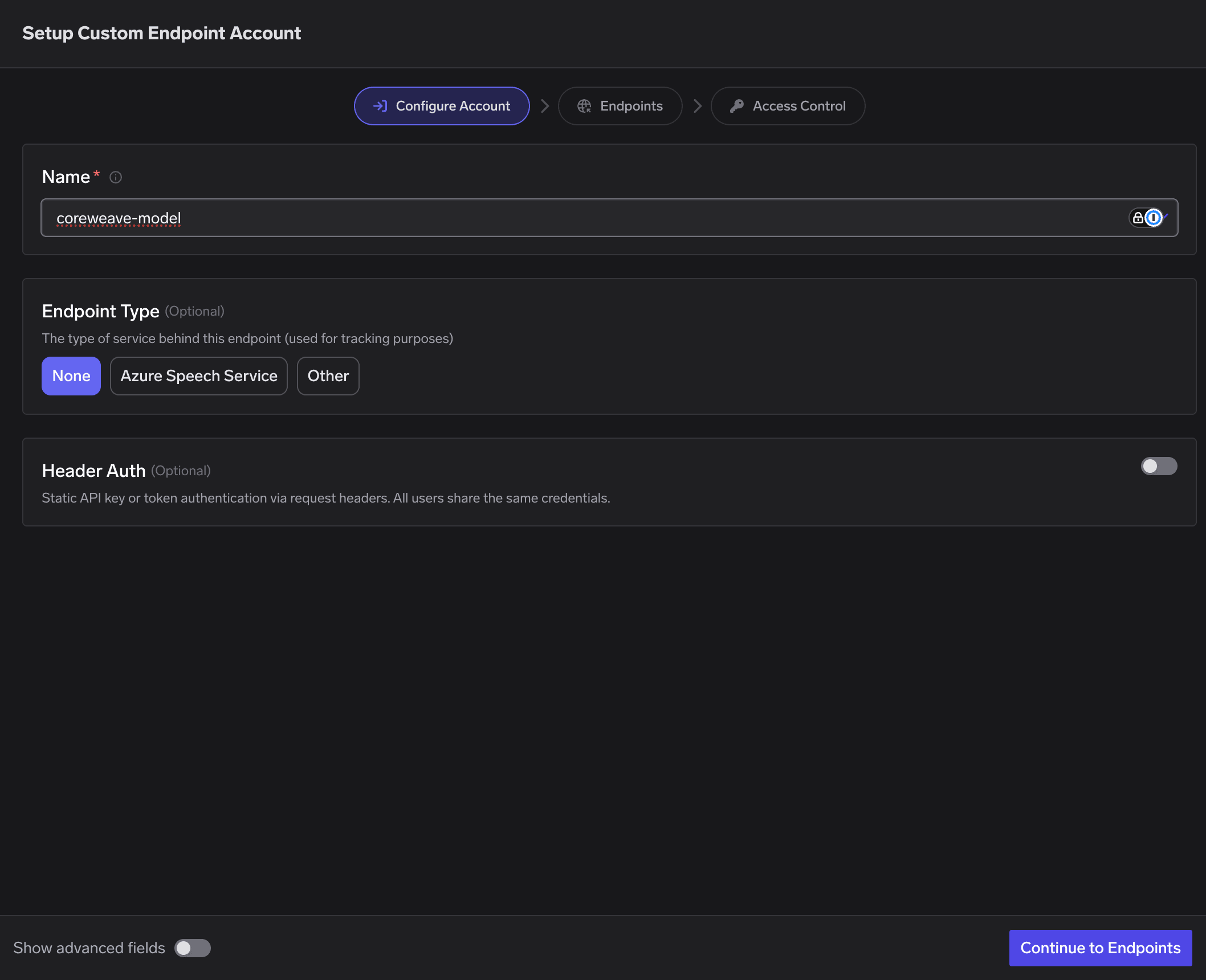
In the Configure Account step of the wizard, set:
Name: coreweave-model — this becomes the providerAccountName segment in your proxy URL.
Endpoint Type: None.
Header Auth: leave OFF — upstream auth is configured at the integration level in the next step.
Click Continue to Endpoints.
Step 1 — Configure Account
3
Step 2 — Configure the Endpoint Integration
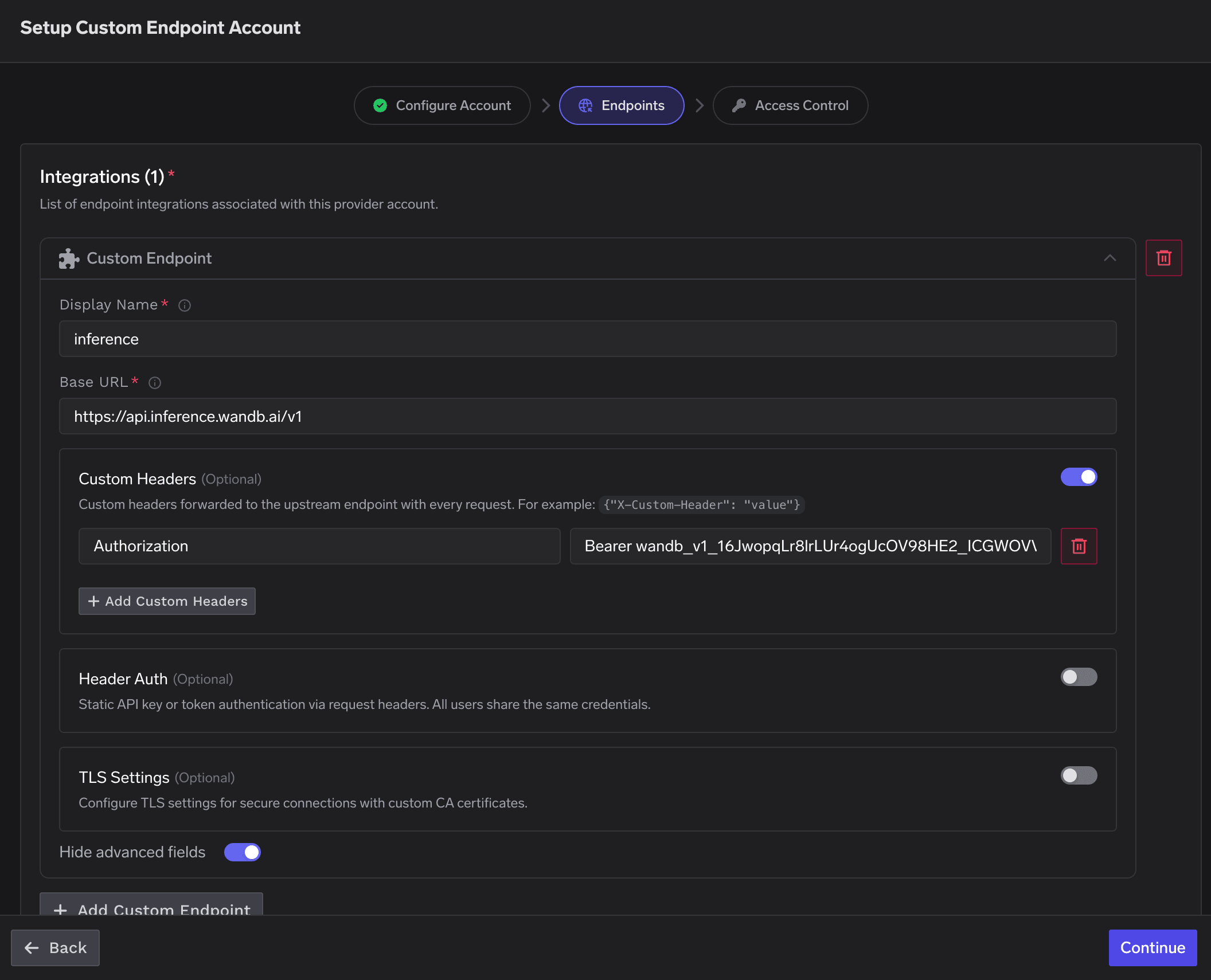
On the Endpoints step, add one Custom Endpoint integration:
Display Name: inference — this becomes the endpointName segment in your proxy URL.
Base URL: https://api.inference.wandb.ai/v1 — the W&B Inference API base. Do not add a trailing slash.
Custom Headers: toggle ON and add the W&B API key as a bearer token:
Header name
Header value
Authorization
Bearer <YOUR-WANDB-API-KEY>
Header Auth and TLS Settings: leave OFF.
Click Continue.
Step 2 — Endpoint integration with Base URL and Custom Headers
Put the W&B API key in Custom Headers (Authorization: Bearer <key>), not in Header Auth. The AI Gateway injects these custom headers on every upstream request.
4
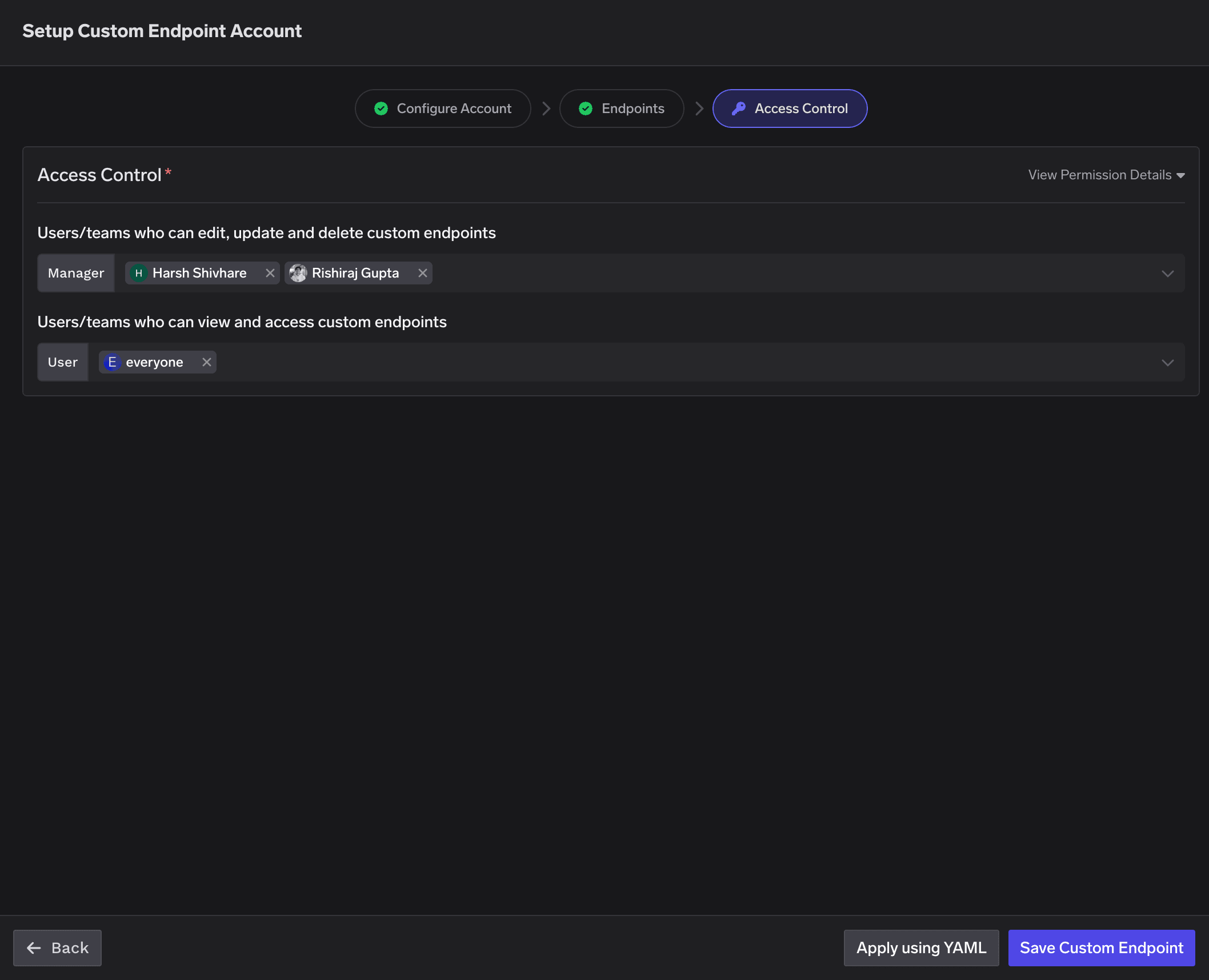
Step 3 — Access Control
Configure who can manage and use this endpoint. For example:
Manager (can edit, update, delete): the owning team members.
User (can view and access): everyone, or a specific set of teams.
Learn more in Gateway access control. Click Save Custom Endpoint to finish (or Apply using YAML to save via a manifest).
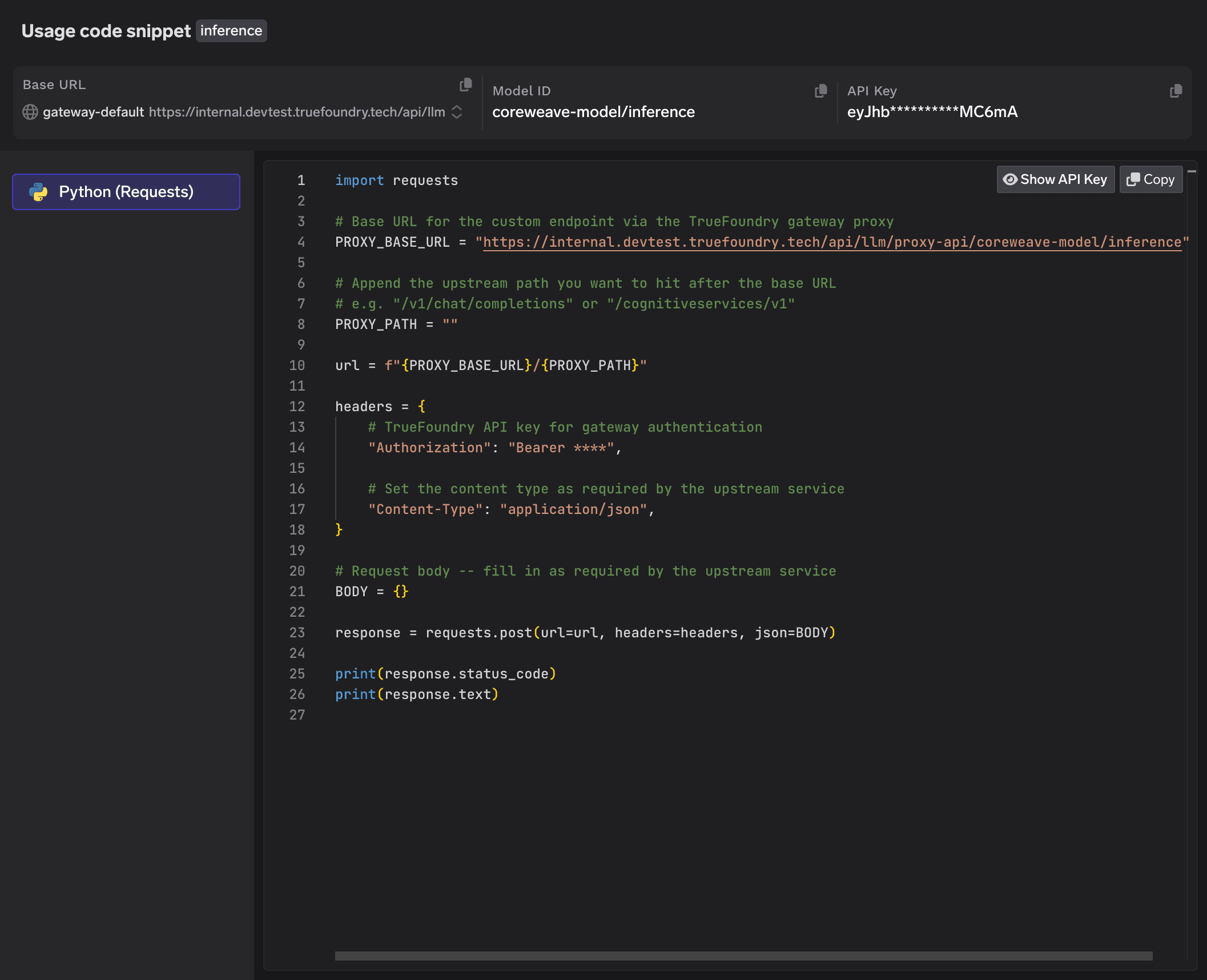
After saving, TrueFoundry shows a Usage code snippet modal for the inference endpoint with the Base URL, Model ID, and a TrueFoundry API key.
Usage code snippet for the CoreWeave custom endpoint
The AI Gateway is a transparent proxy, so you call it like the W&B Inference (OpenAI-compatible) API — append the upstream path (chat/completions) to the proxy base URL yourself.
The default code snippet has PROXY_PATH = "". You must append the upstream path — for chat, that is chat/completions — so the full URL becomes:{GATEWAY_BASE_URL}/proxy-api/coreweave-model/inference/chat/completions
providerAccountName (coreweave-model) and endpointName (inference) must match exactly what you set in the wizard. For more on the proxy URL, authentication, and configuration fields, see Custom Endpoints.
Was this page helpful?
Assistant
Responses are generated using AI and may contain mistakes.